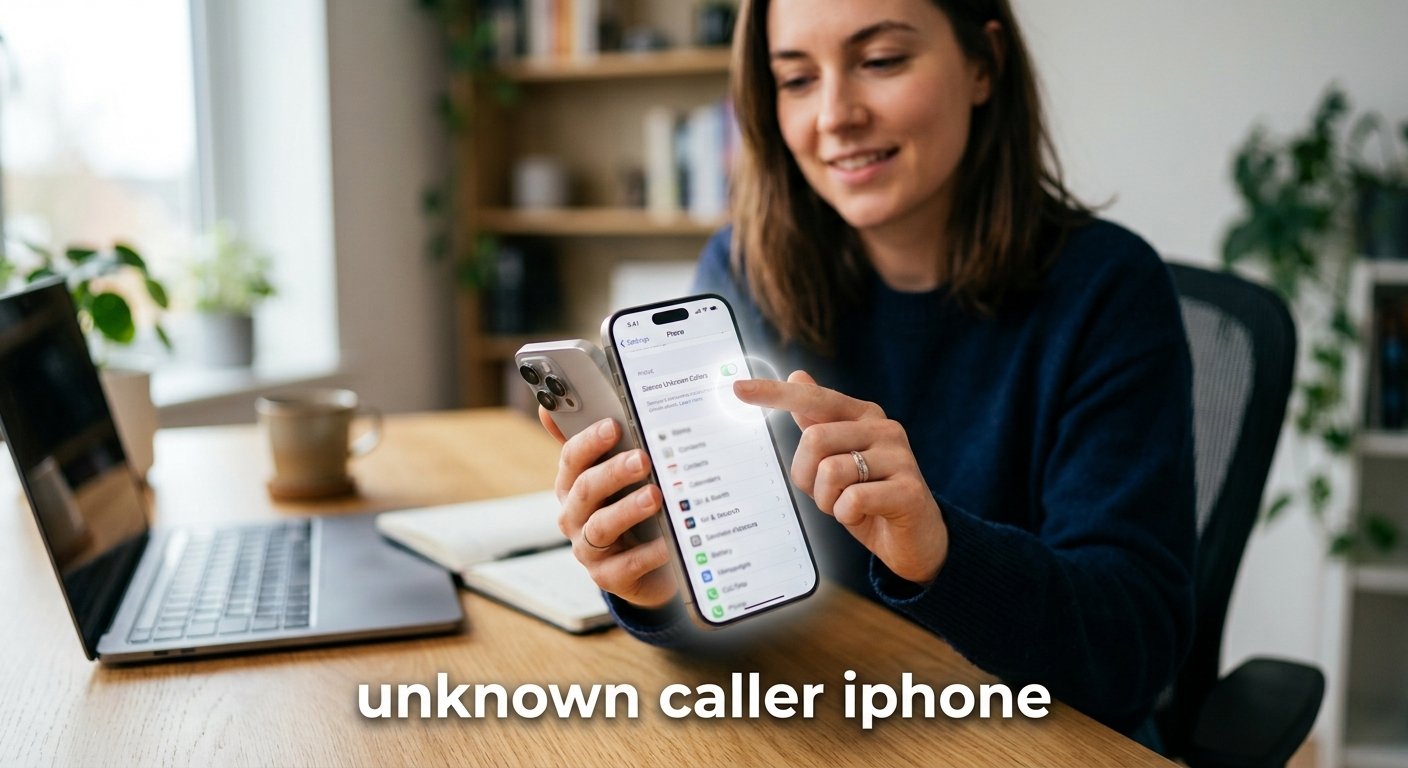
To silence unknown callers on an iPhone, go to Settings > Apps > Phone, tap “Screen Unknown Callers,” and choose “Silence.” Calls from unsaved numbers will be silenced and sent to voicemail, while the call still appears in your Recents list. On some iOS versions, the option may appear as “Silence Unknown Callers.” This can help reduce spam and unwanted calls without blocking the numbers completely.
When you’re stuck with an unknown caller iPhone problem, it can be frustrating, particularly when your iPhone appears to be blocking out individuals you truly want to hear from. It’s essential to keep these settings in check to prevent privacy breaches and ensure you don’t miss out on crucial messages. If you’re trying to block unwanted telemarketing calls or find out who’s calling from a private number, knowing how your iOS device responds to these signals is the first step to a smooth experience. These inbuilt controls give you the power to filter your digital environment and take control of your device usage.
Understanding the Silence Unknown Callers Feature
Silence unknown callers is a great feature that helps users avoid spam, scams and unwanted calls. If this setting is on, then any phone number that is not in your contacts, recent outgoing calls list or Siri Suggestions will be muted. The caller is added to your recent calls list and the call is routed straight to your voicemail, rather than your phone ringing. This will not interrupt your day, and will give you a record of the attempt.
One should understand the rationale behind this function. This is designed by Apple to give preference to known connections. Research into digital wellbeing shows that people who use automated call filtering tend to feel less stressed at work when they don’t have to deal with intrusive telemarketing calls. This basic toggle is a sort of gatekeeper, letting only trusted or familiar entities pierce the silence and warn you of their presence.
How to Silence Unknown Callers on iPhone
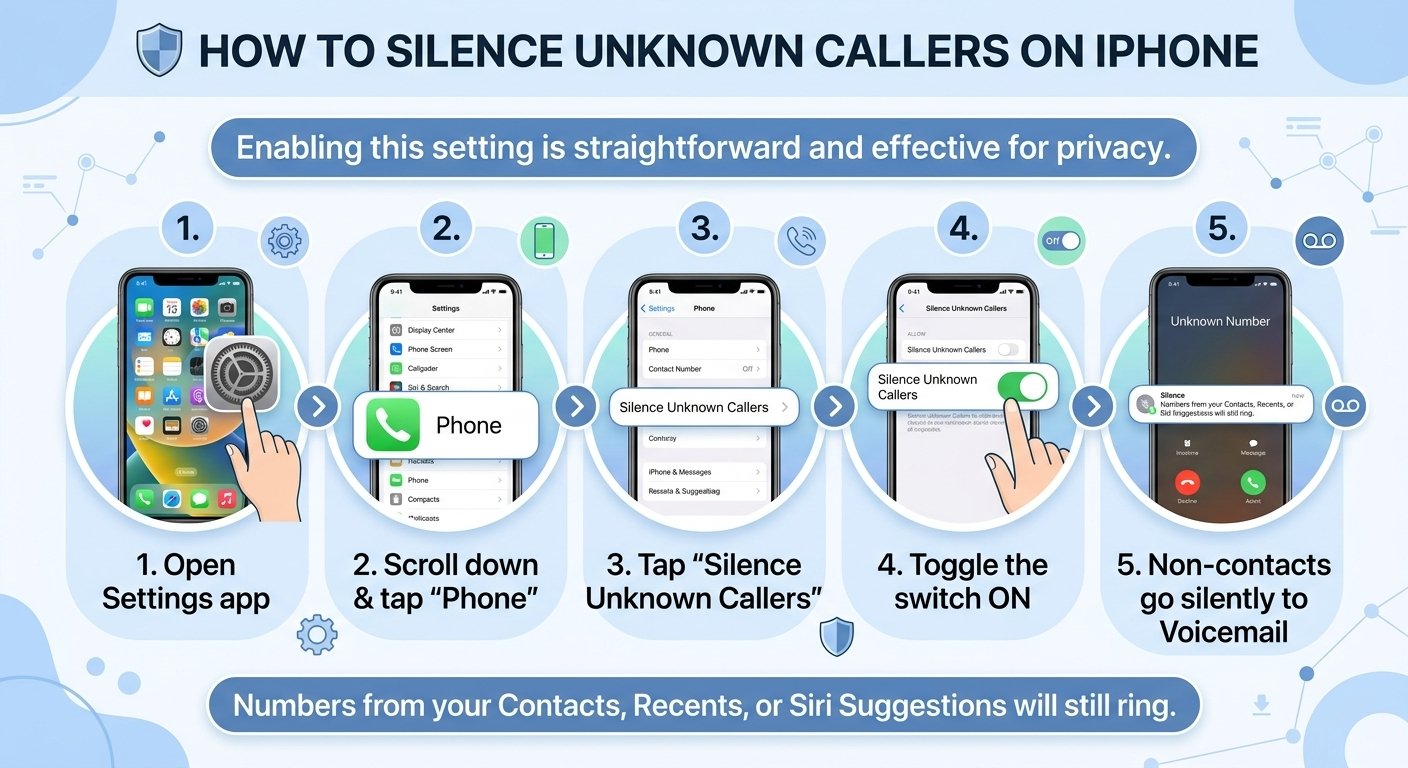
It is very easy to enable this setting, and can be done in only a few seconds. When you’re getting too many calls from unknown numbers, this is the best way to protect your privacy. To enable the protection, do the following:
-
Open the Settings app on your iPhone.
-
Scroll down and tap on Phone.
-
Look for the option labeled Silence Unknown Callers.
-
Toggle the switch to the On position.
When activated, your iPhone will silently check your contacts. If not saved, it will not ring. This is especially helpful if you get a lot of spam emails. Keep in mind that this will not prevent the caller from leaving a voice mail message, it will just prevent the device from notifying you until you’re ready to see what you missed.
How to Turn Off Silence Unknown Callers
If you are not receiving essential messages from doctors, delivery people or new business contacts, you might want to turn it off. Just as with privacy, managing your accessibility is important. To disable the setting, do the following:
-
Navigate to your Settings app.
-
Select the Phone menu.
-
Find the Silence Unknown Callers option.
-
Switch the toggle to the Off position.
This will restore your phone to its normal state and cause it to ring for any incoming call, whether or not the number is in your contacts. This is frequently suggested when you’re expecting a call from a service provider or a company that has a central, non-listed phone line. When making these adjustments, keep in mind what you need to communicate now and don’t end up missing out on important information.
Managing Call Screening and Message Filtering
Modern versions of iOS have more sophisticated methods of controlling data from unknown sources than just blocking calls. You can set your voice call and text message preferences to make them more organized. These tools can help you filter spam without missing out on important information.
| Feature | Location | Purpose |
| Silence Unknown Callers | Settings > Phone | Automatically route unknown numbers to voicemail. |
| Filter Unknown Senders | Settings > Messages | Separate messages from non-contacts into a different list. |
| Show My Caller ID | Settings > Phone | Control if your identity is visible when you call others. |
To effectively screen messages, go to Settings and select Messages. Then, you can enable Filter Unknown Senders. This will help you to keep your main feed clean and tidy, as it will separate texts from people who are not in your contacts into a separate tab.
How to Make and Manage Unknown Calls
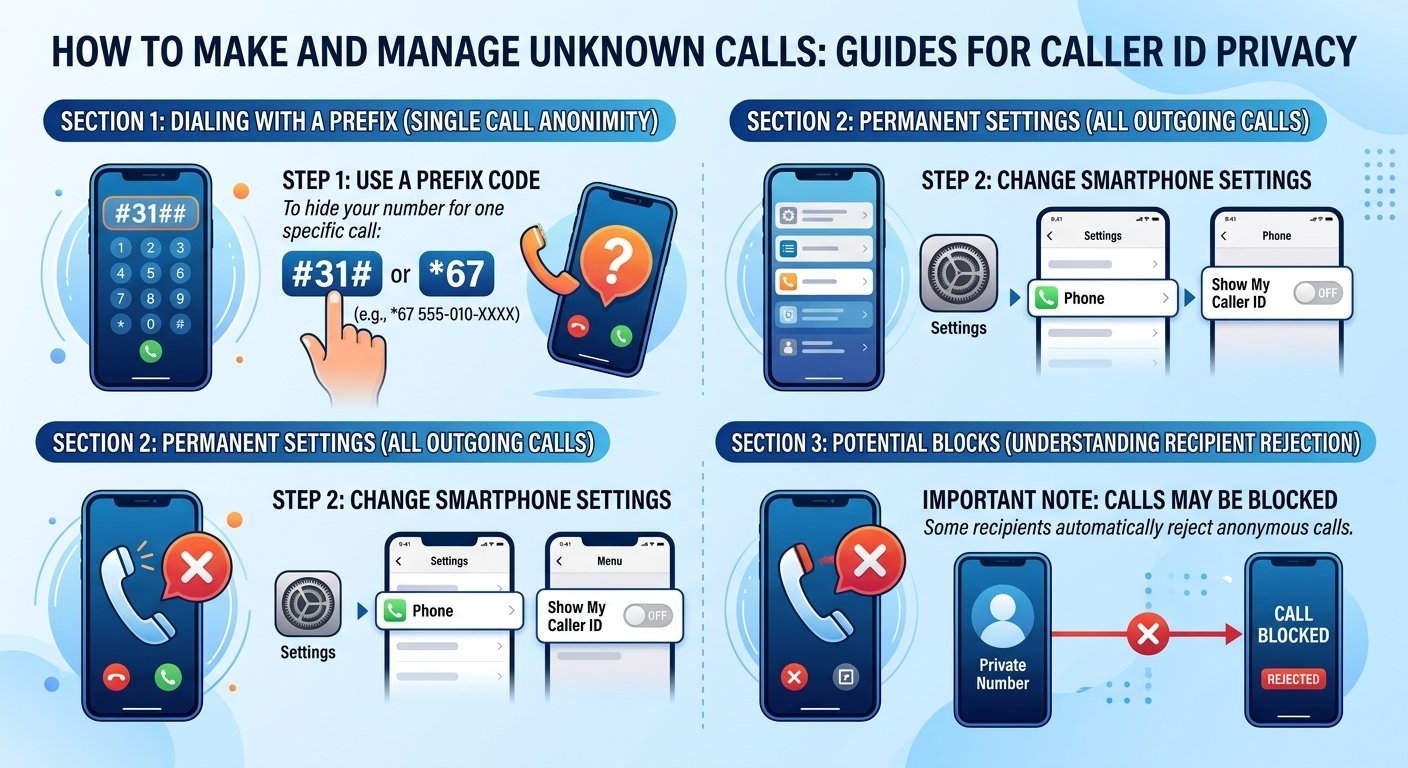
In some cases, it may be desirable to conceal your identity during a particular call. There are ways to do this safely, even if you’re calling a business or a service that you don’t want your personal number to be revealed. The best way to do this is to dial the number preceded by a prefix code.
-
Dialing with a Prefix: Before entering the phone number, type #31# or *67. This instructs the network to suppress your Caller ID for that specific session.
-
Permanent Settings: If you wish to hide your number for all outgoing calls, go to Settings > Phone > Show My Caller ID and turn the switch off.
Please note that some recipients have their own systems configured to automatically reject calls from private or hidden numbers. If your call fails, it probably means that the recipient’s carrier or phone settings are preventing anonymous calls. Before using these methods to make sure your recipient is receptive, always make sure they are willing to accept private calls.
Read More: Network Interface Device: Key Concepts and Importance Explained
What Happens When You Silence Unknown Callers on iPhone?
When you choose Silence for unknown callers, your iPhone does not ring normally when an unrecognized number calls. Instead, the call is silenced and sent to voicemail, and you can still find it later in your recent calls.
This is different from permanently blocking a phone number. A silenced caller can still attempt to contact you and may be able to leave a voicemail. You can review the call later and add the number to your contacts if it belongs to someone you know.
Keep in mind that legitimate calls can also come from numbers you haven’t saved. Doctors’ offices, delivery drivers, new customers and service providers are common examples. If you’re expecting an important call, screening unknown callers may be more suitable than automatically silencing all of them.
How to Screen Unknown Callers on iPhone
Newer versions of iOS provide a Call Screening option that gives you more control over unfamiliar calls. Instead of immediately silencing an unknown number, your iPhone can ask the caller for their name and reason for calling before your phone rings.
Go to:
Settings > Apps > Phone > Screen Unknown Callers > Ask Reason for Calling
When an unknown caller responds, you can use that information to decide whether you want to answer.
This can be a useful alternative to silencing every unknown caller, particularly if you regularly receive legitimate calls from businesses, delivery services or people who aren’t yet in your contacts.
Silence vs Screen Unknown Callers: What’s the Difference?
Silencing and screening unknown callers are designed to reduce unwanted interruptions, but they work differently.
Silence prevents eligible unknown calls from ringing and sends them to voicemail. Ask Reason for Calling, on the other hand, screens the caller first by asking who they are and why they’re calling.
Screening may be the better choice if you want protection from unwanted calls without automatically missing every unfamiliar number. Silencing is more suitable when you simply don’t want unknown calls interrupting you.
On current iPhone software, these controls can be found under Settings > Apps > Phone > Screen Unknown Callers.
Does Silence Unknown Callers Block Calls?
No. Silencing an unknown caller is not the same as blocking the caller. When an eligible unknown call is silenced, your iPhone can send it to voicemail and keep a record of the call so you can review it later.
Blocking is more restrictive. If you identify a particular number as unwanted, you can block that specific caller rather than silencing all unfamiliar numbers.
This distinction is important because Silence Unknown Callers can affect legitimate callers whose numbers aren’t saved in your contacts.
Why Is My iPhone Silencing Calls From People I Know?
Your iPhone may silence a legitimate call if it does not recognize the incoming number. This can happen when someone calls from a new phone number, a business uses a different outgoing number, or the caller’s details aren’t saved correctly in your contacts.
First, check your recent calls to identify the number. If it belongs to someone you trust, save or update their contact information.
Also review Settings > Apps > Phone > Screen Unknown Callers. If Silence is selected and you’re missing important calls, consider changing the setting to Ask Reason for Calling or Never, depending on how you want unfamiliar calls handled.
How to Find Silenced Calls on iPhone
Silencing an unknown caller doesn’t necessarily make the call disappear. You can check the Phone app to review recent calls and determine whether an unfamiliar number tried to reach you.
Also check your voicemail for messages from callers who were silenced. If you recognize an important number, save it to your contacts to make it easier for your iPhone to recognize future calls.
This is worth checking regularly if you use aggressive unknown-call filtering, especially when you’re waiting for a call from a doctor, delivery company, recruiter or business.
Unknown Caller vs No Caller ID on iPhone
An unknown caller and No Caller ID aren’t necessarily the same thing.
An unknown caller may simply be calling from a number your iPhone doesn’t recognize or that isn’t stored in your contacts. With No Caller ID, the caller’s telephone number is generally being withheld or isn’t being presented to your phone.
This distinction matters when troubleshooting unwanted calls. If a visible number repeatedly calls you, you may be able to block that individual number. A hidden caller doesn’t provide the same visible number to block directly, so call-screening and carrier spam-protection features may be more useful.
Can Silence Unknown Callers Stop Spam Calls?
Silencing unknown callers can reduce interruptions from spam calls, but it doesn’t prevent scammers or telemarketers from attempting to call your number.
The main benefit is that eligible unfamiliar calls don’t interrupt you in the usual way. You can review your recent calls and voicemail afterward and decide whether a caller was legitimate.
For additional protection, iPhone can also use supported carrier identification and spam-filtering services. The availability of these features can depend on your carrier and region.
Should You Keep Silence Unknown Callers Turned On?
It depends on how you use your phone.
Keeping unknown callers silenced can be useful if you receive frequent spam calls and most legitimate callers are already saved in your contacts. However, it may not be ideal if you frequently receive important calls from unfamiliar numbers.
For example, you may want to reconsider silencing unknown callers while waiting for:
- A doctor’s office or hospital
- A delivery driver
- A job recruiter
- A new customer or client
- A repair or service company
- A school or other organization
If you want a middle ground, Ask Reason for Calling can be more useful because it screens unfamiliar callers rather than immediately silencing them.
How to Stop Spam Calls Without Silencing Every Unknown Caller
You don’t necessarily have to silence every unfamiliar number just to reduce spam.
On supported current iPhone software, you can select Ask Reason for Calling under Settings > Apps > Phone > Screen Unknown Callers. This allows an unfamiliar caller to identify themselves before your phone rings.
You can also block individual numbers that repeatedly bother you and check whether your mobile carrier provides spam-call identification or filtering.
Troubleshooting Silenced Unknown Calls
If you’re having problems with calls being blocked, or you think you’re getting too many blocked notifications, check your recent calls. In some cases, a contact might have updated their phone number and your phone is considering them an unknown number. To check whether a number is truly unknown, you can check your recent calls, as silenced calls will have a specific indicator or no contact information will be associated with them.
An interesting note is that when you dial 911 to the local authorities, the “silence unknown callers” feature is automatically turned off for 24 hours. This means that any subsequent contact with emergency services or other parties will be able to contact you without getting lost. This is an integral safety feature that is a crucial component of the iPhone design, and it’s clear that Apple is more concerned about keeping users safe than filtering aggressively.
Final Thoughts
In today’s day and age, spam calls are a thing of the past and it’s important to manage your iPhone settings to control incoming communications. You can learn how to switch on and off the silence unknown callers feature, which will allow you to maintain your day uninterrupted. At the same time, understanding how to disable these features guarantees you can be reached by the people and services that are most important to you. Regularly review your settings to ensure your communications needs are met. Maintaining an up-to-date contact list and knowing how to use these tools will make your mobile life better and give you peace of mind when using your mobile devices.
Frequently Asked Questions
-
What does unknown caller mean on an iPhone?
An unknown caller is an incoming call that does not display the caller’s identity on the phone’s screen, or the caller’s identity is not provided by the network, and is usually displayed as “No Caller ID” or “Private.
-
How do I find out who the unknown caller ID on iPhone is?
There is no built-in way to unmask hidden caller IDs on iOS for privacy and legal reasons, but it’s possible to find them with third-party spam identification apps or by looking at your carrier’s online call logs.
-
*Does 57 still work for tracking calls?
*The 57 code, which is a legacy system for call tracing, is generally no longer a reliable way for individual users to identify anonymous callers, as it requires coordination with law enforcement and your service provider.
-
How do I go unknown caller on an iPhone?
To display your number as unknown, call the number with #31# or disable “Show My Caller ID” in your phone’s main settings.
-
Can I unsilence calls on my iPhone?
Yes, you can easily turn off the “Silence Unknown Callers” setting in Settings > Phone and switch it off.
-
Why am I getting silenced unknown calls?
These calls are probably being made because your “Silence Unknown Callers” option is enabled and any number that is not stored in your contacts will be sent straight to voicemail.
-
How can I stop unknown callers on iPhone?
The best way to prevent unknown callers from calling you is to turn on the “Silence Unknown Callers” setting in your phone’s settings, which will block them from calling you.
-
Is there a way to screen unknown callers on iPhone?
Unlike some other platforms, iPhones don’t have a live “answer on my behalf” screening tool, but you can use the built-in silence feature or third-party call filtering apps to detect and block spam calls.