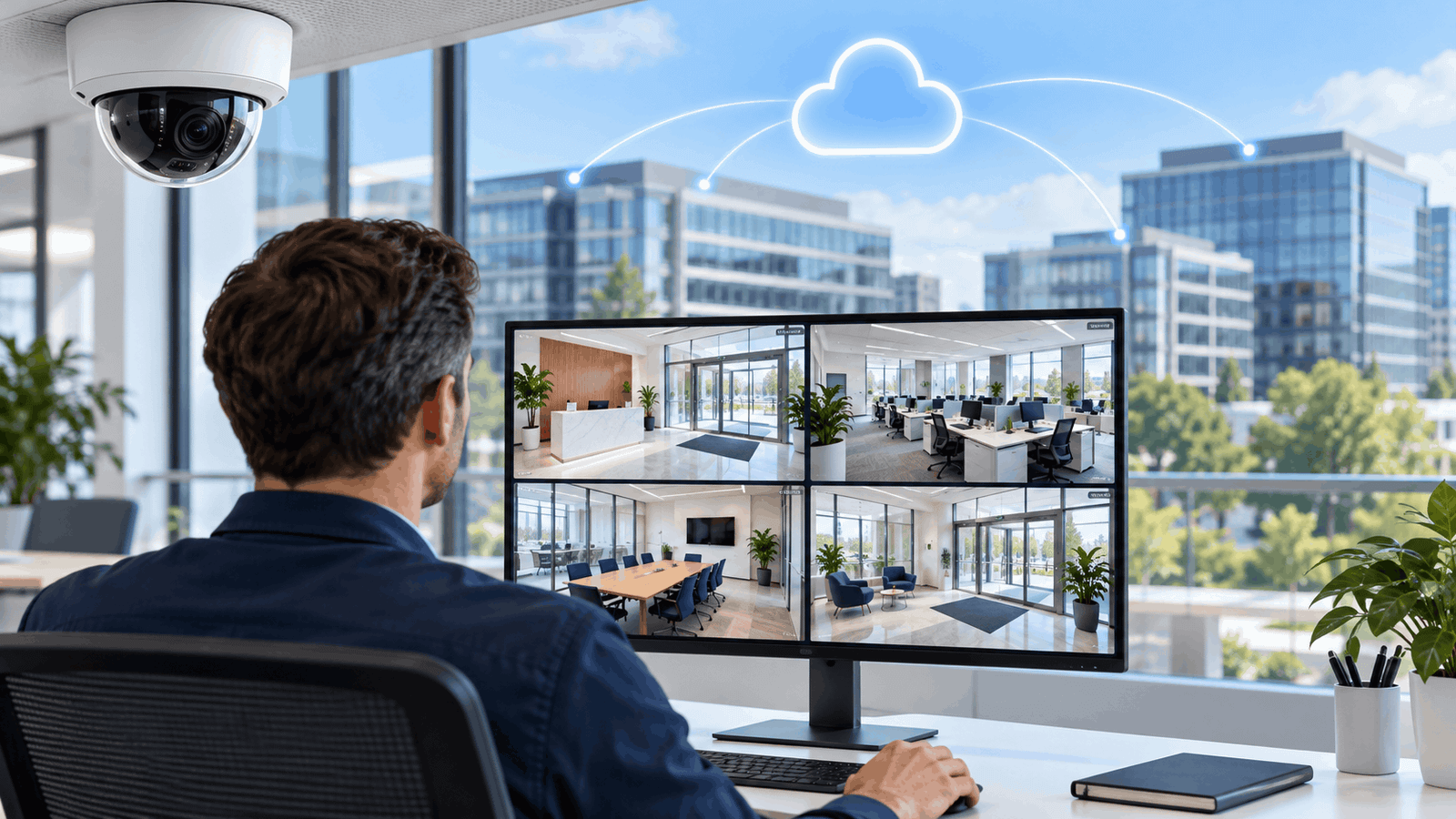
Managing security at one office is relatively straightforward. Managing five, 20, or 50 locations is a different challenge. Each site may have separate cameras, storage devices, internet connections, employees, and incident-response procedures. Without centralized management, security teams can spend too much time switching between systems or depending on local staff to retrieve footage.
Cloud security cameras for multiple locations help bring those separate environments into one management system. Authorized users can monitor offices remotely, review recordings, manage location-specific permissions, and add new sites through a shared platform. The exact capabilities depend on the cameras, recording architecture, and subscription.
For multi-office businesses, the main benefit of multi-site video surveillance is a more consistent way to oversee security across a growing organization.
How Multi-Site Cloud Video Surveillance Works
Cloud video surveillance for businesses connects cameras or local recording gateways to an online management platform. Users sign in through an authorized browser or app to access the locations and functions their permissions allow.
Cloud-managed does not always mean every recording is stored entirely online. Some systems upload continuous video, others upload selected events, and hybrid systems combine local recording with cloud storage or remote management. Understanding that distinction helps businesses evaluate storage, bandwidth, and outage behavior before choosing a system.
A typical workflow involves cameras capturing footage at each branch, a supported camera or gateway connecting to the platform, and authorized employees using a multi-site security camera dashboard to review activity. Recording retention and user access are configured according to business requirements and platform capabilities.
One Dashboard Can Replace Separate Site-by-Site Monitoring
Traditional office surveillance often develops one location at a time. A company opens its first office and installs cameras with a local recorder. When another office opens, another system is added. After several years, the business may have different recorders, storage settings, and login processes across multiple sites.
Centralized video surveillance can bring compatible locations into one interface. Instead of opening separate applications, a security manager can select a branch, camera group, or building from a shared dashboard.
For example, an owner could review entrances across five offices, an office manager could check deliveries at their branch, and a security team could investigate an after-hours alert at headquarters. Single dashboard security monitoring gives each person a practical view of the areas they are responsible for.
When evaluating multi-location security camera systems, check whether the dashboard also shows camera health, recording failures, and disconnected devices. Access to live video alone does not confirm that every camera is recording correctly.
Location-Specific Permissions Keep Access Controlled
Not every employee needs visibility into every office. Role-based access for security cameras allows businesses to match access to job responsibilities, where the platform supports sufficiently detailed controls.
| User | Appropriate Access Example | Practical Use |
| Business owner | Overview of authorized locations | Review alerts and oversee branch security remotely |
| Office manager | Cameras at their own office | Check deliveries or review a reported incident |
| Regional manager | Offices within their assigned region | Coordinate investigations across nearby branches |
| Corporate security team | Relevant sites and investigation tools | Review incidents and manage evidence |
| System administrator | Account and device settings as required | Maintain the platform without unnecessarily broad viewing rights |
Multi-site surveillance user permissions should distinguish between watching live feeds, reviewing recordings, exporting clips, and changing system settings. Where possible, restrict sensitive cameras separately and record administrative actions in audit logs.
Centralized security camera management also makes access reviews easier. When an employee leaves or changes roles, administrators can update their permissions through the central platform rather than checking numerous independent systems.
Cloud Storage Makes Video Easier to Manage Across Locations
Video retention becomes more complicated as the number of offices grows. If each office relies entirely on local hard drives, businesses must monitor capacity, replace failed hardware, and configure retention separately at every location.
Using cloud storage for security cameras can simplify parts of this process. Coram, for example, describes hybrid storage, configurable retention options, and AI-assisted video search in its published storage guide. Businesses should confirm which capabilities and retention periods are included in their proposed deployment and plan.
Different offices may need different policies. A headquarters with frequent incident investigations may require a different retention period from a small satellite office. Retention should reflect a documented business purpose and applicable requirements rather than keeping all recordings indefinitely.
Cloud video storage for security cameras can expand through additional storage or subscription capacity, but it is still subject to plan limits and cost. Ask whether retention applies to continuous video, event clips, local recordings, or cloud copies, and how saved evidence is handled after routine recordings expire.
Remote Access Speeds Up Incident Review
Consider a company operating offices in New York, Chicago, Dallas, and San Francisco. A laptop disappears from the Chicago office during the afternoon. With a separate local system, someone at that branch may need to find the recorder, search the timeline, export footage, and send it to the security team.
Remote security footage review can shorten that workflow. An authorized investigator can select the Chicago location, review the relevant time period, and examine footage without waiting for another employee to retrieve it.
Some platforms also let teams search video footage across locations using supported filters, event labels, or AI-assisted search. Availability and accuracy vary, so teams should verify search results against the actual footage.
Security camera video sharing deserves its own controls. Prefer supported sharing options with restricted recipients, expiration settings, and audit records where available. Preserve the original export and relevant timestamps when footage becomes evidence in a business security incident investigation.
Alerts and Analytics Help Teams Prioritize Events
Remote video monitoring for businesses becomes harder when staff must watch dozens of feeds continuously. Cloud security camera alerts can help direct attention to events that need review.
For example, an office might configure an alert for activity near an entrance outside working hours. Another location might need notifications when a camera disconnects or stops recording. Alert availability depends on the system and connected devices.
Multi-site video analytics can help teams filter events by location, time, or supported detection categories. AI video surveillance for businesses may reduce manual searching, but automated detections can miss events or generate false alerts. They should support human assessment and a clear response process.
Set business security camera motion alerts around each office’s hours, layout, and normal activity. Sending every notification to every manager can create alert fatigue. Route relevant alerts to the people responsible for that location and define who handles escalations.
Adding a New Office Becomes Simpler
Business growth should not require rebuilding the entire surveillance architecture. Traditional expansion can involve another recording server, additional storage planning, software configuration, and local maintenance.
Scalable business security camera systems allow supported new locations to join the same management environment. Businesses still need suitable cameras, networking, power, installation, and any required gateways or recorders, but they can reuse established administrative policies.
For example, a company expanding from five offices to 15 can apply consistent camera naming, permission groups, recording policies, and incident-review procedures. Adding office locations to cloud surveillance becomes more repeatable when teams use a standard deployment checklist.
Before rollout, verify camera placement, timestamps, retention settings, remote access, alerts, and recording recovery at each branch. A consistent interface reduces training effort, but each location still needs a working installation.
Internet Bandwidth and Outage Planning Matter
Cloud security camera bandwidth requirements depend on the recording architecture, camera count, bitrate, resolution, frame rate, compression, and upload schedule. A system uploading continuous footage has different demands from one that stores video locally and uploads selected clips.
For a simple planning example, eight cameras continuously uploading at an assumed 2 Mbps each would use approximately 16 Mbps of upstream capacity before overhead and other traffic. This is an illustration, not a recommended setting or a universal requirement. Ask the supplier to size the connection for the actual deployment.
Assess upload speed for business security cameras alongside video meetings, VoIP calls, backups, and other office applications. Leave capacity for simultaneous use and for any backlog uploaded after an outage.
When choosing the underlying connection, compare fiber vs cable internet for business with particular attention to upstream capacity and the combined workload at each office.
What Happens When an Office Loses Internet Access?
Cloud security cameras during internet outages behave differently depending on local storage and system design. A camera or hybrid recorder with configured local recording may continue capturing video while remote access and cloud uploads are interrupted. A device without sufficient local storage may leave gaps.
Confirm how much footage the local backup can hold, whether uploads resume automatically, and whether alerts report the connection failure. Local backup recording for cloud cameras also depends on power: cameras, switches, gateways, and recorders need electricity to operate.
Business surveillance internet failover may help restore connectivity through a secondary connection, while an appropriately sized UPS can support equipment during short power interruptions. Test both rather than assuming either guarantees uninterrupted recording.
For a broader connectivity checklist, see our guide to reliable business internet providers. Evaluate local support, recovery arrangements, and tested backup alongside the camera system’s own outage behavior.
Cloud Cameras Can Reduce Some Local Hardware Responsibilities
Local storage systems can work well, but relying entirely on equipment at each office introduces failure points. Hard drives fail, recorders require maintenance, and equipment can be damaged or stolen.
Cloud or hybrid architectures can keep selected footage away from the site where an incident occurs. However, only video successfully uploaded or replicated is protected by that off-site copy. Cloud management alone does not guarantee that every recording exists in the cloud.
Hybrid video surveillance can suit businesses that want local recording combined with remote administration and off-site storage. Confirm the coverage of the cloud copy and how footage can be recovered if local equipment is unavailable.
Cloud vs NVR vs Hybrid Video Surveillance
An NVR, or network video recorder, stores footage from network cameras. An NVR system may also support centralized remote management, so cloud vs NVR security cameras for business is not always a strict either-or choice.
| Approach | Recording and Management | Main Planning Consideration |
| Primarily cloud recording | Footage uploads to remote storage; local buffering varies | Upload capacity, subscriptions, retention, and outage behavior |
| Primarily local NVR recording | Video remains on local equipment; remote access may be supported | Recorder maintenance, capacity, secure connectivity, and backup |
| Hybrid video surveillance | Local recording combines with cloud management or storage | Which footage is stored where, synchronization, and recovery |
When comparing cloud vs traditional CCTV, focus on the actual deployment. Existing systems may already offer remote access, while cloud platforms may still require local appliances. The useful comparison is how each option handles your offices, users, evidence, and maintenance requirements.
Costs Should Be Compared Across the Full Deployment
Multi-location security camera system cost includes more than the monthly subscription. Camera purchases, installation, cabling, network switches, gateways, local storage, cloud retention, analytics, support, and connectivity can all affect the budget.
Cloud surveillance subscription pricing may be based on cameras, locations, storage, retention, or feature tiers. Ask what happens when you add a branch, increase retention, or need advanced search and export tools.
For a fair cloud vs on-premise surveillance costs comparison, request quotes using the same camera count, recording quality, retention period, and support needs. Compare the initial deployment and several years of recurring costs. Cloud surveillance can reduce some maintenance work, but it is not automatically the least expensive option.
Integrations Can Connect Video With Other Security Systems
Security cameras with access control integration can help investigators review video associated with a door event, where the products support that connection. For example, a team could examine footage around an after-hours access event instead of searching an entire evening manually.
Cloud video surveillance integrations may also connect supported alarms, identity providers, or incident-management tools. Confirm the exact products, supported functions, additional licensing, and permission controls before relying on an integration.
Existing IP cameras may be reusable through a compatible gateway or recorder. Verify model, firmware, video format, and feature compatibility with the supplier; support for basic video does not necessarily include audio, analytics, or device management.
Cybersecurity and Office Surveillance Privacy Still Matter
Moving management to the cloud does not remove security responsibilities. Cloud security camera cybersecurity depends on the platform, connected devices, network configuration, and how staff manage accounts.
Evaluate encryption in transit and at rest, multi-factor authentication, supported single sign-on, audit logs, firmware updates, and the process for removing access. Confirm how the provider handles data location, deletion, exports, and account closure. Encrypted cloud video storage is one control among several; secure remote camera access also requires sound authentication and permissions.
Office surveillance privacy should guide camera placement, access, and retention. Avoid unnecessary capture of private areas or sensitive screens. Review applicable notice, audio-recording, and employee privacy requirements for each location before deployment.
A Practical Rollout for Multiple Offices
Start with an inventory of cameras, recorders, internet connections, and current retention settings. Identify which offices need new equipment and which existing devices can be supported.
For smaller branches, our guide to internet for small offices provides a starting point for assessing the connection alongside calls, meetings, cloud tools, and surveillance uploads.
Then pilot the system at one representative location. Have the owner review the overview, the office manager test local access, and the security team carry out a sample investigation. Confirm that each role can perform its work with appropriate permissions.
Before expanding, test an internet interruption, a camera disconnection, footage export, and an access-removal workflow. Use the results to establish a standard configuration for security cameras for branch offices, with documented exceptions where a location needs different settings.
FAQs
How Do Cloud Security Cameras Help Manage Multiple Office Locations?
They can bring compatible cameras, recordings, permissions, and alerts into a shared platform. Authorized teams can monitor multiple offices remotely and review incidents without retrieving footage separately at every branch.
Can Businesses View Cameras From Different Offices in One Dashboard?
Yes, supported multi-site platforms can display cameras from different locations in one interface. Confirm site limits, device compatibility, and whether users can switch between locations without separate accounts.
Can Office Managers Access Security Footage Remotely?
Yes, when the platform supports remote access and administrators grant the required permissions. A manager can be restricted to their own office and, where supported, limited to specific cameras or actions.
How Much Does a Cloud Camera System for Multiple Locations Cost?
The total depends on cameras, installation, gateways, subscriptions, retention, analytics, and support. Request a quote for the complete deployment and compare recurring charges over the same period across suppliers.
How Much Upload Bandwidth Do Cloud Security Cameras Need?
There is no universal requirement. Calculate the combined upload bitrate for the selected cameras and recording mode, then allow for overhead, other office traffic, and possible upload backlogs. Confirm requirements with the supplier.
What Happens to Recordings When an Office Loses Internet Access?
Systems with suitable local storage may continue recording while cloud access or uploads pause. Continued recording and later synchronization depend on configuration, local capacity, equipment power, and platform design.
Can Businesses Give Different Camera Permissions to Different Managers?
Many business platforms support location-specific or role-based permissions. Check whether permissions separately control live viewing, playback, exports, and administrative settings.
How Long Can Security Footage Be Stored in the Cloud?
Retention depends on the provider, subscription, recording mode, and configured policy. Choose a period based on documented operational needs and applicable requirements, and confirm how important clips can be preserved separately.
Can Existing Security Cameras Connect to a Cloud Management System?
Some can connect through compatible gateways or recorders. Ask the provider to confirm support for the exact camera models and required features before purchasing or migrating.
What Security and Privacy Measures Should Businesses Evaluate?
Review authentication, encryption, user permissions, audit logs, updates, retention, deletion, and data handling. Also assess camera placement and the notice and privacy requirements relevant to each office.
How Does Cloud Surveillance Compare With an NVR System?
Cloud platforms emphasize online management and may provide remote storage. NVRs record locally and may also offer remote management. Hybrid systems combine these functions; compare actual storage, access, reliability, and costs.
Do Businesses Still Need Local Security Staff?
Remote access can reduce trips to retrieve footage, but it does not replace on-site response, emergency procedures, or staff responsibilities. Surveillance supports the wider security operation.
Conclusion
Cloud security cameras for multiple locations can help businesses manage distributed offices through centralized visibility, controlled remote access, consistent recording policies, and a repeatable process for adding branches.
The strongest benefits of multi-site video surveillance come from matching the system to real workflows: an owner needs oversight, an office manager needs appropriate local access, and a security team needs reliable incident review. Combine those capabilities with tested connectivity, sensible retention, and clear permissions to make everyday office security easier to manage.