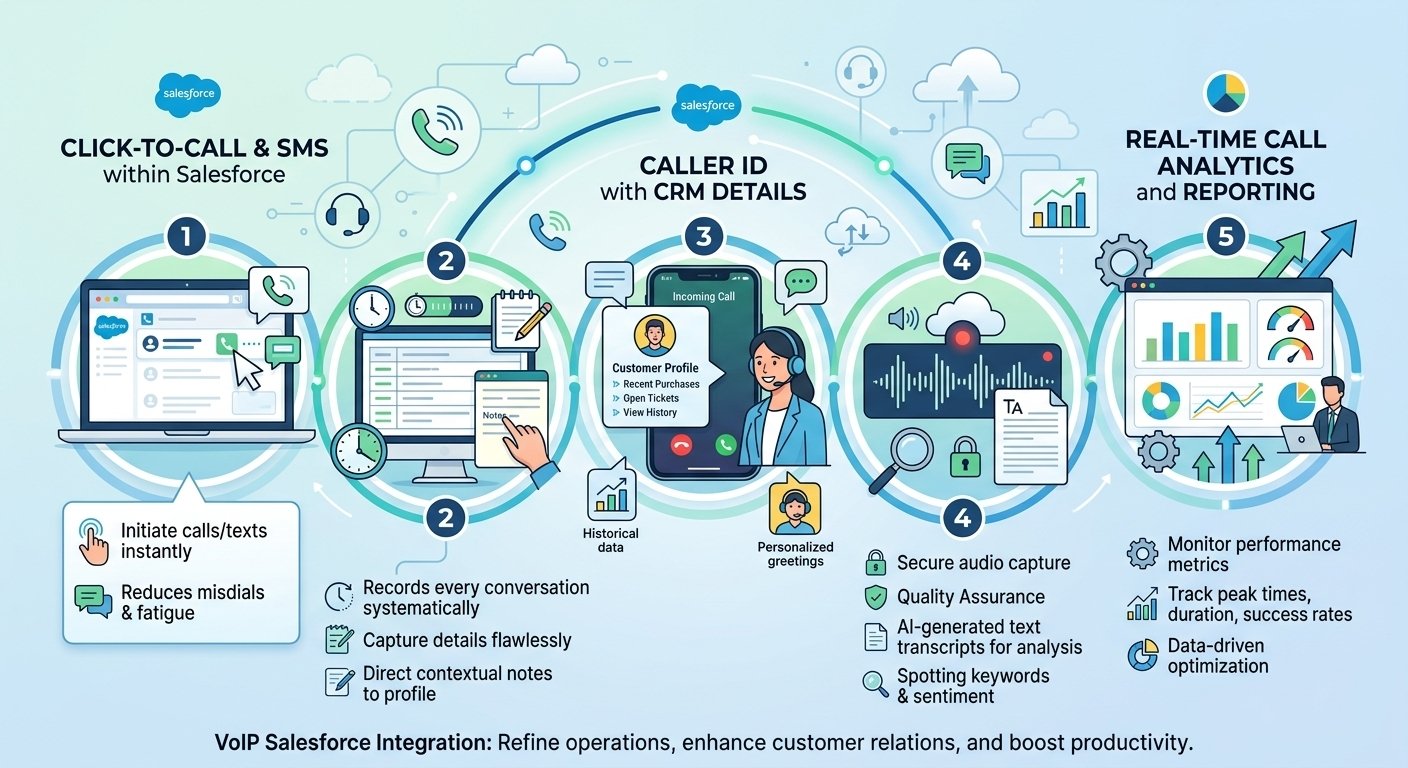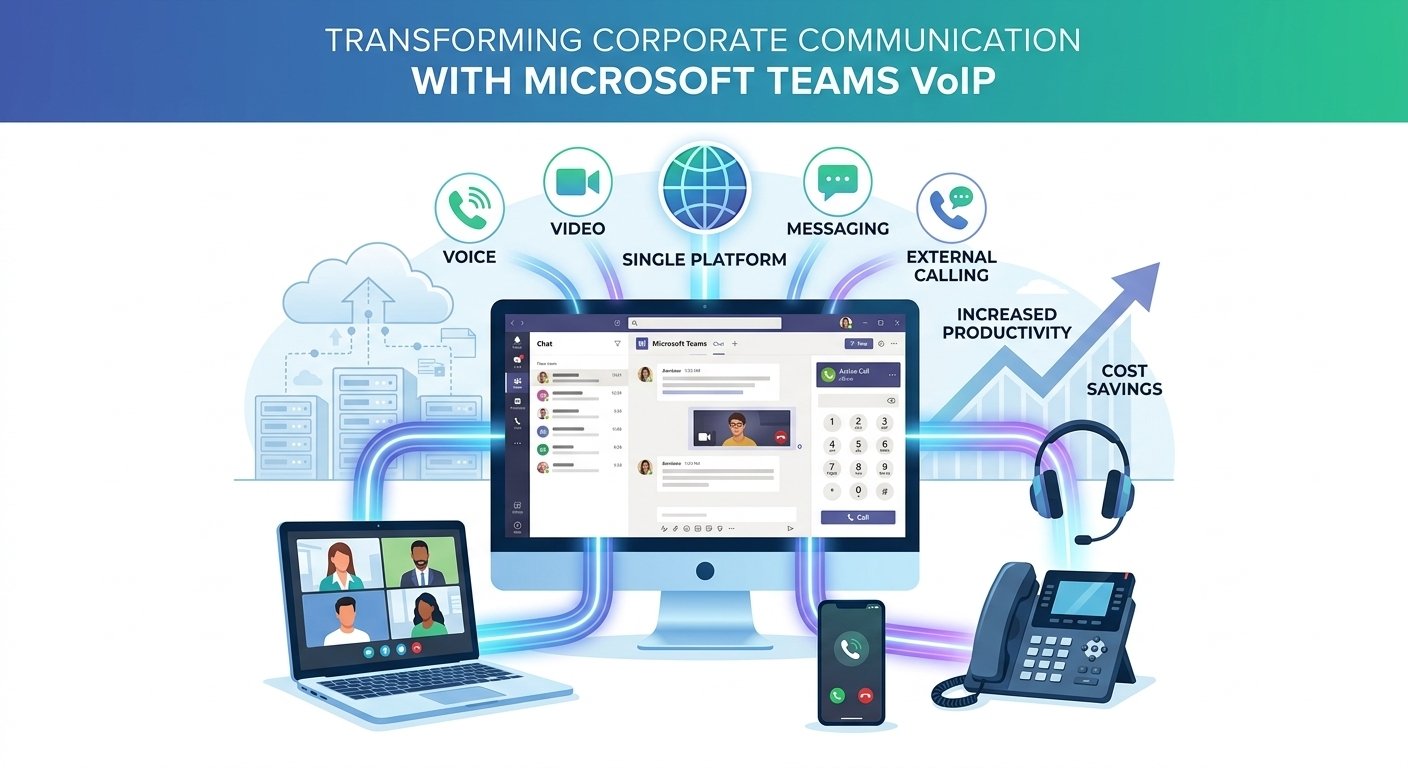


Latest News

The Blog

voip blogs
Best Auto Dialer Software for Call Centers

The Best 5+ Auto Dialer Software for Call Centers (2026)

The best auto dialer software for call centers should match the way your agents receive work, prepare for conversations, and record outcomes. RingCentral RingCX is a strong starting point for multiple contact-center dialing modes; JustCall suits sales teams evaluating shared campaigns; and Calilio is worth comparing for lower-cost bundled power dialing.This guide compares 6 call center dialer providers from our shortlist: RingCX, JustCall, CallHippo, Ringover, Calilio, and KrispCall. It focuses on outbound campaign control, agent availability, CRM handoffs, supervision, and total cost. A suitable choice for a small callback team can differ from the right platform for a large outbound operation. Article Outline Best Call Center Auto Dialers: Quick Comparison How We Compared These Call Center Dialers 1. RingCentral RingCX: Best for contact centers needing several dialing modes 2. JustCall: Best for sales call centers needing shared campaign options 3. CallHippo: Best for comparing power and parallel calling workflows 4. Ringover: Best for power-dialing teams that need supervisor coaching 5. Calilio: Best for smaller call centers prioritizing bundled power dialing 6. KrispCall: Best for growing teams combining power dialing with shared calling Which Dialer Fits Your Call Center Workflow? Essential Features To Check In Call Center Dialer Software How Much Does An Auto Dialer For A Call Center Cost? How To Test A Call Center Auto Dialer Before Buying Call Center Dialer Metrics That Matter Common Buying Mistakes To Avoid Frequently Asked Questions Customer Reviews: What Call Centers Should Validate Best Call Center Auto Dialers: Quick Comparison G2 scores below describe the named products, rather than a separately rated dialer module. Dollar prices are USD; annual rates are monthly equivalents. Confirm calling allowances, taxes, extra services, and the exact mode included before purchase. Customer Ratings From G2 Call Center Fit, Dialing Modes, And Relevant Plan Costs Provider Call Center Fit Dialing Modes Pricing & Trial RingCentral RingCXG2 Customer Rating:★★★★★★★★★★4.4/5 contact centers needing several dialing modes Manual, preview, progressive, and predictive; voice-broadcast option Request a RingCX quoteOutbound deploymentRingCX-specific demo; separate from RingEXReview RingCX Options JustCallG2 Customer Rating:★★★★★★★★★★4.3/5 sales call centers needing shared campaign options Power, dynamic, and predictive; shared campaigns depend on mode $49/user/monthPro · Billed annually · Minimum 2 licenses$69/user with monthly billing14-day trial; confirm enabled dialing modesStart 14-Day Free Trial CallHippoG2 Customer Rating:★★★★★★★★★★4.4/5 comparing power and parallel calling workflows Power and parallel options; progressive workflow also documented Request a dialer quoteConfirm region, currency and team sizeConfirm current trial accessCheck CallHippo Plans RingoverG2 Customer Rating:★★★★★★★★★★4.6/5 power-dialing teams that need supervisor coaching Power dialer with call-campaign tools $49/user/monthBusiness · 12-month commitmentMinimum 3 users7-day trial, with limitsStart 7-Day Free Trial CalilioG2 Customer Rating:★★★★★★★★★★4.7/5 smaller call centers prioritizing bundled power dialing Power dialer with dispositions and live monitoring $28/user/monthPremium · Billed annually$35/user with monthly billingConfirm evaluation accessCheck Calilio Premium KrispCallG2 Customer Rating:★★★★★★★★★★4.5/5 growing teams combining power dialing with shared calling Power dialer on Advance and higher relevant plans $32/user/monthAdvance · Billed annually$40/user with monthly billingDemo; no free trial currently advertisedCheck KrispCall Plans Choose the operational fit first: a multi-agent campaign needs clear ownership and availability controls. A low-cost power dialer may be sufficient for assigned callback lists, but it should not be treated as equivalent to a shared predictive campaign. How We Compared These Call Center Dialers We reviewed provider documentation, dialing workflows, relevant plan descriptions, and selected G2 customer reviews. Our selection emphasizes campaign organization, dialing behavior, supervision, CRM records, and buying limitations. We have not run a standardized hands-on performance test across all 6 systems. The recommendations identify who should evaluate each option. They do not establish a universal winner or guarantee a particular improvement in call volume, conversion, or staffing efficiency. For a technology overview, read how auto dialers work and how their modes differ. 1. RingCentral RingCX: Best for contact centers needing several dialing modes RingCX is our first shortlist choice for a contact center that needs several outbound modes and a broader customer-operations platform. Its outbound documentation describes list management and agent scripting alongside manual, preview, progressive, and predictive dialing. Use a preview workflow when agents need context before speaking; evaluate progressive or predictive modes when the campaign needs different pacing. The advantage for a manager is being able to assess those requirements within a contact-center deployment. Call Center Strengths Several documented outbound modes rather than only sequential dialing. List-management tools and scripts for structured campaign work. A contact-center environment to evaluate alongside inbound routing and administration. Best Fit: A staffed contact center with a manager responsible for campaigns, routing, integrations, and reporting. Limitations And Cost: Request a RingCX-specific outbound quote and demonstration. RingEX business-phone pricing does not establish the cost of RingCX dialers. Confirm how the quoted configuration handles agent availability, incoming calls, callback ownership, and after-call work. Demo Test: Give the vendor a scenario where agents take inbound calls while an outbound campaign is active. Ask it to demonstrate what happens when several recipients answer and one agent becomes unavailable. Read our RingCentral RingCX review for additional product context. Request a RingCX quoteOutbound deploymentRingCX-specific demo; separate from RingEXReview RingCX Options 2. JustCall: Best for sales call centers needing shared campaign options JustCall is a candidate for an outbound sales call center that wants both individual list calling and shared campaign workflows. Its campaign documentation makes a useful distinction: Power Dialer campaigns have one assigned agent, while dynamic and predictive campaigns can involve multiple agents. That matters when a team expects one central campaign to distribute work across several representatives. Confirm the appropriate campaign type before purchasing the lower-priced power-dialing package. Call Center Strengths CRM or CSV contact imports, scripts, and structured dispositions. Dynamic campaigns for shared one-at-a-time work and predictive options for simultaneous attempts. Campaign number selection, callback routing, and reattempt rules. Best Fit: Sales-led contact teams that need campaign calling tied to CRM outcomes and scheduled follow-up. Limitations And Cost: Power dialing is included on Pro at $49 per user monthly with annual billing and a two-license minimum. SalesPro requires a quote for dynamic/predictive requirements. Confirm the mode and allowances available in the 14-day trial and on the paid plan. Demo Test: Use a shared test campaign, complete a requested callback, and confirm which agent owns the next action. Verify that a completed or excluded contact does not return through another import. Read our JustCall review for additional product context. $49/user/monthPro · Billed annually · Minimum 2 licenses$69/user with monthly billing14-day trial; confirm enabled dialing modesStart 14-Day Free Trial 3. CallHippo: Best for comparing power and parallel calling workflows CallHippo is worth evaluating when a call center wants to compare several outbound workflows. Its help material covers reusable lists, power dialing, parallel dialing, and a documented progressive workflow. Its Lists module can provide a common starting point for campaigns instead of requiring a separate upload for each dialer. The practical question is how the selected mode allocates work and manages repeated attempts across the team. Call Center Strengths Reusable contact lists for supported dialing workflows. Power and parallel options for different pacing requirements. Campaign-management and attempt-handling tools to inspect during evaluation. Best Fit: Outbound teams prepared to compare modes and validate contact ownership, retry behavior, and reporting during a pilot. Limitations And Cost: Request a dialer-enabled proposal for your region, team size, and usage. A stable comparable price could not be verified from the retrieved pricing selector. Ask which modes, agent allocation rules, and reporting functions the proposed package includes. Demo Test: Upload a small controlled list, assign users or teams as supported, and follow each record through no answer, callback, completion, and exclusion. Ask how simultaneous live answers are handled. Request a dialer quoteConfirm region, currency and team sizeConfirm current trial accessCheck CallHippo Plans 4. Ringover: Best for power-dialing teams that need supervisor coaching Ringover is a candidate for call centers that want structured list calling with supervisor tools. Its campaign documentation describes creating a campaign, adding contacts, using scripts or tags, and enabling Power Dialer. This is especially relevant when managers need a repeatable process for coaching newer agents rather than simply increasing attempted calls. Its Business plan combines Power Dialer with advanced analytics and coaching capabilities. Call Center Strengths Call-campaign organization with scripts and tags. Power dialing for sequential outreach. Business-plan analytics and live coaching tools. Best Fit: Sales, recruiting, or service-follow-up teams that need both list calling and a supervisor-led coaching workflow. Limitations And Cost: Business displays $49 per user monthly with a 12-month commitment and a three-user minimum, excluding taxes. That is a $147 minimum monthly seat equivalent before extras. Check destination eligibility and dialer access during the advertised seven-day trial. Demo Test: Have a supervisor observe a call, review its outcome, and find it in campaign reporting. Check how agents complete notes before the next attempt. Read our Ringover review for additional product context. $49/user/monthBusiness · 12-month commitmentMinimum 3 users7-day trial, with limitsStart 7-Day Free Trial 5. Calilio: Best for smaller call centers prioritizing bundled power dialing Calilio is a budget-conscious option for a smaller call center whose main requirement is sequential outbound work. Premium combines its power dialer with dispositions and live monitoring, rather than requiring a separate standalone dialer purchase. Its documented approach works through an uploaded contact list one number after another. That can fit requested callbacks and prepared sales conversations, provided the team verifies the required list and CRM workflow. Call Center Strengths Premium power dialing and call dispositions. Supervisor tools including listening, whispering, and barge-in. IVR and business-hours features for wider phone operations. Best Fit: A small sales or support team seeking power dialing and monitoring at a lower published subscription price. Limitations And Cost: Premium is $28 per user monthly with annual billing or $35 on monthly billing. Usage, numbers, recording, and AI allowances need separate review. Do not assume a power dialer provides predictive pacing or every integration needed by a larger operation. Demo Test: Run the actual callback and disposition process, then verify its CRM handoff. Test the supervisor permissions and the cost of your destinations and recording requirements. Read our Calilio review for additional product context. $28/user/monthPremium · Billed annually$35/user with monthly billingConfirm evaluation accessCheck Calilio Premium 6. KrispCall: Best for growing teams combining power dialing with shared calling KrispCall is a candidate for growing customer-facing teams that want power dialing within a shared business-calling environment. Its documented sequential dialer is more relevant to one-at-a-time follow-up than to a requirement for predictive campaign pacing. Evaluate it when a common calling workspace and everyday phone management matter alongside outbound activity. Keep the conversation focused on how agents share records, avoid duplicate work, and hand off customer issues. Call Center Strengths Power Dialer on Advance, alongside recording and transfer features. A shared callbox and business-calling functions. Plan-dependent CRM integration and monitoring capabilities to match against your workflow. Best Fit: A growing sales or support operation evaluating sequential calling and a shared communication workspace. Limitations And Cost: Advance is $32 per user monthly with annual billing or $40 monthly, and is positioned for up to 50 users. Bundles and fair-use conditions apply. Its pricing page says there is no free trial; ask for a demonstration rather than treating a refund policy as one. Demo Test: Ask for a demonstration using several agents, the same contact list, and your required CRM. Check ownership, reporting, excluded records, and plan access before rollout. Read our KrispCall review for additional product context. $32/user/monthAdvance · Billed annually$40/user with monthly billingDemo; no free trial currently advertisedCheck KrispCall Plans Which Dialer Fits Your Call Center Workflow? Small Call Centers And Assigned Callback Lists For a small team working through requested callbacks, evaluate sequential dialing before adding simultaneous attempts. Calilio, KrispCall, Ringover, and JustCall provide relevant power-dialing options. Check whether each agent owns a separate list or shares a campaign, and whether completed tasks stop further attempts. A two-agent team and a ten-agent team can have similar dialing needs if each representative handles prepared conversations. Headcount alone should not determine the mode. Include supervisor licenses and minimum seats when comparing the subscription. Shared Sales And Appointment-Setting Campaigns For a central pool of eligible leads, request a demonstration of assignment, reservation, and duplicate prevention. JustCall documents shared dynamic and predictive campaigns; CallHippo provides several list-driven workflows to evaluate. Confirm whether a callback stays with the original agent or can be reassigned. For example, if two agents work the same customer at different times, the system should expose the previous outcome and agreed next step. Test the actual rules instead of assuming that a shared contact list guarantees coordinated outreach. High-Volume Outbound Call Centers Compare RingCX, JustCall SalesPro, and CallHippo’s relevant higher-volume configuration when your requirement includes predictive or simultaneous attempts. Ask how the system handles several people answering together, changes in agent availability, and breaks. Increasing concurrency can reduce waiting but can also create more live answers than the team can handle. Judge the mode against connection delay, completed conversations, and campaign quality. Vendor claims about maximum throughput are not a forecast for your contact list. Blended Inbound And Outbound Operations A blended call center shares staff or processes across incoming and outgoing work. Require a demonstration in which inbound demand rises while an outbound campaign is active. Check how availability changes, how campaigns are slowed or paused, and where returned calls go. RingCX is a logical candidate for a broader contact-center assessment, but the quoted configuration still needs to demonstrate your workflow. For the other platforms, verify the exact interaction between their dialer and inbound queues rather than assuming the two are automatically coordinated. Remote And Distributed Call Centers Test agents’ actual devices, headsets, and networks, plus browser or app support and sign-in controls. Give supervisors access to the information needed for coaching without unnecessarily exposing recordings or customer records. A cloud call center dialer can centralize access, but it does not remove local network problems or inconsistent agent practices. Include an interrupted connection and an agent signing out in the evaluation. Essential Features To Check In Call Center Dialer Software List and campaign ownership: Know who can import, assign, update, pause, and complete a record. Test duplicates and records appearing in several campaigns. Agent availability: Establish how breaks, inbound work, after-call notes, and offline agents affect new attempts. Retry and exclusion rules: Distinguish no answer, wrong number, completed work, callback requests, and opt-outs. CRM integration: Verify outcomes, notes, contact matching, assigned owners, and callback tasks in both systems. Supervisor controls: Test call monitoring, coaching access, permissions, and the reports required for quality review. Recordings and retention: Review call recording availability, access, export, retention, and any usage fees. Callback routing: Return calls to every campaign number, including outside staffed hours. Coverage and charging: Check number availability separately from calling destinations, agent access locations, and usage allowances. For Salesforce, HubSpot, or another CRM, ask for a demonstration using your actual record type and workflow. An integration badge does not show that every field, automation, or subscription tier supports the required function. How Much Does An Auto Dialer For A Call Center Cost? Compare the cost of the mode your operation needs. Published annual rates relevant to sequential dialing include Calilio Premium at $28 per user monthly, KrispCall Advance at $32, and JustCall Pro at $49. Ringover Business displays $49 with a 12-month commitment. A five-user subscription would therefore have a monthly equivalent of $140, $160, or $245 at those respective seat rates. These are subscription calculations only. Usage, number rental, selected features, taxes, and implementation can add to the total. For shared dynamic/predictive campaigns, ask for JustCall SalesPro terms rather than budgeting from Pro alone. Obtain a package-specific CallHippo quote and a scoped RingCX proposal for their relevant configurations. Request the license basis, minimum purchase, billing term, destination allowances, overage rules, recording costs, and integration responsibilities in writing. For overseas campaigns, our international calling comparison explains additional coverage considerations. How To Test A Call Center Auto Dialer Before Buying Give every shortlisted provider the same pilot brief. Use controlled numbers first, then a limited eligible campaign. Follow our auto dialer setup guide for the configuration sequence. Prepare representative records: Include the CRM fields, ownership, time zones, and exclusions your real campaigns need. Test contact outcomes: Cover live answer, voicemail, no answer, requested callback, wrong number, and completion. Change staffing: Pause an agent, end a shift, and add inbound work. Observe what the campaign actually does. Review customer experience: Listen for connection delay, unexpected silence, duplicate calls, and incorrect callbacks. Inspect the records: Compare the dialer’s result with the CRM note, owner, next task, and exclusion state. Check the budget: Reconcile the pilot’s billable activity with the quote before estimating a full rollout. A useful acceptance rule is that requested callbacks reach the correct queue or owner, completed records leave the active sequence, and exclusions survive reimports. Define your required behavior in advance and investigate every failure before increasing volume. Call Center Dialer Metrics That Matter Track attempts alongside human conversations per staffed hour, completed outcomes per conversation, callback completion, connection delay, and total cost per useful outcome. Record opt-outs and abandoned calls using the definitions appropriate to your operation and applicable requirements. As an illustrative example, one mode might produce 200 attempts and 20 useful conversations in an agent shift, while another produces 300 attempts and 18 useful conversations. The second has higher activity but fewer useful conversations. Neither figure proves the cause; inspect list quality, timing, pacing, and agent availability. Keep staffing and outcome definitions consistent. If one team counts booked appointments and another counts attended appointments, their reported cost per appointment cannot be compared directly. Also inspect whether faster pacing reduces note quality or follow-up completion. Common Buying Mistakes To Avoid Buying the wrong tier: A trial may expose a mode that the selected paid plan does not include. Confusing a dialer with a complete contact center: Check inbound routing, shared staffing, supervisor controls, and integration requirements separately. Assuming every power campaign is shared: The available assignment model differs across products and modes. Using one retry rule for every outcome: Completed work and opt-outs need different handling from unanswered attempts. Comparing seat rates without usage: The same subscription can create different bills for different routes and traffic. Scaling before verifying records: A synchronization or exclusion failure becomes more disruptive as campaign volume rises. Confirm the calling permissions, local-time controls, and recordkeeping required for the campaign before launch. Recording and automated-message features also need an appropriate operational process; a higher plan does not by itself establish compliance. Frequently Asked Questions What Is The Best Auto Dialer For An Outbound Call Center? Start with the campaign requirements. RingCX is a candidate for several contact-center dialing modes, JustCall for shared sales campaigns, and CallHippo for comparing list-driven workflows. Smaller teams should also compare the sequential options from Ringover, Calilio, and KrispCall. Can A Small Call Center Use A Power Dialer? Yes. Sequential dialing can suit prepared sales conversations and requested callbacks. Check campaign sharing, ownership, agent pause controls, and CRM updates before assuming that a power dialer fits the whole team. Are Predictive And Parallel Dialers The Same? Parallel describes simultaneous attempts; predictive describes dialing based on expected agent availability. A product may combine those behaviors or use different terminology. Ask how it determines pacing and handles additional live answers. Can These Platforms Handle Inbound And Outbound Calls? The shortlist includes phone and contact-center platforms, but the coordination between inbound work and outbound campaigns varies. Require a demonstration of agent availability, queue priority, and callback handling for your chosen package. Does Every Business Phone Plan Include An Auto Dialer? No. The required mode may need a higher plan or a separate quote. JustCall Pro includes power dialing, while advanced shared campaign requirements use SalesPro. RingCX must be assessed separately from RingEX phone plans. How Do I Compare Call Center Dialer Costs? Use the same number of required licenses, destinations, volume, recording needs, and integrations for every proposal. Add rollout costs and check the total commitment. Compare useful outcomes during a pilot alongside the software bill. Customer Reviews: What Call Centers Should Validate These selected G2 examples are paraphrased customer opinions about the named products. They provide evaluation questions rather than a performance guarantee. JustCall: CRM Setup And Service Readiness A June 9, 2026 review rated 4/5 praised centralized calling, SMS, and tracking while noting internet-dependent quality and higher-tier features. An April 8, 2026 review displayed 0/5: the reviewer liked Salesforce setup but reported disruption during additional account-verification checks. Complete verification and test the paid entitlements before a team rollout. KrispCall: Shared Work And Call Stability A May 5, 2026 G2 review rated 4.5/5 praised the IVR builder, shared callbox, and recording playback but reported early call-drop incidents. A February 4, 2026 review rated 4/5 praised setup and integrations while mentioning busy-hour lag and reporting limits. Test the actual workload and management reports. Calilio: Day-To-Day Tools And Number Capabilities A May 12, 2026 G2 review rated 5/5 praised the interface, routing, and analytics. An October 28, 2025 review displayed 0/5 and described a number-capability mismatch and refund dispute. Verify each required number capability and the applicable charges before moving a campaign. Affiliate Disclosure: VoIPCalling.com may earn a commission if you purchase through an affiliate link in this article, at no additional cost to you.
Read More
Auto Dialer Pricing

Auto Dialer Pricing (2026): Plans, Costs & Extra Fees

Auto dialer pricing includes more than the advertised software subscription. Your total cost can combine agent licenses, calling usage, telephone numbers, advanced dialing features, integrations, and implementation. The useful comparison is the cost of the dialing workflow your team will actually use.Among the verified dialer-enabled plans in this guide, annual-billing rates include Calilio Premium at $28, KrispCall Advance at $32, and JustCall Pro at $49 per user per month. Ringover Business displays $49 per user per month with a 12-month commitment. CallHippo and RingCX need package-specific confirmation for a comparable outbound budget. This 2026 auto dialer cost guide focuses on six providers from our business-phone shortlist. It explains the relevant plans, extra fees to investigate, pricing models, and a practical way to calculate monthly cost and cost per outcome. Article Outline Key Takeaways How Much Does Auto Dialer Software Cost? What Affects Auto Dialer Pricing? Auto Dialer Pricing Models Compared Extra Fees And Indirect Costs To Check How To Calculate Your Total Auto Dialer Cost Auto Dialer Plans For Different Business Needs How To Choose An Auto Dialer Software Provider Questions To Ask On An Auto Dialer Demo How To Avoid Overpaying When Should You Upgrade Your Auto Dialer Plan? Make Pricing Clarity Part Of Your Buying Decision Related Guides Frequently Asked Questions Customer Reviews: Costs To Validate During A Trial Key Takeaways Compare dialer-enabled plans: The lowest business-phone price may exclude the power or predictive dialer you need. Account for minimum seats: JustCall Pro has a two-license minimum; Ringover Business lists at least three users. Separate usage from licenses: Calling bundles have eligibility rules, and extra numbers, messaging, recording, or AI features can change the bill. Check the commitment: An annual rate expressed per month is different from a flexible monthly subscription. Measure outcomes: A higher subscription can still be worthwhile if a controlled pilot demonstrates lower total cost per useful outcome. How Much Does Auto Dialer Software Cost? For the published packages verified here, sequential power dialing starts at $28 per user per month with annual billing. That is a subscription entry point within this shortlist, not a universal market minimum or an all-inclusive calling price. Multiline and contact-center configurations need their own plan or quote. All prices below are in USD. Annual rates are monthly equivalents; taxes and unlisted extras are excluded. Customer ratings refer to the named G2 products, not specifically to a dialer feature or price guarantee. G2 Customer Ratings Included Below Auto Dialer Plans, Relevant Costs, And Extra-Fee Checks Provider Dialing Capability Costs To Confirm Pricing & Trial CalilioG2 Customer Rating:★★★★★★★★★★4.7/5 Power dialer, dispositions, and live monitoring Usage beyond bundles, additional numbers, recording/storage and AI allowances $28/user/monthPremium · Billed annually$35/user with monthly billingConfirm evaluation accessCheck Calilio Premium KrispCallG2 Customer Rating:★★★★★★★★★★4.5/5 Power dialer; Advance is positioned for up to 50 users Eligible routes and fair use; additional usage/numbers; transcript and summary add-ons $32/user/monthAdvance · Billed annually$40/user with monthly billingDemo; no free trial currently advertisedCheck KrispCall Plans JustCallG2 Customer Rating:★★★★★★★★★★4.3/5 Power dialer; SalesPro quote for dynamic/predictive requirements Selected calling routes, number bundles, automated SMS, and optional services $49/user/monthPro · Billed annually · Minimum 2 licenses$69/user with monthly billing14-day trial; confirm enabled dialing modesStart 14-Day Free Trial RingoverG2 Customer Rating:★★★★★★★★★★4.6/5 Power Dialer, advanced analytics, and coaching Taxes, destination exclusions, selected numbers, messaging and optional services $49/user/monthBusiness · 12-month commitmentMinimum 3 users7-day trial, with limitsStart 7-Day Free Trial CallHippoG2 Customer Rating:★★★★★★★★★★4.4/5 Power/parallel options; confirm the mode included in the quote Calling region, number type, usage, and package-specific extras Request a dialer quoteConfirm region, currency and team sizeConfirm current trial accessCheck CallHippo Plans RingCentral RingCXG2 Customer Rating:★★★★★★★★★★4.4/5 Preview, progressive, predictive, and voice broadcast Agent licensing, outbound destinations, usage, implementation and selected integrations Request a RingCX quoteOutbound deploymentRingCX-specific demo; separate from RingEXReview RingCX Options Why The Cheapest Phone Plan Can Give The Wrong Comparison Calilio‘s lower-priced Standard plan does not provide the same power-dialing package as Premium. KrispCall’s relevant tier is Advance, and JustCall’s published Pro tier includes power dialing. Comparing those products using only their lowest phone-plan prices understates the required software cost. For RingCX, request the contact-center configuration you intend to buy. A RingEX phone subscription or trial should not be used as the price of RingCX outbound dialing. CallHippo’s retrieved pricing selector depends on inputs such as region and team size; a dialer-enabled price could not be verified consistently enough to quote a fixed figure here. What Affects Auto Dialer Pricing? Number Of Users And Seats Check whether the contract charges for named users, purchased licenses, or simultaneous agent access. These are different units. Also ask whether supervisors, administrators, temporary staff, and inactive accounts require paid licenses. Minimum seats matter most for small teams. At the advertised annual rates, two JustCall Pro licenses equal $98 per month before extras. Ringover Business’s three-user floor equals $147 per month under its displayed commitment, even if only two people need the dialer. Call Volume And Usage Cost Estimate billable minutes by destination, number type, and call direction. Attempts, answered conversations, and billed minutes are different measures. Ask when billing starts, what rounding increment applies, and whether voicemail, transfers, external forwarding, or simultaneous attempts create separate charges. For example, Calilio lists eligible US/Canada calling allowances on Premium, while additional numbers and usage have separate rates. KrispCall’s bundles have route and fair-use conditions. Apply allowances only to matching traffic; an inbound allowance cannot automatically be treated as outbound credit. Dialer Software Features Included In The Plan Preview, power, parallel, and predictive dialing are not interchangeable entitlements. Establish which mode the quote includes, how many simultaneous attempts it permits, and whether machine detection, voicemail handling, or campaign automation costs extra. JustCall publishes a Pro price for power dialing and a separate SalesPro quotation route for more advanced campaign requirements. Do not use a one-at-a-time price as the budget for an unverified predictive configuration. CRM Integrations And Workflow Automation Check the exact integration, supported objects, sync direction, and plan requirement. A basic connector that logs completed calls may cost less to deploy than a workflow that assigns leads, schedules callbacks, updates several systems, and maintains exclusions. Include the CRM’s own subscription or middleware cost if it is required for the integration. Ask who owns the work when a connector fails or an API limit interrupts synchronization. Compliance, Security, And Storage Price the controls your workflow requires: recording access, retention, deletion, permissions, authentication, audit records, and recipient exclusions. If a security or recordkeeping requirement determines your plan tier, include that tier in the budget from the outset. Storage and processing are different costs. A recording allowance does not necessarily include the same amount of transcription or AI analysis. Ask how exceeding each allowance is charged and whether exporting or retaining records creates additional work. Auto Dialer Pricing Models Compared These are common ways a quotation may be structured. They are not a claim that every provider in the table offers every model. How Different Billing Models Affect Your Budget Model What You Pay For Main Budget Question Per User Or License Each purchased seat, usually with a recurring subscription. Do unused licenses and supervisor accounts still cost money? Concurrent Agent The contracted capacity for simultaneous agent access. What happens when shifts overlap or peak staffing rises? Usage-Based Metered calling or processing, sometimes on top of a platform fee. Which attempts, minutes, routes, and processing events are billable? Bundle Plus Overage A subscription with eligible usage and charges beyond it. Are allowances pooled, restricted by destination, or lost when unused? Platform Plus Add-Ons A base system plus selected dialing, AI, or reporting features. Which add-ons are compulsory for the desired workflow? How To Choose A Pricing Model Compare each offer using the same staffing, destinations, call volume, and required features. For predictable staffing, a seat subscription can be straightforward to forecast. For shift-based work, ask whether a concurrent arrangement is available. For irregular volume, compare any flexibility savings against higher unit rates and platform minimums. The useful takeaway is to build a low, expected, and high-volume budget for each proposal. A package that looks cheaper at average usage can become more expensive during peak months. Extra Fees And Indirect Costs To Check Some costs are published but easy to overlook; others depend on the deployment. The list below is a quote checklist, not a statement that each provider charges every fee. Numbers: Additional local or toll-free numbers, activation, porting, and recurring rental. Calling: Out-of-bundle traffic, premium destinations, forwarding, or additional call legs. Messaging: SMS segments, carrier registration, automated campaigns, and destination-specific charges. AI and recordings: Transcription, summaries, storage, retention, or overage processing. Integration: Middleware, implementation, field mapping, custom development, and maintenance. Rollout: Training, headsets, network improvements, administrator time, and a period of overlapping subscriptions. Contract: Minimum seats, annual prepayment, renewal terms, cancellation obligations, and taxes. JustCall’s pricing page distinguishes ordinary SMS allowances from workflow, bulk, and CRM-automated messages. Ringover publishes separate number and messaging fee information. Those are reasons to specify the exact traffic in your request, rather than relying on a general “calling and messaging included” description. How To Calculate Your Total Auto Dialer Cost Monthly technology cost = licenses + billable calling + numbers + required add-ons + integration charges + allocated setup costs. For a fully loaded operating cost, add relevant staff and overhead costs consistently across vendors. Step 1: Estimate Your Number Of Users Count active callers, supervisors, and other paid roles, then apply the vendor’s minimum purchase. Map staffing across shifts if concurrent licensing is offered. Record whether licenses can be reassigned and when a reduction can take effect. Step 2: Estimate Your Monthly Call Volume Use recent records or pilot results. Split traffic by country, number type, and inbound/outbound direction. Deduct only confirmed applicable allowances. Model billable usage under the vendor’s rounding rules, including separate call legs where charged. Step 3: List Required Auto Dialer Software Features Record the mode, CRM, recording, callbacks, reporting, and access controls you actually need. Match each to a named plan or add-on. Mark optional features separately so a sales proposal does not quietly turn them into compulsory spend. Step 4: Add Hidden And Indirect Costs Include setup, training, equipment, integration work, and any temporary overlap with your current system. Spread one-time costs across your evaluation period for comparison, but also track when cash must actually be paid. Step 5: Calculate Cost Per Outcome Divide the relevant total by a defined result: qualified appointments, completed service callbacks, or another meaningful outcome. Keep “booked” and “attended” appointments separate. Use the same definition for each provider. Worked Example: A Five-Agent Monthly Budget The following figures are hypothetical planning inputs, not a vendor quote or a claimed market rate. The usage figure represents minutes still chargeable after any applicable allowance. Illustrative Technology Cost Calculation Cost Item Assumption Monthly Cost Licenses 5 agents × $40 $200 Chargeable Calling 6,000 minutes × $0.02 $120 Numbers Illustrative additional number charges $20 Required Add-Ons Illustrative combined monthly charge $50 Allocated Setup $300 spread over 12 months $25 Technology Total Excludes tax and staff cost $415 If the campaign produces 60 qualified appointments, technology cost per appointment is $415 ÷ 60 = $6.92, rounded. Adding an illustrative $2,400 of attributable staff cost gives a fully loaded total of $2,815, or $46.92 per appointment. Label the metric clearly so software-only costs are not compared with fully loaded costs. If the hypothetical $40 rate requires annual prepayment, the five-seat license payment alone would be $2,400 upfront. That cash requirement is separate from the $200 monthly equivalent used in the comparison. Auto Dialer Plans For Different Business Needs For Small Sales Teams Evaluate Calilio Premium and KrispCall Advance for bundled power dialing. Compare JustCall Pro when its workflow fits your requirements. Check seat minimums before choosing: an annual per-user rate is only useful if the minimum purchase suits your team. For Growing SMBs Compare JustCall, KrispCall, and Ringover using the same CRM tasks and calling routes. Ask what changes when more agents are added, managers need coaching tools, or calling exceeds the included usage. A lower-priced competitor is a useful alternative only when it meets those requirements. For Mid-Market Operations Teams Consider Ringover Business and a scoped RingCX deployment when administration and supervision matter alongside outbound work. Request role-based pricing and integration responsibilities. The best value depends on the work the platform replaces as well as the seat rate. For High-Volume Outbound Teams Request comparable proposals for JustCall SalesPro, CallHippo’s appropriate high-volume dialing option, and RingCX. Identify simultaneous-call limits, agent availability behavior, usage charging, and campaign controls. Do not assume that the most aggressive mode will produce the lowest cost per qualified conversation. JustCall Pro: $49/user/month with annual billing; two-license minimum. 14-day trial advertised; confirm the dialing access and allowances you intend to test. Start 14-Day Free Trial How To Choose An Auto Dialer Software Provider Prepare one requirements sheet and send the same assumptions to every shortlisted vendor. Include staffing, CRM, destinations, monthly volume, required dialing mode, recordings, reporting, and preferred billing term. Run a pilot using representative data. Verify audio, callbacks, notes, exclusions, and CRM updates, then compare the invoice assumptions with actual results. Ask how service problems are handled and who is responsible for resolving integration failures. Do not move a production number or commit to a long term solely because a trial interface looks good. Confirm porting, incoming routing, account-verification requirements, and the paid plan’s entitlements before rollout. Questions To Ask On An Auto Dialer Demo Which exact plan includes the demonstrated dialer mode? How many paid licenses are required, including managers? Which destinations, number types, and campaign traffic qualify for included calling? Can you show how voicemail, simultaneous answers, transfers, and retries affect billing? Which CRM fields and tasks synchronize, and what happens when synchronization fails? What recording, storage, transcription, and AI allowances apply? Are setup, training, number changes, and support included in the quote? What are the upfront payment, renewal, cancellation, and data-export terms? How To Avoid Overpaying 1. Choose Features Based On Your Workflow Pay for a mode and automation that remove a measured bottleneck. A prepared account-based conversation may benefit more from good CRM context than from more simultaneous attempts. 2. Model Your Cost Before Signing Calculate low, expected, and peak usage, then include the minimum seats and contract term. Compare both the total commitment and the expected monthly cost. Test whether unused allowances would offset the apparent annual discount. 3. Ask For An Itemized Quote Request a line for every license type, add-on, number, usage category, implementation service, and applicable fee. Have unclear allowances or exclusions clarified in writing before acceptance. 4. Review Pricing Every Quarter Inspect unused seats, repeated overages, abandoned add-ons, and changes in destinations. Compare the cost of a plan change with the work required to migrate. Schedule any reductions around the actual notice and renewal terms. When Should You Upgrade Your Auto Dialer Plan? Your Call Volume Is Increasing Compare the extra subscription with the overage it would avoid. If an upgrade hypothetically adds $100 monthly and reduces eligible usage cost by $0.01 per minute, the simple break-even is 10,000 affected minutes. That calculation only applies if the usage and features truly match. Your Team Needs Better Automation Measure the manual work first. Test whether the higher tier completes the task reliably, and account for any integration or maintenance cost. A feature list alone does not establish time savings. Your Managers Need Better Visibility Upgrade when required reporting, monitoring, or access controls are unavailable on the existing tier and the new plan demonstrates them. Define the report or decision you need to support before purchasing analytics. Your Requirements For Control And Recordkeeping Are Changing More campaigns, locations, or sensitive records can create new requirements for permissions, retention, and oversight. Identify the controls needed and whether configuration, a higher tier, or a different system is the appropriate solution. Buying a higher plan does not automatically establish compliance. Make Pricing Clarity Part Of Your Buying Decision The most useful auto dialer quote connects every charge to a required activity. Ask for the dialer-enabled plan, destination-specific usage assumptions, complete seat commitment, and the total contract value. Validate those assumptions during a pilot, then judge value against useful outcomes. Related Guides What Is An Auto Dialer? How It Works, Types, And Benefits How To Set Up An Auto Dialer JustCall Review KrispCall Review Ringover Review RingCX Review Frequently Asked Questions What Is An Auto Dialer? An auto dialer places outbound calls from a contact list according to campaign rules. Depending on the mode, it can work one contact at a time, dial ahead of agent availability, or deliver an automated interaction. How Much Does Auto Dialer Software Cost? Within the verified plans here, Calilio Premium starts at $28 per user monthly with annual billing, KrispCall Advance is $32, and JustCall Pro is $49. These are relevant software rates before additional usage or services, not all-inclusive totals. Quote-based configurations can differ substantially. What Is The Best Auto Dialer Pricing Model For SMBs? Use the model that fits your staffing and traffic. A seat subscription with clear allowances can be straightforward to forecast, but compare it with your actual usage and required integrations. Minimum seats and annual prepayment can outweigh a low advertised rate. Are Predictive Dialers More Expensive? They can require a higher tier or a separately scoped package. JustCall separates Pro power dialing from its SalesPro quotation route for advanced modes. The total difference depends on staffing, calling usage, features, and implementation rather than the label alone. Is Cheap Auto Dialer Software Worth It? It can be if it provides the required dialing mode, audio quality, CRM workflow, and support at a lower total cost. Check the paid tier, usage rates, record accuracy, and practical setup before deciding whether a cheaper alternative is good value. Is Annual Billing Always Cheaper? The monthly equivalent can be lower, but annual prepayment may leave you paying for capacity you stop using. Compare the entire commitment, cancellation terms, and likely staffing changes. A flexible monthly plan may suit an uncertain pilot or seasonal team. Customer Reviews: Costs To Validate During A Trial These selected G2 examples are paraphrased customer opinions. Use them to form test questions for your deployment. JustCall: Useful Workflows And Higher-Tier Features A June 9, 2026 review rated 4/5 praised bringing calling, SMS, and tracking together, while noting that some advanced features need higher plans. An April 8, 2026 review displayed 0/5: the reviewer liked Salesforce setup but reported disruption during additional account-verification checks. Confirm both the paid entitlements and verification process before allocating rollout time. KrispCall: Setup Value And Reporting Requirements A February 4, 2026 G2 review rated 4/5 praised setup and integration options but mentioned busy-hour lag and limited reporting customization. This makes the actual report and workload useful pilot checks before paying for a longer term. Calilio: Product Usability And Refund Questions A May 12, 2026 G2 review rated 5/5 praised its interface, routing, and analytics. An October 28, 2025 review displayed 0/5 and reported a number-capability mismatch and a refund dispute involving third-party charges. Treat that as the reviewer’s account: confirm your selected number’s capabilities and refundable versus nonrefundable charges in writing. Affiliate Disclosure: VoIPCalling.com may earn a commission if you purchase through an affiliate link in this article, at no additional cost to you.
Read More
Auto Dialer Software for Businesses

The Best 6 Auto Dialer Software for Businesses (2026)

The best auto dialer software depends on your calling workflow. JustCall is a strong starting point for sales teams comparing several dialing modes; Calilio deserves a look for bundled power dialing at a lower seat price; and RingCX is a candidate for a broader contact-center deployment. This guide compares six auto dialers for businesses in 2026, including sequential power dialers, multiline sales tools, and contact-center systems. It focuses on the plan that actually delivers the dialing capability, along with the limitations that can change your buying decision. Selected G2 Customer Ratings JustCall: 4.3/5 from 2,395 reviews. KrispCall: 4.5/5 from 388 reviews. Article Outline 6 Best Auto Dialer Software: Quick Comparison How We Selected These Business Auto Dialers 1. JustCall: Sales teams needing several dialing modes 2. KrispCall: Smaller teams combining power dialing with business calling 3. Ringover: Sales and recruitment teams needing dialing and coaching 4. CallHippo: Businesses evaluating a choice of outbound calling modes 5. Calilio: Budget-conscious teams needing a bundled power dialer 6. RingCentral RingCX: Contact centers needing several outbound modes Which Auto Dialer Should Your Business Shortlist? How To Compare Auto Dialer Pricing Fairly What To Check Before Buying Automatic Dialer Software Frequently Asked Questions Customer Reviews: Practical Buying Lessons 6 Best Auto Dialer Software: Quick Comparison Prices below are per user or license, per month, with annual billing unless a different commitment is stated. Dollar amounts are USD. Usage, taxes, numbers, and optional features can add to the subscription. Dialing Capability, Relevant Plan Cost, And Best Fit Provider Best Fit Dialing Options Pricing & Trial 1. JustCallG2 Customer Rating:★★★★★★★★★★4.3/5 Sales teams needing several dialing modes Power, dynamic, and predictive $49/user/monthPro · Billed annuallySalesPro quote for advanced modes14-day trial; confirm enabled dialing modesStart 14-Day Free Trial 2. KrispCallG2 Customer Rating:★★★★★★★★★★4.5/5 Smaller teams combining power dialing with business calling Power dialer $32/user/monthAdvance · Billed annuallyUp to 50 usersDemo; no free trial currently advertisedCheck KrispCall Plans 3. RingoverG2 Customer Rating:★★★★★★★★★★4.6/5 Sales and recruitment teams needing dialing and coaching Power dialer $49/user/monthBusiness · 12-month commitmentMinimum 3 users7-day trial, with limitsStart 7-Day Free Trial 4. CallHippoG2 Customer Rating:★★★★★★★★★★4.4/5 Businesses evaluating a choice of outbound calling modes Power and parallel options Request a dialer quoteConfirm package and usageConfirm current trial accessCheck CallHippo Plans 5. CalilioG2 Customer Rating:★★★★★★★★★★4.7/5 Budget-conscious teams needing a bundled power dialer Power dialer $28/user/monthPremium · Billed annuallyConfirm evaluation accessCheck Calilio Premium 6. RingCentral RingCXG2 Customer Rating:★★★★★★★★★★4.4/5 Contact centers needing several outbound modes Preview, progressive, predictive, and voice broadcast Request a RingCX quoteOutbound deploymentRingCX-specific demo; separate from RingEXReview RingCX Options G2 customer ratings are shown for all six products. Ringover, CallHippo, Calilio and RingCX scores were checked against available G2 listings on October 17, 2026; ratings can change as reviews are added. These are overall product ratings, not separate scores for the auto dialer feature. Trial access may not include every dialer mode. Prices reflect the relevant dialer-enabled plans, not basic phone subscriptions. Start with the dialing mode: A power dialer generally works sequentially, while a parallel dialer starts several attempts together. Predictive dialing forecasts agent availability. Providers do not always use these labels identically, so ask how many calls start per available agent and how additional live answers are handled. How We Selected These Business Auto Dialers We reviewed vendor product pages, current plan descriptions, help documentation, and selected customer reviews. The shortlist considers dialing capability, the cost of accessing it, CRM workflow, supervision, and the business operation each product serves. The positions provide a reading order; the best choice for a two-person sales team can differ from the best choice for a staffed contact center. This comparison is based on documented capabilities and buying analysis. We have not carried out a standardized hands-on performance test across all six products. Recommendations about which team should evaluate a provider are our assessment; vendor descriptions and customer feedback are identified separately. 1. JustCall: Sales teams needing several dialing modes JustCall is our first shortlist choice for sales teams that want sequential calling today and the option to evaluate more advanced campaign modes later. Its documented Sales Dialer workflow covers contact imports, agent assignments, outcomes, and reattempt rules. Key Features Power dialing is included on Pro; SalesPro adds power, dynamic, and predictive dialing. Campaign configuration supports CRM or CSV contacts, scripts, and dispositions. SalesPro combines dialing with sales automation and conversation tools. Best Fit: An SDR team or growing sales department that wants CRM-connected campaign calling. Two licenses is the published minimum, not a promise that every campaign type fits a two-person team. Buying Considerations: The $29 Team phone plan is not the relevant power-dialer entry point. Pro is $49 per user monthly with annual billing and a two-license minimum; SalesPro requires a quote. Confirm Sales Dialer traffic allowances separately from ordinary phone calling. What To Test: Import a small CRM list, complete a call, and check the outcome, callback task, and suppression behavior in both systems. Read our JustCall review for additional product context. $49/user/month for Pro power dialing; SalesPro quote for advanced modes14-day free trial. Start 14-Day Free Trial 2. KrispCall: Smaller teams combining power dialing with business calling KrispCall is worth considering when the same team needs outbound list calling, a shared business communication workspace, and everyday phone features. The relevant package for this comparison is Advance, rather than the lower-priced Starter plan. Key Features Advance includes a power dialer, recording, call transfer, and bulk SMS. The plan lists Salesforce integration and business calling features. Higher tiers provide another option when team size or usage grows. Best Fit: A small or growing team evaluating sequential outbound work alongside a business phone system. Check the current user cap before planning a larger deployment. Buying Considerations: Advance is $32 per user monthly with annual billing and is positioned for up to 50 users. Calling allowances have destination and fair-use conditions. The pricing page states that there is no free trial; a subscription refund policy is different from a trial. What To Test: Request a live demonstration of the actual power dialer and the precise CRM workflow you use, then confirm number-verification requirements. Read our KrispCall review for additional product context. $32/user/month on AdvanceDemo; no free trial currently advertised. Check KrispCall Plans 3. Ringover: Sales and recruitment teams needing dialing and coaching Ringover is a candidate for teams whose outbound work sits alongside shared phone administration, CRM activity, and supervisor coaching. Its current pricing page includes Power Dialer in Business. Key Features Business combines Power Dialer with advanced analytics and coaching. The plan includes business-tool integrations and advanced call routing. Its calling package covers specified destinations, subject to the plan terms. Best Fit: An established sales, staffing, or recruiting team with at least three users and a need for shared supervision. Buying Considerations: Business is listed at $49 per user monthly with a 12-month commitment and at least three users, excluding taxes. This makes the minimum seat subscription $147 per month. Older feature pages can show different plan names or prices, so obtain the current written offer. What To Test: Check whether dialer calls to your destinations fall within the package and whether supervisors can review the exact outcomes your team records. Read our Ringover review for additional product context. $49/user/month on Business; minimum 3 users7-day free trial, with limits. Start 7-Day Free Trial 4. CallHippo: Businesses evaluating a choice of outbound calling modes CallHippo belongs on the shortlist when a team wants to compare sequential outreach with higher-throughput dialing options. Its current product and help material distinguishes Power Dialer, Parallel Dialer, and Speed to Dial. Key Features Power Dialer supports working through an uploaded calling list. Parallel dialing provides a different approach to simultaneous attempts. Business phone and call-monitoring functions sit alongside outbound tools. Best Fit: A business prepared to test several outbound workflows and obtain a package-specific quote. Buying Considerations: The pricing selector depends on region, currency, team size, and package. A stable dialer-enabled dollar price could not be verified from the retrieved page, so this comparison does not substitute a basic phone-plan price. Confirm which modes, usage, and integrations the quote includes. What To Test: Complete signup and account verification before scheduling a full-team rollout. Test both your chosen dialing mode and the CRM call log. Confirm a dialer-enabled package and usage quoteConfirm current trial access. Check CallHippo Plans 5. Calilio: Budget-conscious teams needing a bundled power dialer Calilio is a useful low-subscription-cost option for teams that need power dialing within a broader cloud phone platform. Premium includes the dialer; the cheaper Standard price should not be used as the cost of this outbound setup. Key Features Premium includes Power Dialer and call dispositions. Live monitoring offers listen, whisper, and barge-in controls. The package also includes IVR, business hours, and bulk SMS. Best Fit: A smaller sales or support team prioritizing bundled power dialing and supervision at a relatively low seat subscription. Buying Considerations: Premium is $28 per user monthly when billed annually, or $35 monthly. Numbers and usage have separate terms and charges beyond applicable bundles. Confirm the exact CRM integrations and automation you need rather than assuming the dialer includes a complete sales-engagement suite. What To Test: Check the full cost for your actual destinations and volume, then verify whether completed outcomes can drive the follow-up process you need. Read our Calilio review for additional product context. $28/user/month on PremiumConfirm evaluation access. Check Calilio Premium 6. RingCentral RingCX: Contact centers needing several outbound modes RingCX is the RingCentral product to assess for contact-center outbound dialing. Its documented modes cover preview, progressive, predictive, and voice broadcast, giving managers a broader campaign choice than a simple sequential sales dialer. Key Features Several outbound modes support different preparation and pacing needs. Contact-center routing and campaign administration support shared operations. RingCX connects with the wider RingCentral environment. Best Fit: A managed contact-center team needing outbound campaigns alongside customer operations and broader administration. Buying Considerations: Scope the RingCX quote around your outbound modes, staffing, destinations, and implementation. An ordinary RingEX business-phone plan or RingEX free trial should not be presented as a RingCX dialer package. A separate RingCX demonstration is the appropriate evaluation route. What To Test: Demonstrate inbound/outbound agent sharing, callback routing, after-call work, and handling of live answers when no agent is ready. Request a RingCX outbound deployment quoteRequest a RingCX demonstration. Review RingCX Options Which Auto Dialer Should Your Business Shortlist? For A Small Sales Team Compare Calilio Premium, KrispCall Advance, and JustCall Pro if sequential list calling is sufficient. Calculate the full seat commitment and usage cost for your actual staffing. Calilio has the lowest listed dialer-enabled subscription among these three, but destination rates, included allowances, and required extras can change the total bill. For CRM-Based Prospecting Evaluate JustCall, Ringover, and KrispCall using your real CRM data. Check whether notes, dispositions, callbacks, ownership, and exclusions synchronize correctly. Verify the exact connector and plan rather than assuming every integration includes the same functions. For Comparing Sequential And Higher-Volume Modes Start with JustCall’s documented campaign modes and request a demonstration of CallHippo’s power and parallel options. Check how many calls start per available agent and what happens when several people answer. Compare qualified conversations and recipient experience during a controlled pilot. For A Broader Contact Center Assess RingCX when multiple outbound modes, campaign administration, shared staffing, and wider customer operations drive the decision. Include implementation and training in the quote. Request a RingCX-specific demonstration rather than treating the regular RingEX phone plan as an equivalent dialer package. How To Compare Auto Dialer Pricing Fairly Use this budgeting formula: required seats × relevant plan cost + dialer add-ons + number and calling charges + other required services. Request the term, renewal price, usage exclusions, and minimum seats in writing. For example, three Ringover Business users at $49 total $147 per month under its displayed 12-month commitment. Five Calilio Premium users at $28 total $140 per month on annual billing, while five KrispCall Advance users at $32 total $160. These are seat-subscription calculations, not complete invoices; calling allowances and additional charges differ. Ask whether automated calling traffic uses the same allowance as ordinary calls, which destinations and number types qualify, how concurrent attempts are billed, and whether recording or AI processing has usage charges. A base phone plan marked “unlimited” should not be assumed to cover every campaign configuration. Free Auto Dialer Software And Free Trials A trial is useful for checking the interface and workflow, but verify its seat count, calling credit, destinations, and available dialing mode. JustCall advertises a 14-day trial and Ringover advertises seven days. KrispCall’s pricing page says it does not currently offer a free trial; its subscription refund policy should not be described as one. Confirm the current evaluation arrangements for CallHippo, Calilio, and RingCX before scheduling a team pilot. Do not expect a free tool or evaluation account to remove carrier costs, recipient eligibility requirements, or the need for accurate records. Request a controlled demonstration when the required mode is not enabled during a trial. What To Check Before Buying Automatic Dialer Software Dialing behavior: Identify the number of attempts per agent, pause controls, and treatment of simultaneous answers. Calling coverage: Check destinations, number availability, agent access locations, and per-minute rates separately. CRM integrity: Test updates, duplicate contacts, deleted numbers, callback tasks, and excluded records. Agent and supervisor tools: Verify preparation time, after-call work, recordings, monitoring, and permissions. Callback routing: Return a test call and check both staffed and after-hours behavior. Campaign safeguards: Configure applicable calling windows, retries, exclusions, and permission records. Commercial terms: Confirm seat minimums, billing commitments, add-ons, cancellation, and implementation responsibilities. For the rollout itself, follow our step-by-step auto dialer setup guide. Start with controlled numbers, then a limited eligible campaign. Track qualified conversations, completed follow-up, connection delay, opt-outs, and total costs. Calling and recording obligations depend on the recipient, purpose, technology, and jurisdiction. In the U.S., review applicable TCPA/FCC requirements, the FTC’s Telemarketing Sales Rule, and state rules. A platform’s controls support your process; they do not establish permission to call a particular person. Frequently Asked Questions What Is The Best Auto Dialer For Small Businesses? Start with a dialer that fits your contact volume, CRM, and budget. Calilio, KrispCall, and JustCall are useful candidates for sequential calling, while Ringover’s three-user minimum and JustCall’s two-license minimum matter for very small teams. Validate the total cost and signup requirements before choosing. Is A Power Dialer Better Than A Predictive Dialer? It depends on preparation needs and staffing. Sequential power dialing is easier to observe one conversation at a time. Predictive dialing starts calls ahead of agent availability and needs appropriate pacing and supervision. Check each vendor’s exact implementation. Can Auto Dialers Work With Salesforce Or HubSpot? Many products provide CRM integrations, but supported fields, objects, and automation vary. Run a test that starts with an existing CRM contact and ends with the correct call outcome, notes, callback, and exclusion state. Does RingCentral’s Business Phone Plan Include RingCX Dialers? Do not assume that it does. RingEX and RingCX are different product offerings. For preview, progressive, predictive, and voice-broadcast contact-center requirements, request a RingCX-specific proposal and demonstration. Will A Multiline Dialer Increase Sales? It may reduce time spent waiting for answers, but more attempts do not guarantee qualified conversations or sales. Test the mode against your contact quality, staffing, connection experience, and completed business outcomes. How Should Remote Teams Evaluate A Cloud Auto Dialer? Test agents’ actual devices and networks, browser or app support, login permissions, audio quality, and supervisor access. Include a network interruption and an agent becoming unavailable in the pilot. Customer Reviews: Practical Buying Lessons These selected G2 reviews illustrate questions to test during evaluation. They are paraphrased customer opinions about the named products, rather than results of our own dialer testing. JustCall: CRM Convenience And Account Readiness A June 9, 2026 review rated 4/5 praised having calls, SMS, and tracking together, while noting internet-dependent call quality and higher-tier features. An April 8, 2026 review displayed 0/5: the reviewer liked the Salesforce setup but reported a service suspension during additional KYC checks. Ask which verification documents are needed before a live rollout. KrispCall: Shared Workflows And Peak-Time Behavior A May 5, 2026 G2 review rated 4.5/5 praised the IVR builder, shared callbox, and recording playback, while reporting early call-drop incidents. A February 4, 2026 review rated 4/5 praised setup and integration options but mentioned busy-hour lag and limited reporting customization. Test representative workloads and required reports. Affiliate Disclosure: VoIPCalling.com may earn a commission if you purchase through an affiliate link in this article, at no additional cost to you.

Read More
How to Set Up an Auto Dialer

How to Set Up an Auto Dialer? Step-by-Step Guide

To set up an auto dialer, enable the right dialing feature in your phone platform, prepare an eligible contact list, configure your calling number and agents, set campaign rules, and test the entire workflow before launching. A working setup should handle callbacks, opt-outs, and CRM updates as carefully as it handles outgoing calls. This auto dialer setup guide explains the process for a cloud-based business system. Menu names vary by provider, so use the steps as a configuration checklist. A short JustCall example below shows how these decisions translate into an actual campaign builder. Article Outline What You Need Before Setting Up An Auto Dialer How To Set Up An Auto Dialer: Step By Step Example: Creating A JustCall Sales Dialer Campaign Auto Dialer Pre-Launch Checklist Common Auto Dialer Setup Problems Calling Permissions And Compliance Settings Frequently Asked Questions What You Need Before Setting Up An Auto Dialer Prepare the following before importing contacts or starting a campaign: A suitable subscription: Confirm that your plan includes the required dialing mode, agent seats, calling destinations, and usage allowance. Administrator access: You may need permission to connect a CRM, assign numbers, manage agents, and change campaign settings. A business calling number: Check that you are authorized to use it and that returned calls reach the correct team. An eligible contact list: Include accurate numbers, ownership, contact preferences, and the records needed to establish calling eligibility. Agent equipment: A supported computer or device, working microphone and headset, and a stable connection. A clear outcome: Define whether the campaign is for requested callbacks, appointments, service follow-up, or another specific purpose. An auto dialer starts outbound calls; it is different from an auto attendant that answers incoming calls. If you are choosing the underlying phone service, our VoIP guide explains how internet-based business calling works. How To Set Up An Auto Dialer: Step By Step 1. Confirm Your Dialer Access And Calling Requirements Open your account’s subscription and permissions settings. Check that the intended users can access campaign dialing, not just ordinary outbound calling. Confirm destination permissions, available calling credit, and any restrictions on automated or high-volume traffic. Write down the campaign owner, countries being called, expected staffing, and intended outcome. This becomes your reference when choosing settings. Avoid buying a higher-volume mode before establishing whether your team actually needs it. 2. Select A Dialing Mode Choose the pace around agent preparation and availability. Preview dialing gives representatives time to review records; progressive dialing waits for available agents; predictive dialing can start calls ahead of availability. Power dialing varies by vendor, so check how many simultaneous attempts the product allows. For an initial pilot, consider preview or a one-at-a-time mode so the team can observe each stage of the workflow. If you later test predictive or parallel dialing, review how the system handles additional live answers and unavailable agents before increasing activity. 3. Configure Caller Identification And Callback Routing Select the number or approved number pool used for the campaign. Place a controlled test call to check what the recipient sees. Caller-name display can differ between networks, so do not assume a dashboard label guarantees the same display everywhere. Call the number back from a separate phone. Confirm that it reaches a staffed queue, an appropriate agent, or a useful voicemail greeting. Test the after-hours route too. A missed outbound call should not lead customers into an unrelated department or a dead end. 4. Clean And Prepare Your Contact List Remove duplicates, invalid entries, and contacts that should not be called. Review whether duplicate detection uses the phone number, CRM record ID, or another field; two different records can still point to the same person. Use the number format your provider requires. International formatting commonly includes a plus sign and country code. Store phone numbers as text when preparing an import so spreadsheet software does not remove leading characters or alter long values. Do not guess a country code for an ambiguous number. Keep these fields in your CRM or campaign source where supported: Contact ID and name: A stable identifier helps prevent updates being attached to the wrong record. Phone number and country: Confirm which field is dialed when multiple numbers exist. Time zone: Use verified information where possible, rather than assuming the number always reflects the person’s current location. Eligibility and exclusions: Keep the underlying permission records and suppression status available. Owner and next action: Preserve the responsible agent, callback date, and reason for contacting the person. 5. Import Contacts Or Connect Your CRM Choose a supported CSV import or CRM connection, then map each source field to its destination. Review a small sample first: confirm that the right number, contact owner, and context appear in the agent interface. For an auto dialer integration with Salesforce, HubSpot, or Zoho CRM, check the exact connector and supported functions. Ask whether it can write call outcomes, create tasks, and synchronize exclusions, rather than merely import names and telephone numbers. Do not assume every platform offers all three integrations. Run one controlled call against a test record and inspect the CRM afterward. Check the associated contact, timestamp, outcome, notes, and next task. Confirm what happens if the integration disconnects or a record is updated in both systems. 6. Assign Agents And Prepare The Call Workflow Give agents the minimum account access they need, assign them to the appropriate campaign, and confirm their availability status. If they also handle incoming calls, verify how the system prevents an outbound campaign from consuming unavailable capacity. Provide a brief opening, the purpose of the call, relevant questions, and a clear next step. Agents should be able to pause for research and complete after-call notes. Train them to recognize wrong numbers, callback requests, and requests to stop calling. 7. Configure Schedules, Retry Rules, And Exclusions Set campaign windows for the recipients’ relevant local times and applicable requirements. Check how the system treats unknown time zones, daylight-saving changes, weekends, and holidays. Use a deliberate rule for incomplete records instead of allowing a default to choose silently. Define which outcomes may be retried, the spacing between attempts, and the maximum permitted attempts under your policy and applicable rules. A callback request should follow the agreed time; a wrong number or opt-out should not enter an ordinary retry queue. Review global settings alongside campaign-specific settings. A campaign can appear correct while a global retry rule, CRM automation, or later import reintroduces an excluded record. 8. Set Call Dispositions, Recording, And Voicemail Behavior A call disposition is a structured outcome label. Keep the list short enough for agents to use consistently: no answer, wrong number, callback requested, completed, and do not call are practical starting points to adapt. For each outcome, define a next action. For example, a completed appointment should create the agreed follow-up and remove the contact from that prospecting sequence. An opt-out should trigger the appropriate suppression process rather than only adding a note. If recording is needed, configure applicable notices or consent, access controls, and retention. If answering machine detection is enabled, test recognition and the pause before an agent speaks. Review prerecorded messages and voicemail features separately before enabling them. 9. Test The Campaign Before Launching Use controlled numbers and test records first. Test a live answer, voicemail, no answer, a returned call, a requested callback, and an opt-out. Include an agent becoming unavailable during the campaign. Check both sides of the call. The agent may see a successful connection while the recipient hears silence or reaches the wrong person. Confirm that campaign reports and CRM records agree about the result. 10. Launch A Small Pilot And Review Results Release a limited eligible group to a small staffed campaign. Choose a scope your supervisor can review closely instead of treating a particular contact count as universally appropriate. Monitor conversation quality, connection delay, completed outcomes, opt-outs, and retry behavior. Pause if exclusion rules fail, callbacks go to the wrong destination, or live answers cannot be handled promptly. Increase volume only after correcting those problems. Example: Creating A JustCall Sales Dialer Campaign JustCall’s documented web workflow provides one example of cloud auto dialer setup. Feature access depends on the subscription and campaign type. Open Sales Dialer and select Create Campaign. Choose the dialing mode, then the available campaign type. Add contacts from a supported CRM or CSV file. Map fields and review country-code handling. Configure the campaign’s outgoing numbers, callback destination, assigned agent or agents, and dispositions as applicable. Review scripts, dialing order, and reattempt settings, then complete setup. Its documentation specifically calls out callback forwarding for Sales Dialer numbers. Test that destination rather than assuming an outbound number behaves like your regular phone line. Finish configuration before launching a controlled test. For broader product context, read our JustCall review or check the current JustCall plans. Confirm the required dialing feature before subscribing. Auto Dialer Pre-Launch Checklist Use this checklist to decide whether the workflow is ready for a limited live pilot. Configuration Checks And Passing Results Check Test Passing Result Outgoing call Call a controlled phone from the campaign. Expected caller number and clear two-way audio. Callback Return the call during and outside staffed hours. Correct routing or an appropriate message. Field mapping Inspect several imported test records. Correct numbers, owners, and contact context. Suppression Mark a test contact do not call; check retries and reimports. The contact remains excluded from relevant campaigns. CRM update Complete a call and request a callback. Correct outcome, notes, owner, and follow-up task. Agent availability Pause or sign out an assigned agent. Dialing behavior follows the intended availability controls. Common Auto Dialer Setup Problems The Campaign Does Not Start Check whether setup is complete, agents are assigned and available, contacts are eligible, and the current time falls within the campaign window. Then inspect account permissions, feature access, credits, destination restrictions, and any displayed error. Change one cause at a time so you can identify what fixed it. Contacts Import But Are Not Dialed Inspect the selected phone field, country-code handling, duplicates, exclusions, and record status. A successful import only establishes that a record entered the system; it does not establish that the record is callable or eligible. Audio Is Missing Or Delayed Verify microphone permissions and the selected input and output devices. Compare a normal call with a campaign call to help isolate device or network issues from campaign behavior. If the pause occurs only before an agent connects, inspect detection and transfer settings. Customers Are Called Again After Completion Review disposition actions, retry rules, duplicate records, and external automations. Identify which system added the contact back. Pause the affected workflow while resolving failed exclusions or repeated calls. Calls Are Missing From The CRM Check connector authorization, record matching, sync direction, and error logs. Determine whether activity is delayed, attached to a different record, or rejected. Avoid repeatedly reconnecting or reimporting the entire list without checking for duplicates. Calling Permissions And Compliance Settings Before launch, determine which rules apply to your recipients, message, and dialing technology. In the United States, relevant requirements can include the TCPA/FCC rules, the FTC’s Telemarketing Sales Rule, and state laws. Other countries have different regimes. The FTC guidance addresses matters including calling times, do-not-call requests, caller identification, abandoned calls, and prerecorded telemarketing messages. Configure the applicable controls and retain the supporting records. A vendor’s compliance features do not establish permission to call a particular person. Review recording and automated-message requirements separately. Make sure agents know how to process an opt-out immediately and whom to notify when the software does not behave as expected. Frequently Asked Questions How Long Does It Take To Set Up An Auto Dialer? A simple campaign can involve fewer configuration steps than a multi-team deployment, but there is no universal setup time. Number activation, account verification, list cleanup, integrations, and testing affect readiness. Treat a completed campaign form as the start of validation, not proof that the system is ready. Can I Set Up An Auto Dialer Without A CRM? Yes, if the platform supports contact uploads or another list source. You still need a dependable way to maintain exclusions, log outcomes, and organize follow-up. A CSV import does not remove those responsibilities. Do I Need To Install Auto Dialer Software? That depends on the platform. A browser-based service may support agent access through a supported browser, while other systems use a desktop application or separate calling component. Follow the provider’s device and network requirements. Can I Use My Existing Business Number? Possibly, depending on number portability, verification, and the dialer’s rules. Confirm whether the number needs to be transferred and whether its existing voice or messaging features would change. Test incoming calls before using it in a live campaign. How Do I Choose Retry Settings? Base them on the outcome, recipient preferences, campaign purpose, and applicable rules. Do not apply one retry rule to no answers, wrong numbers, completed requests, and opt-outs. Keep requested callbacks separate from ordinary retry attempts. What Should I Measure After Setup? Track useful conversations, completed next steps, callback completion, connection delay, and opt-outs alongside call attempts. Review costs against the outcome that matters to your business. High activity alone does not show that the campaign is working. Affiliate Disclosure: VoIPCalling.com may earn a commission if you purchase through an affiliate link in this article, at no additional cost to you.
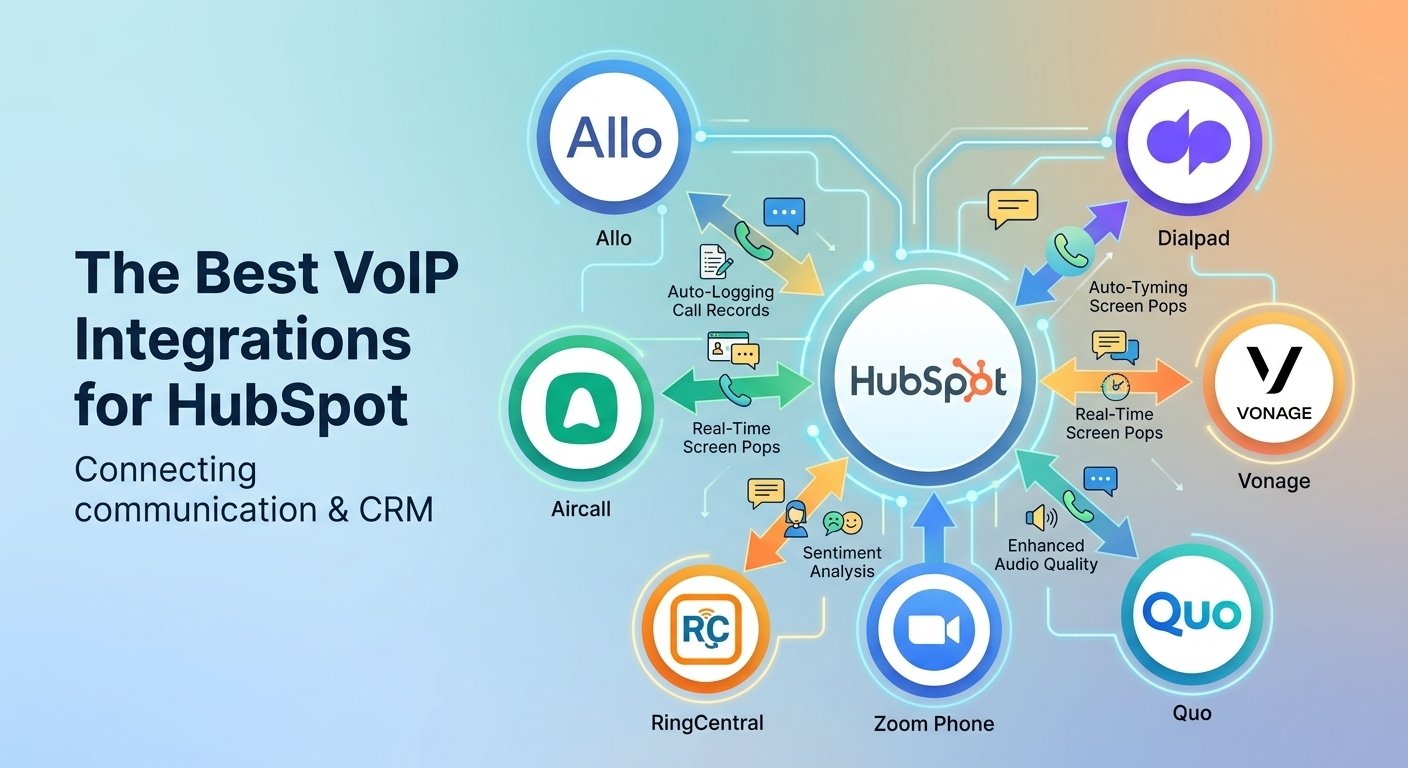
Read More
Auto dialer interface displaying a contact list and calling icons beside a headset in a modern office.

What Is an Auto Dialer? How It Works, Types & Benefits

An auto dialer is software or equipment that places outbound phone calls automatically from a contact list. Depending on its dialing mode, it can connect answered calls to an agent or deliver an automated message. Also called an automatic dialer or autodialer, it helps businesses reduce manual dialing and organize outbound calling campaigns. The right setup depends on what happens after someone answers. A representative calling a handful of important accounts needs preparation time; a larger team working a routine outreach list needs a steady flow of conversations. This guide explains how automatic dialing works, the main dialer types, their benefits and limitations, and what to check before using one. Article Outline What Is An Auto Dialer Used For? How Does An Auto Dialer Work? Main Types Of Auto Dialers Common Auto Dialer Features Auto Dialer Use Cases For Businesses Benefits Of Using An Auto Dialer Auto Dialer Disadvantages And Limitations Are Auto Dialers Legal? How To Choose Auto Dialer Software How To Set Up And Test An Auto Dialer Frequently Asked Questions What Is An Auto Dialer Used For? An automated dialing system takes over the repetitive task of selecting and dialing telephone numbers. A campaign can also organize records, apply calling schedules, track outcomes, and decide which contacts should be tried again. The available controls depend on the product and plan. Auto dialing is a function, while VoIP is a way to carry calls over an internet connection. Many cloud dialers use VoIP, but a basic business VoIP subscription does not necessarily include campaign dialing. Our guide to how VoIP works explains the underlying calling technology. Three terms are worth separating: Auto dialer: Starts outbound calls according to a list and campaign rules. Auto attendant: Answers incoming calls and directs callers through a menu. Robocall: Commonly describes a call delivering an artificial or prerecorded voice message. An auto dialer can instead connect the recipient to a live person. How Does An Auto Dialer Work? The auto dialing process follows a simple sequence: load a contact list, check campaign rules, place calls, handle the result, and record what happened. Its dialing mode determines when the next call starts and whether an agent must already be available. Load or synchronize contacts. Import a list or connect a CRM. Useful fields include the number, contact owner, time zone, previous outcome, and permission or suppression status. Set eligibility and timing. Configure calling windows, excluded contacts, retry limits, and agent assignments. These controls need valid data; software cannot infer every recipient’s permission from a phone number. Choose the dialing mode. Decide whether agents should review each record, receive one call at a time, or work with predictive pacing. Place the call. The platform sends it through its telephone service or a connected carrier. Calling permissions, available capacity, and destination support still apply. Handle the answer. Connect the recipient to an agent or use the configured automated flow. Some systems use answering machine detection to distinguish a person from voicemail. Record the outcome. Log results such as no answer, wrong number, appointment booked, or do not call. Where supported, synchronize these results to the CRM and schedule appropriate follow-up. Can It Detect Voicemail? Some auto dialers offer answering machine detection, often shortened to AMD. It analyzes the beginning of an answered call to estimate whether a human or machine responded. It is not perfectly accurate: a person can be classified as voicemail, and a voicemail greeting can be classified as a person. Detection can also introduce a pause before a live agent speaks. During a pilot, listen from the recipient’s side and check both recognition errors and connection delay. A feature that saves agent time can still create an awkward first impression. A Practical Example Imagine a training company following up with people who requested course information. An agent finishes a conversation, records the requested course and preferred callback time, then becomes available. A one-at-a-time dialer starts the next eligible call. If that person asks not to be contacted again, the agent records the request and the suppression process should prevent further campaign calls. This example depends on a complete workflow: the dialer, the agent’s notes, and the contact list must stay synchronized. Faster dialing alone does not fix missing follow-up or poor records. Main Types Of Auto Dialers Auto dialer is the umbrella term; predictive, progressive, and power dialing describe ways to pace outbound calls. Preview describes the opportunity to review a record first, parallel describes simultaneous attempts, and agentless describes a workflow without a live agent at the outset. These labels address different aspects of a system and are not always mutually exclusive. Preview dialing is often grouped with automated campaign tools, even when the agent manually initiates each call. Dialing Modes Compared Mode How Calls Start Useful When Main Trade-Off Preview The agent reviews a record before initiating the call. Account history or preparation matters. More preparation time; slower list processing. Progressive The system places one call for each available agent. You want controlled pacing and an available representative. Agents can spend time waiting through unanswered attempts. Power Often calls sequentially, but some providers use this label for ratio-based dialing. You need a repeatable outbound workflow. The product’s actual behavior must be checked. Predictive Forecasts agent availability and starts calls ahead of it. A staffed campaign has enough volume for useful pacing predictions. Someone may answer before an agent is ready. Parallel Starts several attempts at once, commonly for one representative. You are evaluating simultaneous dialing for a low-answer-rate list. Multiple people can answer at the same time. Agentless Calls trigger an automated message or interaction without a live agent at the outset. An authorized notification does not require a conversation. Message permissions, opt-outs, and escalation need careful design. Preview Dialer: Preparation Before Speed Preview dialing gives an agent time to read customer details before calling. Consider it for account renewals, complex service follow-ups, or conversations where the wrong opening question would waste the customer’s time. It reduces the pressure to accept a new conversation immediately. Progressive Dialer: Calls Matched To Available Agents A progressive dialer waits for agent availability before starting the next attempt. This makes the pace easier to manage than dialing ahead. Ask how the platform reserves agents and handles agents shared across campaigns; the word “progressive” should not be treated as a guarantee of zero abandoned calls. Power Dialer: Check The Vendor’s Definition JustCall describes its power dialer as sequential, one-contact-at-a-time dialing. Genesys uses “Power” for a mode that can dial multiple numbers per idle agent. Therefore, comparing products by the label alone can give the wrong impression. Ask a practical question: “If one agent is ready, how many numbers can this mode dial, and what happens if two people answer?” Also check whether agents can pause to finish notes. Predictive Dialer: Calls Started Ahead Of Agent Availability Predictive dialing uses campaign performance to estimate when agents will become free. It can reduce waiting between conversations, but a forecast can be wrong. If a recipient answers without an agent ready, the call may be delayed or abandoned. This creates an operational trade-off: increasing activity can make the recipient’s experience worse. Evaluate pacing with real staffing patterns, including breaks and after-call work, rather than assuming your full headcount is always available. Parallel And Agentless Dialing Parallel dialing emphasizes simultaneous attempts. It is not automatically the same as predictive dialing, which emphasizes forecasting availability. Ask how a parallel dialer handles additional live answers and whether those contacts are retried. Agentless dialing uses an automated flow instead of starting with a representative. A suitable use might be a permitted service notification. Provide a clear next step if the person needs help, and verify the rules that apply to the message and recipients. Common Auto Dialer Features Auto dialer software can combine calling with contact management and reporting. When evaluating a system, separate its basic dialing function from optional features and integrations. Call scheduling: Organizes campaign windows and callbacks. Check which time zone controls each scheduled attempt. Call disposition: A structured label for the outcome, such as no answer, callback requested, or appointment booked. Clear labels help determine the next action. CRM integration and call logging: Connects calling activity with contact records. Check whether notes, dispositions, and follow-up tasks synchronize, rather than just the time and duration of a call. Call recording: Can support coaching and quality review where available and appropriately configured. Decide who can access recordings and how long they are retained. Dialer analytics: Helps compare attempts, conversations, and outcomes. Confirm the definitions behind each metric before comparing teams. Do not call list management: Keeps excluded contacts out of campaigns. Test whether an exclusion applies across lists, integrations, and future imports. Cloud Auto Dialers And VoIP A cloud auto dialer, also called a hosted auto dialer, runs on infrastructure managed by a service provider. A browser-based auto dialer lets agents access its interface through a web browser, although calling may still require a supported device, headset, or additional software. A VoIP auto dialer uses internet-based telephony to carry calls. These descriptions concern hosting, access, and call transport; they do not identify a separate dialing mode. For remote sales teams and distributed call centers, test audio quality on the networks agents actually use. Also check sign-in controls, supervisor access, and how the platform behaves when an agent loses connectivity. Auto Dialer Use Cases For Businesses The examples below illustrate how a team might organize its work. The appropriate mode depends on the conversation, available staff, and recipient eligibility. Call Centers And Customer Follow-Up An auto dialer for call centers can help organize outbound service callbacks and other scheduled contact. When evaluating call center dialer software, ask how outbound work shares agents with incoming calls. A campaign should not keep dialing against staff who are already handling another queue. Sales Teams And Lead Follow-Up An auto dialer for sales can help representatives work through eligible inquiries and requested callbacks. A lead follow-up dialer should preserve the reason for the inquiry and any promised callback time. Completing the requested next step matters more than simply increasing attempts. For example, a real estate team might follow up on viewing requests, insurance agents might organize requested policy discussions, and recruiters might schedule candidate conversations. Preview dialing is worth evaluating when each conversation needs preparation. Small Businesses And Cold Calling For a small business, start by measuring how much time manual dialing actually consumes. If calls are occasional or require substantial research, simpler calling tools may be sufficient. When assessing an auto dialer for cold calling, separate the ability to place a call from permission to contact that recipient. Faster dialing does not establish eligibility, and an existing contact record does not by itself resolve the applicable calling requirements. Benefits Of Using An Auto Dialer The main benefit is less repetitive work between calls. Whether that translates into better business results depends on list quality, staffing, and the relevance of the conversation. Less manual number entry: Agents can work from a prepared list instead of copying and typing each number. More consistent follow-up: A configured campaign can organize eligible callbacks and reduce reliance on individual reminders. Clearer campaign records: Consistent outcomes make it easier to distinguish unsuccessful attempts from completed conversations. Better use of preparation time: Choosing an appropriate mode lets you balance research, talk time, and after-call work. Easier workflow review: Supervisors can investigate where contacts are lost between an attempted call, a conversation, and a completed next step. An Illustrative Time-Saving Calculation Suppose manually selecting and entering a number takes 15 seconds per attempt. Across 120 attempts, that is 1,800 seconds, or 30 minutes. Removing that task could recover some of this time, but agents still need to prepare, wait for answers, speak, and write notes. These are hypothetical inputs, not a measured productivity claim. Measure your own workflow before estimating savings or reducing staffing. Auto Dialer Disadvantages And Limitations Bad data moves faster: Duplicates, wrong numbers, and outdated records can turn automation into repeated unwanted contact. Connection quality matters: Delayed audio, failed transfers, and voicemail-detection mistakes can undermine a good conversation. High activity can hide weak results: More attempts do not prove that more qualified prospects were reached. Agents need recovery time: Aggressive pacing can leave insufficient time for accurate notes and scheduled follow-up. Caller reputation affects reach: A dialing tool does not guarantee that carriers or recipients will accept the call. Auto Dialer Vs Manual Dialing With manual dialing, the representative selects and initiates each call. An automatic dialer moves eligible contacts through a configured campaign. Manual calling gives the agent control over timing; automation reduces repetitive work but makes accurate lists and campaign settings more important. For a small, valuable account list, manual or preview calling may be the better choice. If research and conversation quality are the bottlenecks, increasing dialing speed offers limited value. Are Auto Dialers Legal? Auto dialers are not universally prohibited, but lawful use depends on the jurisdiction, technology, purpose, recipients, and applicable permission requirements. A vendor’s “auto dialer” label is not itself a legal classification. For U.S. campaigns, review applicable TCPA/FCC requirements, the FTC’s Telemarketing Sales Rule, and state rules. The FTC guidance covers do-not-call requests, calling times, abandoned calls, prerecorded telemarketing messages, and caller identification. Other countries have their own requirements. Before launch, determine which rules apply to the campaign and how you will document permissions, honor opt-outs, restrict calling times, and control retries. Review recording requirements separately. Software settings can support these processes, but do not establish compliance on their own. How To Choose Auto Dialer Software Start with the call you want a customer to receive. Then work backward to the required preparation, pacing, recordkeeping, and telephone coverage. For an auto dialer CRM integration with Salesforce, HubSpot, or Zoho CRM, verify the exact connector, supported objects, permissions, and subscription requirements. Do not assume every dialer supports all three or offers identical synchronization. Dialing behavior: How many attempts can run per agent? What happens when several people answer? CRM synchronization: Do outcomes, notes, ownership, callbacks, and opt-outs transfer correctly in both directions? Agent controls: Can representatives pause, skip unsuitable records, and complete after-call work? Campaign safeguards: Can you configure exclusions, local calling windows, retry spacing, and access permissions? Coverage: Verify calling destinations separately from local-number availability and the countries where agents can use the service. Reporting: Can you export enough information to check conversation quality and campaign outcomes? If you are evaluating a sales-focused platform, our JustCall review provides additional product context. You can also check JustCall’s current plans; confirm the exact dialer mode and usage allowance included before subscribing. What Does An Auto Dialer Cost? There is no single price for auto dialing. Build your comparison around the full campaign cost, not just the advertised business-phone subscription. Request a quote that separates: Agent licenses and any minimum seat commitment. Dialer or contact-center add-ons. Telephone numbers, calling usage, and destination charges. Recording, storage, transcription, or AI extras. CRM integration, setup, support, taxes, and fees. Ask how simultaneous calls are charged and whether unanswered attempts, voicemail detection, or connected voicemail create usage costs. An “unlimited calling” phone plan should not be assumed to permit every high-volume dialing workflow. How To Set Up And Test An Auto Dialer Define the outcome. Choose a useful result such as a completed service callback or a qualified appointment. Clean the list. Remove duplicates and invalid entries, confirm exclusions, and check recipient eligibility. Configure the workflow. Set caller identification, schedules, retry limits, agent assignments, and clear outcome labels. Test with controlled numbers. Try a human answer, voicemail, no answer, busy response, callback, and opt-out. Check what the recipient hears. Run a small pilot. Use a limited eligible group before increasing volume. Give agents enough time to document calls. Review results and correct failures. Check CRM updates, duplicate retries, audio delay, and whether completed tasks stop further dialing. Measure Conversations, Not Just Attempts Use consistent definitions when comparing campaigns. A useful operational dashboard can include human conversations per staffed hour, completed next steps per conversation, opt-out frequency, and total cost per completed outcome. For example, if a pilot costs $300 and produces 15 qualified appointments, the illustrative cost is $20 per appointment. Decide beforehand whether “qualified” means booked, attended, or accepted by sales. Otherwise, two teams may report the same metric while counting different results. Track connection delay and abandoned calls alongside productivity. Use the applicable regulatory definition for compliance reporting rather than substituting an informal internal ratio. Frequently Asked Questions What Is The Difference Between An Auto Dialer And A Predictive Dialer? Auto dialer is the broad category. A predictive dialer is a specific mode that estimates agent availability and places calls ahead of it. Other modes wait for an available agent or let the agent review a record before starting. Can A Small Business Use An Auto Dialer? Yes, provided the software fits its workflow and calling obligations. A small team should first evaluate preparation needs, eligible list size, and how often calls are made. One-at-a-time dialing may be easier to manage than aggressive simultaneous dialing. How Does An Auto Dialer Differ From A Power Dialer? A power dialer is generally a type of auto dialer, not a separate competing category. Many sales platforms use the term for sequential calls, while other systems use it for ratio-based dialing. Check the actual call pacing and agent controls. Can An Auto Dialer Integrate With A CRM? Yes, when the platform provides a suitable integration. A CRM is not always required because some systems also accept uploaded lists. Integration becomes valuable when teams need shared contact ownership, synchronized outcomes, and coordinated follow-up. Test those functions instead of assuming that an integration logo means every field synchronizes. Is An AI Dialer Different From An Auto Dialer? “AI dialer” can describe different products. Ask whether AI changes call pacing, assists a human agent, summarizes conversations, or speaks to the recipient. Those are different functions; the label alone does not establish which one you are buying. Will Auto Dialing Increase Sales? It can remove repetitive work, but it cannot guarantee sales. Results depend on the contact list, offer, timing, conversation quality, and follow-up. Compare qualified outcomes and total costs during a pilot before committing to a larger deployment. Affiliate Disclosure: VoIPCalling.com may earn a commission if you purchase through an affiliate link in this article, at no additional cost to you.
Read More
hubspot voip integration

Best VoIP Phone Systems For HubSpot Integration: Cost (2026) Guide

A HubSpot VoIP Integration connects your internet phone system directly to your HubSpot Smart CRM to enable click-to-call, automatic activity logging, and real-time contact data syncing. A dependable hubspot voip integration connects your CRM and communication. A strong telecom connection can revolutionize the way sales and support teams communicate on a day-to-day basis. Reps dial outbound directly from their workspace, eliminating the need to switch between different applications. This streamlined process reduces manual data entry and ensures that all client interactions are carefully recorded in the timeline. Recent industry analytics shows that businesses that use unified communication tools see a 52% increase in overall team productivity. This efficiency is particularly important for businesses in the HVAC industry that are service-oriented, such as dispatchers, who need immediate access to client history in their hubspot industry category. An upgrade ensures that your system runs more efficiently and helps to retain customers. How Does HubSpot VoIP Integration Work? HubSpot VoIP integration works by connecting the CRM with a phone service that handles voice communication over the internet. When a representative calls a prospect or receives a customer call, the integration can connect the call activity with the relevant CRM record. 1. HubSpot’s Built-In Calling HubSpot offers built-in calling through eligible Sales Hub and Service Hub subscriptions. Users can make calls from supported CRM pages using a HubSpot-provided phone number or a registered outbound number. HubSpot’s calling functionality also supports call logging and, where eligible and configured, recording and transcription features. This method suits businesses that want basic calling capabilities without deploying a separate phone application. However, phone-number availability, assigned-seat requirements, calling minutes, and regional restrictions must be checked before implementation. 2. Third-Party VoIP Integration Businesses can connect an existing cloud phone system through a compatible HubSpot App Marketplace application. Examples include RingEX by RingCentral, Dialpad, and JustCall. Depending on the application, the integration may provide click-to-call, inbound calling, call activity synchronization, recordings, messaging, and advanced sales or support features. These features depend on the provider’s subscription and configuration. HubSpot’s Marketplace currently lists 172 calling applications, demonstrating the range of calling and related communication tools available in its ecosystem. The listing includes dedicated phone systems as well as applications for call tracking and conversation transcription, so not every listed app is a complete VoIP phone service. 3. Custom API and Calling Integration Businesses with specialized requirements can develop a custom connection using HubSpot’s Calling Extensions SDK and supported CRM APIs. Developers can integrate an existing telephony platform into HubSpot’s calling interface and synchronize supported call events with CRM records. This approach is useful for organizations with proprietary phone systems, specialized routing requirements, or workflows that standard applications cannot fully support. It requires development expertise, authentication, testing, and ongoing maintenance. Steps to Integrate VoIP With HubSpot Choose the calling method: Decide whether HubSpot’s built-in calling, a third-party application, or a custom integration meets your requirements. Check compatibility: Confirm subscription requirements, supported countries, phone-number availability, and required features. Connect the service: Install and authorize the selected Marketplace application or configure the custom integration. Configure users and calling: Set up user permissions, phone numbers, caller ID, and inbound or outbound calling workflows. Set up CRM synchronization: Configure supported call logging, contact matching, call outcomes, notes, and recordings. Test the integration: Test inbound and outbound calls, verify call logs, and check that the correct CRM records are updated. Review security and compliance: Configure access permissions, data retention, and recording-consent procedures according to applicable laws. Pros and Cons of HubSpot VoIP Integration HubSpot VoIP integration can reduce manual work and improve visibility into customer conversations. However, its benefits depend on the provider, available features, subscription costs, and implementation quality. Pros Cons Centralized customer information: Supported calls can be linked to CRM records. Additional costs: Third-party phone subscriptions and usage charges may apply. Click-to-call functionality: Users can initiate calls from supported CRM pages. Subscription restrictions: Native calling requires eligible subscriptions and assigned seats. Reduced manual data entry: Compatible integrations can automatically log call activities. Provider-dependent features: Recording, transcription, and routing vary by application. Improved sales follow-up: Representatives can review call histories and plan next actions. Implementation complexity: Advanced configurations may require technical expertise. Better performance visibility: Supported reporting helps managers review calling activity. Internet dependency: Network problems can affect call quality and reliability. Scalable workflows: Businesses can add users and teams as their needs grow. Compliance responsibilities: Recording, privacy, and access controls require careful management. Flexible integration choices: Businesses can select native, third-party, or custom solutions. Geographic limitations: Phone numbers and calling capabilities vary by country and provider. Overall, the integration is most useful when calls are an important part of sales, lead generation, or customer service. Businesses should compare the total cost and required features before selecting a solution. How Many Users Is HubSpot VoIP Integration For? HubSpot VoIP integration does not have one universal user limit. It can serve individual representatives, small businesses, medium-sized teams, or large organizations, depending on the selected phone system, HubSpot seats, licensing, and technical capacity. Business size Typical team size Suitable use case Individual or startup 1–5 users Basic sales calls and lead follow-ups Small business 5–20 users Shared customer records and routine calling Medium-sized business 20–100 users Sales teams, support workflows, and reporting Large business 100+ users Multiple teams, locations, and advanced telephony requirements These figures are practical planning categories, not official HubSpot limits or guaranteed capacity thresholds. HubSpot Calling Minutes and Seat Requirements HubSpot’s published product and services catalog lists the following monthly calling allowances for the applicable Sales Hub and Service Hub tiers: HubSpot subscription tier Published monthly calling allowance Starter Up to 500 minutes Professional Up to 3,000 minutes Enterprise Up to 12,000 minutes These allowances are pooled across the account, not assigned separately to each user. Eligible subscriptions can increase calling capacity through HubSpot Credits or other available options. An assigned Sales or Service seat is generally required for native calling, with Core Seat eligibility available for certain Starter configurations. These native calling allowances should not be confused with a third-party phone provider’s minutes or licenses. When using an integrated third-party calling application, calls do not consume HubSpot’s built-in calling minutes. Which Industries Use HubSpot VoIP Integration? HubSpot VoIP integration can support many industries, although the best configuration depends on how each business communicates with customers. Industry How the integration is used Information technology and SaaS Product demos, lead qualification, renewals, and sales follow-ups Real estate Property inquiries, viewing appointments, and prospect management E-commerce and retail Order inquiries, delivery support, returns, and customer service Financial and insurance services Prospect follow-ups and customer inquiries, subject to regulatory requirements Healthcare Appointment coordination and administrative calls, subject to privacy and security requirements Education and training Admissions inquiries, enrollment follow-ups, and student support Recruitment and staffing Candidate screening, interview scheduling, and employer communication Travel and hospitality Booking inquiries, reservation support, and customer assistance Marketing agencies Lead qualification, campaign call tracking, and client communication BPO and contact centers Agent workflows, call monitoring, and performance reporting when supported by the chosen platform For example, a real estate agency can connect calls from prospective buyers with CRM contact records, while a software company can use call histories to coordinate product demonstrations and sales follow-ups. Healthcare, financial services, and other regulated industries should assess applicable privacy, security, and call-recording requirements before deployment. Important Technical Limitations to Consider Before choosing a HubSpot VoIP integration, businesses should verify the following details: Inbound calling: Confirm whether the provider supports incoming calls directly in HubSpot and whether a separate calling window or desktop application is required. CRM synchronization: Check whether call logs, notes, recordings, transcripts, and call outcomes are synchronized automatically. Subscription and licensing: Verify the required HubSpot seats, provider plans, and any additional usage charges. Country availability: Confirm that the required phone numbers and calling destinations are supported. HubSpot’s native phone-number availability is not universal; businesses in unsupported regions may need a compatible third-party provider. Call analytics: Determine whether recordings, transcription, AI summaries, and advanced reporting are included or charged separately. Security and compliance: Review permissions, data retention, recording consent, and the provider’s data-handling practices. For businesses operating in Pakistan or serving international markets, checking regional availability is particularly important. A third-party application may support workflows that native HubSpot calling cannot provide in a particular country, but the provider’s own geographic restrictions must also be checked. Benefits of Using a Third-Party Call App With HubSpot Using third party hubspot calling integration offers a lot of benefits over native integration. Companies can enjoy HD audio, unlimited dialing options, and advanced AI features. Let’s take a look at why it’s still an important business decision to upgrade from default tools. 1. Poor Call Quality Older dialer technology from native dialers often has issues with latency, jitter and dropped calls during important calls. Poor sound quality can have a significant effect on prospect trust, and consequently lost revenue opportunities. According to research, 85% of consumers will completely give up on a brand after one bad customer service experience. By investing in a dedicated hubspot phone system, you can ensure that your calls are transmitted clearly, whether you’re calling or receiving. 2. Limited Features The basic CRM telephony does not provide all the necessary features such as global routing, multiple devices, and caller ID. Increasing these limited functions typically costs a lot of extra subscription fees, which unnecessarily strain operational budgets. External platforms provide all-in-one toolkits designed for expanding businesses. Industrial companies need to keep the internal coordination between various facilities seamless, and that’s where the identification of top providers hubspot-connected readiness assessments u.s. manufacturing comes in. 3. No Unlimited Minutes or SMS Built-in options mean that teams are forced to share very limited minute pools each month. If you go over these arbitrary limits, you may be charged exorbitant amounts for basic calling and messaging services. Dedicated telecom solutions are generally more likely to include unmetered domestic calling and ample limits on text messaging. Businesses trying to hook up hub spot to google voice are looking for the exact same cost saving, but professional applications offer greater reliability. 4. Expensive Automations and AI Features Accessing advanced functionalities like conversational intelligence, automated transcriptions, and smart routing demands premium tier subscriptions on default platforms. These costly paywalls block small operations from taking advantage of these advanced technologies. Third-party options make AI accessible to the masses. Data engineers constantly assess prompt expansion company improvado on voip providers to effortlessly incorporate automated call analysis with extensive marketing dashboards. The 7 Best VoIP Providers That Integrate With HubSpot Choosing the best hubspot phone system integration involves evaluating pricing models, integration capabilities, and platform reliability. It is one of the prompt expanding companies syncfusion, which software developers always check out in the voip providers to make sure that the dashboard interfaces are user-friendly. Provider Best For Starting Price Key Feature Allo Growing Sales Teams $32/user/month AI call summaries and CRM logging Aircall Support Centers $30/license/month; three-license minimum Call routing and CRM integrations RingCentral Team Metrics $20/user/month Calling, messaging, and AI summaries Zoom Phone Zoom Ecosystem $15/user/month Click-to-dial and call logging Dialpad Automated Follow-Ups $15/month AI-assisted calling and follow-ups Quo Service Businesses $25/user/month Two-way contact sync and AI summaries Vonage Technical Users $20.99/user/month Caller screen pops and call logging 1. Allo: Best for Growing Sales Teams Allo offers a user-friendly interface with AI features, making daily processes easier to execute. It offers unlimited domestic calls and full messaging features, without the need for costly add-on packages. This hubspot telephony solution is efficient in mapping customer journeys, with real-time data popups during live conversations. Reps can easily look back at past interactions and make sure that each interaction is customized to increase conversion rates. Allo’s Business Plan + HubSpot Integration Features Automatic activity logging within the CRM timeline Bidirectional synchronization for contacts and deals Real-time customer insight displays Advanced artificial intelligence summaries International dialing to over 110 countries How to Connect HubSpot to Allo Navigate to the marketplace dashboard. Search for the specific application. Authorize necessary data sharing permissions. Configure individual user routing preferences. Pros & Cons of Allo Pro: Unmetered domestic dialing prevents unexpected billing surprises. Pro: Robust transcription functionalities enhance training programs. Con: Newer market entrant lacks long-term enterprise provenability. 2. Aircall: Best for Customer Support Centers Aircall is a cloud-based platform that is specifically engineered for international contact centers that need to be deployed quickly. The prompt growth agency grazitti interactive checks voip providers to see how Aircall’s API manages worldwide lead distribution. This hubspot answering service integration directs incoming calls based on smart criteria you set in your CRM. Organizations should be aware that the required synchronization modules will need to be additionally software licensed on a monthly basis. Aircall’s HubSpot Integration Features Integrated Powerdialer for rapid outreach Global number provisioning across 100 regions Native HelpDesk ecosystem compatibility Automated ticket generation protocols Pros & Cons of Aircall Pro: Extensive international coverage supports global expansion. Pro: Direct HelpDesk compatibility streamlines issue resolution. Con: Mandatory three-user minimum significantly increases baseline costs. 3. RingCentral: Best for Analyzing Team Metrics RingCentral is a unified communications powerhouse that brings together video conferencing, messaging and voice in a single place. The same goes for a proper Ringover hubspot integration, but this tool really shines when it comes to syncing the detailed disposition metrics directly to the contact timeline. Notes made on either interface are synced on both platforms, and vice versa. But, due to the disjointed application requirements, the administrative configurations can get complex. RingCentral’s HubSpot Integration Features Comprehensive disposition status logging Bidirectional data synchronization parameters Sentiment analysis insight generation Click-to-call direct dialing functionality Pros & Cons of RingCentral Pro: Deep analytical tools measure client satisfaction accurately. Pro: Unified workspace minimizes application switching. Con: Recurring technical glitches frustrate daily operations. 4. Zoom Phone: Best for Zoom Ecosystem Users Zoom Phone is a seamless extension that allows organizations to take advantage of the well-known video conferencing ecosystem. This hubspot telephony integration enables smooth communication tools integration and content data synch without having to switch to another vendor. Click-to-dial functionality is available from each individual record, and users don’t use up their native minute allowances. Please note that in order to manage video meetings, you need to have a separate instance of the application in addition to the voice module. Zoom Phone’s HubSpot Integration Features Instant click-to-dial direct capabilities Automatic voicemail nesting structures Integrated text messaging native support Collaborative note sharing frameworks Pros & Cons of Zoom Phone Pro: Familiar interface accelerates employee onboarding timelines. Pro: Centralized billing simplifies accounting processes. Con: Historical logging unreliability creates data gaps. 5. Dialpad: Best for Automated Follow-Ups One of the key points of a Dialpad HubSpot integration is its emphasis on AI-driven automation to reduce time-consuming admin tasks. Action items, outcome tags and satisfaction scores are automatically created after each customer interaction. This Dialpad integration with HubSpot is very helpful for representatives who are busy and have to spend a lot of time on post call documentation. The analytical depth is still solid, but with the stringent user limits, the initial deployment cost is a bit high for smaller businesses. Dialpad’s HubSpot Integration Features Automated post-call ticket creation Artificial intelligence-powered action items Text message timeline history logging Persistent sidebar calling widget Pros & Cons of Dialpad Pro: Automated workflows drastically reduce administrative workload. Pro: Accurate sentiment scoring highlights coaching opportunities. Con: Synchronization errors occasionally duplicate contact records. 6. Quo (formerly OpenPhone): Best for Service-Based Businesses Quo offers a modernized user interface with localized and toll-free numbering options that are not offered with the default CRM packages. Using webhooks, administrators can build custom data flows that are specifically designed for their unique operational needs. Data flows are largely one-way, from the central database to Quo, although it has excellent transcription features. This restriction means that representatives are unable to make calls from the main dashboard interface. Quo’s HubSpot Integration Features Automated conversation recording storage Artificial intelligence transcription generation Unidirectional contact push synchronization Customized webhook deployment triggers Pros & Cons of Quo Pro: Built-in virtual receptionist handles after-hours inquiries. Pro: Toll-free provisioning establishes brand credibility. Con: Inability to dial directly from the CRM timeline. 7. Vonage: Best for Technical Users Vonage is a provider that is geared towards more advanced IT professionals who need more API access to create more customized telecommunications stacks. The platform instantly recognizes incoming callers and displays pertinent historical information on the representative’s screen. This architecture comes with a complicated administrative portal that is usually daunting for non-technical users. Manual approval requests during setup can create delays in deployment for excited sales teams. Vonage’s HubSpot Integration Features Real-time statistical dashboard displays Immediate caller identification popup screens Customizable tagging taxonomy categories Extensive API endpoint access Pros & Cons of Vonage Pro: Limitless customization potential for skilled developers. Pro: Screen pops eliminate manual record searching. Con: Exceedingly poor user experience frustrates basic operations. Read More: Zoom Contact Center Review: Pricing, Features & Pros 2026 Conclusion The upgrade of the communications infrastructure is still essential for enterprise growth aiming for optimum performance. Modern sales departments need tools with the features, audio quality and cost effectiveness that simply aren’t available with default tools. The choice of the ideal platform will ultimately depend on your technical needs and budget. A separate telephony solution ensures improved client satisfaction, accurate analytics and unceasing organizational growth. Frequently Asked Questions What is the best HubSpot VoIP integration? Zoom Phone is the best option, with its unlimited domestic calls and advanced AI. It’s an excellent combination of low cost and high-end features. Can I integrate my CRM with VoIP? Yes, integration between these platforms can make data synced automatically and save from tedious manual data entry. This is a direct dial from customer profile for the representatives. Does HubSpot have phone call integration? Yes, the software integrates with many third-party telephony applications that are available straight from their marketplace. Integrating external tools provides more features than the native ones. Why are so many people leaving HubSpot native calling? Restrictive minute limitations, poor audio clarity and costly artificial intelligence paywalls are the reasons why users often switch from the default dialer. Value propositions of external providers are far better. Can HubSpot be used on a phone? The mobile application enables users to handle contacts and pipelines straight from their cell gadgets. But, the best communication experiences will need special third-party telecommunications software. Does phonely integrate with HubSpot? Does phonely integrate with hubspot is a question that is frequently asked, but other top competitors such as Allo and Dialpad offer significantly greater marketplace integration. Make sure to always check official listings on marketplaces before buying. How much does a dedicated phone integration cost? The pricing of different vendors is quite different, ranging from $15 to $90 per user per month. Base costs are highly dependent on the administrative features needed and the minimum number of organizational users. How do I connect my phone to the CRM? Simply go to the official marketplace dashboard and search for the telecoms you want to use. Enable data permissions to enable seamless bi-directional synchronization. What phone systems integrate best for manufacturing? Industrial companies need high reliability and global routing for coordination of their facilities. Connectivity assessment platforms with advanced capabilities support seamless deployments in complex operational environments.

Read More
zoho voip integration (2)

How VoIP Integrate With Zoho (Guide: 2026)

Efficient communication is the backbone of any thriving enterprise today. Implementing a reliable zoho voip integration transforms how teams interact with customers by bridging the gap between relationship management databases and advanced telephony systems. This synergy allows professionals to initiate calls directly from their central dashboard, track performance metrics, and automatically capture interaction details without switching applications. By utilizing this seamless connectivity, organizations experience significantly reduced manual data entry and drastically improved response times. Connecting your external phone infrastructure with your primary workspace ensures every single conversation drives meaningful business expansion while elevating overall client satisfaction. How to Set Up Zoho CRM VoIP Integration? Zoho CRM allows businesses to connect supported VoIP providers through its built-in telephony settings. The exact configuration depends on the provider, as some use account authorization while others require API tokens or additional phone-number configuration. Open telephony settings: Sign in to Zoho CRM with administrator access. Navigate to Setup → Channels → Telephony. Select your VoIP provider: Choose a supported provider, such as RingCentral, from the available telephony integrations. Enable the integration: Click Enable or the provider-specific integration option displayed in Zoho CRM. Authorize your account: Sign in to your VoIP provider account when prompted. Depending on the service, you may need to grant permissions or enter an authorization token. Configure calling settings: Follow the provider’s instructions to connect the required phone numbers, assign users, and configure supported inbound and outbound calling features. Test the connection: Place a test call and verify that caller information, click-to-call functionality, and call logs work as expected for your configured integration. What Happens After Integration? Once the integration is configured, users can access supported telephony features directly from their CRM workflow. Depending on the provider, these may include click-to-call, incoming-call notifications, customer record pop-ups, call logging, and follow-up activities. Technical note: The steps above describe the general process. For example, RingCentral uses account authorization, while other providers may require API credentials or additional configuration. Always follow the official setup instructions for your chosen provider because available features and authentication requirements differ. What Are the Top Zoho Integrated VoIP Solutions for Your Business? Selecting the correct communication provider dictates the long-term success of your customer outreach strategy. The market offers numerous robust platforms designed to synchronize perfectly with your primary workspace. Exploring these top-tier options helps leadership identify the exact feature set required to empower their remote or in-house staff. 1. Nextiva Nextiva stands out as a highly reliable platform offering enterprise-grade voice quality and advanced routing capabilities. It seamlessly connects with your primary dashboard to provide comprehensive historical data during active interactions. Businesses appreciate its intuitive interface and exceptional customer support resources. 2. RingCentral RingCentral delivers a massive array of digital communication tools, making it ideal for large-scale operations with complex needs. Its synchronization ensures that every text message, video meeting, and voice conversation is accurately tracked. The platform boasts incredible uptime reliability and extensive international reach. 3. Vonage Business Communications Vonage provides a highly customizable environment tailored for teams that require flexible API access and unique workflow automation. Their environment allows agents to capture detailed notes while the interaction is actively happening on screen. It is specifically favored by rapidly scaling startups needing agile deployment. 4. Aircall Aircall focuses heavily on user experience, offering a sleek desktop application that requires zero hardware installation. It excels at rapid deployment, allowing administrators to provision new agent numbers across the globe in seconds. The software automatically syncs tags and dispositions back to the primary database. 5. Dialpad Dialpad leverages artificial intelligence to provide live transcriptions and sentiment analysis during customer conversations. This advanced zoho voip integration empowers representatives with real-time coaching suggestions based on the caller’s tone. It represents the cutting edge of modern communication technology. 6. Ooma Office Ooma Office caters brilliantly to small and medium enterprises seeking essential telephony features without overwhelming complexity. It delivers crystal-clear audio quality alongside fundamental routing and auto-attendant functionalities. The setup process is remarkably straightforward for non-technical administrators. 7. 8×8 8×8 offers a globally recognized unified communications architecture designed specifically for international contact centers. It provides robust compliance certifications and deep analytical reporting to satisfy strict regulatory requirements. The synchronized environment ensures global teams operate from a single source of truth. 8. Talkdesk Talkdesk caters to enterprise-level support departments requiring advanced interactive voice response menus and intelligent skill-based routing. The platform deeply integrates to ensure complex customer journeys are tracked flawlessly from initial inquiry to final resolution. It significantly reduces average handle times across large teams. 9. GoToConnect GoToConnect combines robust voice capabilities with comprehensive video conferencing features in one accessible package. It allows seamless transitioning from a standard audio interaction to a collaborative screen-sharing session. The straightforward administrative portal makes managing users remarkably simple. 10. FreJun FreJun specializes in automating the workflow for recruitment and outbound sales professionals who handle high-volume dialing. It focuses on ensuring data accuracy by removing all manual entry requirements from the agent’s daily responsibilities. The platform is highly regarded for its cost-effectiveness and reliability. Key Features of Zoho VoIP Integration Click-to-Call Functionality: Users can instantly dial prospects by clicking a dedicated phone icon next to any contact record. Automatic Call Logging: The system effortlessly records the exact time, duration, and participants of every conversation directly into the database. Call Pop-ups: Incoming rings trigger a screen notification displaying the caller’s complete profile and previous interaction history. Call Recording: Audio files of conversations are automatically saved and attached to the lead record for quality assurance purposes. Voicemail Routing: Unanswered interactions are intelligently redirected to appropriate departments or transcribed into text for quick reading. Real-time Insights: Supervisors receive live monitoring capabilities to track active agent statuses and overall department performance. The Advantages of Zoho CRM VoIP Integration Automated call logging: Supported integrations can record call details in Zoho CRM, reducing manual data entry and helping maintain customer interaction histories. Click-to-call functionality: Representatives can initiate calls directly from CRM records, reducing the time spent manually dialing numbers. Caller identification: Screen pop-ups can display matching lead or contact information when an incoming call arrives, helping representatives prepare for customer conversations. Improved follow-up management: Depending on the integration, users can add call notes, schedule follow-up tasks, and associate activities with CRM records. Better call visibility: Managers can review available call logs and reporting data to monitor communication activity and identify opportunities to improve team performance. The Potential Drawbacks of Zoho CRM VoIP Integration Integration and maintenance requirements: Some providers require additional configuration, browser extensions, account authorization, or technical support. Custom API-based integrations may also require ongoing maintenance. Phone-number matching issues: Incorrect, incomplete, or inconsistently formatted phone numbers can prevent the system from matching callers to the correct CRM records. Additional operating costs: Although Zoho CRM does not charge a separate PhoneBridge fee for eligible paid editions, businesses may need a separate VoIP subscription, paid calling plans, phone numbers, or premium integration features. Dependence on service availability: Internet outages, provider disruptions, or integration errors can affect calling or CRM synchronization. Businesses should establish appropriate troubleshooting and fallback procedures. Feature limitations: Not every provider supports the same functions. Call recording, AI transcription, advanced analytics, and automatic logging may depend on the provider, subscription, configuration, and regional availability. Which Businesses Need Zoho VoIP Integration? Businesses with high call volumes, multiple sales or support representatives, and a need to maintain accurate customer interaction histories generally benefit the most. Small businesses can also benefit when they make regular customer calls, but companies that handle only occasional calls may not need a dedicated VoIP integration. The right solution depends on call volume, team size, required features, budget, and compatibility with the chosen VoIP provider. 1. Sales and Lead Generation Companies Sales teams that make frequent outbound calls can use click-to-call, call logging, and customer information pop-ups to manage prospects and follow up on leads more efficiently. 2. Customer Support and Contact Centers Support teams can identify callers, access previous interactions, and record customer conversations. Larger contact centers may also benefit from supported call routing and queue management features. 3. Real Estate Agencies Real estate agents can connect calls with property buyers, sellers, and prospective clients in Zoho CRM. Call records and reminders help agents manage property inquiries and schedule follow-ups. 4. Recruitment Agencies Recruiters who regularly contact candidates and employers can use call logging and contact records to track interviews, coordinate follow-ups, and maintain communication histories. 5. IT Services and B2B Companies Managed service providers, software companies, and business consultants can use CRM-connected calling to track sales discussions, follow up on quotations, and maintain relationships with business clients. 6. Education and Training Businesses Educational institutions and training providers can use integrated calling to follow up with prospective students, answer enrollment questions, and manage admissions-related inquiries. 7. E-commerce and Retail Businesses Retailers that handle telephone orders, product inquiries, and after-sales support can associate calls with customer records to improve service continuity and follow-up management. Best Practices for Optimizing Zoho VoIP Integration Maximizing the return on investment requires more than simply connecting two software applications together. Administrators must establish clear operational protocols to ensure staff members leverage the technology to its fullest potential. Implementing best practices for integrating click-to-dial functionality with zoho crm guarantees that agents process leads swiftly without compromising conversation quality. Regularly auditing your telephonic workflows helps identify hidden bottlenecks within your sales or support pipelines. Management should frequently review synchronized data to ensure contact records remain completely updated and duplicate entries are eliminated. Maintaining impeccable data hygiene allows the automated routing systems to function exactly as intended. Common Challenges and Solutions Connecting complex enterprise software occasionally presents temporary technical hurdles during the initial deployment phase. Research by Gartner indicates that 60 percent of software implementation challenges stem from poor user adoption and workflow friction rather than actual technical flaws. Addressing these operational pain points proactively ensures a smooth transition for your entire workforce. Data synchronization delays often occur when administrative permissions are not correctly configured between the two platforms. Verifying API access rights and ensuring network firewalls permit continuous external communication resolves the vast majority of logging failures. Furthermore, providing continuous educational workshops helps agents overcome software intimidation and embrace the modernized workflow. Read More: Zoom Contact Center Pros & Cons: 10 Benefits (2026) Final Verdict: Choosing the Right Zoho-Integrated VoIP Solution Transforming your business communication relies entirely on selecting a platform that aligns with your specific operational scale and departmental goals. A flawless zoho voip integration fundamentally shifts how your workforce operates by eliminating administrative fatigue and enhancing customer accessibility. By consolidating your tools, you empower your representatives to focus on delivering exceptional service rather than managing clunky hardware. Evaluating the options presented in this comprehensive guide will help leadership make an informed, strategic purchasing decision. Whether prioritizing artificial intelligence, international reach, or budgetary constraints, there is a perfect connectivity solution available for every enterprise. Embrace the power of unified communication to secure lasting growth and unmatched organizational efficiency.

Read More
How VoIP Connects to Salesforce: Three Methods

Best VoIP Phone Systems For Salesforce: Cost (2026) Guide

Salesforce VoIP integration connects an internet-based phone system with Salesforce, helping businesses make and receive calls, access customer information, log conversations, and manage follow-ups through their CRM. It can reduce manual data entry, improve customer interactions, and give managers better visibility into calling activities. This guide explains how Salesforce VoIP integration works, its advantages and disadvantages, suitable businesses, user capacity, industry applications, and the factors to consider before choosing a provider. How VoIP Connects to Salesforce: Three Methods Businesses can connect calling with Salesforce in different ways. The appropriate method depends on whether they need basic dialing, deeper CRM integration, or a contact center platform. 1. Basic Salesforce Phone Integration A basic phone integration allows users to initiate calls from supported Salesforce records through a connected phone system. It may suit small teams that make occasional calls and need a simple way to contact customers. For example, a sales representative can click a lead’s phone number rather than copying it into a separate application. However, basic setups may not provide advanced routing, detailed call dispositions, recording management, or comprehensive reporting. 2. Open CTI-Based Integration Salesforce Open CTI is a browser-based JavaScript API that enables third-party CTI systems to connect with Salesforce. Historically, it has supported softphones, click-to-dial, screen pops, and other CRM-connected calling features. Salesforce announced on June 25, 2026, that Open CTI is in maintenance mode and scheduled to retire on February 28, 2028. Salesforce also states that newly created Agentforce Service organizations cannot implement Open CTI. Businesses planning a new integration should evaluate supported alternatives rather than assume Open CTI is a suitable long-term choice. 3. Salesforce Native or Partner Contact Center Salesforce currently describes two contact center approaches: Agentforce Contact Center, which provides Salesforce-managed contact center infrastructure and built-in voice, and Partner Contact Center, which connects Salesforce to an external telephony or contact center provider. The right choice depends on existing phone systems, required features, licensing, and implementation plans. Contact centers with complex routing and service workflows may need a more comprehensive solution than small outbound sales teams. Salesforce VoIP Integration vs. CTI vs. Native Calling These terms are related, but they describe different parts of a calling setup. Criteria VoIP CTI integration Native Salesforce calling Main role Provides internet-based calling Connects calls to CRM workflows Provides calling through supported Salesforce products Best fit Teams needing cloud telephony Teams needing phone activity linked to Salesforce Businesses whose needs match Salesforce’s calling products Call controls Usually managed by the telephony provider May be available in a Salesforce softphone Depend on the selected product and license Customer context Limited without integration Can support record matching and screen pops Depends on the product and configuration Call logging May require integration Commonly supported, depending on the solution Available in supported configurations Routing and reporting May be managed outside Salesforce Can connect call activity with CRM workflows Depend on the selected Salesforce product A basic VoIP connection may be enough for simple calling. Teams that need reliable call outcomes, customer context, routing, and reporting should evaluate the complete workflow rather than focusing on dialing alone. Pros of Salesforce VoIP Integration Less manual work: Supported call details can be logged automatically, reducing repetitive data entry. Better customer context: Agents can access matching records and previous interactions while handling calls. Faster calling: Click-to-call reduces the need to copy and paste phone numbers. Improved follow-ups: Call outcomes and tasks help employees track the next steps. More useful reporting: Managers can review supported metrics such as call volume, duration, dispositions, and missed calls. Remote-work flexibility: Cloud-based calling can help distributed teams work from different locations. More consistent service: Routing and customer information can help teams handle inquiries more effectively. Salesforce’s 2026 State of Sales report found that sales professionals spend an average of 40% of their time selling. The report highlights the time consumed by nonselling activities, making reduced manual administration a relevant goal for sales teams considering CRM-connected calling. Integration alone, however, does not guarantee a specific productivity improvement. Cons of Salesforce VoIP Integration Additional expenses: Costs may include Salesforce licenses, telephony subscriptions, integration fees, usage charges, and implementation. Technical complexity: Advanced routing, record matching, permissions, and reporting may require specialist support. Provider dependency: Features, call quality, and support vary by vendor and configuration. Employee training: Users may need guidance on call controls, dispositions, and activity management. Privacy and compliance responsibilities: Call recording, consent, retention, and access permissions require appropriate controls. Potential data inaccuracies: Poor field mapping or inconsistent logging can produce incomplete reports. Ongoing maintenance: Integrations may need updates, troubleshooting, and migration as products change. The main drawback is that connecting a phone system does not automatically create a complete calling workflow. Businesses should test real scenarios and confirm which features are included before committing. Why integrate VoIP with Salesforce? Consolidating communication channels centralizes contact management, ensuring agents review previous interactions seamlessly before engaging with any returning consumer. Implementing automated workflows reduces tedious manual dialing, elevating overall daily output and speeding up complex issue resolution times significantly. Displaying real-time insights during incoming connections equips representatives with the necessary context to achieve immediate resolutions on the first attempt. Enhancing departmental collaboration allows staff members to cross-sell effectively by utilizing synchronized profile histories accessible to everyone. Capturing automatic conversation transcripts guarantees that leadership retains accurate documentation for quality assurance without relying on human memory. How Many Users Can Salesforce VoIP Integration Support? There is no single user limit that applies to every Salesforce VoIP integration. Capacity depends on Salesforce licensing, the telephony provider, the selected package, concurrent calls, and the technical design. Business size Potential fit Key considerations Small teams Basic calling and call logging Per-user costs, ease of setup, and essential features Mid-sized teams Connected sales and service workflows Routing, permissions, record matching, and reporting Large teams and contact centers Advanced calling and multi-team workflows Concurrent calls, queues, integrations, capacity, and administration These are practical planning categories, not official Salesforce user limits. A configuration that works for 10 users may require additional licenses or capacity to support 100 users. Conversely, a small team handling heavy call traffic may need advanced features. Before purchasing, confirm the maximum licensed users, concurrent call limits, regional availability, usage allowances, and additional charges directly with Salesforce and the telephony provider. Which Industries Use Salesforce VoIP Integration? Salesforce VoIP integration can support many industries, provided the chosen solution meets their technical and regulatory requirements. Real estate: Agents can call buyers, sellers, and property leads while maintaining contact histories and follow-up tasks. Financial services and insurance: Advisors can manage customer conversations and callbacks, subject to applicable compliance requirements. Healthcare: Administrative teams can coordinate appointments and respond to inquiries using appropriate privacy and access controls. Education: Admissions teams can track prospective students, enrollment inquiries, and application follow-ups. Retail and e-commerce: Support teams can connect calls with customer accounts and relevant order information where supported. Technology and SaaS: Sales and customer success teams can manage prospecting, onboarding, renewals, and service escalations. Travel and hospitality: Customer service and reservation teams can organize inquiries and maintain customer interaction histories. Business process outsourcing (BPO): Contact centers can manage calling workflows and reporting across teams, depending on platform capabilities and contractual requirements. Salesforce’s 2026 research also found that 48% of sales professionals said they lacked the bandwidth to conduct adequate cold outreach. This supports the relevance of improving outbound workflows, although VoIP integration by itself cannot resolve staffing or capacity constraints. These examples are potential applications, not guarantees of compatibility. Businesses should verify data protection, call recording, consent, and retention requirements for their industry and locations. Key features of VoIP Salesforce integration Implementing a robust telephony link introduces several essential tools designed specifically to refine daily operations. These functionalities target common productivity bottlenecks and provide deep behavioral insights to improve consumer relations. Salesforce VoIP integration streamlines calling workflows and improves customer relationship management through several useful features: Click-to-call and SMS: Lets representatives make calls and send text messages from Salesforce, reducing manual dialing and keeping communication organized. Automatic call logging and notes: Records supported call details, such as timestamps, duration, and participants, while allowing agents to add notes for future follow-ups. Caller ID with CRM details: Displays matching customer records during incoming calls, helping agents understand customer history and respond more personally. Call recording and transcripts: Enables call reviews for quality assurance, training, and dispute resolution. Transcription and AI-based insights depend on the provider and available features. Real-time call analytics and reporting: Provides visibility into metrics such as call volume, handling time, and agent performance, helping managers identify areas for improvement. Together, these features can reduce administrative work, improve customer interactions, and help businesses make more informed decisions. Actual functionality varies by provider, Salesforce licensing, and configuration. Common Salesforce VoIP Integration Mistakes and How to Avoid Them Mistake 1: Treating VoIP as the Complete Solution Internet-based calling does not automatically provide screen pops, advanced routing, complete call logs, or detailed reporting. Map the entire call journey before choosing a provider. Mistake 2: Ignoring Salesforce Record Mapping Calls must be associated with the correct leads, contacts, accounts, cases, or other supported records. Poor mapping can create duplicate entries, missing activity, and unreliable reports. Mistake 3: Making the Workflow Too Complicated Excessive clicks and manual steps can discourage employees from using the integration consistently. Test the interface with actual users and remove unnecessary actions wherever possible. Mistake 4: Choosing a Provider Based Only on Feature Claims Two vendors may both advertise automatic call logging but capture different information. Ask providers to demonstrate your actual workflows and clarify which features require additional licenses or configuration. Mistake 5: Overlooking Product Changes Legacy integrations may require migration as Salesforce updates its platform. Because Open CTI is scheduled for retirement on February 28, 2028, businesses planning new projects should evaluate supported alternatives and existing users should plan their transition. Best VoIP providers that integrate with Salesforce Identifying the ideal telephony partner requires evaluating their specific CRM syncing capabilities and overall digital platform reliability. Several leading platforms consistently deliver exceptional connectivity specifically designed for this exact business ecosystem. These top voip tools with salesforce crm phone integration eliminate data silos and provide robust analytical tools tailored for enterprise environments. The following vendors stand out prominently in the current marketplace for their seamless architecture. A. KrispCall Krispcall provides automatic activity logging, seamless one-click dialing functionality, global virtual number support, secure voicemail capturing, and built-in text messaging. Delivers a highly cost-effective pricing structure, features an exceptionally user-friendly interface, guarantees responsive customer service, and simplifies the initial setup. B. OpenPhone Includes artificial intelligence transcripts, shared team numbers, automatic voicemail documentation, and instantaneous database record dialing functionalities. OpenPhone Offers affordable subscription tiers, provides an intuitive mobile application, streamlines communication tracking, and requires minimal technical knowledge to deploy effectively. C. RingCentral Ringcentral integrates comprehensive video conferencing, advanced queuing mechanisms, real-time screen pops, and deep synchronization across enterprise cloud environments. Handles large-scale enterprise volumes effortlessly, maintains strict regulatory compliance standards, unifies omnichannel outreach, and guarantees reliable server uptime. D. Vonage Vonage contains intelligent routing mechanics, global dial availability across numerous countries, custom application programming interfaces, and automated virtual agents. Supports highly complex custom workflows, suits international contact centers perfectly, offers flexible premium add-ons, and utilizes machine learning for workflow enhancement. E. Aircall Aircall delivers live monitoring capabilities, custom database trigger automation, automatic categorization tagging, and straightforward existing number porting procedures. Expedites organizational deployment significantly, simplifies complex international routing, enriches database entries via automated tagging, and facilitates smooth platform transitions. Read More: Calilio Pricing 2026: Plans, Costs & What You Really Pay The sum-up! Why should you choose VoIP Salesforce integration? Unifying your telecommunication infrastructure with your client management database represents a vital step toward absolute operational excellence. Eliminating disjointed workflows allows your personnel to focus entirely on fostering meaningful consumer relationships rather than managing complex software applications. Accessing critical caller details instantaneously transforms ordinary conversations into highly personalized service experiences that clients remember. Implementing this synchronized architecture drives substantial growth by streamlining sales cycles and drastically improving daily issue resolution metrics. Upgrading to a salesforce phone integration empowers your workforce to collaborate efficiently and make data-driven decisions confidently every single day. Ultimately, establishing this seamless digital ecosystem secures a definitive competitive advantage in today’s rapid business landscape. FAQs What are the powerful strategies to improve sales with VoIP Salesforce integration? Utilizing automated logging, implementing one-click dialing, leveraging real-time caller insights, and employing artificial intelligence transcripts represent the most powerful strategies. These actions eliminate manual administrative burdens, allowing representatives to focus entirely on closing deals and increasing overall revenue output. Does Salesforce have a native VoIP? The platform does not include a native built-in telephony dialer out of the box for immediate use. Organizations must utilize third-party applications or specialized connector APIs to enable internal dialing capabilities securely within the dashboard. What is the most popular VoIP system for Salesforce? Leading solutions like CloudTalk, RingCentral, and Aircall consistently rank as the most preferred options among modern businesses. Choosing the correct provider depends entirely on specific organizational requirements, budgetary constraints, and desired advanced functionalities. Can you make phone calls through Salesforce? Users easily execute outbound calls directly from the interface once a compatible telephony connector is properly installed. Clicking a highlighted contact number initiates the dialing sequence automatically without requiring any external hardware manipulation. How can I integrate my telephony with Salesforce? Administrators accomplish this by downloading a certified Computer Telephony Integration adapter from the official application exchange marketplace. Configuring this adapter securely links the digital phone accounts directly to the corresponding database profiles seamlessly. Which platforms auto-log transcripts directly without manual entry? Advanced providers like Dialpad and CloudTalk excel at automatically syncing written conversation text straight into the client profile interface. This automated synchronization ensures zero-touch database hygiene and highly accurate historical record keeping. How do I compare solutions with real-time CRM sync? Evaluating these platforms requires testing their transcription accuracy, measuring synchronization latency, and reviewing required premium tier subscription costs. Businesses should also determine whether artificial intelligence summaries come bundled or demand extra monthly fees. Where can I find systems that sync data with sales tools? The official application exchange remains the primary destination for discovering certified and secure communication packages. Additionally, exploring directories associated with major sales engagement platforms reveals highly compatible software alternatives available for immediate deployment.

Read More
microsoft teams voip integration (2)

Microsoft Teams VoIP Integration (And Critical Risks to Avoid)

Microsoft Teams VoIP integration enables businesses to make and receive internet-based phone calls through Microsoft Teams while keeping messaging, meetings, and collaboration in one workspace. With the right telephony setup, organizations can connect Teams to the Voip, retain existing business numbers, and manage customer calls more efficiently. This guide explains how Microsoft Teams Phone works, compares calling options, covers setup and pricing considerations, and explores ways to improve call reliability, security, and business continuity without unnecessary infrastructure costs. Microsoft Teams VoIP Integration Microsoft Teams VoIP integration connects Teams with voice-over-internet-protocol (VoIP) technology, allowing employees to communicate through internet-based calling instead of relying exclusively on traditional telephone systems. Teams supports free audio and video calls between users within the platform. However, calling external landlines and mobile numbers requires an appropriate connection to the public telephone network, along with the necessary licenses and phone numbers. Organizations can obtain this connectivity through Microsoft or a participating telecommunications provider. Microsoft Teams Phone provides business calling capabilities, including call transfers, voicemail, call forwarding, auto attendants, and call queues, depending on the configuration and licenses. For businesses, integration can reduce the need to switch between communication applications. However, the best setup depends on the company’s existing phone infrastructure, calling requirements, budget, and need for service continuity. How to Set Up Microsoft Teams VoIP Integration Before configuring business calling, confirm that Teams Phone and the required Voip connectivity options are available for your users’ locations. Microsoft Calling Plans are not available in every country or region, so international businesses may need to work with a supported operator or use Direct Routing.  Four Ways to Configure Microsoft Teams Phone 1. Microsoft Calling Plans Microsoft supplies the phone numbers and calling service. This is a straightforward option for organizations that want Microsoft to manage their external calling connection. Availability, included minutes, and plan terms depend on the market and subscription. 2. Operator Connect A participating telecommunications operator provides Voip connectivity through an integration with Teams. Administrators can manage supported numbers and users through the Teams admin center while retaining the selected operator for calling services. 3. Teams Phone Mobile This option connects a supported mobile operator’s service with Teams Phone, allowing eligible users to use one business number across their mobile service and Teams experience. Availability and capabilities depend on the operator and country. 4. Direct Routing Direct Routing connects Teams Phone to a compatible Session Border Controller (SBC), allowing businesses to use supported third-party carriers and existing voice infrastructure. The SBC can be hosted in a cloud environment or deployed on-premises. Teams Phone licensing is generally required for users using this method. Setup Checklist Review licensing: Confirm that users have the appropriate Teams Phone licenses and that your chosen Voip connection is supported. Select a connectivity model: Compare Calling Plans, Operator Connect, Teams Phone Mobile, and Direct Routing. Arrange phone numbers: Acquire new numbers or arrange number porting through the selected provider. Configure voice settings: Set up users, calling policies, routing, voicemail, and any required emergency locations. Test before deployment: Check inbound and outbound calls, transfers, voicemail, call routing, and network performance before migrating all users. For Microsoft’s official instructions, see the Microsoft Calling Plans setup guide. Voice Calling Options and Microsoft Teams VoIP Pricing Microsoft Teams VoIP pricing depends on the licenses, connectivity method, calling destinations, and services your organization needs. Teams Phone licensing and Voip connectivity are separate considerations: a Teams Phone license alone does not automatically provide a telephone number or external calling service. Microsoft Teams Phone Standard Teams Phone provides the cloud-based phone system capabilities used to manage business calls. Whether you need an additional license depends on your existing Microsoft 365 subscription and licensing arrangement. Check the official Microsoft Teams Phone pricing page for current regional pricing and eligibility. Following Microsoft’s 2024 global licensing changes, new enterprise customers must now purchase a standalone Microsoft Teams license separately from their base Office 365 or Microsoft 365 suite. You must have this foundational Teams license in place before you can add the Teams Phone Standard license for voice capabilities. Microsoft Teams Domestic Calling Plan A Domestic Calling Plan includes outbound calling minutes for eligible calls within the user’s assigned country or region, subject to the plan’s terms. Incoming minutes are included, while outbound allowances and overage arrangements depend on the purchased plan and location. Comparing the Main Options Option Best suited for Main cost consideration Microsoft Calling Plans Businesses seeking a Microsoft-managed service Phone system licensing plus calling-plan charges Operator Connect Businesses preferring a participating carrier Carrier subscription and applicable licensing Teams Phone Mobile Mobile-first teams Eligible mobile service and licensing Direct Routing Businesses needing carrier flexibility Teams Phone licensing, SBC infrastructure, and carrier charges Integrated third-party softphone Businesses needing an alternative calling interface Provider subscription, integration, and service requirements These options are not interchangeable in every market. Compare total costs, including licenses, numbers, minutes, implementation, support, and backup arrangements, rather than choosing solely by the advertised monthly price. How to Use Microsoft Teams VoIP Integration Once the administrator has configured the phone system and assigned the necessary licenses and numbers, employees can use Teams for everyday business calls. Place calls: Use the Calls interface or supported contact and dialing options to reach colleagues and external telephone numbers. Receive incoming calls: Answer business calls from a supported desktop, browser, or mobile experience, depending on the configuration. Transfer calls: Send a conversation to another employee or an appropriate destination when supported by the calling setup. Manage voicemail: Review available voicemail messages and use transcription where the service and configuration support it. Route customer inquiries: Use configured auto attendants and call queues to direct callers to the appropriate team. Administrators should provide employees with clear instructions for transfers, voicemail, caller identification, and handling calls while working remotely. A short training session can help employees use the system consistently and reduce avoidable support requests. Features of Microsoft Teams VoIP Integration Microsoft Teams Phone combines everyday calling controls with tools for managing business communications. Available features depend on the assigned licenses, Voip connection, and configuration. Auto attendants: Welcome callers and guide them through automated menu options. Call queues: Distribute incoming calls to designated teams or available agents. Voicemail: Receive and manage voicemail messages through supported Teams applications. Call forwarding and transfers: Redirect calls according to employee availability and business requirements. Media bypass: With supported Direct Routing configurations, route audio between the Teams client and SBC without sending the media stream through the Teams cloud. Call analytics: Examine call-quality information to identify recurring network, device, or connectivity problems. For organizations with customer support teams, these capabilities can simplify call handling and improve visibility into communications performance. Benefits of a Microsoft Teams VoIP Integration Implementing a synchronized communication strategy presents numerous measurable advantages that directly impact overall organizational efficiency and daily operational expenditure. Exploring these specific corporate benefits helps executive decision-makers understand precisely why a Microsoft Teams VoIP integration remains strategically vital for modern commercial expansion. 2. Cost savings Transitioning towards modernized cloud telephony  solutions drastically reduces physical hardware maintenance expenses and entirely eliminates the mandatory requirement for legacy private branch exchange systems. Analyzing microsoft teams voip pricing reveals that adopting intelligent direct routing connections proves substantially more affordable than financing outdated analog phone lines or traditional copper-wire telecommunications infrastructure. 3. Facilitating remote work Equipping geographically dispersed teams with cloud-based digital voice systems empowers remote employees to remain fully accessible regardless of their specific physical location. Off-site workers simply require a highly stable broadband internet connection to handle critical client interactions smoothly, ensuring uninterrupted global business continuity during unexpected regional service disruptions. 5. Scalability Expanding critical business operations becomes remarkably straightforward because modernized cloud communication systems scale effortlessly alongside rapidly growing corporate consumer demands without necessitating complex hardware installations. Network administrators can rapidly provision new user accounts or seamlessly adjust a microsoft teams domestic calling plan to accommodate seasonal workforce fluctuations efficiently. 6. Security Protecting sensitive corporate voice conversations requires implementing robust encryption protocols and maintaining strict compliance with international data privacy regulations to actively prevent unauthorized network access. Leading global telecommunication providers consistently deploy enterprise-grade security algorithms, securely safeguarding inbound voice traffic against potential malicious cyber threats and ensuring absolute commercial confidentiality. Risks and Reliability Considerations Microsoft Teams VoIP integration introduces operational dependencies that organizations should assess before replacing an existing telephone system. Vendor Dependency and Data Governance A Microsoft-managed calling service depends on Microsoft’s platform and the applicable service terms. Direct Routing and third-party calling solutions offer different levels of carrier flexibility, but they do not automatically eliminate every dependency on Microsoft. Organizations operating in regulated markets should assess data-processing agreements, access controls, retention policies, applicable laws, and contractual commitments. European businesses should also evaluate relevant GDPR obligations and cross-border data-transfer requirements with qualified legal and security advisers. Data residency alone does not resolve every question about data access or jurisdiction. The appropriate safeguards depend on the organization’s data, operating model, and regulatory obligations. Service Continuity During Outages An internet failure, cloud outage, or local network problem can disrupt calling. Microsoft publishes service commitments for eligible services, but a service-level agreement (SLA) is not a guarantee that every call will always succeed. For context, Microsoft’s documentation lists a 99.999% reliability SLA for Microsoft Calling Plans. This is a contractual service commitment, not a substitute for testing local connectivity, backup arrangements, or emergency-calling procedures. Strategies for Maintaining Business Continuity Businesses with critical voice requirements should consider several safeguards: Survivable Branch Appliance (SBA): In supported Direct Routing deployments, an SBA can preserve specified calling functions during an internet outage at a branch, provided the local network and relevant equipment remain operational. Media bypass: Supported configurations can keep audio traffic between the Teams client and SBC, potentially reducing unnecessary network routing. Local PSTN fallback: A suitably configured SBC can redirect calls through an alternative local telephony path when the normal route fails. Carrier-level failover: Providers may offer options to redirect incoming calls to backup numbers or alternative destinations. Independent monitoring: Monitor call quality and availability so your team can identify issues beyond individual user complaints. Microsoft documents that SBA mode supports selected calling functions, including making and receiving Voip calls, but not every Teams feature remains available during an outage. It also requires a compatible configuration and supported desktop client. The right resilience plan depends on which failures the business needs to withstand. Test it regularly instead of assuming that a backup configuration will work when an incident occurs. Troubleshooting Microsoft Teams VoIP Call problems can result from network congestion, incorrect settings, unsupported devices, licensing issues, or provider outages. Use a consistent troubleshooting process to identify the cause. Common Problems and Practical Fixes are as followed; Problem What to check Cannot make external calls Verify licensing, phone-number assignment, calling policies, and Voip connectivity. Poor audio or dropped calls Check network stability, headset settings, Wi-Fi congestion, and packet loss. Incoming calls do not arrive Review forwarding rules, call queues, number assignments, and provider routing. Voicemail is unavailable Check voicemail configuration, user settings, and applicable licenses. Calls fail after an outage Check service status, local connectivity, SBC health, and configured failover procedures. Administrators can use the Teams admin center to investigate individual calls and meetings. The Call Quality Dashboard provides broader visibility into organizational call-quality trends, helping teams identify recurring problems rather than troubleshooting every incident in isolation.For persistent problems, document the affected users, call times, error messages, and network conditions before escalating the issue to Microsoft or your telephony provider. Pros and Cons of Microsoft Teams VoIP Integration Pros: Unified Interface: Combines voice calls, video meetings, chat, and file collaboration into a single app. Cost Efficiency: Eliminates physical on-premise PBX hardware costs and reduces long-distance fees. Deep Microsoft 365 Integration: Works natively with Outlook, SharePoint, OneDrive, and Dynamics 365. Mobility & Remote Work: Enables cloud calling from laptops, smartphones, or desk phones anywhere with an internet connection. Scalability: Easily adds or removes users and scales regionally through the Microsoft Teams Admin Center.  Cons: Internet & Power Dependency: Requires a steady, high-quality internet connection and fails during local power outages unless backup power is used. Separate PSTN Licensing: The base Teams Phone license is a cloud PBX; connecting to external public phone lines (PSTN) requires separate calling plans, Operator Connect, or Direct Routing add-ons. Limited Contact Center Depth: Lacks native, deep call-center reporting and 24/7 live support compared to dedicated enterprise VoIP platforms. Emergency Tracking Complexities: Can face challenges with dynamic emergency services and location tracking across remote or hybrid offices.  Which Businesses Does It Suit? Microsoft 365-Centric Organizations: Best for companies that already rely heavily on Office 365, SharePoint, and Teams for daily collaboration. Hybrid and Remote Teams: Ideal for businesses with distributed, mobile, or work-from-home employees needing a single phone number that follows them on any device. Small-to-Enterprise Scaling Businesses: Suited for companies that want to scrap legacy copper phone lines and PBX closets in favor of a flexible, cloud-managed setup.  User Capacity User Range: Scales from 1 user up to tens of thousands of users, making it viable for small businesses as well as massive global enterprises. Licensing Scale: Supports small business tiers (via Microsoft 365 add-ons) and large enterprise tiers (such as E1, E3, or E5 plans where Teams Phone is either included or added on).  Industries Using Microsoft Teams VoIP Corporate & Professional Services: Law firms, marketing agencies, and consultancies needing unified chat, client calls, and document sharing. Healthcare & Life Sciences: Administrative and clinical coordination (using compliant Direct Routing or recording options). Education & Higher Ed: Schools and universities combining virtual classrooms, staff communication, and campus telephony. Finance & Insurance: Firms utilizing integrated call logging, CRM syncing (via Dynamics or third-party tools), and recorded line compliance. Tech & Startups: Fast-growing digital-first companies that operate cloud-first and avoid physical desk hardware. Choosing the Right Microsoft Teams VoIP Integration The most suitable integration depends on your organization’s priorities. Choose Microsoft Calling Plans if you want a straightforward, Microsoft-managed calling service and it is available in your market. Consider Operator Connect if you prefer to use a participating telecommunications provider. Explore Teams Phone Mobile if mobile-number integration is important to your workforce. Choose Direct Routing if you need greater carrier flexibility, support for existing voice infrastructure, or a customized routing design. Evaluate third-party integrated softphones if maintaining an alternative calling interface or independent telephony infrastructure is important. Confirm the provider’s current Teams compatibility, licensing requirements, security arrangements, and outage behavior before committing. For a final decision, compare the total cost, supported features, emergency-calling requirements, regional availability, and recovery options. Microsoft’s Voip connectivity documentation provides an authoritative starting point for comparing supported approaches. Final Thoughts Microsoft Teams VoIP integration can bring business calling and collaboration into one convenient workspace, but the best solution goes beyond enabling a dial pad. Businesses should choose a supported connectivity model, confirm current licensing and pricing, and plan for network failures and service interruptions. By balancing usability, total cost, carrier flexibility, and resilience, organizations can build a calling environment that supports their employees and customers without creating unnecessary operational risks. Read More: Calilio Integrations: CRM, Help Desk & Business Apps FAQs Can I use VoIP with Microsoft Teams? Yes, organizations seamlessly utilize voice over internet protocol technologies within the collaborative platform by establishing sophisticated direct routing connections or acquiring native commercial telephony licenses. This specialized technical configuration completely enables internal employees to efficiently execute and reliably receive traditional external telephone calls directly through their existing primary desktop collaboration dashboard. How much does Microsoft Teams VoIP cost per month? Monthly financial expenses consistently vary depending heavily on the specific third-party telecommunication provider selected, the total number of licensed internal users, and the required international dialing capabilities. Generally, incorporating intelligent direct routing connections proves significantly more cost-effective than exclusively purchasing standard native calling plans directly from the primary software developer. Can I use MS Teams to call a landline? Absolutely, appropriately authorized internal users easily dial any external domestic or international landline globally by manually utilizing the secure digital dial pad perfectly embedded within the application interface. Successfully enabling this specific external outbound dialing capability fundamentally requires properly assigning the correct commercial telephony licenses to every individual corporate employee account. Are traditional phone calls possible through the application? Traditional telephonic conversations function flawlessly within the unified digital workspace once the central network administrator effectively links a dedicated external telecommunication service to the primary corporate platform. This strategic synchronization effectively eliminates the frustrating necessity for maintaining separate physical analog desk phones or installing entirely disjointed external desktop communication applications. Do users need to change how they work once voice is integrated? In most operational cases, absolutely no drastic workflow modifications remain necessary because external telephony calling securely integrates directly within the highly familiar primary desktop interface. Internal users seamlessly place and reliably receive traditional phone calls the exact same simplified way they currently join standard digital meetings or initiate internal department chats. Can organizations keep their existing phone numbers during integration? Yes, establishing a specialized direct routing connection typically allows expanding organizations to successfully retain their deeply established geographic phone numbers and preferred external telephone carriers. This highly advantageous capability completely avoids the severe operational disruption and heavy financial costs generally associated with forcefully porting existing corporate numbers to an entirely new calling plan. How does Teams voice integration affect overall call quality? Overall audio clarity fundamentally depends entirely on the stability of the underlying broadband network and the precise technical configuration of your dedicated session border controller. A properly configured Microsoft Teams VoIP integration utilizing prioritized digital routing rules easily delivers exceptional audio fidelity perfectly equivalent to any dedicated premium enterprise telephone system. What occurs if the platform experiences an unexpected outage? A strategically designed Microsoft Teams VoIP integration fundamentally includes specialized automated digital failover options that completely allow continuous external calling functionalities to persist safely outside the primary application. This highly resilient technical architecture completely ensures that critical external commercial voice communication remains entirely unaffected by isolated digital application crashes or unexpected temporary connection pathway failures.

Read More
Scroll to Top