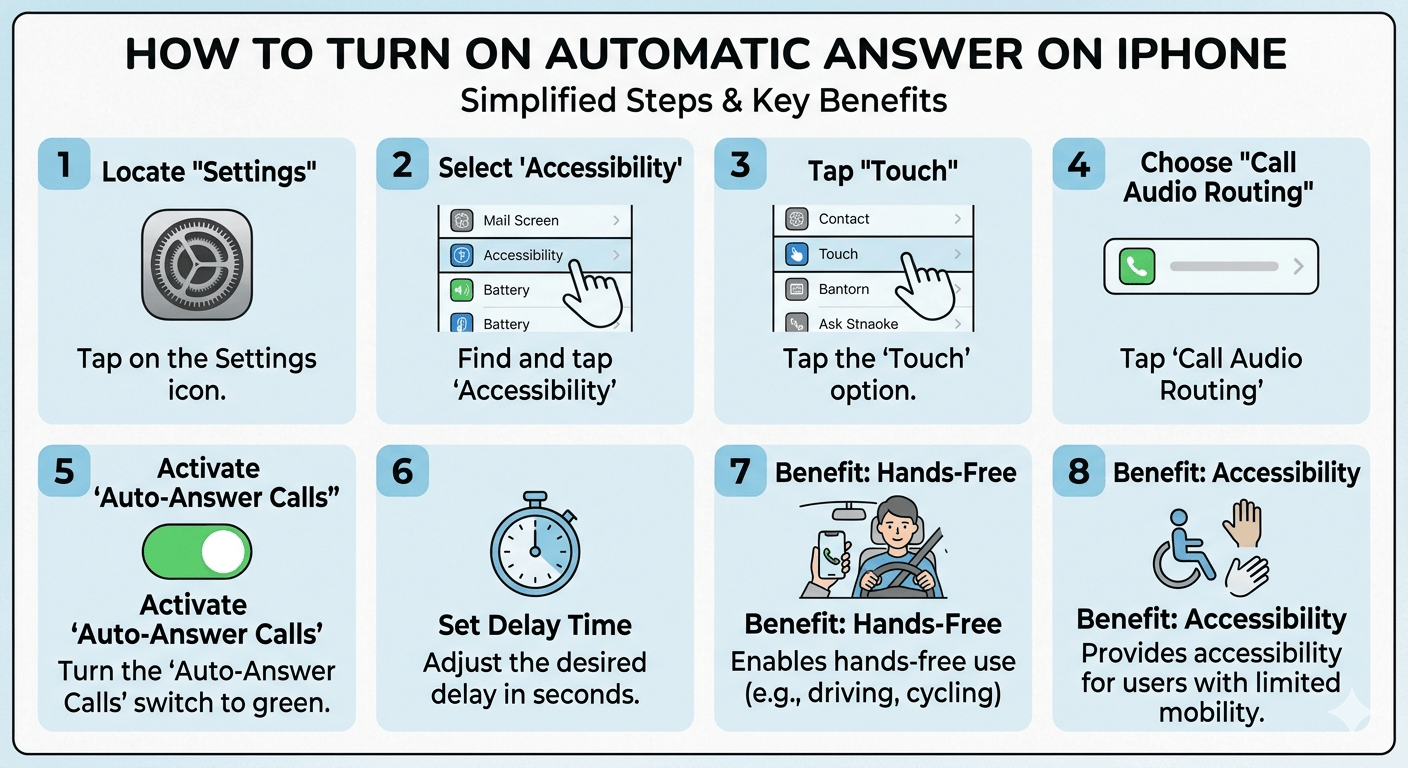
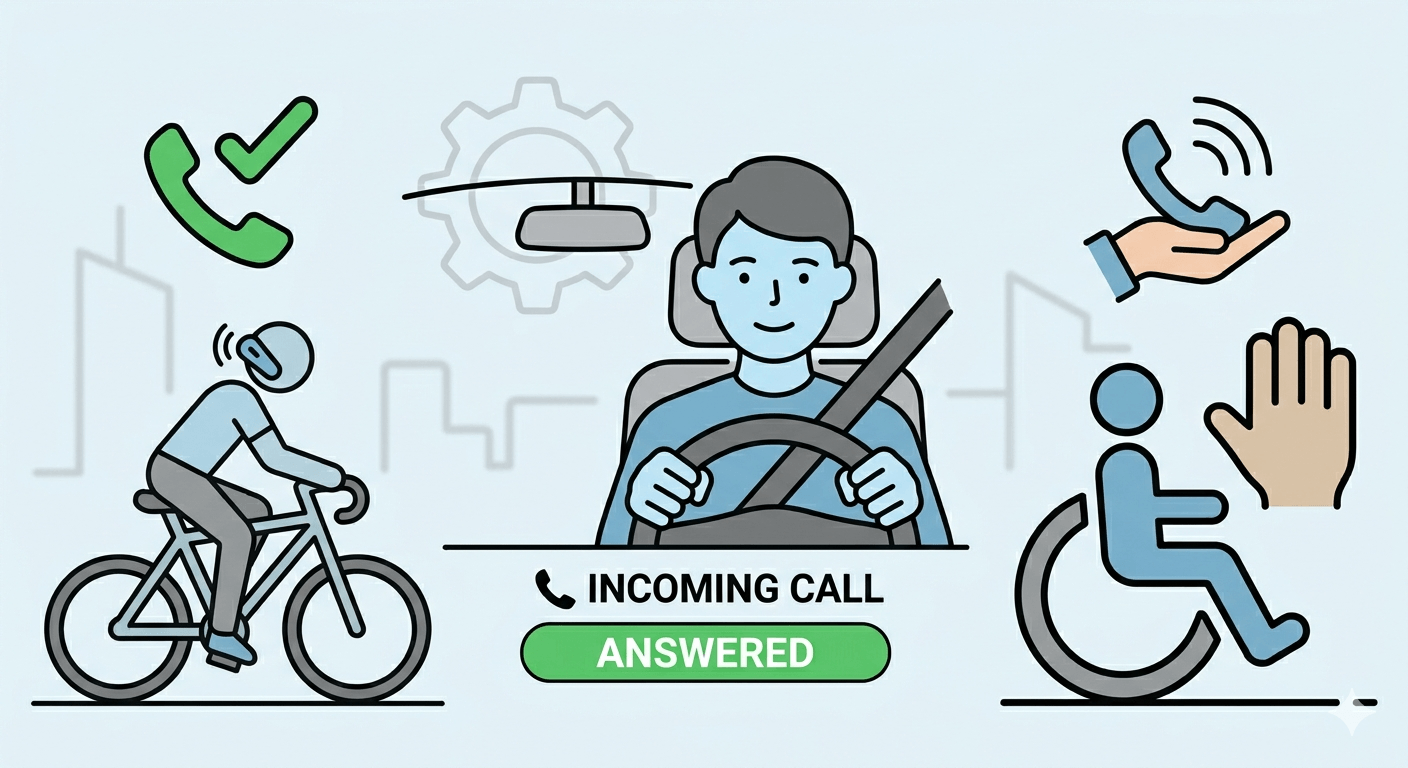
How to turn on automatic answer for your mobile device is a simple process that enhances accessibility and hands-free communication. On an iPhone, you can enable this by navigating to the Settings app, selecting Accessibility, and then tapping on Touch. From there, locate the Call Audio Routing menu and select the option for Auto-Answer Calls. Toggle the switch to the green position and set the desired delay time in seconds. This feature ensures your phone picks up incoming calls without manual interaction, which is particularly useful for drivers, cyclists, or individuals with limited mobility who need to stay connected effortlessly.
Understanding How to Turn On Automatic Answer and Its Benefits
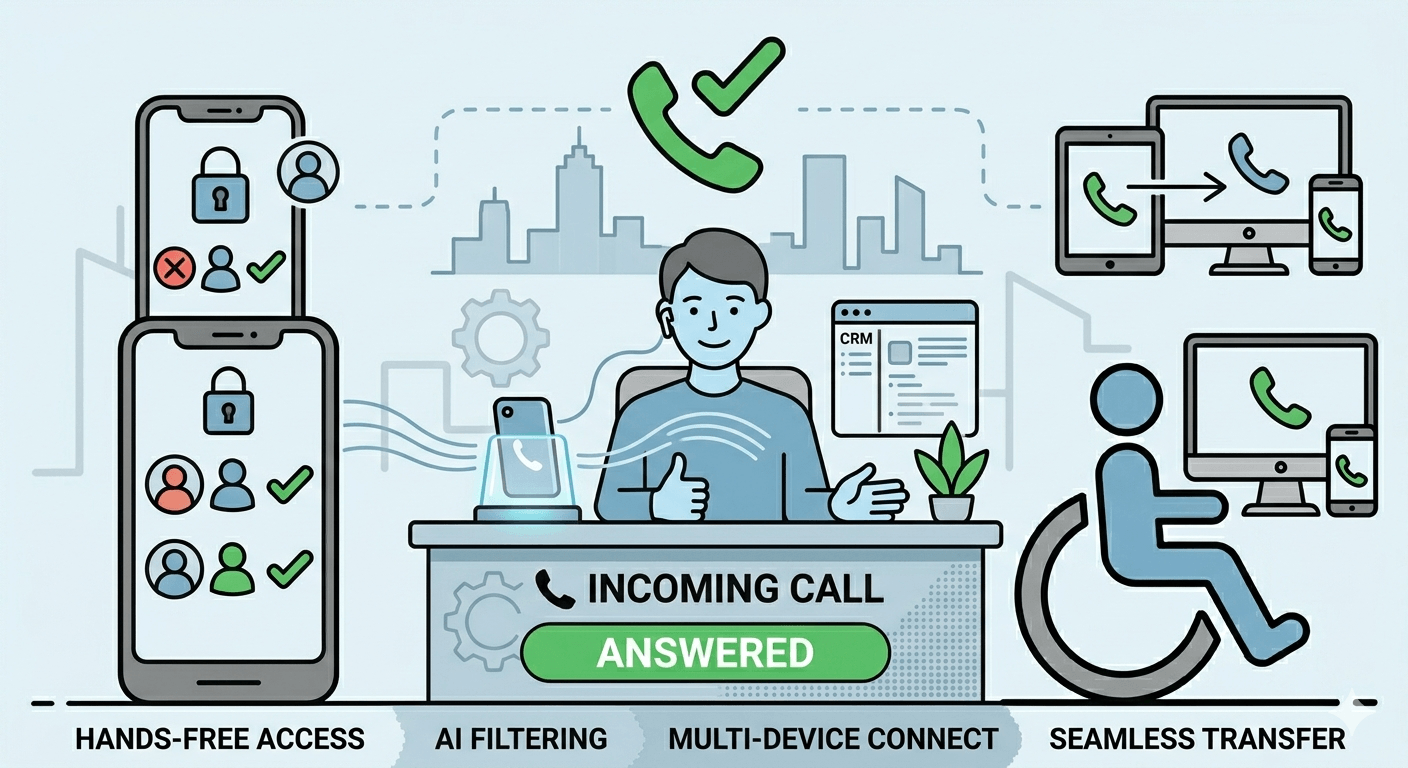
The ability to manage incoming communication without touching a screen has transformed the way people interact with their mobile technology. When looking at how to turn on automatic answer, it is important to recognize that this feature was primarily designed as an accessibility tool. For individuals who may have difficulty physically swiping or tapping their devices, this setting ensures they never miss a critical call. Beyond accessibility, the feature provides a massive convenience boost for professionals who work with their hands or athletes who are on the move. By understanding the mechanics of how to auto answer calls, users can create a more seamless digital experience that adapts to their lifestyle.
Modern smartphones use sophisticated software to handle these interactions. For instance, you can choose the exact duration the phone should ring before it picks up the call. This allows you to see who is calling before the system takes over. Whether you are using a headset, Bluetooth in a car, or the internal speaker, the system intelligently routes the audio based on your current connections. Learning how to turn automatic answer on is the first step toward building a hands-free environment that prioritizes safety and efficiency in daily routines.
The utility of this feature extends to specialized environments such as call centers or emergency dispatch situations. In these professional settings, time is of the essence, and removing the manual step of answering a call can save precious seconds. While the general public uses it for convenience, the underlying technology relies on a stable connection between the operating system and the telephony hardware. By mastering how to turn on auto answer on iphone or Android, users gain full control over their reachability without sacrificing their focus on current physical tasks.
Step-by-Step Guide on How to Turn On Automatic Answer Calls
Configuring your device to handle incoming traffic autonomously requires a few steps through the system settings. To begin the process of how to turn on automatic answer calls, you should first ensure your operating system is updated to the latest version to avoid any software glitches. On most devices, this setting is tucked away within the accessibility or call settings menu rather than the main phone application. This is a common point of confusion for many users who expect to find call-related toggles in the dialer app.
For those wondering how to make your phone automatically answer calls, the process generally involves defining the audio output. If you frequently use Bluetooth headphones or a vehicle infotainment system, the phone will prioritize those channels. You can adjust the delay timer, which typically ranges from zero to sixty seconds. A shorter timer is better for urgent professional environments, while a longer timer of five to ten seconds gives you enough time to glance at the screen to identify the caller before the line opens. This flexibility is what makes automatic answering so versatile for different user profiles.
Research from the National Safety Council indicates that hands-free devices can significantly reduce cognitive distraction while driving, although they do not eliminate it entirely. By setting up how to turn on auto answer, drivers can keep their eyes on the road and hands on the wheel, avoiding the dangerous habit of reaching for a phone when it rings. This safety aspect is a primary reason why many users seek out these settings. Once enabled, the phone acts as a personal assistant, managing the bridge between the caller and the recipient without any physical intervention required from the user.
Troubleshooting How to Turn Off Automatic Answer on iPhone
There are instances where a device might start picking up calls unexpectedly, leading users to wonder how to turn off automatic answer on iphone. This often happens after a system update or if someone accidentally toggles the accessibility settings. To disable this feature, you must return to the Accessibility menu under the Touch section. By navigating to Call Audio Routing, you can switch the Auto-Answer Calls toggle to the off position. This immediately restores manual control over all incoming communications, ensuring that you only speak when you are ready to do so.
If you find that your phone answers automatically even when the setting is off, it may be due to a connected Bluetooth device or a specific third-party application. Some car systems have their own internal auto-answer settings that override the phone settings. In such cases, checking the vehicle interface or the headset manual is necessary. Knowing how to turn off auto answer is just as important as knowing how to enable it, as it prevents awkward situations where a call is answered while the phone is in a pocket or a quiet environment where you did not intend to speak.
Furthermore, some users report that their phone auto answer function triggers only when connected to specific accessories. This is often linked to the call answer settings within specialized apps like RingCentral or Skype. If the system-wide setting is disabled but the behavior persists, it is wise to audit the settings of any communication apps you have installed. Ensuring you know how to turn off automatic answer correctly ensures your privacy and gives you the choice of which calls to accept and which to let go to voicemail.
Creative Solutions for How to Turn On Automatic Answer for One Person
A frequent request among smartphone users is how to turn on automatic answer for one person specifically. Currently, native mobile operating systems like iOS and Android do not offer a direct toggle to auto-answer a single specific contact while requiring manual input for others. However, there are creative workarounds to achieve a similar result. One method involves using the Focus or Do Not Disturb modes. By setting up a specific profile that only allows calls from one person and combined with the global auto-answer setting, you can effectively filter who gets through, though this still requires the auto-answer to be globally active.
For those looking for how to auto answer calls for one person on Android, third-party applications provide more granular control. There are various apps available on the Play Store that allow you to create whitelist rules. These rules can dictate that the phone should automatically pick up if the incoming number matches a specific contact in your address book. This is particularly helpful for families who want to ensure they can always reach an elderly relative or for emergency personnel who need to be reachable by a specific dispatcher at all times.
The concept of auto answer call for specific number settings is highly valued in the medical and caregiving fields. According to a study on assistive technology in healthcare, automated communication tools help maintain a sense of security for patients with limited mobility. By configuring a device to automatically answer calls from a designated caregiver, the patient does not need to struggle with the device to communicate. While the tech industry has yet to make this a standard one-click feature, the combination of accessibility settings and contact filtering offers a viable path for those needing to know how to put your phone on auto-answer for one person.
Mastering How to Turn Automatic Answer On for Different Devices
The process of how to turn automatic answer on varies slightly depending on whether you are using an iPhone or an Android device. On Android, the path often involves opening the Phone app, tapping the three dots for settings, and looking for Calling Accounts or Answering/Ending Calls. Here, you will find the option for automatic answering. Some manufacturers, like Samsung or Google, might place these settings in different sub-menus, but the terminology remains relatively consistent. Users should look for keywords like auto-answer call settings android to find the exact location on their specific model.
When investigating how to make calls automatically answer on professional platforms like RingCentral auto answer, the settings are usually found within the desktop or mobile app preferences. These systems are designed for high-volume environments where efficiency is the priority. In these cases, the auto-answer call function is often paired with a headset that signals the user with a beep before the line goes live. This professional-grade automatic answering ensures that no customer is left waiting on a ringing line, improving service metrics and workflow continuity.
It is also vital to understand what does auto answer calls mean in the context of different hardware. For some, it means the speakerphone activates immediately. For others, it implies the audio stays within a connected earpiece. If you are wondering why does my phone answer calls automatically, it is likely that a headset is plugged in or a Bluetooth connection is active, triggering a pre-set rule. By diving into the phone auto answer settings, you can customize the behavior to suit your specific environment, whether you are in a loud office or a quiet home setting.
Technical Facts and the Future of Automatic Answering
Technological advancements have made automatic answering more intelligent than ever before. Modern devices use proximity sensors to determine if the phone is in a pocket or against a face before activating certain features. A fact often overlooked is that the auto answer call for specific number android functionality is increasingly being integrated with AI. AI assistants can now screen calls, asking the caller for their name and purpose before the phone even rings for the user. This is a sophisticated evolution of the basic auto-answer phone calls feature we have used for years.
According to research by the International Journal of Mobile Communications, the integration of voice-activated commands and automated responses is a key growth area in mobile UI design.
This suggests that the future of how to answer calls automatically will likely involve more voice recognition, where the phone asks the user if they want to pick up, and the user simply says yes or no. This move toward a completely hands-free interface further supports the accessibility goals that originally prompted the creation of these settings.
As we look at how to turn on auto answer calls in the future, we can expect more integration with smart home ecosystems. Imagine a scenario where your home speakers automatically pick up a call when they detect you are in the room but not near your phone. This seamless transition of audio is already beginning with features like Handoff on Apple devices. By understanding the current methods for how to turn on automatic answer, users are preparing themselves for a future where communication is fluid, automated, and deeply integrated into the physical environment.
Organizing Your Daily Life with Auto-Answer Call Settings
Integrating automatic answering into your daily routine requires a bit of trial and error to find the perfect delay time. If the timer is too short, you may find yourself connected to a call before you have mentally prepared to speak. If it is too long, the caller might hang up thinking you are unavailable. Most experts recommend a five-second delay as the sweet spot for how to turn auto answer on. This provides enough time to see the caller ID on your watch or phone screen while still maintaining the convenience of a hands-free experience.
For those who are frequently in meetings or quiet spaces, knowing how to turn auto answer off quickly is essential. Many devices allow you to add an accessibility shortcut to the Control Center or the side button. This means you can toggle the automatic answering feature on or off with a triple-click or a quick swipe, rather than digging through the settings menu every time. This level of control makes the phone answers automatically feature a tool rather than a nuisance, allowing it to work for you only when you need it.
Ultimately, the goal of learning how to turn on auto-answer on iphone for one person or for all calls is to reduce the friction of technology. Whether you are a busy parent, a professional on the road, or someone utilizing assistive technology, these settings provide a layer of automation that simplifies life. By exploring the call answer options available on your device, you can tailor your communication style to be as active or as passive as your schedule demands.
Read More: How to Get a Google Number for Business? Set up Google Voice
Final Thought
Mastering the various ways to manage your incoming calls through automation provides a significant boost to both productivity and safety. Whether you needed to learn how to turn on automatic answer for professional reasons or were simply looking for how to turn off auto answer to regain manual control, understanding these settings is key to a better smartphone experience. As technology continues to evolve, the boundaries between manual interaction and automated assistance will continue to blur, making these features even more intuitive and essential for users worldwide.
FAQs
-
How do I turn on auto reply on the call?
To enable auto-reply for calls on an iPhone, navigate to Settings, then Phone, and select Respond with Text. Here you can create custom messages. For Android, open the Phone app settings and look for Quick Responses to set up automated text replies when you cannot take a call.
-
How to set up auto answer on iPhone for one person?
There is no native setting for a single person. However, you can go to Settings, then Accessibility, then Touch, and enable Auto-Answer Calls. Then, set up a Focus mode that only allows calls from that specific person. When this Focus is active, only that person will be able to trigger the auto-answer.
-
Can I set an automatic call?
Setting an automatic outgoing call usually requires a third-party app or a shortcut on iOS. You can use the Shortcuts app to create a trigger that dials a number at a certain time or when a specific condition is met, effectively automating the calling process.
-
How do I make my phone automatically pick up a call?
On iPhone, go to Settings > Accessibility > Touch > Call Audio Routing > Auto-Answer Calls and turn it on. On Android, go to Phone App > Settings > Answering and ending calls > Answer automatically. You can then set the delay timer for how long the phone rings before picking up.
-
Why does my phone answer calls by itself?
If your phone is answering by itself, the Auto-Answer Calls setting is likely enabled in your accessibility menu. It could also be caused by a connected Bluetooth device or car system that has its own auto-answer configuration. Check both your phone settings and your connected accessories to resolve this.