

To set up VoIP phone service for your business, check your internet and calling requirements, choose a suitable provider, add users, select or port phone numbers, connect supported apps or phones, configure call routing and voicemail, and test before going live. Keep your existing service active until number porting is complete and the new service works.
A successful business VoIP setup is more than installing an app. Customers need to reach the right person, staff need a consistent business identity, and someone must own missed calls. This guide focuses on a hosted cloud phone service for small and growing businesses, with additional checks for remote teams and offices using desk phones.
If you are keeping an on-premise PBX, adding SIP trunks or connecting specialist equipment, involve the provider or your telecoms administrator. Those projects need a different configuration plan from a standard hosted phone-service rollout.
Business VoIP Setup Checklist
Use this order to prepare the service on a temporary number before moving your main customer number. Assign a named person to each task; an unowned voicemail box or porting request can delay the entire switch.
| Task | Prepare | Completion Check |
|---|---|---|
| Requirements | Users, peak concurrent calls, departments, countries and essential features | A written call-handling plan |
| Network | Busy-hour connection test, supported firewall configuration and backup route | Two-way audio works under normal office load |
| Account | Administrator, business details, billing and any identity documents | Correct calling licenses and permissions |
| Numbers | New number or port request with matching account details | Number assigned to the intended call flow |
| Endpoints | Supported apps, headsets or provisioned desk phones | Each employee can make and answer calls |
| Routing | Business hours, ring group/queue, overflow and voicemail owner | Every branch has a destination |
| Service Readiness | Emergency location, messaging activation and recording settings | Applicable services checked separately |
| Launch | Pilot, user training, approved port date and support contact | External calls pass after cutover |
What Does “Ready” Actually Mean?
A phone ringing once does not prove that the system is ready. The caller should reach the correct destination, both people should hear each other, missed calls should create a usable record, and the right employee should receive the follow-up task. Test those outcomes on every device type you intend to use.
What Equipment Do You Need For Business VoIP?
For an app-based hosted VoIP service, you generally need a supported computer or smartphone, a reliable internet connection, the provider’s calling app and a microphone or headset. Desk phones are optional unless your workflow requires them. A traditional telephone may need a supported analog adapter, and some business-number services do not support SIP desk phones at all.
| Endpoint | Useful For | Check Before Buying |
|---|---|---|
| Desktop Softphone + Headset | Sales, support and office staff using customer records | OS/browser support, headset controls and microphone access |
| Mobile Calling App | Owners, field staff and remote workers | Push notifications, cellular-data use and background permissions |
| IP Desk Phone | Reception, shared desks and staff preferring a handset | Exact model, firmware, provisioning and power method |
| Cordless / DECT Phone | Staff moving around a shop or small office | Supported base, range, roaming and concurrent-call capacity |
| Analog Telephone + ATA | A compatible existing handset that must be retained | Provider-supported adapter and supported functions |
Check Compatibility Before Reusing Phones
A phone with an Ethernet socket is not automatically supported. Give the provider the model and firmware version, ask whether it is locked to the old service, and confirm how it will be provisioned. Some app-first platforms supply business calling without accepting third-party SIP handsets. Do not buy hardware based only on the word “VoIP.”
For desk phones, identify whether the device uses Power over Ethernet (PoE) or a power adapter. A PoE phone still needs a compatible powered switch or injector. Confirm the switch power budget for all attached phones, and label the network port and assigned user so later support does not depend on guesswork.
Fax, Alarms, Door Entry And Payment Terminals
Inventory anything connected to the old telephone line before cancelling it. Fax machines, alarm panels, lift phones, door-entry systems and payment equipment may depend on specific carrier or device capabilities. Ask the equipment supplier about an approved migration method; an ATA is not a universal replacement. Keep the existing connection until the replacement has been accepted for that use.
Check Internet And Network Readiness
VoIP needs enough upload and download capacity for simultaneous calls, plus a stable network path. Test at busy times and from each location. A fast speed-test result alone does not detect every problem with packet loss, variable delay, Wi-Fi coverage or firewall behavior.
Estimate Capacity From Simultaneous Calls
Zoom’s technical guidance puts a Zoom Phone call at roughly 60–100 kbps, while RingCentral publishes voice bandwidth guidance around 90 kbps or more per line. These are provider-specific references, not a universal internet-plan recommendation. Use the chosen provider’s current requirement and leave room for video meetings, file uploads, other users and overhead.
Illustrative calculation: If your planning assumption is 100 kbps in each direction per active call, eight simultaneous calls need about 800 kbps, or 0.8 Mbps, in each direction for that voice traffic alone. This does not mean that a 0.8 Mbps office connection is sufficient. Measure the rest of the workload and peak congestion before choosing capacity.
Test Quality Where Employees Actually Work
- Run the provider’s readiness or quality tool during a normal busy period.
- Check upload as well as download performance and review delay, jitter and packet loss against provider guidance.
- Make calls while a realistic mix of office traffic is active.
- Compare a wired connection with Wi-Fi if audio breaks up.
- Repeat testing from remote workers’ homes and on the mobile-data connections they will use.
Configure The Router And Firewall With Provider Guidance
Use the provider’s current network documentation for domains, ports, traffic prioritization and any VPN considerations. QoS can help manage local congestion, but it cannot create missing internet capacity or control every external network. Do not copy another vendor’s firewall rules, disable protections broadly or forward a wide range of ports just to make a test call work.
If you suspect a router feature such as SIP ALG is interfering, ask the provider or network administrator whether it should be changed for this service. Record the original settings, make one controlled change, and repeat the same test. Avoid changing several network settings at once.
How To Set Up VoIP Phone Service: 10 Steps
Step 1: Map Your Business Calling Requirements
List the people who answer calls, the main customer number, opening hours and the outcome when nobody answers. Count peak simultaneous calls separately from employees: ten staff do not necessarily make ten calls at once, but a shared number may still receive several incoming calls.
- Which employees need paid calling users, shared devices or direct numbers?
- Do sales and support need separate destinations?
- Which countries need numbers or outbound calling?
- Are call queues, transfers, recording, SMS or CRM logging essential?
- Who owns missed calls, voicemail and administration?
For a five-person service business, the starting design might be one main number, three people answering customer calls and two field workers using mobile apps. Confirm licensing for that arrangement; sharing one public number does not remove user-license requirements.
Step 2: Choose A Provider And The Correct Plan
Buy the plan that supports the call flow, endpoint and country requirements you wrote down. Check that a feature belongs to the quoted phone plan rather than a contact-center product, optional add-on or higher tier. A generic free account for meetings is not automatically a licensed business phone account.
If you also need integrated meetings and team messaging, compare the broader scope in our VoIP vs UCaaS guide. For a phone-only workflow, prioritize answering, transfers, voicemail, number availability and support before optional AI features.
Step 3: Create The Account And Secure Administration
Use a business-controlled email address for ownership and billing. Complete business or identity verification where required, select the correct region and time zone, and enable multifactor authentication when available. Assign a backup administrator with the access needed to handle an absence.
Keep ordinary employees on ordinary user roles. Limit billing changes, number purchases and international permissions to people who need them. Store recovery details securely and record who can contact support as the authorized account owner.
Step 4: Add Users, Licenses And Extensions
Create the users, assign the appropriate calling licenses and send invitations. Give each person a clear display name and extension, then verify the app or device they will use. An extension is an internal destination; a direct phone number lets an outside caller dial that destination directly.
A main business number can route to several employees without giving every employee a separate published number. Confirm which direct numbers, shared devices and concurrent calls the plan permits. Remove test users or unnecessary licenses before the first full invoice.
Step 5: Get A Number Or Start Number Porting
For a new business, select an available number, complete any required documents and assign it to the intended destination. For an existing business, ask the new provider to check porting eligibility for each number and country before submitting the transfer.
- Collect the current bill, account number, service address and porting PIN where applicable.
- Match the authorized name and address to the old carrier’s records.
- Confirm any number lock, pending order or contract issue that could block transfer.
- Use a temporary number to configure and test the new service.
- Agree the cutover date and support owner before announcing the switch.
Do not cancel the old service while the number is being ported. A disconnected number can complicate or prevent transfer. After the port completes, confirm incoming and outgoing calls, caller ID and any messaging migration before asking the old carrier which remaining services or charges should be closed. Porting one number may affect bundled services.
Step 6: Install Apps Or Provision Supported Phones
Install the provider’s supported apps and sign in with the assigned user account. Allow the permissions needed for audio and incoming-call notifications. Select the intended microphone and speaker, and test the headset rather than assuming the operating system has chosen it.
For an IP phone, follow the provider’s provisioning instructions: confirm compatibility, connect power and Ethernet, register or assign the device and verify the user or shared-line association. Factory reset only when instructed and after recording existing configuration. Use approved provisioning instead of copying credentials into an unsupported device.
For remote workers, test the laptop and mobile app separately. A mobile phone may use Wi-Fi or cellular data; the service still needs internet access for app-based calling. Forwarding to an ordinary mobile number is a different path and can carry separate usage charges.
Step 7: Set Business Hours, Routing And Voicemail
Configure the main number’s open-hours destination, closed-hours destination and holiday schedule. Start with a simple ring group or receptionist route, then add a queue or IVR only if customers need it and the plan supports it. Test the timeout, overflow and no-answer destination for every branch.
Record a short greeting that explains what happens next. Set a voicemail owner and delivery method, then make sure someone checks it. Our voicemail-to-email guide explains notification and transcript options. Sending a notification is only useful if a person owns the callback.
Step 8: Check Emergency Calling, Messaging And Recording
For services with emergency calling, confirm availability in the deployment country and register the correct location for each site or remote user as the provider requires. Explain how employees update their location when they move. The FCC warns that US VoIP emergency access can be affected by power or internet failure; keep an alternative way to reach emergency services.
Use the provider’s approved emergency-address validation or test process where available. Do not make an unarranged live emergency call as a routine setup test. A voice-enabled virtual number is not proof that the service offers emergency access in every country.
Business SMS may need separate number capability, registration or verification. For example, Zoom documents 10DLC campaign approval and number assignment for applicable business messaging. Voice activation and SMS activation are separate checks. Toll-free texting can require a different verification process.
Before enabling recordings or AI transcripts, decide who can access them, how long they are retained and what notices or permissions apply to the calls you make. Confirm your organization’s requirements for the relevant jurisdictions. Add CRM integrations only after you know which call records and messages should be shared.
Step 9: Run A Pilot And Train Employees
Have a few employees use the service with a temporary number and the actual devices, headsets and networks intended for rollout. Include the receptionist, a mobile worker and the person responsible for administration. Ask them to answer, transfer, return missed calls and find voicemail.
Give employees a short operating guide: how to answer, place a business call, choose caller ID, transfer, use do-not-disturb, update availability and report a problem. Record a support contact and escalation path for the day the main number moves.
Step 10: Go Live And Review The First Week
Confirm the port or activation window with the provider. After cutover, call the main number from independent outside networks, verify both directions of audio and check each route. If routing is wrong, fix the destination or activate the agreed fallback; a ported number cannot necessarily be moved back immediately.
Review missed calls, voicemail ownership, call quality and the first usage charges. Remove temporary forwarding when it is no longer needed. At the end of the first week, ask employees where the actual workflow differs from the setup plan and simplify the rules that caused confusion.
Example: A Simple Five-Person Business Call Flow
This example is a design to adapt, not a provider’s default. It assumes three people can answer the main number and one person owns messages. Choose settings that match staff availability rather than copying the timings automatically.
- During business hours: A short greeting directs callers to the customer-facing team.
- First destination: Ring three available employees together for an illustrative 20 seconds.
- If unanswered: Send the caller to the chosen overflow destination or voicemail; avoid an endless loop.
- Outside business hours: Play a closed-hours message and send calls directly to the correct mailbox.
- Follow-up: A named owner checks messages and allocates callbacks.
If callers need sales and existing-customer support, add a short two-option menu. Provide a destination for invalid input and no input. For a queue, define the maximum wait and the outcome if every agent is unavailable. A queue and a simultaneous ring group are different features; ask which your plan includes.
Also test calls near closing time and on a holiday. An employee’s local time zone, the site schedule and the main-number schedule may not be identical. Make the intended schedule explicit before remote staff begin taking calls.
VoIP Providers To Compare For Your Setup
These six examples cover different business workflows; this is not a claim that one vendor installs faster than another. Prices are US-dollar base subscription references, with annual rates shown as monthly equivalents. Confirm country availability, required tier, minimum users, hardware, usage and trial eligibility. Stars are G2 customer ratings for the named phone products, not setup-test scores.
| Provider | Setup Fit And Checks | Base Pricing & Trial |
|---|---|---|
 RingCentral RingCentral |
| Request Current RingEX QuoteStart 14-Day Free Trial |
 Nextiva Nextiva |
| Core: $15/user/month annuallyStart 14-Day Free Trial |
 Zoom Phone Zoom Phone |
| US & CA Unlimited: $16/user/month annuallyStart Free Trial |
 KrispCall KrispCall |
| Starter: $12/user/month annuallyCheck Pricing |
 JustCall JustCall |
| Team: $29/user/month annually; two-user minimumStart 14-Day Free Trial |
 Quo Quo |
| Starter: $15/user/month annuallyStart 7-Day Free Trial |
RingCentral, Nextiva and Zoom Phone merit a comparison for broader office deployments. KrispCall and Quo are relevant to app-based teams, while JustCall deserves a CRM-workflow pilot. Before committing, demonstrate the exact endpoint and call-handling requirements on the tier you will pay for.
What A Provider Dashboard Should Help You Check
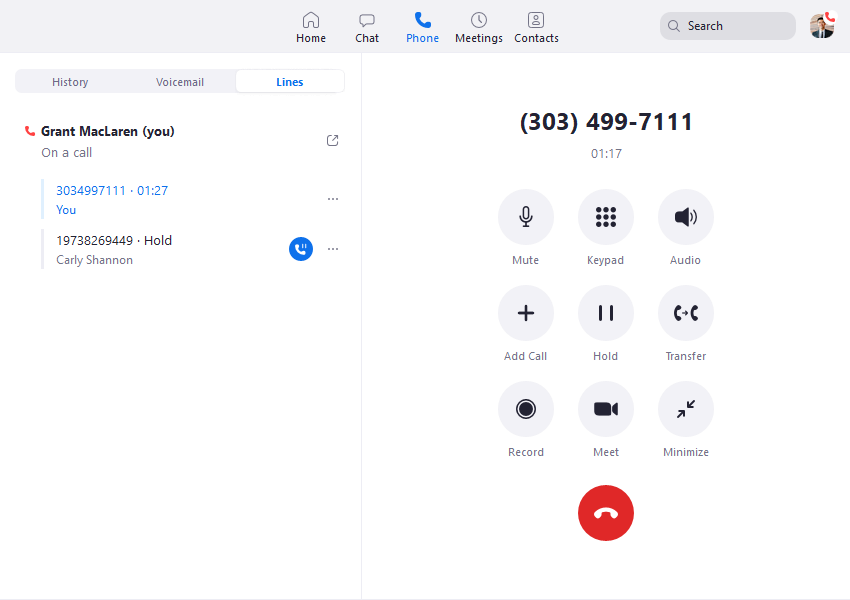
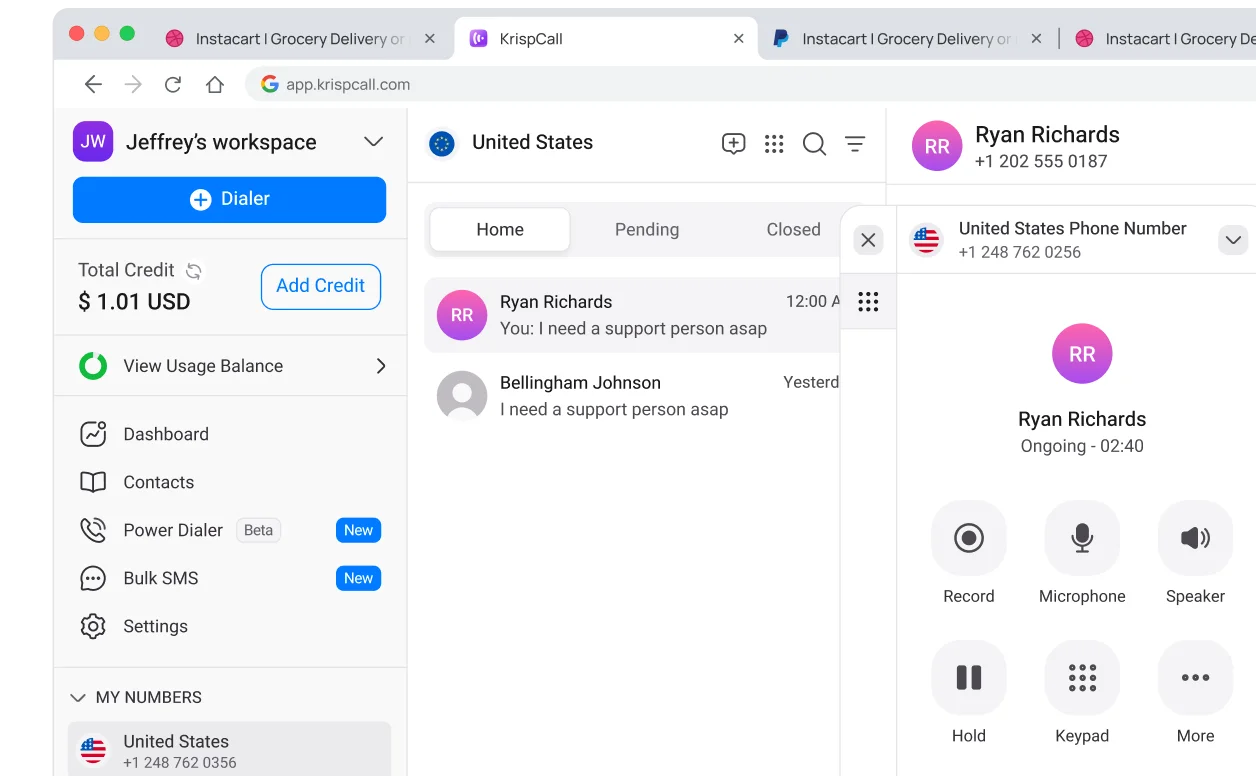
Locate users, assigned numbers, business hours, voicemail, calling permissions and usage records. The calling app and administrator portal may be different interfaces. Ask who can change a route and how that person can tell whether the change worked.
For a broader shortlist, Dialpad, CallHippo, Ringover and Calilio have different calling, number and integration propositions. Grasshopper and Talkroute can fit simpler business-number workflows. Confirm the deployment model and features rather than assuming every service supports the same hardware, countries or outbound routes.
Test Your VoIP Service Before Going Live
Test incoming and outgoing calls, two-way audio, caller ID, transfers, business hours, voicemail, overflow, mobile notifications and the fallback route. Use external callers and the real devices employees will use. Test texting and ported numbers separately; a successful internal call does not validate the whole service.
| Test | How To Check | Pass Condition |
|---|---|---|
| Inbound And Outbound | Call from an outside mobile; return the call from the business app | Correct number rings and both parties hear each other |
| Main Number Routing | Try every menu option, invalid input and no input | Each path reaches the intended destination |
| Transfer And Overflow | Transfer to a colleague; leave all agents unavailable | Transfer works and missed calls reach the agreed fallback |
| Schedules And Voicemail | Simulate closed hours and a holiday; leave a message | Right greeting, mailbox and notification owner |
| Mobile And Remote Staff | Lock the phone screen; change networks; test a supported remote location | Expected notifications and usable audio |
| Texting And Integrations | Send and receive a supported SMS; inspect a CRM call record | Required activation complete and records match |
| Ported Number | Repeat external tests once the carrier confirms the port | Incoming calls and intended caller ID work after cutover |
| Continuity | Test the agreed alternate connection or forwarding path | Staff understand what works when the main route is unavailable |
Use the provider’s built-in audio test where offered. Zoom Phone documents an audio test service reached through *8378; this is a Zoom-specific microphone/speaker test, not an emergency-service test or a universal VoIP code. Then make real end-to-end test calls to ordinary numbers.
Record Evidence That Support Can Use
For failures, record the time and time zone, calling and called numbers, direction, user, device, network and call ID if available. Note whether the problem affected one person or everyone and whether it reproduces on another connection. Avoid collecting unnecessary customer content in troubleshooting notes.
Plan For Internet Or Power Failure
An app, desk phone, router and powered switch can all become failure points. A provider’s cloud platform can be working while your office cannot reach it. Plan the fallback for the actual failure rather than assuming a service-availability claim covers your building.
- Office power: Size backup power for the network equipment and endpoints that must remain available.
- Internet outage: Evaluate a tested secondary connection or mobile-data workflow.
- Routing fallback: Confirm whether cloud forwarding continues when office devices are offline.
- Staff instructions: Identify the alternate contact method and the person authorized to change routing.
- Emergency access: Maintain a suitable alternative for the deployment location.
Backup power does not repair an upstream internet outage, and an alternate internet connection does not power an unpowered phone. Forwarding to an outside mobile can also introduce usage charges. Test the fallback before launch and explain its limits to staff.
How Much Does Business VoIP Setup Cost?
VoIP setup cost includes subscriptions, any required phones or headsets, network work, number charges, optional integrations and migration effort. An app-based rollout using existing devices may need little new hardware, but that does not make the complete transition free.
Budget formula: First-period cost = platform subscriptions + hardware + network/installation work + number or activation charges + add-ons/usage + overlapping old-service charges + applicable taxes.
For an illustrative five-user plan at $15 per user per month, the subscription component is $75 per month. If that rate requires annual billing, the five-user annual subscription is $900 before other charges. Five $40 headsets would add an assumed one-time $200. These are arithmetic examples, not a quote or a recommended headset price.
- Request the price for the plan with your actual routing, recording and CRM needs.
- Separate included numbers from extra-number rental and calling charges.
- Include SMS registration or verification fees where applicable.
- Allow for a period of overlap while numbers transfer and service is checked.
- Confirm who handles onboarding and whether paid installation assistance is needed.
Compare the first invoice with the expected license count and allowances. A trial can reveal usability problems, but restricted numbers, texting or provisioning may remain untested until activation. Confirm renewal dates, cancellation terms and any device-return requirements before starting.
How Long Does It Take To Set Up Business VoIP?
A simple app-based account with a new number can be configured quickly once licensing and verification are complete. An existing-number migration takes longer because porting, messaging activation, device provisioning and training are separate processes. Ask for confirmed milestones rather than relying on a universal same-day setup promise.
- Before activation: Confirm requirements, network readiness, country coverage and ownership documents.
- Before the port: Configure the temporary-number service, train staff and pass acceptance tests.
- At cutover: Verify external calls and each destination after provider confirmation.
- After launch: Review failed or missed calls, usage and remaining old-carrier services.
Do not publish a transfer date until the receiving provider confirms it. A rejected authorization, incorrect account detail or unsupported number can change the schedule. If you need a fixed launch date, agree how customers will reach you if the port is delayed.
Common VoIP Setup Problems And Solutions
| Problem | First Checks | Next Action |
|---|---|---|
| No Incoming Calls | Number assignment, port status, business hours, DND and routing | Call a temporary number and isolate the failing route |
| One-Way Or No Audio | Microphone permission, audio device, firewall/NAT and network path | Compare a supported alternate network; give call IDs to support |
| Choppy Or Delayed Audio | Busy-hour upload, Wi-Fi signal, jitter and packet loss | Compare wired access and provider quality diagnostics |
| Desk Phone Will Not Register | Exact model, firmware, power, provisioning and assigned user | Follow vendor-specific provisioning with support |
| Wrong Outbound Caller ID | Number ownership, user permission and selected caller ID | Confirm the authorized number; allow for carrier presentation differences |
| SMS Will Not Send | SMS capability, registration status, number assignment and usage allowance | Complete the applicable activation process before retesting |
| Mobile App Does Not Ring | App sign-in, notification permission, background restrictions and DND | Test on a locked screen with supported app settings |
| Port Request Rejected | Name/address mismatch, PIN, number lock or another pending order | Correct the carrier-record mismatch and resubmit through the new provider |
| CRM Records Missing | Integration user, permissions, contact matching and chosen plan | Test a known contact and inspect the integration logs |
A provider outage or carrier issue may need escalation rather than a local router change. Check the provider’s status information and compare the affected numbers or locations. Keep a record of changes so the administrator can restore the last working configuration.
Review The Setup After Launch
Check missed calls and callbacks daily during the first week. Then review the configuration after staffing, working hours or office locations change. Remove departed users, reclaim unused numbers and update emergency-location records where relevant.
- Is every voicemail box owned and monitored?
- Do schedule and holiday rules still match the business?
- Are licenses, numbers and usage charges expected?
- Can a backup administrator make an urgent change?
- Are device firmware, apps and integrations supported?
- Does the alternate connection or forwarding route still work?
Treat AI receptionists and additional automation as later changes with their own tests. Start from a call flow staff can explain, then add tools where they solve a documented problem. That keeps the initial rollout easier to verify and support.
Frequently Asked Questions
Can I Set Up VoIP Myself?
Usually, for a simple hosted app-based service with supported devices and a ready network. Ask for implementation help when you have multiple sites, complex queues, specialist equipment or a difficult migration.
Do I Need A New Desk Phone?
No, if the service supports calling through your existing computer or smartphone. If you want a handset, confirm the exact supported device and provisioning process before buying.
Can I Keep My Existing Business Number?
Often, if the new provider can port that number and you supply matching ownership details. Eligibility depends on number type and country. Keep the old service active until transfer and testing are complete.
Can Several Employees Share One Business Number?
Yes, where the provider supports shared numbers, ring groups, queues or a similar route. Each employee or device may still need a license. One public number is not the same as one concurrent call or one user.
Does VoIP Work Without Wi-Fi?
An app can work over a supported cellular-data or wired internet connection. Wi-Fi is only one way to reach the internet. Standard hosted app calling still depends on usable connectivity.
Why Can I Call But Not Send Text Messages?
Voice and SMS have separate capabilities and activation rules. Check number capability, messaging registration, approval, plan allowances and number assignment.
Will My Old Analog Phone Work?
Possibly, with a provider-supported analog telephone adapter. Check both the handset and required features. Specialist alarm, fax or safety equipment needs its own supplier-approved migration plan.
Does A Free Trial Mean My Main Number Is Ready To Move?
No. A trial may restrict texting, numbers, destinations or devices. Validate the paid-plan requirements and agree porting steps before moving the main customer number.
Do I Need A Separate PBX Server?
Not for a typical hosted cloud phone service; the provider operates the central platform. An on-premise PBX or SIP-trunking project has different infrastructure and administration requirements.
What Should I Do Before Cancelling My Landline?
Confirm the port completed, external calls work, voicemail and caller ID are correct, and all dependent devices or bundled services have approved replacements. Ask the old carrier what remains active and billable.
Customer Feedback: Use It To Shape Your Pilot
G2’s RingEX reviews include discussion of extension management, transfers and everyday usability, along with different experiences of setup and support. For a practical evaluation, ask the person who will administer your account to change a route and resolve an unanswered call during the pilot.
Customer ratings describe general experiences, not proof that your network or call flow will work. Use review themes as questions for a trial, then accept the deployment only after the devices and routes your business needs have passed testing.
Affiliate Disclosure: VoIPCalling.com may earn a commission when you purchase through links in this article, at no additional cost to you. Provider examples are based on published capabilities and intended setup needs.