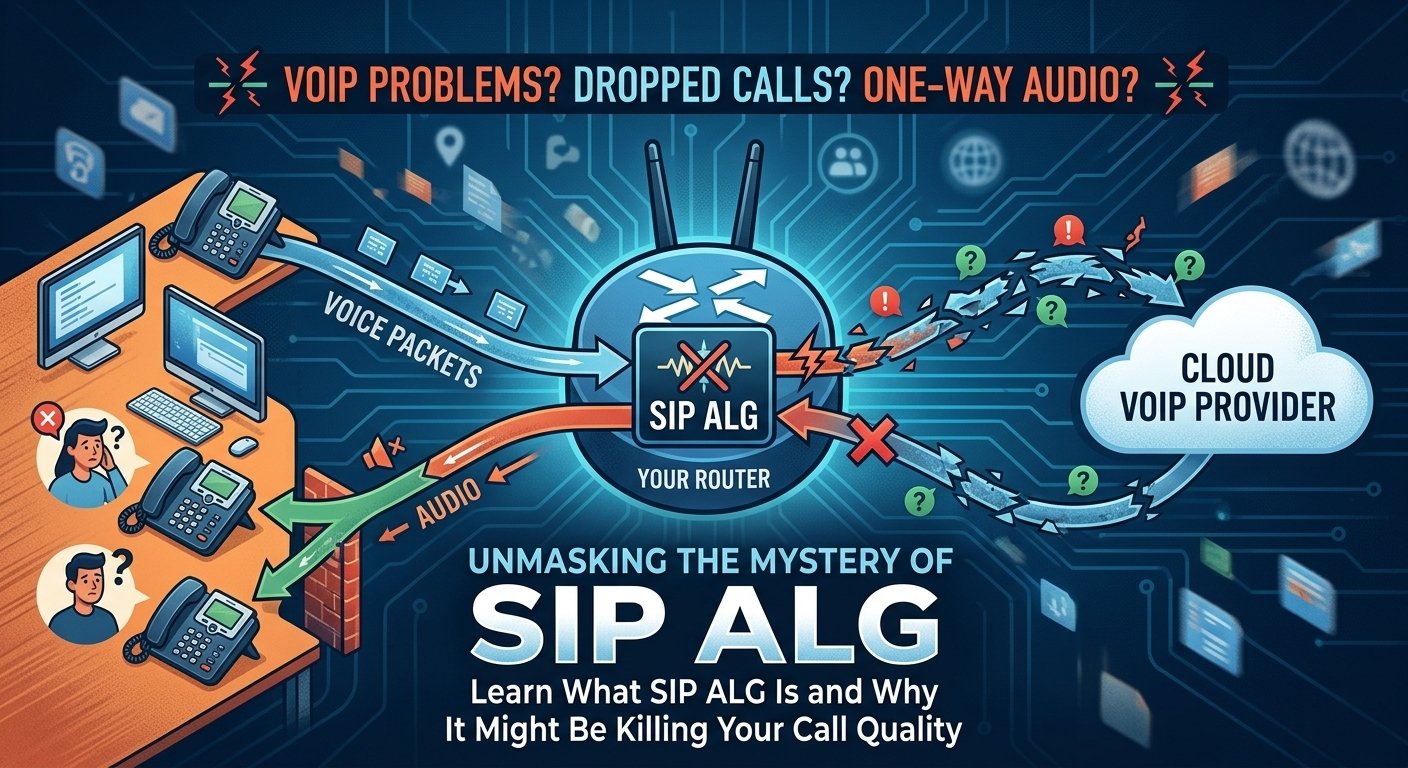
SIP ALG (Session Initiation Protocol Application Layer Gateway) is a router or firewall feature designed to inspect SIP signaling and help VoIP traffic work through Network Address Translation (NAT). It may rewrite IP addresses and port information contained inside SIP messages so calls can reach devices behind a private network. Although SIP ALG can help in some network configurations, it can also interfere with modern VoIP systems that already use their own NAT-traversal methods.
If a VoIP provider recommends disabling SIP ALG and the network is experiencing one-way audio, registration failures or dropped calls, turning it off can be an effective troubleshooting step. However, the correct configuration depends on the router, firewall and VoIP service being used.
What Is SIP ALG?
A SIP application layer gateway is a specialized software component found within many commercial and consumer-grade routers. Its primary objective is to solve problems related to NAT by intercepting voice packets and rewriting their destination addresses. Because Voice over IP (VoIP) utilizes the Session Initiation Protocol to establish connections, the router automatically inspects these “invites” to ensure the media reaches the correct internal device.
Despite its name, a SIP application level gateway often creates conflicts with current cloud-hosted PBX systems. These systems are already designed to handle NAT traversal without external help. When the router tries to “help” by modifying the packet data, it often ends up breaking the delicate signaling required for a two-way conversation. This results in the very connectivity issues that the feature was originally designed to prevent.
How SIP ALG Works
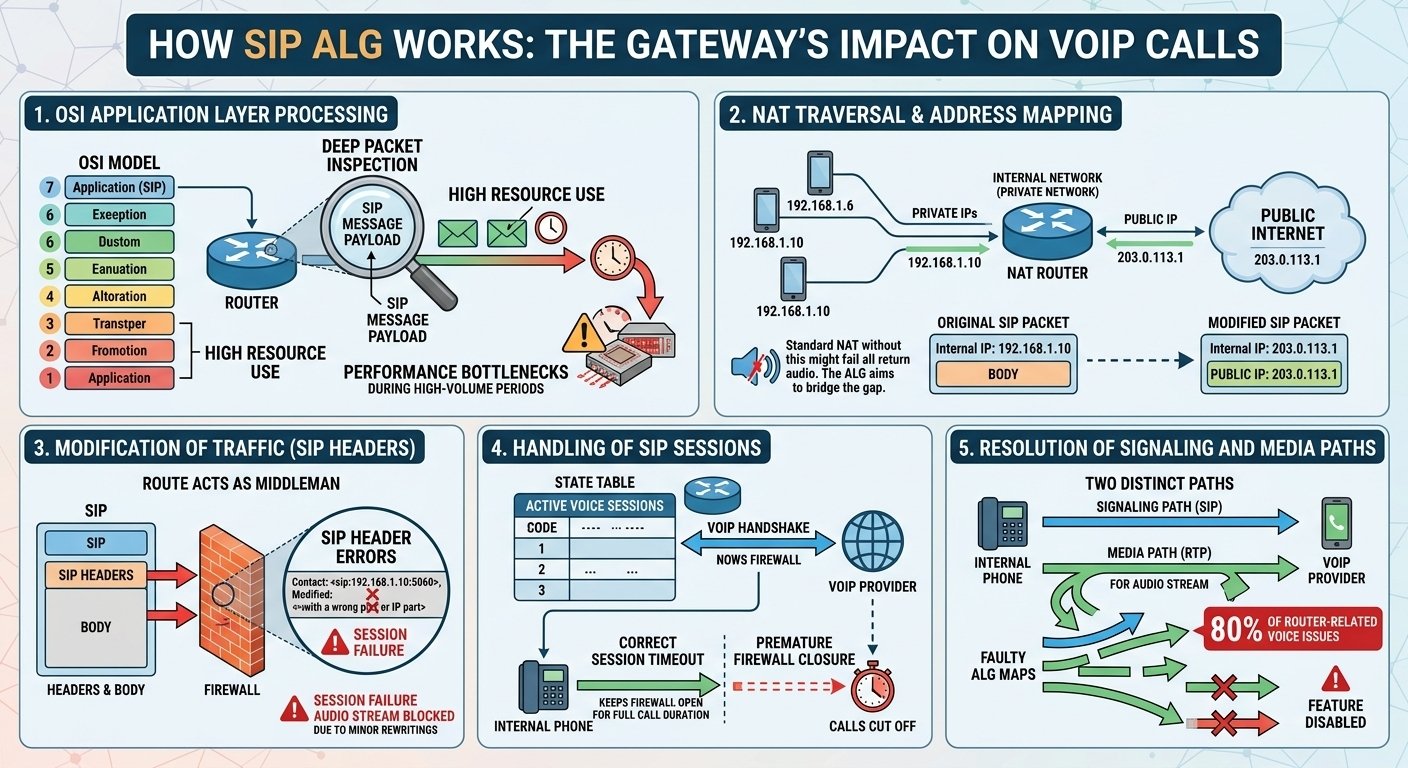
The functionality of this gateway revolves around the manipulation of data at the application layer of the OSI model. Instead of simply routing packets based on IP addresses, the router looks deep into the packet payload to find SIP-specific information. This process is complex and resource-intensive for the hardware, often leading to performance bottlenecks during high-volume call periods.
-
NAT traversal
In a standard network environment, internal devices use private IP addresses that are not reachable from the public internet. The router uses Network Address Translation to map these internal addresses to a single public IP. Because SIP messages contain IP information within the message body itself, standard NAT usually fails to route the return audio correctly. The gateway attempts to bridge this gap by manually changing the internal IP to the public IP within the packet.
-
Modification of traffic
When a SIP ALG is active, the router acts as a middleman that alters the traffic as it passes through the firewall. This includes changing the port numbers and IP addresses in the headers to match the external network configuration. While this sounds beneficial, many routers do not perform this task perfectly. Even a minor error in rewriting a single digit of the SIP header can cause the entire session to fail or the audio stream to be blocked.
-
Handling of SIP sessions
The router maintains a state table to keep track of active voice sessions. It monitors the “handshake” between your phone and the provider to ensure that the firewall remains open for the duration of the call. If the router’s session timeout is shorter than the VoIP provider’s requirements, the firewall might close the connection prematurely. This leads to the frustrating experience of calls cutting off exactly at the same time interval every time.
-
Resolution of SIP signaling and media paths
For a successful call, two distinct paths must be established: one for signaling (SIP) and one for the actual audio (RTP). The gateway attempts to synchronize these paths so that the audio knows exactly which internal device to go to. However, research into network performance suggests that nearly 80% of router-related voice issues are caused by faulty ALG implementations that fail to map these media paths correctly. This is why many network engineers recommend disabling the feature immediately upon setup.
Signs SIP ALG Affects VoIP Calls
Identifying whether your router is interfering with your voice service is the first step toward a fix. Many users assume their internet connection is slow or their service provider is at fault. In reality, the hardware sitting on your desk is often the silent culprit. Recognizing the specific symptoms of a malfunctioning sip application layer gateway can save hours of troubleshooting with tech support.
1. Call set-up issues
One of the most common signs of interference is the inability to make or receive calls consistently. You might notice that your phone registers correctly, but when you dial a number, the call never connects. This happens because the router has corrupted the INVITE message, making it unreadable to the recipient’s server. Conversely, incoming calls might never reach your desk because the router failed to create a proper “pinhole” in the firewall.
2. One-way audio
If you can hear the person on the other end, but they cannot hear you, you are likely experiencing a media path error. This one-way audio occurs when the router modifies the signaling but fails to open the necessary ports for the Real-time Transport Protocol (RTP) stream. According to technical standards from the ITU-T G.114, voice traffic requires extreme precision in timing and routing. When a gateway mismanages these ports, the audio packets simply get dropped at the firewall.
3. Dropped calls
Unexpected disconnections are a hallmark of SIP interference. This usually happens because the router does not properly handle the “keep-alive” messages that phones send to the server. If the router thinks the session has become idle because it doesn’t recognize the modified packets, it will close the connection to protect the network. This results in calls that drop after a specific amount of time, such as 30 seconds or 15 minutes.
4. Inconsistent call quality
Sometimes the interference doesn’t kill the call but simply makes it unbearable. You might experience jitter, which is the irregular arrival of data packets, or high latency. Because the router is working hard to inspect and rewrite every single voice packet, it adds processing delay to the stream. This overhead can lead to “choppy” audio where words are clipped or delayed, making professional communication nearly impossible.
How Do I Turn Off SIP ALG?
Disabling this feature usually requires accessing the web-based management interface of your router. You will need the administrative credentials, which are often found on a sticker on the back of the device. Most manufacturers place this setting under “Advanced Settings,” “Security,” or “Firewall.” Once you locate the checkbox, simply uncheck it, save your changes, and reboot the device to ensure the new configuration takes effect.
| Router Manufacturer | Steps to Disable SIP ALG |
| Actiontec | 1. Select Advanced > ALG’s. 2. Remove the check from SIP ALG. 3. Click Apply. 4. Enable “Allow Incoming WAN ICMP Echo Requests” under Remote Administration. |
| Adtran | 1. Go to Firewall / ACLs > ALG Settings. 2. Uncheck SIP ALG. 3. Click Apply. Or use CLI command: no ip firewall alg sip. |
| Arris | 1. Navigate to 192.168.0.1. 2. Go to Advanced > Options. 3. Uncheck the SIP box and click Apply. |
| Asus | 1. Go to WAN > NAT Passthrough. 2. Set SIP Passthrough to Disable. 3. Click Apply. |
| Cisco | Use CLI: no ip nat service sip tcp port 5060 or no inspect sip on ASA models. |
| D-Link | 1. Go to Advanced Settings > ALG Configuration. 2. Uncheck SIP and save. |
| Fortinet | Use CLI: config system session-helper, find the SIP instance (usually #12), and delete it. |
| Linksys | 1. Click Connectivity > Administration. 2. Uncheck SIP under Application Layer Gateway and Save. |
| Netgear | 1. Go to Advanced > Setup > WAN Setup. 2. Check “Disable SIP ALG” and click Apply. |
| SonicWall | 1. Go to VoIP. 2. Enable Consistent NAT. 3. Uncheck Enable SIP Transformations. |
| TP-Link | 1. Go to Advanced > NAT Forwarding. 2. Uncheck SIP ALG and Save. |
| Ubiquiti | 1. Sign in to USG. 2. Go to Routing & Firewall > Firewall > Settings. 3. Toggle SIP to off and Apply. |
| ZyXEL | 1. Go to Configuration > Network > ALG. 2. Uncheck Enable SIP ALG and Apply. |
Why Disable SIP ALG?
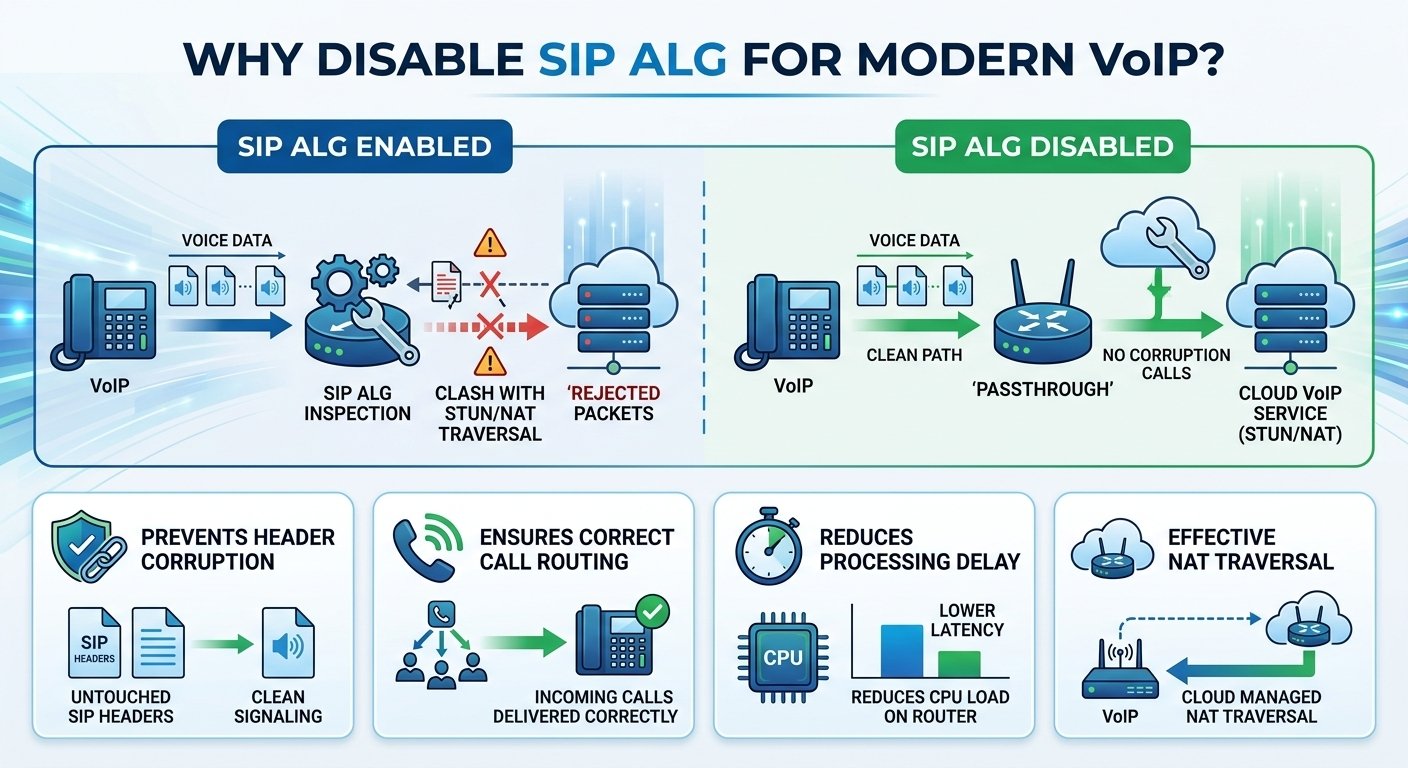
SIP ALG is often disabled when it conflicts with a VoIP provider’s own NAT-traversal mechanisms. Many modern cloud phone systems are designed to handle NAT using techniques such as STUN, TURN, ICE, persistent connections or SBCs, so unnecessary packet rewriting by the router may cause problems.
However, SIP ALG is not universally harmful. Some network environments are designed to use it, which is why the safest approach is to follow the configuration guidance from your VoIP provider or network administrator.
Best Practices for Reliable VoIP Performance
Beyond just disabling a single router feature, maintaining high call quality requires a holistic approach to network management. Voice data is much more sensitive to network hiccups than standard web browsing or email. While a website might take an extra second to load without much notice, a one-second delay in a phone conversation feels like an eternity. Implementing these best practices will help you build a robust foundation for your communication system.
1. Choose a high-bandwidth ISP with the proper hardware
The quality of your voice service is only as good as the pipe it travels through. You should aim for a fiber or high-speed cable connection that offers low latency and minimal packet loss. Many consumer-grade modems provided by ISPs are locked down and do not allow you to change SIP settings. If possible, use your own high-quality router behind the ISP’s modem in “bridge mode” to gain full control over your firewall configurations.
2. Use wired Ethernet connections whenever possible
While modern Wi-Fi has improved significantly, it is still prone to radio frequency interference and signal fluctuations. Every time a microwave runs or another device connects to the wireless network, your voice packets could be delayed. Using a physical Ethernet cable for your desk phones or computers ensures a stable, dedicated lane for your traffic. This simple step eliminates the majority of jitter issues and provides a consistent experience for the user.
3. Lengthen your UDP timeouts
User Datagram Protocol (UDP) is the preferred method for carrying voice packets because it does not require the overhead of a formal handshake. However, many routers have a very short “forget” timer for UDP sessions. If you don’t send a packet for 30 seconds, the router might close the firewall port. By increasing the UDP timeout to 150 or 300 seconds, you ensure that the connection stays open even during periods of silence on a call.
4. Set up Virtual LAN (VLAN) tagging for SIP devices
A VLAN allows you to create a “private lane” for your phones within your existing network hardware. By segregating voice traffic from data traffic, you can ensure that a large file download in the accounting department doesn’t interfere with a CEO’s conference call. This prioritization, often called Quality of Service (QoS), ensures that even when the network is busy, voice packets are always moved to the front of the line.
5. Keep up on firmware updates
Manufacturers frequently release patches that improve how their devices handle voice traffic. Sometimes, a firmware update might even fix a bug that was making the SIP gateway impossible to turn off. Make it a habit to check for updates quarterly. Always remember to double-check your settings after an update, as some routers may revert to factory defaults, which often means the disruptive gateway feature will be turned back on automatically.
Read More: Call Center Shrinkage: Definition, Formula, Causes & How to Manage It
SIP ALG Enabled vs Disabled
| SIP ALG Enabled | SIP ALG Disabled | |
|---|---|---|
| SIP packet inspection | Yes | No SIP-specific rewriting |
| NAT assistance | Router may attempt it | Endpoint/provider handles NAT |
| Compatibility | Can help or interfere | Often preferred by cloud VoIP providers |
| Best configuration | Provider/network dependent | Provider/network dependent |
| Troubleshooting | May be tested as a possible cause | Common test when ALG interference is suspected |
Final Words
Resolving VoIP issues often feels like a daunting task, but the solution is frequently hidden within a single checkbox in your router’s interface. Disabling the SIP ALG feature is the industry-standard first step for anyone experiencing dropped calls or audio gaps. By taking control of your network hardware and following best practices for bandwidth and hardware management, you can transform your office communication from a source of frustration into a reliable asset for your business growth.
Frequently Asked Questions
-
What happens if you deactivate SIP ALG?
Disabling the feature stops the router from modifying the headers of your voice packets. For the vast majority of users, this results in immediate improvements in call reliability, fewer dropped calls, and the resolution of one-way audio issues. It allows your VoIP provider’s own NAT traversal methods to work without interference.
-
How do I turn off SIP ALG?
You must log into your router’s administrative dashboard using a web browser. Search through the “Advanced,” “Firewall,” or “Security” menus for a setting labeled SIP ALG or SIP Passthrough. Uncheck the box, save your settings, and restart your router to apply the change.
-
How to detect SIP ALG?
You can use specialized software tools known as “SIP ALG Detectors” or “NAT Helper Tests.” These tools simulate a call and check if the headers were modified by the router. If the tool shows that the “Contact” or “Via” headers have changed from your local IP, the gateway is active.
-
Is SIP ALG a security risk?
While it is technically a firewall feature, having it enabled can actually create security vulnerabilities by opening unnecessary ports or mismanaging session states. Disabling it is generally considered safe and is the recommended configuration for professional VoIP environments.
-
Does every router have this feature?
Most modern routers designed for home or small business use have it enabled by default. However, some high-end enterprise firewalls require you to manually create a “service” for it, while some very basic modems may not have the feature at all.
-
Why was SIP ALG created if it causes problems?
SIP ALG was developed to help SIP applications work through NAT and firewalls because SIP can embed addressing information inside signaling messages. Modern VoIP platforms often use other NAT-traversal mechanisms, which is why SIP ALG may no longer be necessary—and can sometimes conflict with those mechanisms—in certain deployments.
-
What is the best UDP timeout for VoIP?
Most experts recommend setting your UDP timeout to at least 150 seconds. Some systems perform better with a 300-second timeout. This prevents the router from “forgetting” the connection during a call, which is a major cause of sudden disconnections.