To log in to RingCentral, open the app or account portal appropriate to your task and use the sign-in method assigned by your company. Everyday calling, personal account settings and company administration are related, but they are different destinations. Signing in successfully does not automatically give you administrator permissions.
This guide explains user, admin, desktop, mobile and web access, plus password recovery and practical troubleshooting. It focuses on RingEX and the RingCentral app. RingCX and other contact-centre products may require a separate company-provided access route. Information was checked October 3, 2026; screen labels and regional routes can vary.
Which RingCentral Login Do You Need?
| Your task | Where to start | What to confirm |
|---|---|---|
| Make calls or use team communication | RingCentral desktop or mobile app, or the web app. | Your work identity and assigned service. |
| Manage personal account settings | Your organization’s RingCentral account portal. | The correct user or extension. |
| Manage the company phone system | Account portal with administrator permissions. | Your role permits the intended changes. |
| Use company single sign-on | The SSO option or assigned workplace application tile. | The correct company identity provider and email. |
| Work as a contact-centre agent | The route supplied by your contact-centre administrator. | The product, organization and agent assignment. |
Example: An employee wants to return a customer call, while an office manager wants to change holiday routing. The employee should open the calling app. The manager should use the account administration route and an authorized role.
For a broader explanation of the service, read our RingCentral review.
Before You Sign In
Have your company invitation or onboarding instructions available. Confirm the email address registered to your user and whether the organization uses a RingCentral password or single sign-on. If the login screen accepts phone-number access, use the number associated with your account and provide your extension when requested.
A main company number can represent several employees. Entering that number alone may not identify the intended user. Ask the administrator for your registered identity rather than trying colleagues’ credentials.
Complete any required account activation first. Receiving an invitation and having an active calling license are separate checks. If onboarding is incomplete, ask the administrator to confirm your account status and resend the appropriate invitation when necessary.
On a shared computer, use your own session and sign out when finished. A browser already signed in to someone else’s workplace account can select the wrong identity during SSO.
How to Log In as a RingCentral User
- Open the assigned destination. Use the RingCentral app for communications or the company-provided account portal for personal settings.
- Select Sign in. Choose the login method your organization uses.
- Identify your account. Enter your registered email or supported phone-number details. Supply an extension if requested.
- Complete authentication. Enter your password or continue through the company identity provider. Complete any verification prompt.
- Check the account you entered. Confirm your name, company and available work functions before making changes.
Button labels may differ by release. Follow the current screen rather than expecting every login to display the same fields in the same order.
Example: A receptionist can sign in but sees another employee’s details. Stop before handling customer information. Sign out and confirm which identity the browser selected and which account the administrator assigned.
How to Access the RingCentral Admin Portal
Use your company’s account-portal address. For many US RingCentral accounts, the starting address is service.ringcentral.com. Regional services and partner-branded accounts can use different routes, so retain the address supplied by your administrator.
- Open the correct account portal and complete the company’s sign-in process.
- Confirm the company and account context.
- Open the administration view if available to your role.
- Navigate to the required area, such as users, calling configuration or billing, subject to your permissions.
- Review the scope of a change before saving it.
RingCentral supports roles with different permissions. A billing administrator and a phone-system administrator may not have identical access. Missing a menu can be a permissions issue rather than a password problem.
If you cannot see admin settings: Ask an authorized administrator to check your assigned role and required permissions. Creating another account or repeatedly resetting your password will not grant company administration rights.
Example: An accountant needs invoices but does not need to change call routing. The account owner should review the suitable role rather than sharing an unrestricted administrator login.
How to Sign In to the Desktop App
Install the current RingCentral app from the provider’s official download route or your organization’s approved software deployment. Confirm that your computer meets current requirements; older installers and unrelated legacy apps can complicate troubleshooting.
- Open the installed RingCentral app.
- Select Sign in and use your assigned password or SSO method.
- Complete browser-based authentication if the app opens a browser.
- Return to the app when prompted.
- Check the signed-in identity and select the correct microphone and speaker before testing a call.
A successful login and working audio are separate results. If you can see the app but cannot hear a caller, investigate device selection and permissions before changing your password.
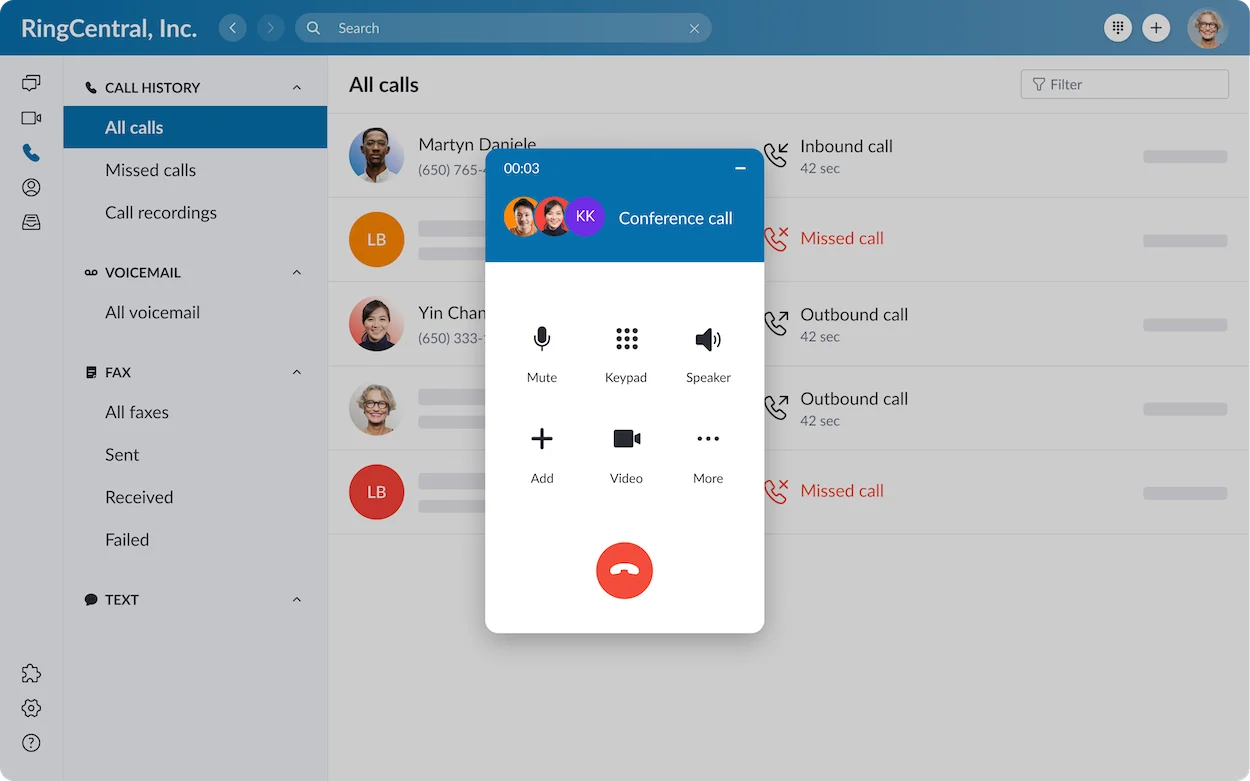
This dashboard illustrates the signed-in experience; it is not a screenshot of the current login screen.
How to Sign In on Mobile
Use the official RingCentral app supplied through the appropriate mobile app store or company deployment. Check the publisher and app identity before installing.
- Open the app and select Sign in.
- Choose the method assigned by your organization.
- Enter the appropriate identity and complete authentication.
- Review requested microphone and notification permissions according to your work needs.
- Confirm your account and test the intended calling workflow.
If login works but incoming-call alerts do not appear, inspect notification permissions, availability settings and operating-system restrictions. Treat that as a calling or notification problem, not automatically a sign-in failure.
Example: A field employee can place calls but misses alerts. Record whether the app was open or in the background and ask IT to review the device settings and call handling.
How to Use RingCentral in a Browser
The web app is available at app.ringcentral.com. Use a currently supported browser and allow the site capabilities required for your workflow. The app requires JavaScript.
Sign in using your assigned identity, confirm the organization and check microphone access before placing a call. Browser restrictions, extensions or managed-device policies can affect the experience.
For troubleshooting, an approved private browser session can help reveal whether an existing session selected the wrong account. Private browsing can also restrict storage or cookies, so it is a diagnostic step rather than a guaranteed fix.
Do not disable company security controls to force access. Ask IT to review necessary permissions or authentication redirects when a managed browser blocks them.
How RingCentral SSO Login Works
Single sign-on uses your organization’s identity provider after an administrator has configured it. Choose the SSO option, enter your registered work email if requested and complete the company login process. Your organization may also provide a workplace application tile.
A visible Google or other sign-in button does not by itself prove which method your organization requires. Follow the onboarding instructions. When SSO is enforced, a local RingCentral password may not be an allowed alternative.
If SSO fails: Confirm the selected workplace identity, then ask IT to check the user’s assignment and configuration. Resetting a RingCentral password does not reset your identity-provider password.
A verification challenge can occur at the identity provider or within the account’s configured authentication process. Follow the legitimate prompt for that system; do not send passwords or verification codes to a caller claiming to help.
Forgot Your RingCentral Password?
For password-based sign-in, use the Forgot password option on the legitimate login screen and follow the current recovery instructions. Provide the account identity requested, including an extension where applicable. Complete the recovery process using the registered contact details.
If the recovery message does not arrive, check junk folders and company mail filtering, then confirm the registered address with your administrator. Avoid requesting repeated resets without checking which user the recovery process identifies.
After a password change or reset, RingCentral products may prompt you to sign in again. Update any saved password only after confirming the new one works.
SSO users: Use your company’s identity-provider recovery process or contact IT. If you cannot complete a verification challenge because your registered device is unavailable, use an approved recovery route rather than trying to bypass it.
RingCentral Login Troubleshooting
| Problem | First check | Next step |
|---|---|---|
| Credentials rejected | Identity, extension, sign-in method and saved password. | Use the appropriate recovery process or ask the administrator. |
| SSO returns to sign-in | Selected workplace identity and browser redirects. | Ask IT to inspect user assignment and authentication policy. |
| Admin menus missing | Company context and assigned role. | Request the necessary permissions from an authorized administrator. |
| Only one app fails | App version, supported device and session state. | Restart the app and compare with an approved web session. |
| Several staff cannot sign in | Provider status, identity-provider status and shared network. | Escalate with the timing and affected scope. |
| Signed in but calling unavailable | Assigned service, permissions, device and network. | Ask the administrator to distinguish licensing from call connectivity. |
Change one variable at a time. Record whether the problem affects one person, one device or the entire company. If a test requires clearing site data, remember that it signs you out and may remove local preferences; start with a separate session instead.
For escalation, provide the error text, time and time zone, app or browser version and the steps already tried. Redact customer data and sensitive information from screenshots. Never include passwords, recovery links, session tokens or verification codes.
Frequently Asked Questions
Are user and admin logins different accounts?
A user identity can have administration permissions when assigned an appropriate role. The distinction is the destination and authorized access, not necessarily a separate username.
Can I log in with the main business number?
Some password-based flows accept phone-number details. If the number represents multiple users, provide your extension when requested. Confirm the correct details with your administrator.
Does joining a meeting give me business calling access?
No. Meeting participation does not establish that you have a company user account or calling license. Ask the administrator to confirm your assignment.
Why can I sign in but not see the phone system?
Check the product, assigned service and role. App access alone does not prove that calling or company administration is enabled for your user.
Should I use a trial link to fix login?
No. Existing users should recover or correct access to the assigned company account. Starting another account can create confusion.
Does this guide cover RingCX login?
The main steps focus on RingEX and the RingCentral app. Contact-centre access depends on your organization’s product and deployment; use the route supplied by its administrator.
Choosing RingCentral for a New Business Account
If you are evaluating a new service, compare the required calling workflow, user permissions and total subscription cost before buying. Our RingCentral review and alternatives guide can help with that decision.
Affiliate disclosure: Some links in this article are affiliate links. If you purchase through them, VoIPCalling may earn a commission at no additional cost to you. Affiliate links are for evaluating services and do not replace your existing account login or recovery process.