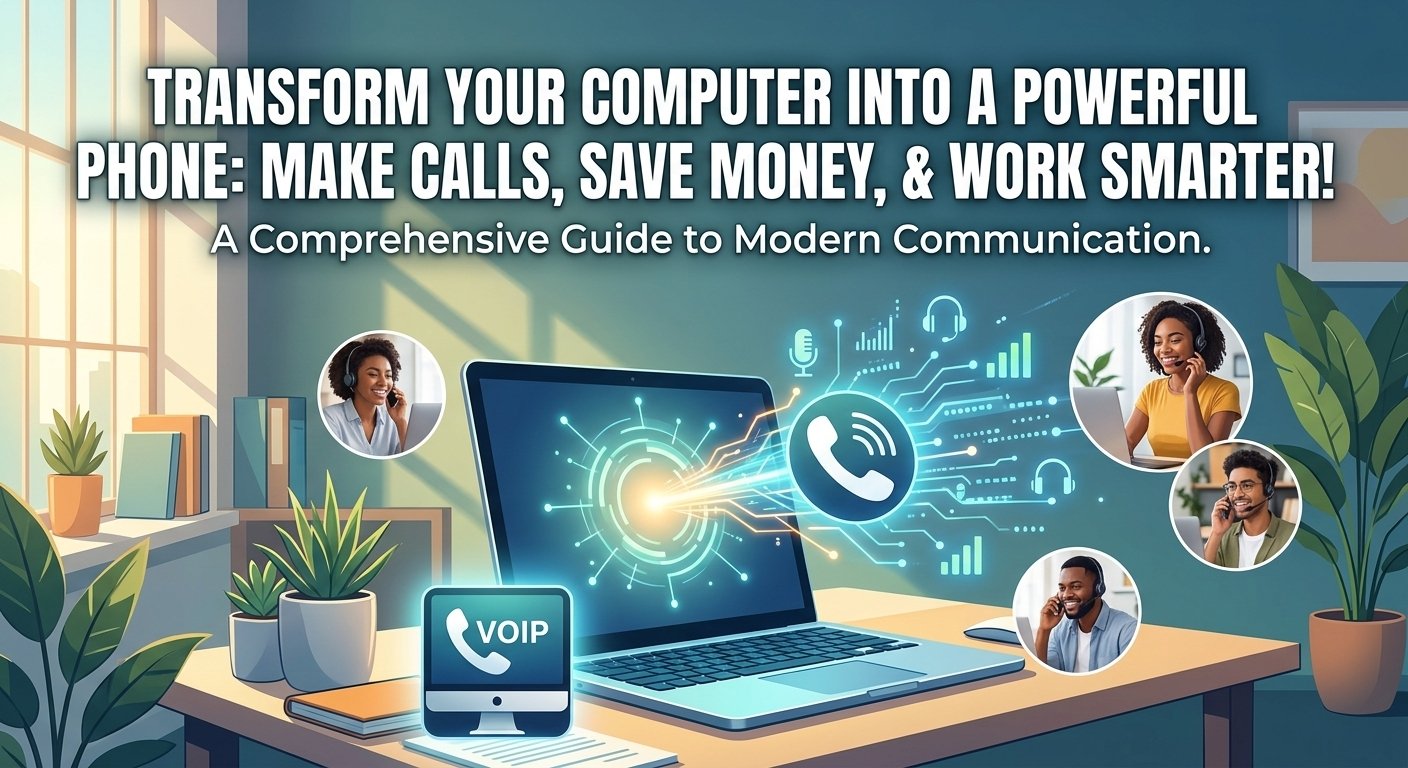
The main technology used to make phone calls from your computer is Voice over Internet Protocol (VoIP). This process turns your voice into digital data packets that are sent over the internet rather than over the telephone. These calls can be started from desktop applications such as Nextiva, Zoom, or Google Voice. The minimum requirements are a stable internet connection, a microphone and a speaker or headset. After you install the software you select and set up your audio preferences, you can call any number in the world, control your business communications and even sync your contacts between devices for a seamless experience.
How does making a phone calls from your computer work?
Once you choose to make a phone call from computer devices, the system uses VoIP technology to connect digital and analog networks. This technology uses a microphone to record your voice and an analog-to-digital converter to turn your voice into digital signals. These signals are then subdivided into small data packets and sent over the internet to the recipient. For landline calls, the VoIP service handles the conversion from the Internet to the public switched telephone network (PSTN).
This is a very efficient way of computer telephone calls as it does not require any dedicated physical copper wires. Research indicates that businesses switching to VoIP systems can reduce their local call costs by up to 40% and save even more on international communication. Since the data is shared on the same network as your email and web browsing, you can enjoy a seamless experience, with phone call from computer applications seamlessly connecting with your daily workflows and contact lists.
How Calling from Your Computer Works
1. The setup you will need
To make a call from computer, you need to make sure that your hardware is prepared for voice transmission. A computer with a working sound card is required, and this is found in virtually all modern computers, including laptops. Built-in speakers and microphones are sufficient for casual calls, but a dedicated USB or Bluetooth headset is recommended for professional calls. This eliminates echo and background noise from interfering with your conversation, so that every call a phone from computer sounds crisp and professional.
You also have to choose a service provider that provides a desktop application or a web-based interface. These providers give you a unique phone number, so you can call from computer free or paid based on the plan. A separate app means you will be alerted to incoming calls even if you are working in other apps. Most setups also enable you to sync your mobile contacts, so that you can dial a number from computer without having to type the numbers each time.
2. Check your internet connection
The stability of your internet connection is a crucial factor in the quality of calling on the computer. For VoIP calls to be smooth, there must be a steady flow of data, otherwise there will be lag, jitter, or dropped calls. A speed test is recommended to ensure that there is at least 0.5 Mbps of bandwidth allocated to your voice traffic. When it comes to the best results, a wired Ethernet connection is better than Wi-Fi, since there is no chance of interference from other household or office devices.
If you have a lot of audio delays when you make a phone call from computer, you may want to look at your router settings for Quality of Service (QoS) options. This prioritizes voice traffic over other traffic like large file downloads or video streaming. A study by Deloitte found that a stable connection is essential for anyone who wants to make phone calls on computer regularly, as it is the backbone of remote productivity.
3. Choose and install a calling app
When you wish to call your phone from computer or contact with your clients, you need to choose the right software. Whether you’re using it for personal or enterprise communication, you should find an application that suits your needs. Most providers, such as Nextiva or Zoom, have a Windows and macOS installer that can be downloaded. After installation, you log in with your credentials to access your dial pad, call history and contact settings.
Once you’ve installed the app, you can easily make a phone call from computer by going to the dialer interface. Many apps also have a web-browser version, which is useful when working on a temporary or public workstation. These platforms may also have extra capabilities, such as SMS messaging and presence indicators, which let you know whether your coworkers are available for a call. The correct installation of the app guarantees that you can get phone calls on computer without any technical problems.
4. Set up your sound system
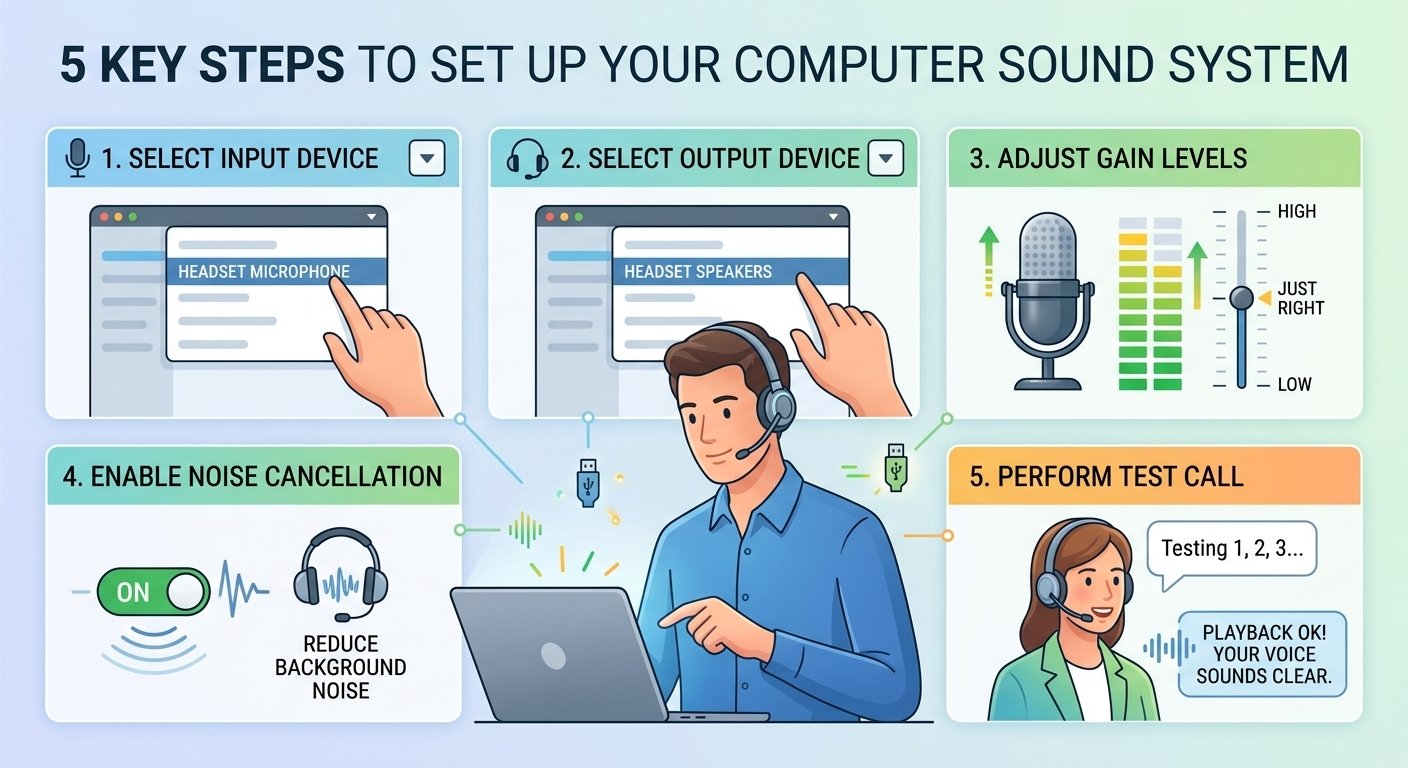
The last technical step to make phone calls from your computer is to set up your audio. You’ll need to enter the application settings and choose your input and output devices. If you have a headset, be sure to set it as the default device for the microphone and speakers. It’s a good idea to test your audio before your first call to avoid the typical “can you hear me?” problem that new setups can cause.
-
Select the correct Input Device (Microphone) in settings.
-
Choose the correct Output Device (Headset or Speakers).
-
Adjust the gain levels to ensure your voice is loud enough but not distorted.
-
Enable noise cancellation features if your software provides them.
-
Perform a test call to a built-in automated service to hear your own playback.
Top Benefits of Making Calls From a Computer
This transition to computer-based calling is due to the tremendous benefits that it provides over traditional telephony. You can streamline your communication by consolidating your devices, so you don’t have to switch between them and stay focused and productive. Additionally, if you can make free phone calls from pc with particular applications, you can save a lot of money each month. For businesses, it’s a modernization of the workspace for remote and hybrid working.
1. Cost Savings
The greatest advantage of calling from a pc is the savings on communication costs. Landlines can be costly to install and have high long-distance rates. VoIP providers, on the other hand, typically have flat rate monthly plans with unlimited calling in specific areas. This is much more affordable to make free phone calls from computer for personal use or to run a large sales team without having to worry about per minute charges.
2. Flexibility and Portability
If you use a laptop for your communication, your office is wherever you can get an internet connection. This portability is crucial for today’s professionals who travel or work from different locations. Call from laptop devices in coffee shop, airport or home office and use the same professional phone number. This way you can never miss an important call, no matter where you are.
This is also true when it comes to time and availability. Most computer-based calling systems enable you to program “Do Not Disturb” times or to forward calls to your cell phone when you are away from your desk. This seamless device-to-device transition allows you to initiate a call on your computer and then switch to your phone if you need to leave the building. Making a call from your computer offers a degree of freedom that traditional telephones can’t match.
3. Advanced Business Call Features
Professional software for phone call for pc frequently comes with a package of features that exceed just voice transmission. These tools are created to boost collaboration and boost the customer experience. For example, you can use call recording to listen to calls for training or quality assurance. Even small businesses can look more professional and established if they have auto-attendants that can direct callers to the right department without any human interaction.
-
Call Recording: Keep a digital log of all important conversations.
-
Voicemail-to-Email: Receive audio files and transcriptions in your inbox.
-
Screen Sharing: Collaborate in real-time while on a voice call.
-
Call Analytics: Track call volume, duration, and peak times for better staffing.
-
CRM Integration: Automatically log calls and view customer history during the conversation.
VoIP Providers That Let You Make Calls from Your Computer
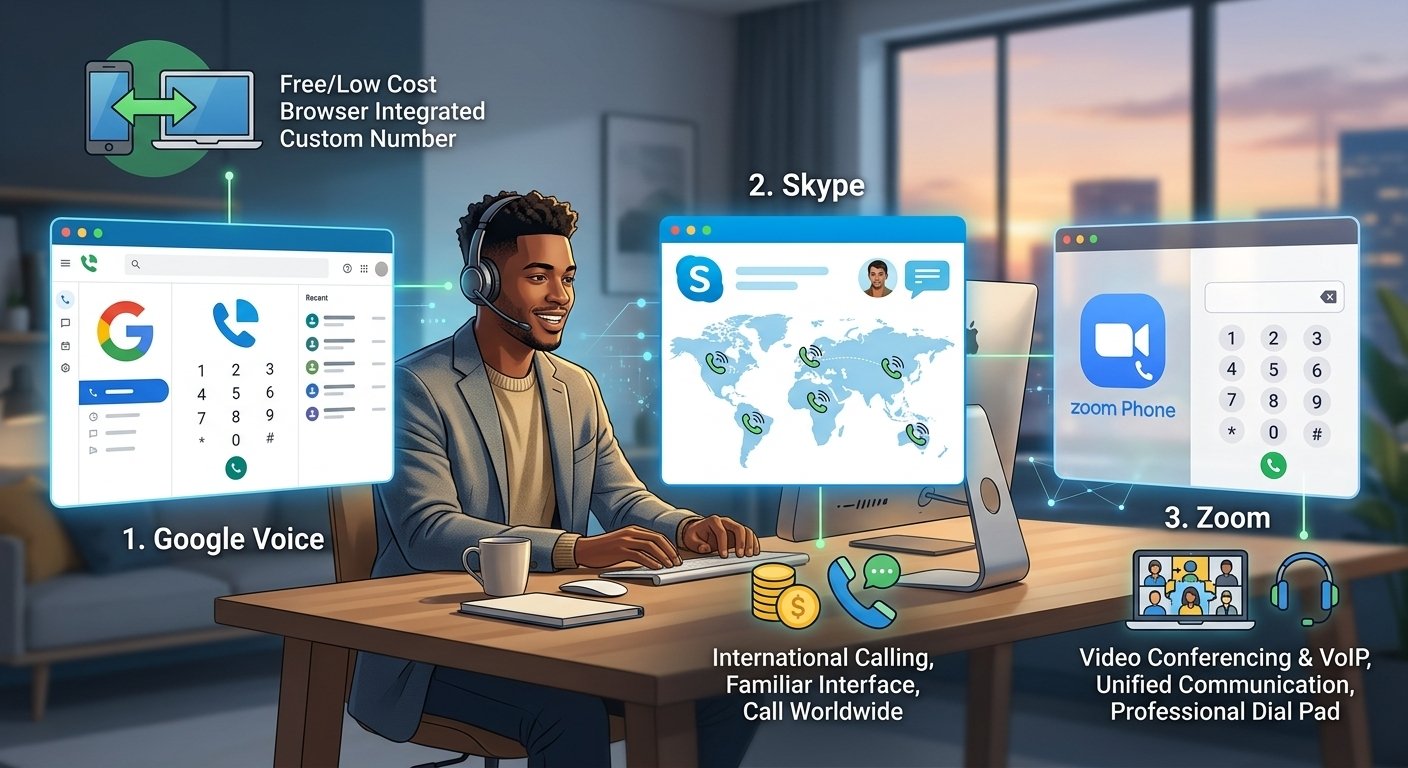
1. Google Voice
Google Voice is a popular option for people and small business owners who would like to make a free or low-cost phone call from the computer. It offers a seamless interface with other Google Workspace apps, and it’s simple to use. You can select a custom phone number and send text messages or make phone calls from your web browser. It’s a great starter for people who are already familiar with Gmail and Google Calendar.
2. Zoom
Zoom has expanded far beyond video conferencing to become a major player in the VoIP space with Zoom Phone. It enables users to make a phone call from computer as easily as joining a video meeting. This integrated solution is ideal for teams that are already collaborating within Zoom. It offers a professional dial pad and advanced call routing capabilities, making it ideal for modern call centers and large offices.
How to choose the right platform to make calls from a computer
-
Analyze Your Specific Requirements: Determine whether you need a service for casual personal check-ins or high-volume professional sales outreach. Your specific use case will dictate the level of features and security required.
-
Prioritize Reliability and Call Quality: The most vital factors are consistent connections and clear audio. Look for providers that offer guaranteed uptime, low latency, and positive reviews regarding audio clarity to ensure uninterrupted communication.
-
Ensure Robust Security and Compliance: When handling sensitive data over the web, choose a platform that protects your information. Ensure the service supports industry-specific regulations such as HIPAA or GDPR to provide peace of mind for both your team and your customers.
-
Look for Seamless Integrations: Select a service that connects with the tools you already use, such as CRM systems and workforce management software. This streamlines workflows and provides agents with the necessary context for every call.
-
Evaluate Scalability for Growth: For expanding teams or call centers, choose a platform that can grow with you. A good service should allow you to add new agents or features easily without the need for additional hardware.
-
Consider Affordability and Value: Balance upfront costs with ongoing fees. A quality hosted VoIP platform should combine essential features with cost efficiency, providing a sustainable solution for your communication needs.
Read More: What is DSL (Digital Subscriber Line) ? Working, Types, and Importance
Final Words
Switching to a computer-based phone system is a good idea for anyone who wants to modernize their communication. It is cost-effective, has a lot of advanced features and is extremely flexible, which is something that traditional phones cannot offer. From a basic solution such as Google Voice to a comprehensive business solution such as Nextiva or Zoom, having all your calls in one place will make your day easier. With a reliable internet connection and a decent headset, you’re all set to communicate with the world right from your screen.
Frequently Asked Questions
-
Can I use my PC to make phone calls?
Indeed, you can call from your PC using VoIP software or web-based calling applications. These programs send voice information over the internet to regular landlines, cell phones, or other computers. All you need is a microphone and speakers to start communicating without a phone.
-
Can I call my own phone from my computer?
You can use Google Voice, Skype, or even Apple and Google’s “Find My Device” features to call your own phone from your computer. This can be helpful if you have lost your phone in your home and want it to sound to help you find it easily.
-
How do I use my laptop to call my phone?
To use your laptop to call your phone, install a calling app like Nextiva or Zoom, log in, and enter your mobile number into the dial pad. Alternatively, if you use an iPhone and a Mac, you can use the built-in FaceTime or Continuity features to bridge calls from your laptop to your cellular network.
-
Can I make phone calls from my computer for free?
There are several ways to make phone calls from your computer for free, especially for app-to-app communication. Services like WhatsApp, Messenger, and Skype allow free voice calls between users of the same app. For calling actual phone numbers, Google Voice offers free calls within the US and Canada.
-
Do I need a special phone number for my computer?
While you can often use your existing mobile number with some sync apps, most VoIP providers will assign you a dedicated virtual phone number. This number allows you to receive incoming calls directly on your computer independently of your mobile carrier or physical location.
-
What hardware is best for computer calls?
For the best experience, a dedicated USB or Bluetooth headset with a noise-canceling microphone is recommended. This setup provides much better audio quality than built-in laptop microphones and prevents the person on the other end from hearing their own voice echoing back through your speakers.
-
Can I receive text messages on my computer too?
Most modern VoIP and computer calling platforms include integrated SMS and MMS capabilities. This means you can send and receive text messages using the same interface you use for voice calls, allowing for a unified messaging experience across all your digital devices.
-
Is calling from a computer secure?
Calling from a computer is generally very secure, provided you use a reputable service provider that employs end-to-end encryption. Using a professional business VoIP service ensures that your voice data is protected from interception, which is a significant advantage over traditional, unencrypted analog phone lines.