
Calilio is a cloud VoIP service that lets a business use phone numbers from a web or mobile workspace. You create the company account, add an eligible number, assign it to employees and configure how calls are handled. Calls, messages and voicemail then provide the conversation context employees use for follow-up.
For an app-based call, voice travels over the employee’s internet connection. The business manages the number and answering workflow through the service rather than relying on a traditional office telephone setup. This guide explains the process from account creation to a working business deployment, including practical requirements, costs and limitations.
Calilio Customer Rating

G2: 4.7/5 from 94 reviews. Customer experiences at the end of this guide cover call-management benefits and a reported messaging-capability problem.
Calilio VoIP: Quick Overview

| Component | Its role in the business setup |
|---|---|
| Workspace | Company account containing users, numbers, billing and conversation history |
| Business number | The customer-facing number employees use for calls and supported messages |
| Number assignment | Gives the intended employee or team access to the line |
| Web/mobile app | The interface employees use for app-based calling and communication |
| Answering rules | Determine where an incoming call goes and what happens if nobody answers |
| Callbox | Keeps conversation context available to authorised staff |
| Subscription and wallet | Cover plan access and applicable usage charges |
| Advanced packages | Add plan-dependent routing, sales, supervision and reporting tools |
What VoIP Means in a Calilio Business Setup
VoIP means voice over internet protocol. In an app-based workflow, the employee’s internet connection carries the voice traffic. The business number remains the contact point customers dial; employees answer through the configured environment.
Customers can call the business number using their own telephone service. They do not need to create a Calilio account to reach that number. Your company decides who answers and which supported routes apply when the intended employee is unavailable.
A useful way to plan the service is to separate the number, the employee’s access and the answering rules. Buying a number alone does not establish that every staff member can use it or that an unanswered enquiry will reach the right fallback.
The Setup Sequence: From Account to Working Calls
- Create the workspace. Establish the company account and the person responsible for administration.
- Select the package. Match the plan to your actual call flow and user count.
- Add an eligible number. Purchase an available number or request porting of the existing one.
- Complete required verification. Provide the documents relevant to the country and number.
- Invite and assign employees. Give each employee access to the number they should use.
- Configure handling. Set greetings, answering rules and supported fallback routes.
- Test both directions. Make and receive calls, check caller ID and test supported messaging.
Treat these as separate checks. A completed subscription payment does not prove that the number has been activated, assigned and configured for every intended employee.
1. Create the Business Workspace
Calilio’s signup guide describes Google, Apple and manual registration options. The manual route requests the account details and may require email verification. The business then selects its subscription and billing arrangement.
The workspace creator becomes the owner. Before inviting staff, decide which company email should own the account, who can administer it and who handles billing. This helps avoid a customer-facing number depending on an employee’s personal account.
Use the current checkout to confirm the package and renewal terms. A tutorial screenshot or older guide may not show every current option. For an introduction to the broader product, see our Calilio review.
2. Add or Port a Business Number
The number-purchase Helpdesk guide describes searching by country, number type and capability. Local, mobile and toll-free options can have different uses, prices and documentation requirements. Choose the line against the actual business task.
Example: a company expecting customers to text appointment questions needs an SMS-capable number, not merely a number that receives calls. Confirm the exact number’s capabilities and send a test before advertising it to customers.
For porting, confirm the number is eligible, gather ownership records and agree the transfer process. Keep the old provider active until the port has completed and been tested. Calilio’s terms explain that porting depends on carrier and provider eligibility and does not guarantee a completion date.
The included-number offer should also be confirmed. Current pricing cards mention UK, US or Canada, while parts of the comparison and Helpdesk still describe US/Canada only. Obtain the offer applicable to your account in writing.
3. Assign the Number to Employees
A number can be assigned to one employee or shared with a team. Calilio’s member-assignment guide describes opening Settings, selecting Members and choosing Assign Number from the employee’s menu. Select the intended number and confirm the assignment.
Number assignment determines access. The answering strategy determines how the call reaches those employees. A team with shared access should still decide who handles missed calls, whether all staff should ring and who owns the next response.
Test with an ordinary member account as well as the administrator. Confirm that the employee sees the intended line and can place an outgoing call from it.
4. How an Incoming Call Reaches the Team
- The customer dials your business number.
- The service applies the configured handling for that number.
- The assigned person or team is notified according to the answering strategy.
- An available employee answers through the chosen supported route.
- If nobody answers, the configured fallback determines the next step.
- The team reviews the resulting call history and any relevant messages.
Calilio advertises simultaneous, sequential and round-robin ring strategies. These serve different purposes: ring several employees together, try them in an order or rotate distribution. Test the exact strategy and what happens when every assigned employee is unavailable.
Its forwarding Helpdesk describes routing to the web/mobile apps or directly to an external number. External forwarding is a different call path from answering in the app; ask about its applicable rates and behaviour.
Plan detail to verify: main pricing and Helpdesk put IVR, business hours and transfers in Premium, while some ring-strategy pages describe IVR across plans. Confirm the entitlement before depending on it for a departmental menu or after-hours flow.
5. How Employees Make Outgoing Calls
The official calling guide describes selecting an assigned outbound number in the dialer, choosing the destination country and entering a number or selecting a saved contact. Allow microphone access and start the call. The chosen business number is used as the outgoing caller ID.
After the call, the conversation is saved to the inbox of the number used. Employees should add the details a colleague needs for follow-up, rather than leaving a call record with no explanation of the next action.
A business with several numbers should check the outbound line before calling. For example, an employee handling two regions should use the intended customer-facing number and the correct destination format.
The Dashboard and Shared Conversation Workflow
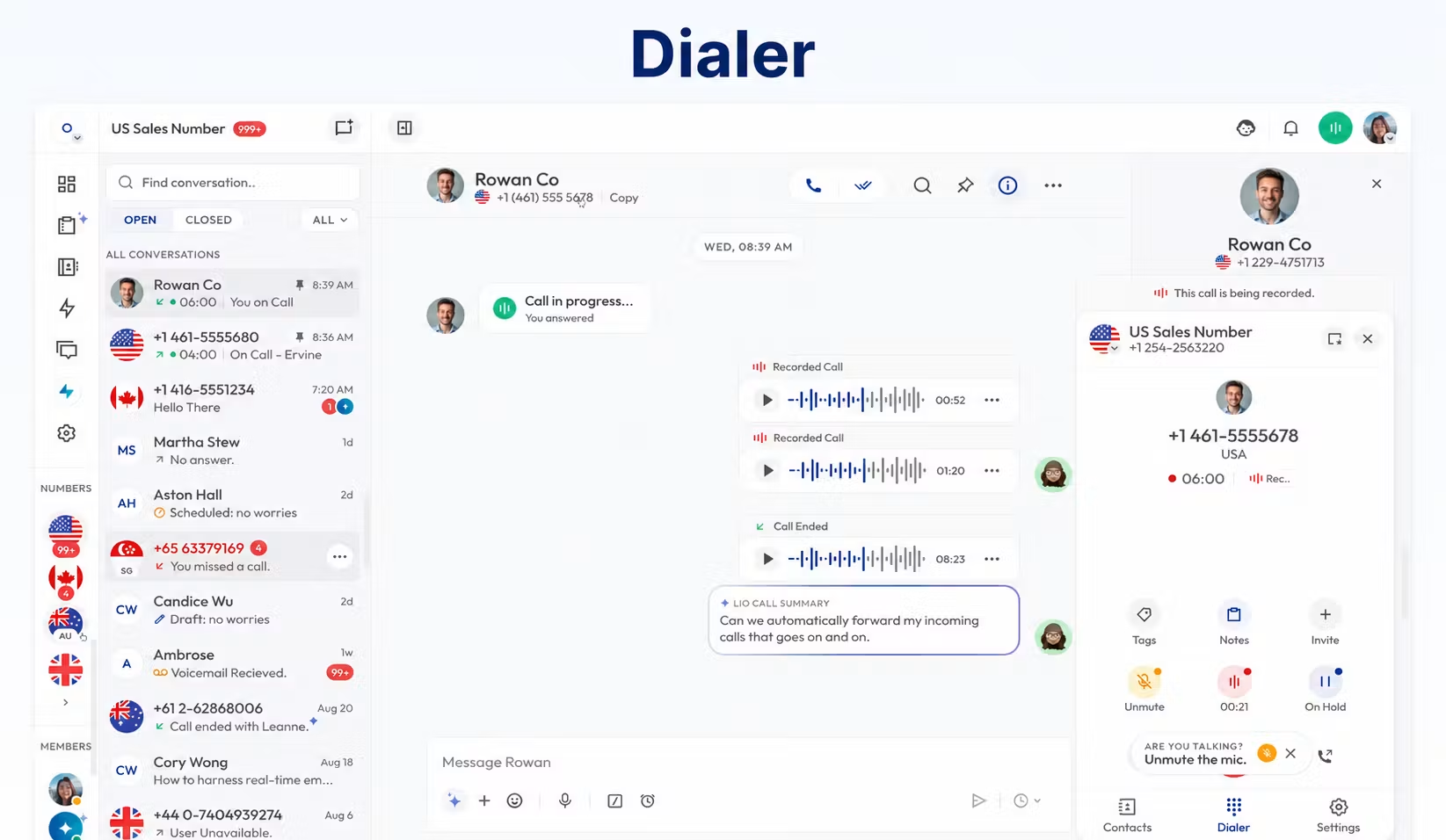
Calilio’s Callbox keeps calls, supported messages and voicemail together. Its documentation describes conversation filters and open/closed status, with notes and tags retaining context. This helps employees identify active work and review a previous interaction.
Use open/closed status consistently. A closed conversation should mean the required work is complete, not simply that one employee finished speaking. A missed call may still need a callback even though the call itself has ended.
Example: A Five-Person Business Handling Shared Enquiries
Consider a five-person agency using one customer enquiry number. Two staff members answer incoming calls, the account owner handles follow-up and another employee monitors unanswered enquiries. The administrator manages access and billing.
A caller asks about a service while the account owner is unavailable. An employee answers, records the requirement and identifies the colleague who should return the call. That colleague reviews the context, calls from the business number and updates the outcome.
The system contributes shared access and conversation history. The process contributes accountability: one person owns the callback and another checks unresolved enquiries. Configure both before expecting the software to improve response handling.
If the agency needs a caller menu, departmental transfers or advanced reporting, evaluate that workflow in the appropriate package. Five users fitting the Standard headcount limit does not establish that Standard supports every task.
How Business Messaging Fits into the Service
Calilio supports SMS and MMS on numbers with the required capabilities. Employees manage those conversations through the workspace rather than relying on personal text-message threads. Confirm outgoing delivery and incoming replies with the intended number.
Calling, number geography and messaging are separate requirements. A number available in a country may not support every message type or destination. Check the necessary sender registration, documents and rates before planning customer messaging.
Message charges can use segments. Longer messages or different character encoding can change consumption, so estimate your actual messages rather than counting every visible text as one billable unit. If you need saved replies or bulk sending, confirm the plan and current workflow separately.
Subscriptions, Wallet Funds and Total Cost
| Plan | Monthly billing | Annual billing | Starting fit |
|---|---|---|---|
| Standard | $15/user/month | $144/user/year; $12 monthly equivalent | Basic communication for up to 10 users |
| Premium | $35/user/month | $336/user/year; $28 monthly equivalent | More structured sales and support workflows |
| Enterprise | Custom | Custom | Negotiated usage, support and deployment scope |
Annual prices are monthly equivalents of a yearly commitment. The complete bill can also include extra numbers, out-of-bundle calls/messages, recording/storage, AI usage and applicable taxes.
The Helpdesk describes Standard’s eligible US/Canada bundle as 200 outgoing and 100 incoming minutes, plus 100 outgoing and 100 incoming SMS segments. Premium raises those to 1,000/500 minutes and 500/500 segments. Confirm allocation and the exact included routes for your account.
Usage beyond allowances is charged at applicable rates and can draw on wallet funds. Decide who monitors the balance and authorises replenishment. The terms say a zero wallet balance prevents calls and outgoing messages.
Example subscription calculation
Five Standard users cost $75 a month on monthly billing, or $720 annually. Five Premium users cost $175 monthly, or $1,680 annually. These totals cover subscriptions only; add the actual numbers and communication usage before comparing providers.
What Your Business Needs Before Rollout
| Requirement | What to confirm |
|---|---|
| Internet connection | Clear two-way audio during the employee’s normal workload |
| Audio setup | Correct microphone, speaker/headset and permissions |
| Verified business number | Activation, documents and required voice/message capabilities |
| Employee assignment | Each intended person can use the correct line |
| Answering process | Staffed hours, backups and missed-call ownership |
| Billing owner | Subscription renewal and wallet monitoring |
| Access controls | Who can see conversations and change administrative settings |
| Fallback arrangements | Alternative contact route and separate emergency calling |
Test under normal working conditions: employees using other applications, remote staff on their usual connection and mobile devices with the screen locked. A successful call from an administrator’s computer is only one part of a business evaluation.
Troubleshooting: When Calls Do Not Work
| Symptom | First check |
|---|---|
| Employee cannot place a call | Confirm an activated number is assigned to that employee |
| Outgoing call will not connect | Check wallet balance and whether the destination is enabled |
| Caller cannot hear the employee | Check the selected microphone and app/browser permission |
| Mobile does not alert as expected | Check app notifications and test locked-screen handling |
| Wrong employees receive the call | Review number assignments and answering rules |
| Text does not arrive | Confirm number capability, registration and the destination |
Calilio’s calling Helpdesk identifies number assignment, wallet funds, microphone permission and destination enablement as specific outgoing-call checks. Resolve those before assuming the whole service is unavailable.
For support, collect the number involved, call direction, date/time with timezone and the result you observed. Include the device and screen if relevant. Do not send passwords or full payment-card details.
CRM, Recording and AI: What Happens After the Call?
Call history provides the communication record. A CRM holds the business’s customer or sales records. When the required integration works, calling activity can be linked to those records; demonstrate the exact action instead of assuming every connector provides the same behaviour.
Calilio’s Pipedrive page describes logging and click-to-call but marks some contact-sync and in-CRM calling functions coming soon. API/webhook access is also marked coming soon in Enterprise pricing. Our VoIP and CRM integration guide explains the checks to prepare.
Recording and AI can support review, subject to package access and metered allowances. Verify important details in summaries against the audio. Calilio’s current pricing and Helpdesk disagree on recording/storage limits, so confirm the allowance in the offer before using it to budget the deployment.
Business Fit by Team Size
| Business | Recommended discussion | Main proof required |
|---|---|---|
| 5-person startup | Standard if essential functions suffice | Shared access and simple communication work |
| 20-person sales team | Premium | Campaigns, CRM actions and total usage cost |
| 50-person remote company | Premium or Enterprise | Incoming calls work on real employee devices |
| Medium business | Premium or Enterprise | Each department’s routing and permissions work |
| 100+ person international business | Enterprise proposal | Countries, numbers and contractual support meet requirements |
| Dedicated contact center | Premium/Enterprise pilot | Agent workflow, supervision and reporting fit the operation |
| Budget-conscious SMB | Compare the complete monthly cost | Actual usage remains economical |
| Enterprise-grade deployment | Negotiated scope | Required controls and commitments are written into the proposal |
Limits to Address Before Moving the Main Number
Calilio’s terms exclude emergency-service calling. Maintain another method at every work location and inform staff. They also contain no default uptime commitment; negotiate any availability or response-time requirement before signing.
Country documentation, message support, package access and future integrations can also affect the deployment. A complimentary number or usage credit does not make the ongoing service free. A demonstration is different from the conditional refund guarantee.
Pilot first, then port. Keep a fallback contact method, establish the migration owner and export any records needed from the existing service. Confirm incoming calls and messages after the transfer before ending the old account.
Frequently Asked Questions
Is Calilio a VoIP service?
Yes. Its app-based calls use an internet connection, with business numbers and communication tools managed through the cloud workspace.
Do customers need the Calilio app to call us?
No. They can dial your business number through their own telephone service; your employees use the configured answering setup.
Do I need a desk phone?
A desk phone is not required for the documented web/mobile workflow. Test the actual devices employees will use.
Can several employees use one number?
Calilio supports number sharing. Assign access, configure answering rules and agree who handles unanswered enquiries.
Can Calilio call internationally?
It supports eligible international destinations at applicable rates. Confirm account permissions and tariffs; global calling is not an unlimited global allowance.
Why can I not make a call after signup?
Check number activation and assignment, wallet balance, microphone permission and destination enablement. Account creation alone does not complete those steps.
Can it replace my only phone service?
Maintain a separate emergency-calling method because Calilio does not connect emergency-service calls. Validate every other essential function before replacing the existing service.
Final Recommendation
Calilio works as a business-number workspace: set up the account, activate and assign numbers, configure call handling and give staff a consistent follow-up process. Its value depends on those pieces working together on the devices and routes your business uses.
Use a small pilot to verify calls, messages, shared history and billing before expanding. Select the package from the actual workflow, resolve conflicting allowances in writing and confirm your continuity requirements before porting the main number.
Source notes: Calilio Helpdesk explanations of the service, signup, number purchase, assignment, calling and forwarding; official pricing, app and integration materials; Terms of Service; G2 product reviews; and Trustpilot’s Calilio listing.
Calilio Customer Reviews: What to Include in Your Pilot
Lucy B.’s July 15, 2026 G2 review praised forwarding, recording and international calling, while describing IVR, power dialing and summaries as useful for reducing work. Claire G.’s June 14, 2026 review highlighted routing, analytics and helpful support. Both wanted more integrations.
Andrew M.’s October 28, 2025 G2 review reported that an Irish number lacked the SMS support he expected and described a partial-refund dispute. This is his reported experience. It makes exact number capability and refund conditions worthwhile checks before moving customer communications.
Use these reports to guide the demonstration: test the call route, message delivery, shared context and required connector action rather than relying on a rating alone.
Affiliate disclosure: VoIPCalling.com may earn a commission when you purchase through affiliate links in this article, at no additional cost to you.