

The RingCentral app lets eligible users handle business communications on a computer, mobile device or supported web browser. The app is free to download, but downloading it does not provide a free business phone subscription. Telephone calling requires the appropriate service and account setup.
This guide explains how to choose a client, prepare for calling and troubleshoot common problems. It focuses on the RingCentral app for RingEX users, rather than treating every RingCentral product or older phone client as identical.
Information was checked October 3, 2026. Interface labels can change between releases, and available functions depend on your account. The steps below are general workflows, not screenshots from a firsthand test.
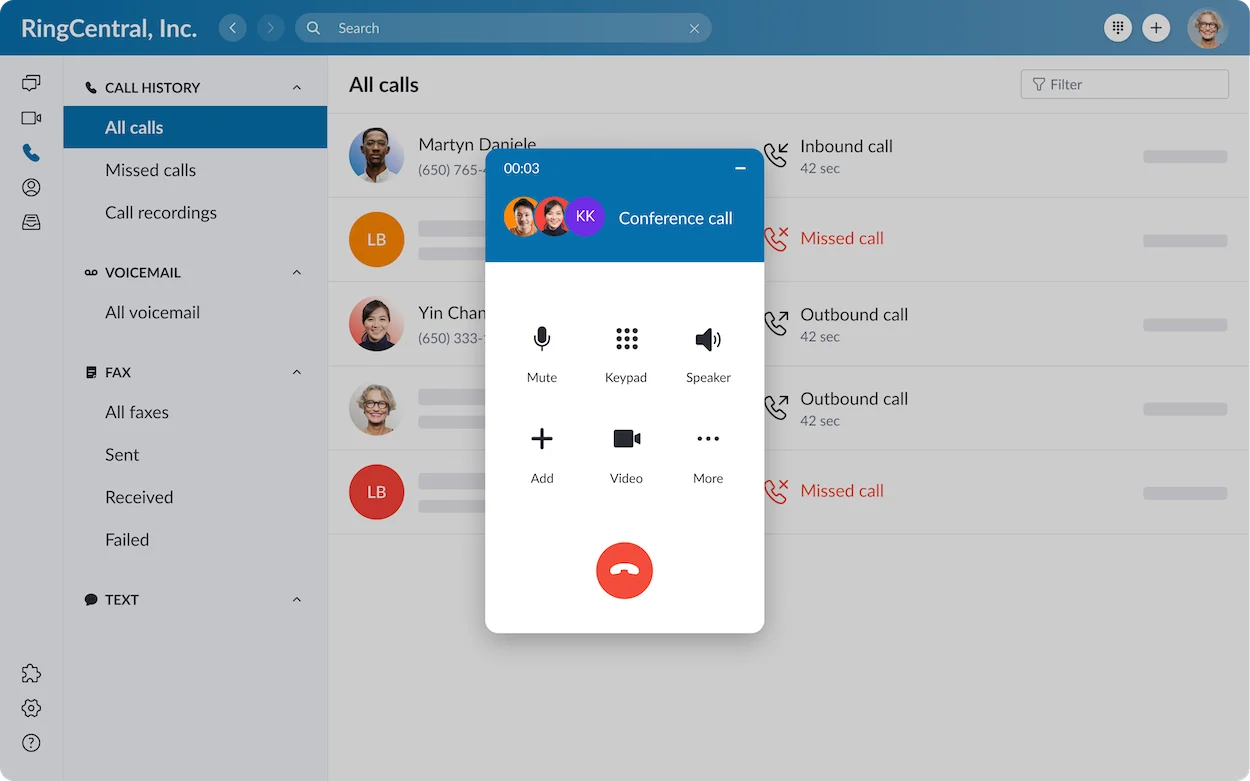
Desktop vs Mobile vs Web: Which Should You Use?
| Client | Useful For | Main Check |
|---|---|---|
| Desktop app | Employees who regularly work at a computer. | Installation, updates, headset selection and operating-system permissions. |
| Mobile app | Employees moving between locations. | Microphone, notifications, connection quality and background behavior. |
| Web app | Browser-based work where the required functions are supported. | Browser phone support, site permissions and an active session. |
A browser that can join a video meeting is not automatically a supported browser for telephone calling. Check the current requirements for the Phone function specifically.
For everyday work, select one primary client and test it in the employee’s normal environment. Additional access options are useful only when users understand their settings and limitations.
Before You Install or Start Calling
- Confirm the account: Ask the administrator which user, extension and phone service you should use.
- Confirm the application: Use the current RingCentral app specified by your organization, not an unrelated Rooms or Events app.
- Check compatibility: Verify the current operating-system or browser requirements.
- Prepare audio: Connect the intended headset and allow microphone access.
- Arrange a test: Use a known colleague or approved test number to check both directions.
Older official guides contain historical system requirements. This article does not republish those minimum versions as current requirements. Use the current download and support information for your device.
How to Set Up the Desktop App
RingCentral’s download resources provide Windows and Mac installers. On a managed computer, ask IT whether the app is deployed centrally before installing another copy.
- Obtain the current installer from RingCentral’s official download resources or your organization’s deployment system.
- Choose the appropriate Windows or Mac build and follow the installer instructions.
- Sign in using the method configured for your organization, such as its approved single sign-on route.
- Allow required microphone access and select the intended microphone and speaker.
- Place and receive a short test call.
Practical check: Speak into the headset, confirm the other person can hear you and check that their audio is playing through the intended device. A successful sign-in does not establish that the audio is ready.
How to Make and Receive Desktop Calls
The RingCentral app’s Phone area provides calling controls. Its official getting-started guide describes making calls through the dialpad.
- Open Phone or the dialpad in your current interface.
- Enter the destination or select the intended contact.
- Check the full number and available outbound caller ID.
- Select the call control.
- When finished, end the call and inspect the history entry if needed.
For an incoming call, use the answer control shown by the client. Keep notifications and the relevant session active, and check your availability and call-handling configuration if the expected call does not arrive.
International destinations: Confirm permission and the applicable rate before making a billable overseas call. Using the app does not make every destination free.
How to Use the Mobile App
RingCentral provides mobile apps for Android and iOS. Use the official store listing or the download route supplied by your organization.
- Install the current app and sign in to the correct business account.
- Review microphone and notification permissions.
- Locate the Phone area or dialpad in the current layout.
- Select a contact or enter the complete number, then start the call.
- Test incoming calls with the phone in the state you normally use during work.
Battery and background checks: If expected calls do not alert reliably, review the device’s background restrictions and notification settings with IT. Device policies can vary, so avoid changing every setting without identifying the problem.
Internet-based mobile calls use an available data connection. Check your mobile data arrangement, especially when travelling. If using a carrier-based calling option, confirm its charges separately.
Team example: An employee visiting customers should test the complete workflow before relying on it: receiving the enquiry, contacting a colleague and completing follow-up through the business system.
How to Call From the Web App
RingCentral documents browser access through its web app at app.ringcentral.com. Use a browser that currently supports the required Phone functions.
- Open the verified RingCentral web app and sign in.
- Allow microphone access for that site when required.
- Select the intended audio devices and locate the calling controls.
- Place a test call and confirm two-way audio.
- Keep the session available and test incoming alerts before using it for customer work.
A browser extension, an embedded CRM dialer and the main web app are different access arrangements. Follow your organization’s instructions for the one it has deployed.
Practical check: If the browser blocks the microphone, review the site permission and the computer’s microphone privacy setting. Permission at one level may not resolve a restriction at another.
Useful Calling Controls
RingCentral’s support resources cover mute, hold, transfer, call switching, voicemail and call history. Availability and placement depend on the client and account.
- Mute: Temporarily stop sending your microphone audio.
- Hold: Pause the conversation using the call’s hold control.
- Transfer: Move the call to another destination using the available transfer option.
- History: Review recorded call entries and identify missed calls.
- Voicemail: Check the messages available to your user.
Practice transfers with colleagues before using them on customer calls. Confirm whether the chosen option lets you speak to the recipient first or sends the call directly, and what happens if the destination is unavailable.
Recording and AI capabilities require their own entitlement and access checks. Do not assume the presence of calling controls includes every optional feature.
Switching Devices and RingOut
Official support resources distinguish call switching or flipping from RingOut. These should not be treated as interchangeable ways to continue a call.
Ask the administrator to demonstrate the configured options and clarify which devices and numbers are eligible. Confirm any external telephone legs and charges before using an alternative calling arrangement.
Example: An employee wants to leave their desk during a conversation. Test the approved handover with a colleague first, including whether audio continues and what happens if the destination fails.
Troubleshooting Common App Calling Problems
| Problem | First Checks | Next Action |
|---|---|---|
| No Phone option | Correct account, user activation and phone entitlement. | Ask the administrator to verify the assigned service. |
| Other person cannot hear you | Mute state, microphone selection and permissions. | Test another microphone and compare clients. |
| You cannot hear the caller | Speaker selection, volume and headset connection. | Compare another output device on a test call. |
| Calls do not alert | Session, notifications, availability and call-handling settings. | Trace a test incoming call with the administrator. |
| Broken or delayed audio | Connection, device load and headset behavior. | Compare a known-good environment and report the specific call. |
| One destination fails | Full number format, permission and destination eligibility. | Give support the call time and destination through an approved channel. |
Change one variable at a time. Comparing a different headset, connection or client can help identify where the failure follows. Restarting repeatedly without recording the symptom makes escalation harder.
For escalation, provide the client version, operating system or browser, time of the failure and whether it affects incoming calls, outgoing calls or both. Keep sensitive call details within your organization’s approved support process.
Choosing an App Is Separate From Choosing a Plan
Confirm the service that provides the number and telephone calling. A free download or a free video arrangement is not evidence of a free business telephone line.
Compare the complete package, usage, integrations and support needs through our RingCentral review. For broader buying guidance, see how to choose a VoIP provider.
Frequently Asked Questions
Is the RingCentral App Free?
The app is free to download. Business telephone calling still requires eligible service and an appropriately configured account.
Can I Use RingCentral Without Installing the Desktop App?
Browser access is available. Confirm current support for the Phone function and test permissions and incoming alerts.
Does Every Browser Support Every Feature?
Do not assume that. Telephone calling, video and messaging can have different requirements.
Can I Use My Business Account on Mobile?
Use the supported mobile app and the account access approved by your organization. Check entitlement and test your normal device environment.
Does Using Wi-Fi Make International Calls Free?
No. The connection used by the app and the telephone destination’s billing are separate questions.
Is This the Same as RingCX?
This guide focuses on the RingCentral app for RingEX users. Contact centre users should follow the instructions for their configured RingCX deployment.
Our Recommendation
Choose the client that fits your normal work, then verify account access, audio and incoming calls before relying on it. Desktop, mobile and web access each need their own practical setup checks.
Make a short test call, practice the handovers your team needs and assign someone to manage settings and updates. Those steps provide a more useful foundation than assuming all clients behave identically.
Affiliate disclosure: VoIPCalling may earn a commission when you purchase through provider links on this page. Our recommendations consider product fit and business requirements.