AT&T business internet installation depends on the product: Business Fiber involves arranging wired service to the premises; Internet Air is a self-setup fixed wireless gateway; Wireless Broadband uses compatible portable equipment. Choose the access method first, then confirm equipment, installation charges and activation for your order.
This guide explains costs, equipment and practical preparation for an office or storefront. The setup checklists are editorial planning advice, not a promise that every building, gateway or order follows the same procedure.
Affiliate notice: VoIPCalling.com may earn a commission through it, at no additional cost to you.
AT&T Business Internet Installation: Quick Overview

| Product | Setup method | Cost and equipment check |
|---|---|---|
| Business Fiber | Arrange the premises connection and installation requirements with AT&T. | Published eligible online offer: $99 installation credit. Verify the order and gateway arrangement. |
| Internet Air for Business | Self-setup at the approved service address. Receives internet from cellular towers without a new fiber or cable access line. | Hub sold separately. Paid professional setup assistance is also available; request its price. |
| Wireless Broadband | Portable. Activate compatible equipment for permitted on-the-go, temporary-site or emergency use. | Confirm the device, activation and selected maximum speed tier in the quote. |
Our starting recommendation: evaluate suitable Fiber for a permanent office. Choose Air when fixed wireless suits the location; choose Wireless Broadband when the requirement is permitted portability. Quick self-setup is only one part of deciding whether a connection meets the business need.
How Much Does AT&T Business Internet Installation Cost?
| Cost item | What to confirm | Why it matters |
|---|---|---|
| Fiber installation | The current online offer credits $99 on the first bill for eligible new customers ordering 300 Mbps or higher. | A conditional bill credit is not an unconditional promise of free installation through every channel. |
| Air equipment and assistance | Hub price or payment arrangement; price for optional professional installation. | Self-setup does not make the hardware free. |
| Wireless Broadband equipment | Compatible router or hotspot price, activation and any payment obligations. | The internet subscription and device can have separate costs. |
| Office network work | Ethernet runs, switches, access points, firewall configuration and IT labour. | An access installation is different from fitting out the complete office network. |
| Recurring service | The accepted monthly price + taxes. | Confirm fees, discounts and add-ons separately in the full quote. |
The Official Business Fiber offer describes a $99 installation value waived through a first-bill credit for eligible online orders. Ask whether the same promotion applies when ordering through a referral, telephone representative or another channel. Retain the accepted terms and check the first bill.
No universal Air hub price or optional assistance charge is assumed here. The Official Air product page says the device is sold separately and professional installation can be purchased. Request the amount before accepting the order.
For office cabling or an IT contractor, obtain a separate written estimate that identifies materials, labour and responsibility. Do not assume AT&T will install every desk connection, access point or third-party firewall as part of the access order.
A practical first-month budget
Add the service charge, any billed setup charge, equipment payment and optional network work; then apply credits according to when they actually appear. A later credit does not necessarily reduce the amount initially payable. Keep refundable deposits and conditional promotions distinct from permanent savings.
Use “+ taxes” as a short pricing label, but request the complete bill including other applicable charges. A lower advertised monthly rate does not establish a lower total setup cost.
Before Ordering: Confirm the Address and Scope
- Identify the exact premises. Provide the full street address, suite and business contact. Ask AT&T to verify the particular service location.
- Choose the access role. State whether this is permanent primary internet, a fixed wireless replacement, permitted portable use or a recovery connection.
- Describe essential applications. Include calls, meetings, payment terminals, VPN access and frequent uploads.
- Request a written scope. Separate provider installation, customer network work, hardware and optional services.
- Plan the changeover. Keep the existing connection until the new service and business applications have passed checks.
A coverage map or a nearby connected building should not replace confirmation for your own premises. A different suite can have different access arrangements. For leased property, ask the building manager about permissions and access before agreeing to work that affects shared areas.
If you are moving office, identify which equipment and subscriptions need migration. A router being physically movable does not mean an address-restricted service can be used at the new location without approval.
Business Fiber Installation: Prepare the Office
Ask AT&T whether the premises needs a technician appointment, whether existing infrastructure can be used and what access is required. Confirm the appointment window, contact person and any outstanding building work. Do not assume another tenant’s fiber connection makes your own order ready.
Preparation checklist
- Arrange permission and access to relevant communications areas with the building manager.
- Identify a practical equipment location with power, ventilation and access to the office network.
- Tell the installer where your firewall or switch is located and confirm the agreed handoff.
- Have an authorized contact available to resolve access questions and record completion details.
- Schedule your IT contact to handle the office network and application migration.
Discuss the proposed cable route before work begins. Ask what is included, what requires permission and which tasks need a separate contractor. Never modify provider fiber equipment or connectors yourself.
What to check before the appointment ends
Have the provider confirm the installed service and equipment are operational. Record the gateway model, service identifier and support route. Then check a wired connection with your IT contact before relying on office Wi-Fi results.
Keep provider acceptance and office acceptance separate. The access circuit working does not prove that the business firewall, phone system or payment terminal is configured correctly. Ask who owns each remaining task and when it will be completed.
Read our Business Fiber review for the broader service assessment, or request a Fiber installation quote.
Internet Air Setup: Fixed Wireless at Your Approved Address
Internet Air receives internet from AT&T cellular towers rather than a new physical fiber or cable line to the premises. It must be used at its qualified business service address and is not a portable service. Moving between offices or taking the hub on the road is not the same as repositioning it within the approved premises.
Air supports self-setup without a required installation appointment. Follow the instructions for the gateway actually supplied. Business equipment and software can differ; do not substitute residential setup instructions merely because the products share the Internet Air name.
Example: BGW830 business gateway
- Complete activation. The BGW830 device guide says to complete online activation before setup.
- Connect the supplied power adapter. The gateway searches for the AT&T mobile broadband network after power-on; the guide describes roughly three to five minutes for this stage.
- Choose a suitable position. Start with a higher shelf near a window, away from large appliances, metal cabinets and dense walls.
- Connect a device. Follow the model’s Wi-Fi or Ethernet instructions and check that internet access works.
- Secure and test the network. Review the gateway settings, protect administrative access and validate the office applications.
For this model, the guide describes accessing its web interface at https://192.168.1.254 while connected to the gateway and using the device access code on its label. Check the guide for your specific model before using that address or following screen instructions. Keep the access code private.
Use the business Signal Locator Tool
AT&T’s Signal Locator Tool uses a smartphone and the service address to suggest gateway location and direction. Follow the linked QR-code guidance. The tool uses network-location information; it does not measure actual indoor signal levels.
Treat the suggested position as a starting point. Compare practical results at suitable positions within the approved premises, using the same device and similar workload. Building materials and congestion can affect performance. If guidance suggests additional antenna equipment, confirm model compatibility and installation requirements before buying it.
Read our dedicated Internet Air overview or request an Air equipment and setup quote.
Wireless Broadband Setup: Portable Equipment
Wireless Broadband is the portable option in this guide. Its unlimited-data plans have maximum speed tiers of up to 25, 50 or 100 Mbps. Actual performance depends on coverage, equipment and network conditions; the selected tier is a ceiling, not a guaranteed result.
Confirm that the intended hotspot or router is supported for the ordered service. Ask about SIM or eSIM provisioning, activation, device cost and firmware. Follow the manufacturer and AT&T instructions for that exact model rather than entering generic network settings from an unrelated tutorial.
- Confirm the plan, compatible device and activation instructions.
- Complete the required activation and connect or charge the equipment as directed.
- Secure the device’s Wi-Fi and administration settings.
- Connect the permitted business devices and test their actual applications.
- Repeat checks at the intended temporary or mobile locations.
The Official Wireless Broadband page includes use restrictions covering public or guest Wi-Fi, consumer entertainment, continuous video streaming and web hosting. Confirm the planned activity before treating it as an event network or general office replacement.
For emergency use, decide how staff will reconnect and which tasks need access first. A portable device does not automatically supply seamless failover to your existing office router. Read our Business Wireless review or request a portable equipment quote.
Equipment: What the Office May Need
| Equipment | Purpose | Buying check |
|---|---|---|
| Provider gateway or compatible cellular router | Connects the selected access service to business devices. | Verify model, cost, return obligations and supported settings. |
| Business firewall/router | Applies the office routing and security design. | Check compatibility and who configures the connection. |
| Ethernet switches and cabling | Distributes wired access to desks and essential equipment. | Assess ports, cabling condition and required link speeds. |
| Wi-Fi access points | Provides wireless coverage across the premises. | Survey coverage instead of assuming one gateway covers every room. |
| Power protection or battery backup | Keeps required equipment operating through suitable power interruptions. | Size for the complete required path and desired runtime. |
| Optional secondary connection | Supports a planned recovery arrangement. | Confirm routing, application compatibility and testing responsibility. |
These are planning categories, not a required shopping list for every customer. A small storefront may use the supplied equipment directly; a medium business may need segmented networks and additional access points. An enterprise location should specify routing, security, support and recovery requirements before ordering.
Confirm provider equipment ownership and return rules. “Included with service” does not establish unconditional ownership. Photograph labels for your internal inventory without publishing passwords or access codes.
Avoid buying additional equipment solely to match the advertised internet speed. First establish the required wired and wireless capacity, actual applications and limitations of the existing network.
How Long Does Installation Take?
Separate four milestones: sales response, order acceptance, equipment or appointment availability, and successful business cutover. A quick answer to an inquiry is not an installation completion date.
After submitting an inquiry through the supplied referral route, you can typically expect a response within 24–48 business hours. This is an expected response window rather than a guaranteed activation, installation or repair deadline.
AT&T advertises eligible online Fiber availability in as little as three business days, subject to availability. That is not a universal lead-time commitment or the duration of every technician visit. Ask for the schedule on your accepted order.
For Air or Wireless Broadband, activation, delivery and practical testing still take time even when physical setup is straightforward. Leave room to address weak reception or incompatible office settings before ending the previous connection.
Do not commit a business opening date from a marketing setup estimate. Confirm access permissions, delivery, activation and application checks first.
Connecting Your Firewall, Phones and Payment Systems
Give your IT contact the accepted service details and gateway model. Review addressing, supported configuration and any static-IP requirement before changing settings. Ask AT&T to confirm the features supported by your particular product.
Test cloud calling with the phone provider, not just a speed test. Place incoming and outgoing calls, test transfers where used, and listen during simultaneous uploads. For payment systems, follow the payment provider’s approved checks rather than assuming internet browsing proves transaction readiness.
For VPNs and externally accessed services, verify reconnection and addressing requirements. Preserve the previous configuration until the new design works, and store administrative credentials securely.
Backup requires a separate acceptance check
Eligible integrated Fiber backup has specific equipment and coverage requirements. The published Fiber FAQ says static IPs and AT&T VoIP do not fail over; the gateway does not include battery backup. Confirm third-party calling and other essential applications separately.
Plan power for the whole required path. A powered gateway is insufficient if the switch, access point or terminal loses power. Have an IT professional run an agreed failure-and-restoration test so you know which tasks recover automatically and which require staff action.
Setup Acceptance Checklist
- Record the baseline. Note the product, model, activation date and accepted quote.
- Test wired access first. Use a suitable computer and cable, with avoidable background transfers paused. Record download, upload and responsiveness.
- Check Wi-Fi coverage. Walk through actual working areas and identify weak locations.
- Run concurrent work. Combine typical calls, meetings and uploads during business hours.
- Validate essential systems. Check VPN, approved payment workflows and cloud application access.
- Test recovery if purchased. Record failure, reconnection and restoration behaviour.
- Review billing and equipment obligations. Verify promised credits and keep return instructions.
Record conditions as well as results: wired or Wi-Fi, time, gateway placement and active workload. This makes repeat tests useful. One favourable reading does not establish all-day performance.
These are suggested acceptance checks. This article does not claim we installed or tested AT&T service at your premises.
Common Setup Problems and What to Check
| Problem | First check | Next action |
|---|---|---|
| No access after activation | Account activation, device status and correct model instructions. | Contact AT&T with the order and device identifiers; do not repeatedly factory-reset equipment without guidance. |
| Wired connection works but Wi-Fi is weak | Gateway position, access point coverage and the affected device. | Improve the internal wireless design before attributing the problem to the access line. |
| Air performance varies by position | Approved-address placement guidance and interference. | Use the Signal Locator Tool and compare real working-hour results. |
| Wired speeds appear unusually low | Computer, cable, Ethernet negotiation and active traffic. | Repeat with suitable equipment and ask support to review the service if the issue persists. |
| Calls or VPN fail after migration | Firewall configuration, addressing and application requirements. | Work with IT and the application provider on the complete path. |
| Backup does not preserve a service | Supported failover functions, power and routing. | Check documented limitations and revise the recovery design. |
Keep a short incident record with timestamps, symptoms and changes. Do not share access codes or passwords in public screenshots. When escalating, explain whether the issue affects all devices, only Wi-Fi or one application.
Which Setup Fits the Overall Business Need?
Permanent wired office: start with suitable Business Fiber. It is our preferred access method for regular uploads, calls and meetings where available. This is an editorial recommendation, not an outage guarantee.
Fixed office wanting a wireless hub: evaluate Internet Air. Confirm the approved address, placement and real application performance. It avoids a new wired access line but still needs power and a suitable internal network.
Permitted on-the-go, temporary or emergency need: evaluate Wireless Broadband. Confirm device support, coverage and permitted use. Keep it distinct from fixed Air.
For medium businesses, plan the network and recovery around simultaneous work. For enterprise requirements, request a dedicated or managed proposal when contractual performance, specialized routing or wider deployment support is needed. Headcount alone should not choose the installation method.
International Locations and Local Installation
Standard U.S. business offers should not be assumed to apply internationally. Provide the country, premises and required bandwidth so AT&T can assess the appropriate service and delivery arrangement.
Where local access is involved, a local provider may handle site work. Request a location-specific proposal that identifies the survey, installation, equipment handoff and escalation responsibilities. Do not treat a domestic online promotion as a quote for an overseas office.
Request an Installation and Equipment Quote
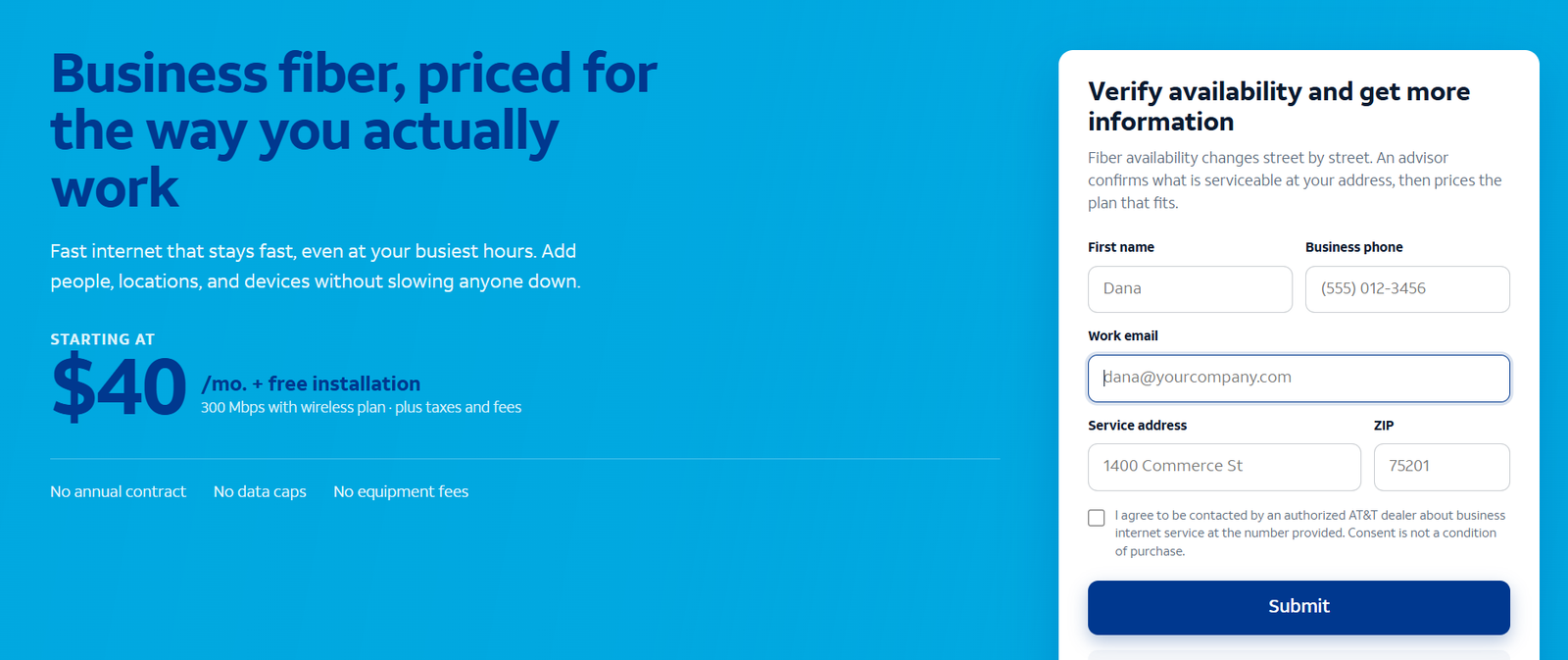
Submit the service address, preferred product and essential applications. Ask for equipment costs, installation scope, activation requirements, expected schedule and the complete monthly bill.
Frequently Asked Questions
Is Business Fiber installation free?
The cited online offer provides a $99 first-bill credit for eligible new customers ordering 300 Mbps or higher. Confirm channel eligibility and the accepted terms.
Can I self-install Business Fiber?
Ask AT&T about the installation method available for your premises and order. Do not assume a self-install option is available because equipment or fiber is already present.
Does Internet Air need a technician?
It supports self-setup without a required appointment. AT&T also offers paid professional assistance; request its cost if needed.
Is the Air hub included?
The product page states that the device is sold separately. Confirm the equipment arrangement for your order.
Can I move Air to another address?
It must be used at the qualified business service address. Contact AT&T about a location change; use an appropriate portable service for changing locations.
How soon will someone respond to an inquiry?
The expected referral response window is 24–48 business hours. It is separate from installation and activation timing.
Will installation set up my entire office network?
Do not assume so. Confirm whether cabling, access points, firewall and application configuration are included or separately arranged.
Should I cancel existing internet immediately?
Our recommendation is to retain it until the new connection and essential applications pass checks, while reviewing any overlap costs and cancellation obligations.
Final Recommendation
Choose the correct access method before planning the installation. For a suitable permanent office, start with Fiber; for a fixed wireless hub at an approved address, evaluate Air; for permitted portable needs, evaluate Wireless Broadband.
Obtain the written scope and complete quote, prepare the premises and validate essential work before migration. A successful installation connects the business workflow as well as the access equipment.
AT&T and its product names are trademarks of their respective owners. VoIPCalling.com is an independent publisher.
Affiliate disclosure: VoIPCalling.com may earn a commission if you purchase through it, at no additional cost to you.