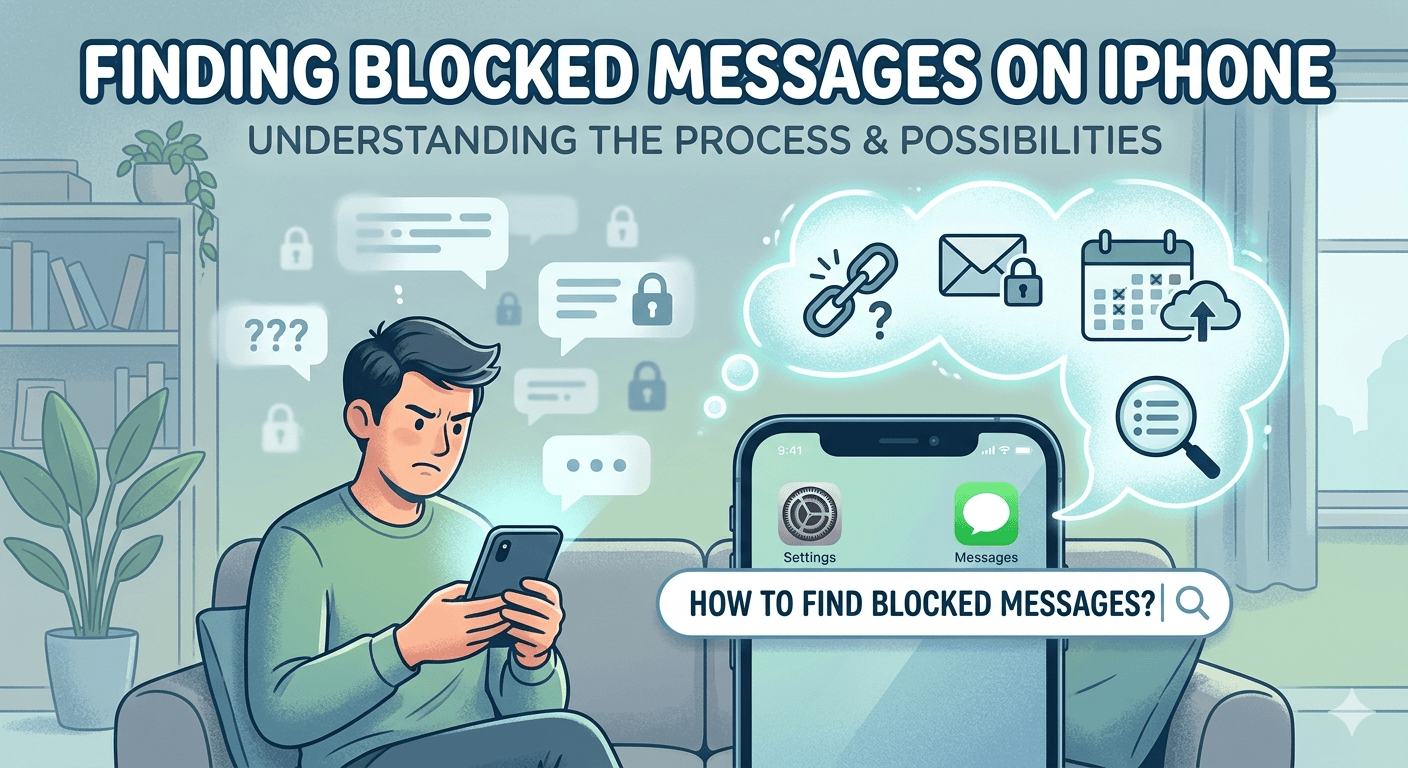
To see blocked messages on iPhone, it is important to understand that Apple does not provide a native folder where these messages are stored once a contact is blocked. When you block a number, the device automatically rejects incoming SMS and iMessages from that sender without notifying you. However, you can check blocked messages on iPhone by restoring an older iCloud or iTunes backup made before the block was implemented, or by using third-party data recovery software. Additionally, checking the Filtered Senders folder in your message settings might reveal messages from unknown contacts that were mistakenly hidden rather than fully blocked.
How do you find blocked messages on your iPhone?
Finding messages from a contact you have restricted can be a complex task because of how the iOS ecosystem prioritizes user privacy and security. When a user asks how to see blocked messages on iphone, they are often looking for a hidden archive or a trash bin where these texts might reside. Unfortunately, the architecture of the iPhone is designed to discard these communications at the network or software level before they ever reach your visible inbox. This means that for the average user, the messages sent during the period a person was blocked are effectively invisible.
The process of locating these elusive communications requires a bit of detective work involving your device settings and account backups. Many people confuse blocked messages with filtered messages. If your settings are configured to filter unknown senders, those texts are not actually blocked; they are simply moved to a different tab within the Messages app. This is the first place anyone should look when they suspect they are missing important communications from someone not in their contact list.
Another avenue to explore is your secondary Apple devices. Sometimes, if an iMessage is sent to your Apple ID, it might appear on a Mac or iPad even if the iPhone has restricted the sender, depending on when the block was synced across the iCloud network. While this is not a guaranteed method, it highlights the importance of checking all synced hardware within the Apple ecosystem when trying to retrieve lost information.
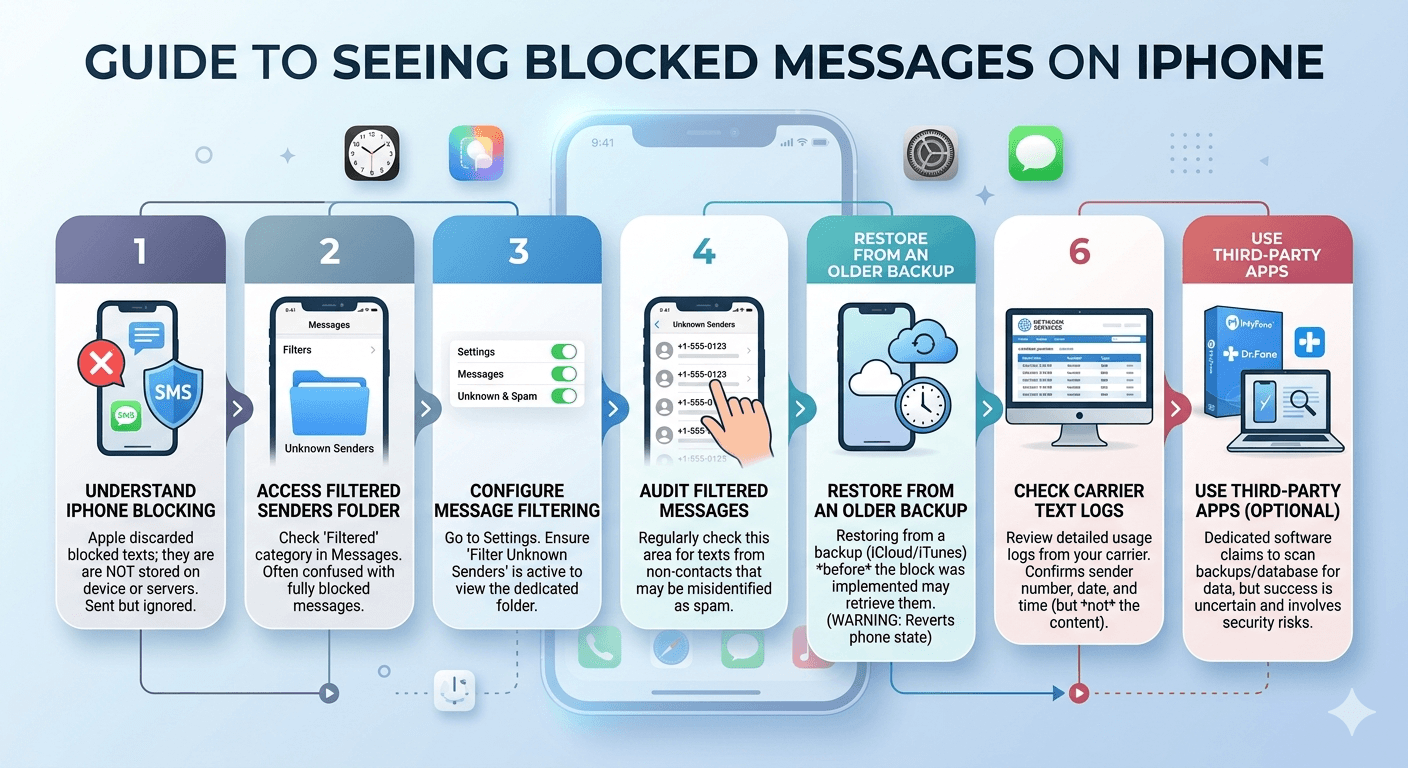
Step 1: Understand How Blocking Works on iPhone
Before diving into recovery methods, it is vital to grasp the technical mechanism of the iOS blocking system. When you navigate to a contact and select the block option, you are instructing your phone to ignore any data packets associated with that specific phone number or email address. For iMessages, the Apple servers see the block status and do not deliver the message to your specific device ID. For standard SMS, the carrier may deliver the message to the phone, but the iOS software intercepts and deletes it before it triggers a notification or appears in the database.
A key research finding from mobile security analysts indicates that Apple uses end-to-end encryption for iMessage, which means once a message is rejected at the device level, it cannot be recovered from Apple’s servers because they do not store the unencrypted content. This design choice is great for privacy but makes it nearly impossible to see blocked messages on iphone after the fact. The sender will see the message as delivered in some cases of SMS, but for iMessage, the status remains blank, providing no confirmation to the person on the other end.
It is also worth noting that blocking is a local setting that syncs via iCloud to your other devices. If you block someone on your phone, the instruction usually travels to your MacBook and iPad within seconds. This synchronization is why many users find it difficult to find any trace of the interaction across their various platforms. Understanding this silent rejection helps manage expectations regarding what can and cannot be recovered through standard software settings.
Step 2: Access the Blocked Messages Folder
As previously mentioned, there is no official folder labeled as blocked messages in the iOS interface. However, the closest equivalent is the Filtered Senders list. If you have enabled the Filter Unknown Senders feature in your settings, the Messages app creates a separate organizational structure. You can access this by opening the Messages app and tapping on the Filters link in the top left corner. This will reveal categories like All Messages, Known Senders, and Unknown Senders.
Checking this area is a crucial step for anyone trying to view blocked messages on iphone because a contact might have been filtered rather than fully blocked. If a person is not in your contact list and you have filtering active, their messages will land in the Unknown Senders tab without triggering a standard notification. This often leads users to believe they have blocked the person when, in reality, the messages are just tucked away in a sub-folder waiting to be read.
To ensure you are not missing messages due to these settings, follow these steps:
-
Open the Settings app on your iPhone and scroll down to the Messages section.
-
Locate the Message Filtering header and tap on the Unknown & Spam option.
-
Ensure that Filter Unknown Senders is toggled on if you want to see that specific folder in your app.
-
Return to the Messages app and check the Unknown Senders tab for any missing texts.
Step 3: Unblock a Contact to Retrieve Messages
A common misconception is that if you unblock a contact, all the messages they sent while they were blocked will suddenly appear in your inbox. Unfortunately, this is not how the iOS database functions. Unblocking a contact only allows future messages to be received. Any texts sent during the duration of the block are lost to the digital ether because they were never stored on the device’s internal memory.
However, unblocking is a necessary step if you intend to use a backup to recover information. If you have an iCloud backup that was created a week ago, and you blocked the person yesterday, you could technically restore your entire phone to that previous state to see blocked messages on iphone that were present before the block was initiated. This is a drastic measure, as it will revert your phone to an older state, potentially deleting newer photos, apps, and other data acquired since the backup was made.
Before performing a restore, you should always verify the date of your last successful backup. You can do this by going to Settings, tapping your name at the top, selecting iCloud, and then choosing iCloud Backup. Here, you will see the timestamp of the last time your phone saved its data to the cloud. If that date precedes the time you deleted or blocked the messages, a restore might be your only viable path to seeing that content again without using risky third-party software.
Step 4: Checking Filtered Messages
Filtered messages are often the source of confusion for those trying to see blocked messages on iphone. Apple provides a layer of protection against spam called Silence Junk Senders or Filter Unknown Senders. When this is active, your phone does not ring or vibrate for texts from people not in your contacts. These messages are stored, unlike truly blocked messages which are discarded. This feature is particularly useful for managing a cluttered inbox, but it can hide legitimate messages from new acquaintances or service providers.
To manage your filtered messages effectively, you should periodically audit your Unknown Senders folder. Many automated services, such as appointment reminders or two-factor authentication codes, come from short-code numbers that your phone might not recognize as a known contact. If you are expecting a message and it hasn’t arrived, it is highly likely it is sitting in this filtered area. This is the most common way to see blocked messages on iphone that weren’t actually blocked but were simply categorized as potential spam.
If you find that important messages are constantly being filtered, you should add those specific numbers to your contacts list. This tells the iOS software that the sender is trusted, and their future communications will bypass the filter and appear in your main Known Senders inbox. This proactive management of your contact list is the best way to ensure that the line between spam and important communication remains clear and that you never have to go hunting for a missing text again.
Step 5: Checking Carrier Logs
When you are unable to find the content of a message on the device itself, your next step should be to look at your cellular service provider’s records. While carriers generally do not store the actual text content of SMS or iMessages due to privacy laws and storage limitations, they do maintain detailed logs of metadata. These logs include the date, time, and phone number of every text message sent or received by your device.
By logging into your carrier’s online portal (such as Verizon, AT&T, or T-Mobile), you can view your detailed billing statement or usage logs. This will allow you to confirm if a blocked number has attempted to contact you. If you see an entry from the blocked number at a specific time, you know they sent a message, even if you cannot see the actual words. This can be helpful for legal purposes or simply for personal peace of mind.
According to a report by the Cellular Telecommunications and Internet Association, carriers keep these metadata logs for varying periods, usually ranging from 90 days to several years depending on the company’s policy. To access this information:
-
Navigate to your carrier’s official website and log in to your account.
-
Look for a section labeled Usage, Billing, or My Plan.
-
Select the option to view call and text logs.
-
Download the PDF or spreadsheet for the current or previous billing cycle to analyze the incoming numbers.
Step 6: Use Third-Party Apps (Optional)
There is a whole market of software dedicated to recovering deleted or blocked data from iPhones. Programs like iMyFone D-Back, Dr.Fone, and Enigma Recovery claim to be able to scan your iPhone’s database or your iTunes backups to find fragments of messages that haven’t been overwritten yet. If you are desperate to see blocked messages on iphone, these tools might offer a glimmer of hope, but they come with significant caveats.
First, these apps often require you to connect your iPhone to a computer and grant the software deep access to your file system. This can be a security risk if the software is not from a reputable source. Second, there is no guarantee of success. If the iOS software truly discarded the message upon receipt, no amount of scanning will bring it back because the data never existed on the phone’s storage. These apps are most effective at recovering messages that were received and then deleted, rather than messages that were blocked from the start.
If you decide to go this route, always use a reputable service and read recent reviews. Be prepared to pay a subscription or a one-time fee, as the free versions of these tools usually only show you a preview of what they found without allowing you to actually read or export the messages. Furthermore, make sure to back up your current phone data before using any recovery tool, as the process of scanning can sometimes cause stability issues with the mobile operating system.
Step 7: Prevent Future Blocked Messages
If you find yourself frequently checking for blocked messages, it might be time to re-evaluate your communication strategy or your phone’s security settings. One of the most effective ways to manage unwanted communication without needing to see blocked messages on iphone is to use the Focus modes introduced in recent iOS updates. Focus allows you to silence notifications from specific people or apps during certain times of the day without fully blocking them. This way, the messages are still in your inbox if you need to see them later, but they won’t disturb your peace.
Another preventative measure is to use the Report Junk feature. When you receive a text from an unknown sender that is clearly spam, do not just block them. Tap the Report Junk link under the message. This sends the message and the sender’s info to Apple and your carrier, helping to improve the global filters for everyone. Over time, this reduces the amount of noise in your inbox and minimizes the need to use the block function for anything other than extreme circumstances.
Finally, consider using a secondary phone number for online sign-ups or public listings. Services like Google Voice or various “burner” apps provide a buffer between your private number and the rest of the world. By keeping your primary iPhone number private, you drastically reduce the chances of receiving messages that would require blocking in the first place. This proactive approach to digital privacy is often more effective than trying to manage a long list of blocked contacts and wondering what they might be saying.
Read More: Voip Setup Requirements: A Complete Guide
Conclusion
Determining how to see blocked messages on iphone reveals a significant truth about the Apple ecosystem: it is built to protect your boundaries. While it can be frustrating when you need to retrieve a specific piece of information from a blocked contact, the system’s design ensures that when you say “no” to a sender, the phone takes that command seriously. There is no simple button to reveal these texts because, in the eyes of the iOS software, those texts do not exist on your device.
The most reliable methods for viewing this lost data involve preventative backups and careful management of the Filtered Senders folder. Whether you are checking carrier logs for timestamps or attempting a full system restore from iCloud, the process is an arduous one. Moving forward, utilizing features like Focus mode or temporary numbers can provide the control you desire without the permanent data loss associated with the traditional block feature. By understanding these technical limitations, you can better navigate your digital relationships and keep your inbox organized on your own terms.
Frequently Asked Questions
-
Can you check blocked messages on an iPhone?
No, there is no native “Blocked” folder on an iPhone where you can view messages sent after a contact was blocked. The iOS system is designed to intercept and discard these messages before they are stored in the device’s memory. To see any trace of them, you would need to have an old backup that contains the messages from before the block was put in place, or check your carrier’s usage logs for a record of the incoming text’s timestamp and sender number.
-
Can I see text messages from someone I blocked?
You can only see text messages from someone you blocked if those messages were received before you initiated the block. Any messages they attempt to send while the block is active will not be delivered to your phone and will not be stored in any hidden location. If you unblock the person later, the messages they sent during the blocked period will not retroactively appear in your inbox; you will only start receiving their new messages from that point forward.
-
How do I see a blocked message?
To see a blocked message that was sent before the block, you can look through your regular message history or search for the contact’s name. If the message was deleted, you must restore your iPhone from a backup that was created when the message still existed on the phone. If you are looking for messages sent while the block was active, your only option is to check with your cellular provider for a log of the activity, though they will not be able to show you the content of the text itself.
-
Can you see if a blocked number has tried to text you on an iPhone?
You cannot see if a blocked number has tried to text you directly within the Messages app, as the phone suppresses all notifications and records of the attempt. However, you can often find this information by checking your wireless carrier’s website. Most carriers provide a detailed log of all incoming and outgoing SMS activity. By looking at these logs, you can see if the blocked number appears in the list of incoming texts, which confirms they tried to reach out.
-
Can I see if a blocked number tries to text me on my iPhone?
To track or verify these incoming messages, you can start by logging into your mobile carrier’s online portal to review detailed logs of incoming numbers and timestamps. If the information is not visible on the handset, checking automated computer backups or utilizing third-party recovery software may help uncover “ghost” data, though recovery software is often less successful for messages blocked upon arrival. Additionally, it is worth checking secondary synced devices like a Mac or iPad, as these may occasionally display notifications if a block has not synchronized correctly across your entire account.
-
Can you see blocked messages after unblocking?
No, unblocking a contact does not reveal the messages they sent while they were blocked. Those messages were never officially received by your device’s message database. The communication link is only restored for future interactions. If you need to see what was said during the block, the sender would have to resend those messages once you have removed them from your blocked contacts list in the phone settings.
-
Can I see messages from someone I blocked on iMessage?
iMessage handles blocking at the server level once the instruction is synced from your device. This means that if you block someone on iMessage, Apple’s servers will not even attempt to push the message to your phone. Because of the end-to-end encryption used by Apple, there is no way for the company to retrieve these blocked messages for you. Once the block is active, those specific iMessages are essentially non-existent as far as your hardware and account are concerned.
-
Why do some blocked messages show up in the Filtered tab?
If a message shows up in your Filtered tab, it means the sender was not actually blocked. Instead, your iPhone is likely using the “Filter Unknown Senders” feature. This feature moves messages from people not in your contacts to a separate list to reduce clutter and noise. If you want to see these messages in your main inbox, you need to add the sender to your contacts or disable the filtering option in your Messages settings under the “Unknown & Spam” category.
-
Is it possible to recover blocked messages using iCloud?
You can recover messages using iCloud only if they were present on your phone during the last backup. If a message was sent and blocked between two backup cycles, it was never saved to the cloud and cannot be recovered. Restoring from iCloud is an “all-or-nothing” process, meaning you will have to erase your current phone data to roll back to the version that contains the messages you are looking for, which may result in losing more recent data.