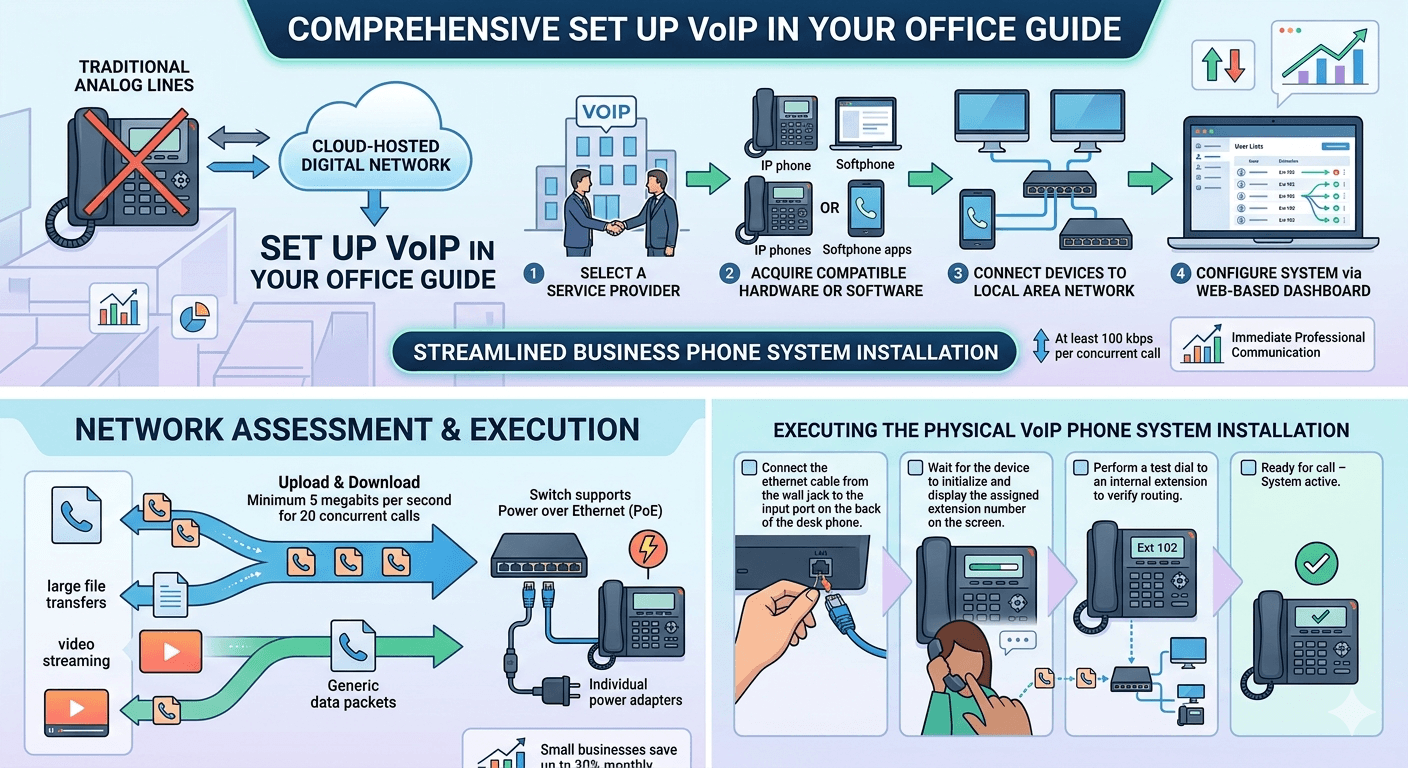
A comprehensive set up VoIP in your office guide focuses on migrating from traditional analog lines to a cloud-hosted digital network. To begin, ensure your office internet bandwidth provides at least 100 kbps per concurrent call to maintain audio clarity. The process involves selecting a service provider, acquiring compatible hardware or software, and connecting devices to your local area network via ethernet. Once the hardware is active, you use a web-based dashboard to assign user extensions and configure call routing rules. This streamlined business phone system installation eliminates complex on-site wiring and allows for immediate professional communication across your entire organization.
Strategic Network Assessment for Phone System Setup
The foundation of a successful office communication strategy starts with evaluating the existing network infrastructure to ensure it can handle voice data. Unlike standard internet browsing, voice traffic is highly sensitive to delays and packet loss, meaning your router must be capable of handling consistent streams of data. When preparing for voip installation, you should verify that your office switch supports Power over Ethernet, which allows you to power your desk phones through the data cable. This reduces clutter and simplifies the overall physical layout of the workspace. If your current switch does not support this, you will need to plan for individual power adapters for every desk.
Bandwidth allocation is a critical component of the initial planning phase. Every active conversation requires a small but consistent amount of data to travel both ways. For an office with twenty employees, a dedicated upload and download speed of at least 5 megabits per second should be reserved exclusively for voice traffic to prevent interference from other online activities like large file transfers or video streaming. Performing a network audit before
set up VoIP in your office ensures that you do not encounter frustrating audio issues once the system goes live. This proactive approach saves time and prevents the need for emergency troubleshooting during the first week of operation.
Research from Blueface indicates that small businesses can save up to thirty percent on their monthly communication expenses by transitioning to digital platforms.
Additionally, a report from Frost & Sullivan suggests that over eighty percent of modern businesses prioritize voice quality and reliability over initial hardware costs.
These facts highlight why a thorough network assessment is worth the time, as it ensures the long-term viability of your investment. By establishing a robust network backbone, you provide a stable environment for your team to communicate without the limitations of traditional copper-based telephony.
Executing the Physical VoIP Phone System Installation
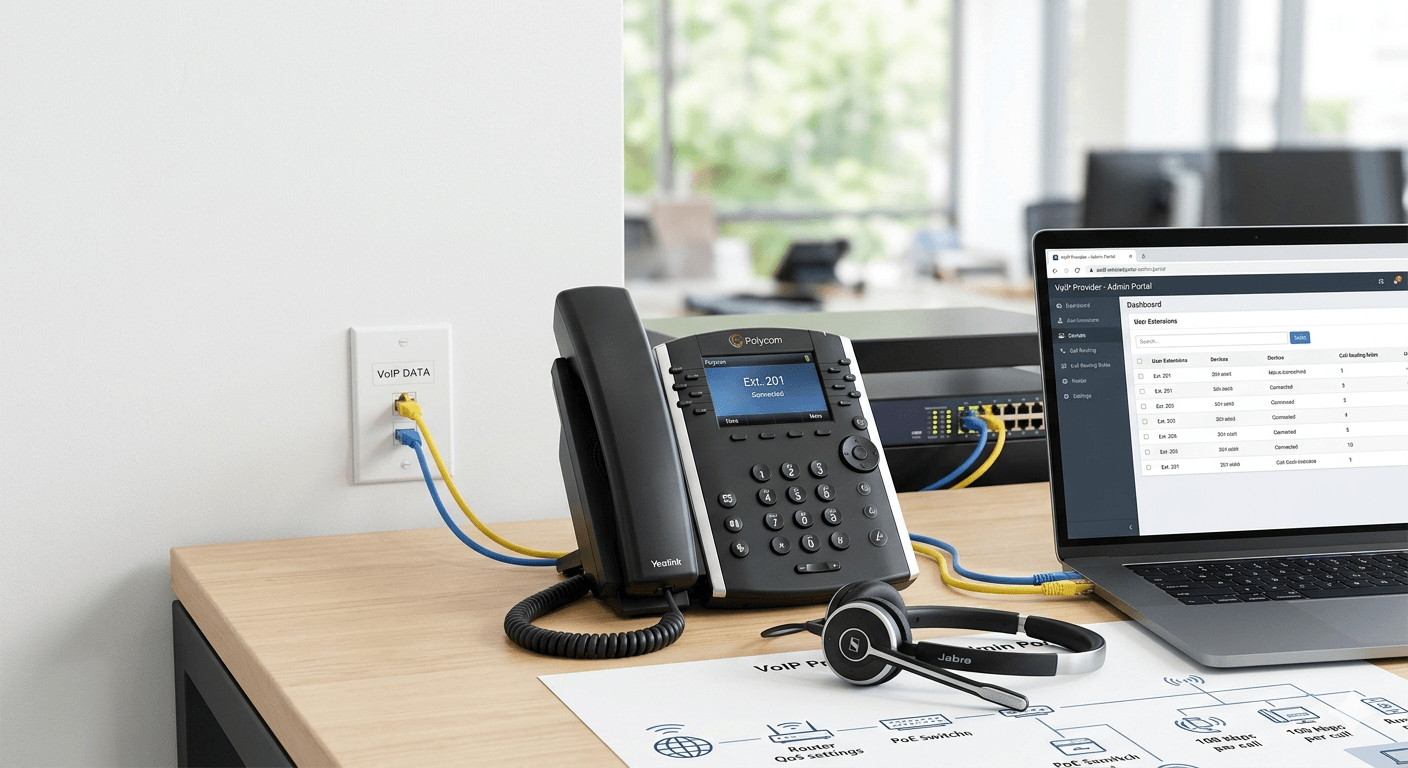
Once the network is ready, the physical deployment of hardware can begin across the office. Most organizations opt for dedicated desk units because they provide a familiar interface for employees while offering advanced digital features. The process of ip phone setup starts by unboxing the units and connecting them to the designated ethernet ports at each workstation. If you are using a hosted service, these phones are often pre-configured by the vendor, meaning they will automatically reach out to the central server to download their profiles as soon as they have an internet connection. This plug-and-play nature is what allows a voip phone system installation to be completed so rapidly.
For offices that prefer a more modern or flexible approach, the installation might involve setting up software-based applications on desktop computers. In this scenario, how to setup voip becomes a matter of distributing login credentials and ensuring each computer is equipped with a high-quality USB headset. This method is particularly effective for open-office layouts where desk space is at a premium. The voip phone connection in a software environment relies on the computer’s existing network link, which simplifies the wiring even further. Regardless of whether you choose physical or virtual devices, the goal is to create a unified network where every user has a dedicated point of access.
-
Connect the ethernet cable from the wall jack to the input port on the back of the desk phone.
-
If the phone has a secondary port, connect another cable from the phone to the user’s computer to share the network connection.
-
Wait for the device to initialize and display the assigned extension number on the screen.
-
Perform a test dial to an internal extension to verify that the local network is routing the packets correctly.
Step-by-Step VoIP Configuration and User Registration
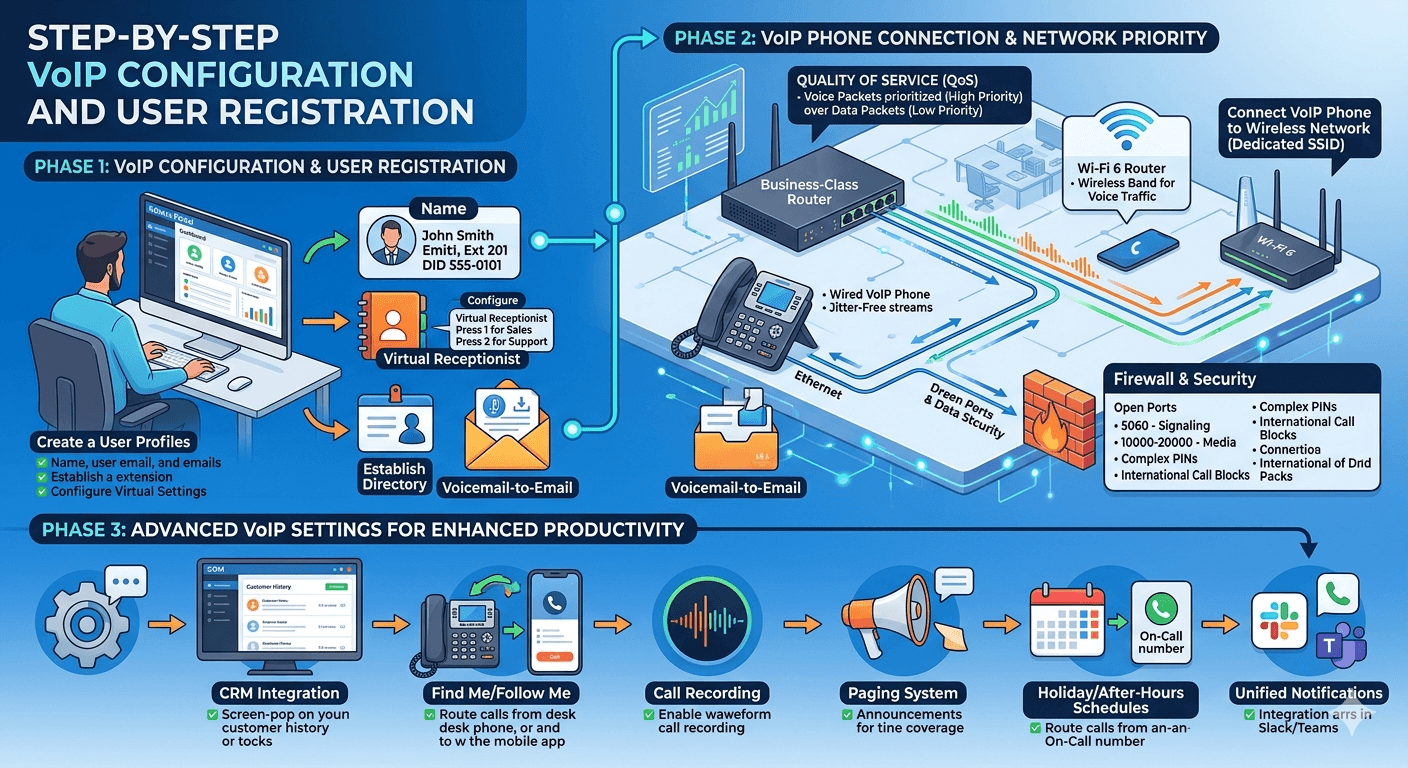
After the hardware is physically connected, the focus shifts to the digital management of the system. This stage involves the voip configuration of each individual account within the provider’s web portal. You will need to create a user profile for every employee, assigning them a unique extension number and a direct inward dialing number if required. During this phase, you also establish the internal directory, which allows staff members to find and call their colleagues using only a few digits. Taking the time to properly organize these settings during the initial setup prevents confusion as the organization scales.
The administrative dashboard is the central hub for all voip settings. Here, you can define how the system handles incoming calls through the use of an automated receptionist or IVR. You can record custom greetings that provide callers with options to reach different departments, such as sales or technical support. This level of professional call handling is a major advantage of modern office phone setup. Additionally, you should configure the voicemail-to-email settings for each user, ensuring that missed calls are converted into audio files and sent directly to the employee’s inbox for quick review and response.
-
Access the admin portal using the credentials provided by your service vendor.
-
Navigate to the user management section to add names, emails, and extension numbers.
-
Set up call groups for specific teams so that multiple phones ring simultaneously for department inquiries.
-
Enable security features such as complex PINs for voicemail access and restricted international calling.
Mastering VoIP Phone Connection and Network Priority
To ensure that your office communication remains crystal clear, you must address the technical priority of voice packets on your network. This is achieved through a process called Quality of Service, which is a standard feature in business-class routers. When you learn how to set up voip phone priority, you are essentially telling your router that voice data is more important than a background software update or a web search. This prevents “jitter,” which is the choppy audio effect that occurs when data packets arrive out of order. Proper voip phone configuration at the router level is the most important step in achieving professional-grade audio quality.
In some office environments, you may need to learn how to connect voip phone to wireless network access points if running cables is not feasible. While a wired connection is always the most stable option, modern Wi-Fi 6 routers provide enough stability for high-definition voice. Setting up a dedicated SSID for voice traffic can further isolate these critical data streams from general guest or employee web traffic. This specialized voip set up ensures that even if the main office network is congested, the phone system continues to operate without degradation. Regularly monitoring the performance of these wireless links is part of maintaining a healthy communication environment.
The process of setting up a voip phone also involves verifying the local firewall settings. Some security systems may block the specific ports used by digital voice protocols, leading to issues where you can hear the caller but they cannot hear you. Ensuring that your IT team has opened the necessary ports for signaling and media is a fundamental part of the ip phone installation process. Most providers will offer a list of required firewall rules that should be implemented during the initial 30-minute setup window to avoid any connectivity hurdles.
Advanced VoIP Settings for Enhanced Office Productivity
Beyond the initial connection, a professional voip installation allows for the implementation of advanced features that streamline daily operations. One such feature is the ability to integrate the phone system with the company’s existing CRM software. When a known customer calls the office, a screen pop can appear on the employee’s monitor showing the customer’s name and previous interaction history. This seamless voip configuration step by step integration helps staff provide more personalized service and reduces the time spent looking up account details manually. It turns the phone from a simple communication tool into a powerful productivity asset.
Another vital setting for the modern office is the configuration of “find me/follow me” rules. This allows an employee’s extension to ring their desk phone first, and if not answered, automatically forward the call to their mobile application or a secondary number. This ensures that important client calls are never missed, even if the team member is in a meeting or away from their desk. Learning how to setup voip phone forwarding rules like these is a core part of the digital transformation for any small or medium-sized enterprise. These features are usually managed through an intuitive user portal, allowing individual employees to customize their own settings without needing constant IT support.
-
Enable call recording for training purposes and quality assurance checks.
-
Configure the paging system to allow for office-wide announcements through the desk phone speakers.
-
Setup holiday and after-hours schedules to automatically route calls to an emergency on-call rotation.
-
Integrate third-party messaging apps like Slack or Microsoft Teams for unified notifications.
Finalizing the IP Phone Setup and Testing Procedures
Before considering the installation complete, a rigorous testing phase must be conducted across all departments. This involves more than just making a single call; you should test the system under load to see how it performs when multiple people are talking at once. Checking the voip settings on various devices ensures that everyone has the correct caller ID information and that their voicemail boxes are functioning as expected. During this time, it is also important to test the emergency 911 calling functionality, ensuring that the correct physical office address is transmitted to local dispatchers in the event of an emergency.
Training the staff on how to use a voip phone is the final step in the deployment process. While the hardware looks similar to traditional phones, the digital features like call parking, three-way conferencing, and directory searches may require a brief demonstration. Providing a simple one-page cheat sheet at every desk can significantly reduce the number of internal help desk tickets during the first week. Once everyone is comfortable with the new system, you can move forward with porting your old numbers over to the new provider, which officially completes the migration to a modern, local voip phone solution.
The long-term success of your hosted voip phone system depends on regular maintenance and staying updated with the latest firmware. Most providers push updates automatically, but your IT administrator should periodically check the dashboard for any alerts or suggested optimizations. By keeping the system updated, you ensure that you are protected against new security threats and that your office has access to the latest communication features as they are released. This ongoing attention to detail ensures that your initial 30-minute setup continues to provide value for years to come.
Choosing the Right Hardware for Your Office Layout
Selecting the appropriate voip phones for business depends heavily on the specific roles within your company. A receptionist will likely require a high-end model with a large color display and multiple line keys to manage a high volume of incoming calls. In contrast, a standard employee might only need a basic model with a few programmable buttons and high-quality speakerphone capabilities. Understanding the different requirements for various workstations is a key part of the phone system setup process. Some modern offices are even moving away from desk phones entirely in favor of high-performance headsets paired with softphone software.
If your office has communal areas like conference rooms or breakrooms, you will need specialized equipment for those spaces. Conference room units are designed with 360-degree microphones to pick up voices from across a large table, which is essential for clear communication during group meetings. During the voip installation, ensure these units are placed centrally and tested for echo cancellation performance. Having the right tool for each specific environment within the office prevents frustration and ensures that every call, whether private or group-based, is handled with the highest possible level of professionalism.
-
Determine the number of lines required for each department to handle peak call times.
-
Evaluate the need for expansion modules (sidecars) for high-traffic workstations.
-
Consider the ergonomics of headsets for staff members who spend several hours a day on the phone.
-
Check for compatibility between the hardware and your chosen service provider’s feature set.
Final Thought
A successful VoIP setup guide for business in 30 minutes proves that modernizing your office communication does not have to be a multi-day ordeal. By focusing on network readiness, selecting the right hardware, and utilizing intuitive cloud-based management tools, any business can achieve a professional and reliable phone system setup. The transition to a hosted voip phone system provides the flexibility, scalability, and cost-efficiency necessary for a competitive edge in today’s digital landscape. Once the initial voip configuration is complete and the team is trained, the organization will benefit from a robust communication platform that grows in tandem with its success.
Read More: Queue Callback: Functions, Benefits and Solutions
Frequently Asked Questions
-
How to setup a VoIP phone at the office?
To set up a device at your office, connect the hardware to your internet-connected ethernet jack and a power source if your network does not provide Power over Ethernet. Once the device boots up and displays an extension, use your provider’s administrative dashboard to link the device’s MAC address to a specific user. This process ensures that the phone is correctly registered on your business network and ready to handle professional calls within minutes.
-
What is required for VoIP setup?
A complete installation requires a high-speed internet connection, a router with Quality of Service capabilities, and a subscription to a service provider. You will also need the appropriate hardware, such as IP desk phones or computers and smartphones with the provider’s communication software installed. Lastly, a well-organized plan for extension numbers and call routing rules is essential to ensure the system meets your office’s specific operational needs from day one.
-
What equipment is needed for VoIP?
The primary equipment includes a modem, a router, and network switches that ideally support PoE to power your devices. For the users, you will need IP phones, headsets, or conference units depending on their specific job functions. If you plan to use computer-based calling, high-quality noise-canceling headsets are highly recommended to ensure clear audio in a busy office environment. For legacy support, an analog telephone adapter may also be required for old fax machines.
-
How do I set up my VoIP phone?
Individual setup begins with plugging the device into the network and waiting for it to initialize. Most modern systems use auto-provisioning, meaning the phone will automatically pull its settings from the cloud. Once it is active, you can customize personal settings like ringtones, speed-dial keys, and your voicemail greeting directly from the phone’s menu or a web-based user portal. This allows every employee to tailor their communication tool to their own preferences.
-
Can I use my existing office wiring for a new digital system?
In most cases, you can use existing Category 5e or Category 6 ethernet wiring that is already in place for your computers. Because digital phones use the same type of connection as your PCs, you can often plug the phone into the wall and then plug the computer into the back of the phone. This “daisy-chain” method allows you to deploy a new system without the need for expensive new wiring runs or structural changes to your office.