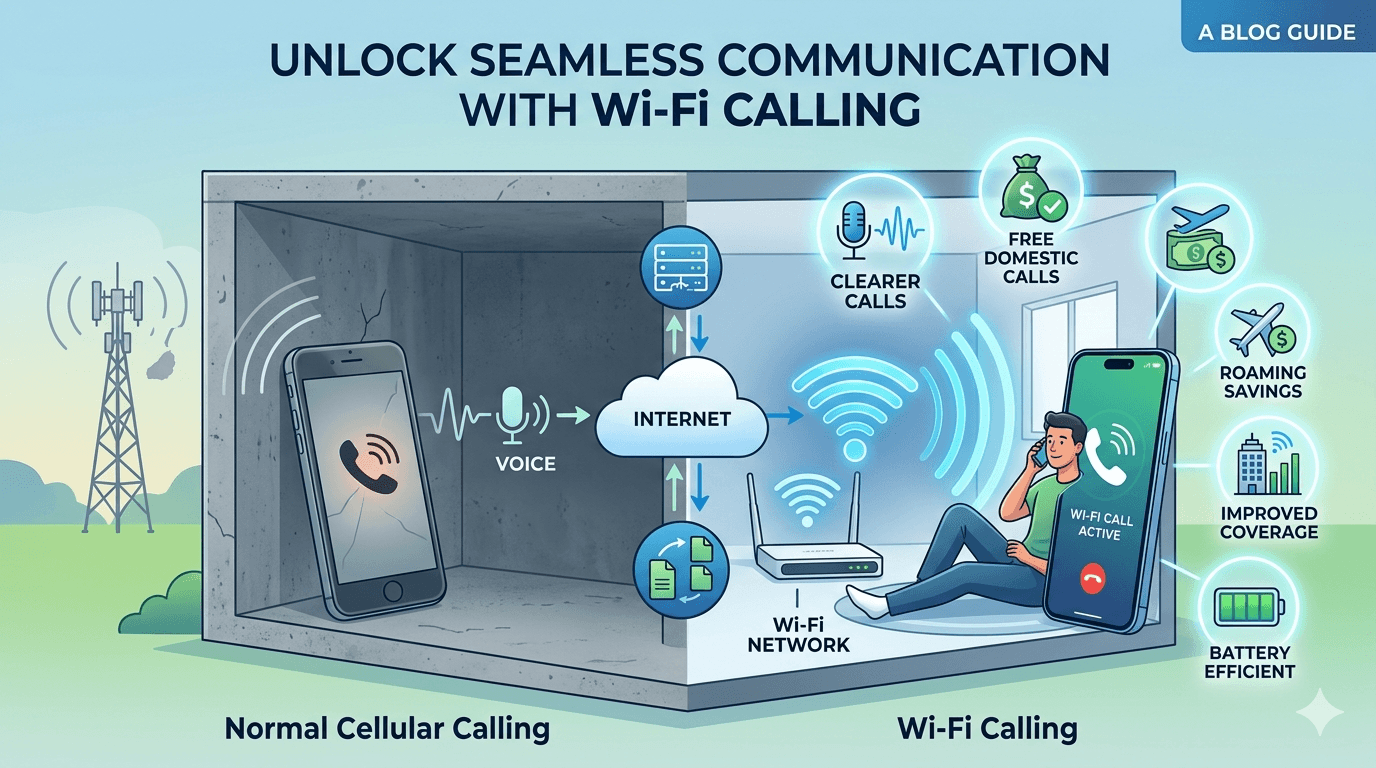
While the term “internet calling” broadly refers to any call over IP, Wi-Fi calling is a specific application of VoIP that has gained immense popularity. It essentially allows your smartphone to make and receive calls over a Wi-Fi network rather than your cellular network. This is where internet calling becomes a crucial concept.
What is the Difference Between Internet Calling and Normal Calling?
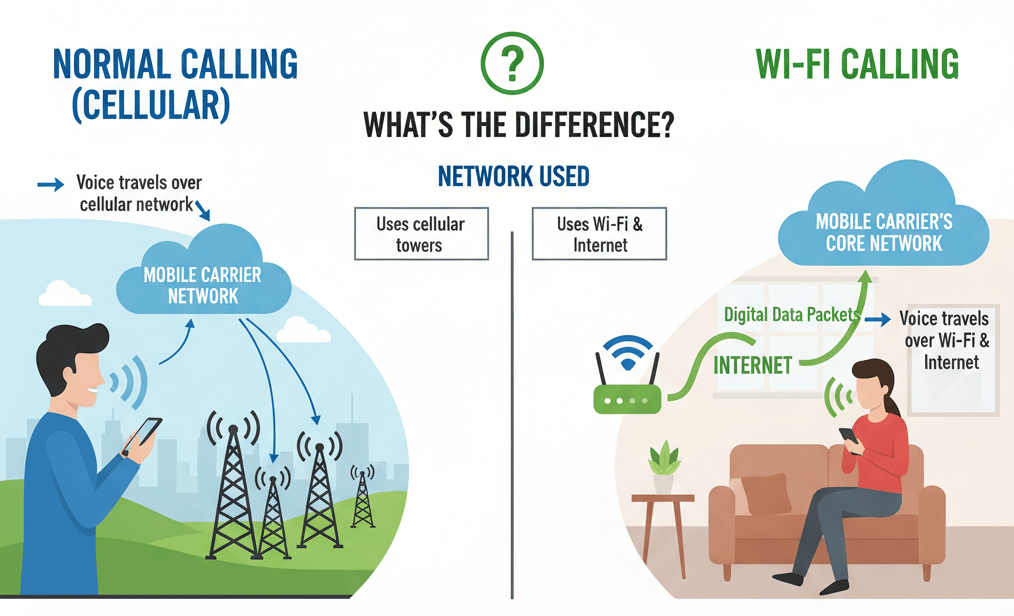
The fundamental difference lies in the network used:
-
Normal Calling (Cellular): Your voice travels as an analog or digital signal over your mobile carrier’s cellular towers and network.
-
Internet Calling: Your voice is converted into digital data packets and sent over a Wi-Fi network, which then connects to your carrier’s core network via the internet.
For the user, the experience is largely the same – you dial a number and talk. However, the underlying technology and benefits are significantly different. While cellular calls rely on the proximity and strength of physical towers, Wi-Fi calling utilizes Voice over IP (VoIP) protocols to bypass traditional signal barriers. This allows for seamless communication in dead zones or high-density buildings where cellular penetration is often compromised.
How Much Does Internet Calling Cost?
One of the most attractive aspects of internet calling is its cost-effectiveness.
- Free for Domestic Calls: Most mobile carriers treat internet calls to domestic numbers the same as regular domestic calls included in your plan. If you have unlimited domestic minutes, Wi-Fi calls won’t cost you extra.
- International Roaming Savings: This is where internet calling truly shines. If you’re abroad and make a call back to your home country using Wi-Fi, it’s typically charged at your domestic rates, not expensive international roaming rates. This can lead to substantial savings.
- Data Usage: While the calls themselves might be free, they do use a small amount of Wi-Fi data. For example, a minute of internet calling uses approximately 1 MB of data, which is negligible on most home or public Wi-Fi networks.
Advantages of Internet Calling
The benefits of enabling internet calling are numerous:
- Improved Indoor Coverage: Cellular signals often struggle to penetrate thick walls or reach basements. Internet calling bypasses this issue entirely, providing crystal-clear calls even in areas with no cellular reception.
- Cost Savings on International Calls: As mentioned, it can drastically reduce roaming charges when traveling abroad.
- Battery Life (Sometimes): In areas with weak cellular signal, your phone expends more power searching for a network. Wi-Fi calling can conserve battery life by relying on a stable Wi-Fi connection.
- Better Call Quality: A strong Wi-Fi connection can often provide superior audio quality compared to a weak cellular signal.
- Continuity of Service: If your cellular network goes down, you can still make and receive calls as long as you have a Wi-Fi connection.
- Access to Advanced Features: Many carrier-based inernet calling services seamlessly integrate with your existing calling plan and features.
Which Devices Support Wi-Fi Calling?
Most modern smartphones, both Android and iOS, support native Wi-Fi calling. This feature has become standard in devices released in the last few years.
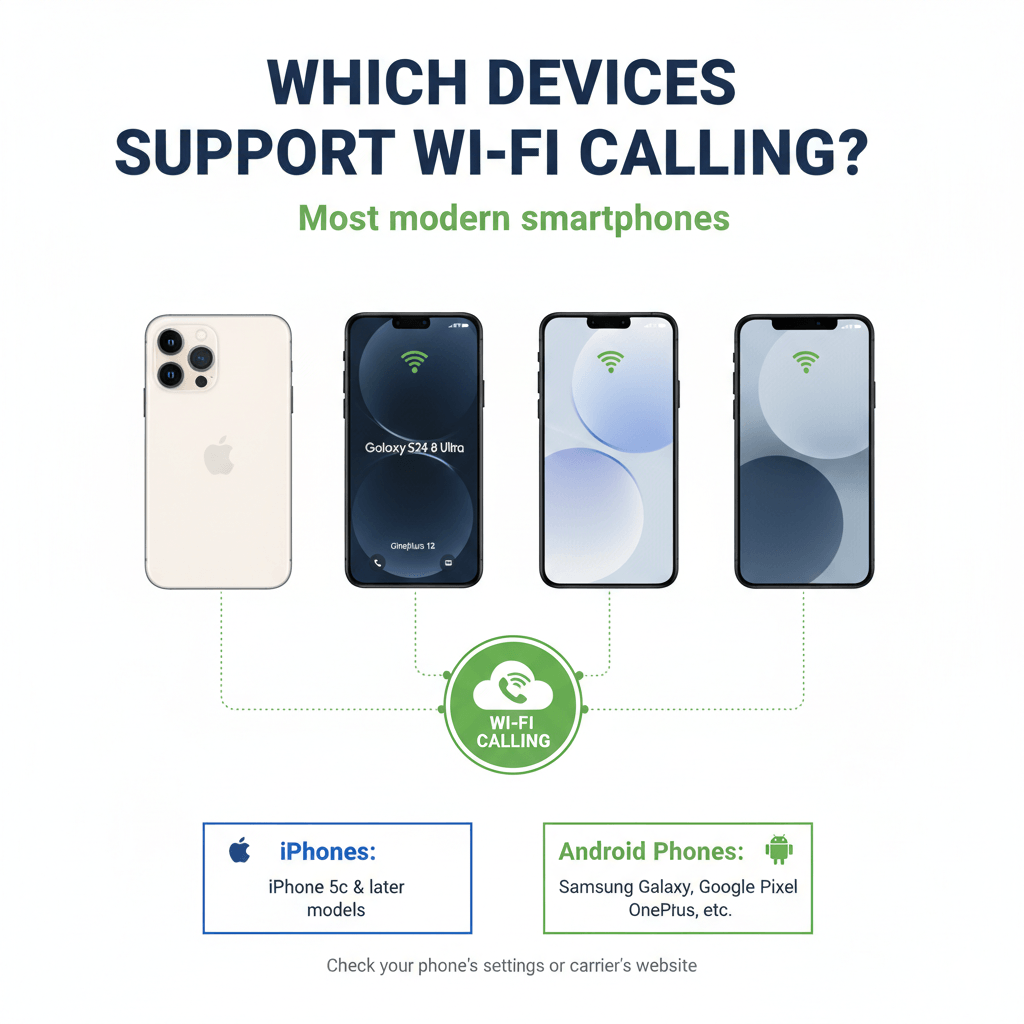
- iPhones: iPhone 5c and later models typically support Wi-Fi calling.
- Android Phones: Most Samsung Galaxy, Google Pixel, OnePlus, LG, and other major brand smartphones released recently are compatible.
To check if your specific device supports it, simply go into your phone’s settings or visit your carrier’s website.
How to Use Internet Calling?
Using inernet calling is remarkably simple once enabled. Your phone intelligently switches to Wi-Fi for calls when a stable network is available and cellular signal is poor or absent. You simply dial numbers as you normally would.
You’ll often see an indicator on your phone’s status bar (e.g., “Wi-Fi Call,” “VoWiFi,” or a small phone icon with a Wi-Fi symbol) to confirm that the call is being made over Wi-Fi.
How to Enable Internet Calling?
There are two primary ways to enable internet calling via Wi-Fi: native carrier Wi-Fi calling and app-based Wi-Fi calling.
1. Native Carrier Internet Calling
This is the most seamless method as it’s integrated directly with your mobile carrier and phone’s operating system.
For iPhone (iOS):
- Go to Settings.
- Tap Phone.
- Tap Wi-Fi Calling.
- Toggle Wi-Fi Calling on This iPhone to “On.”
- Follow any on-screen prompts, which may include entering your emergency address for E911 services.
For Android:
- Open the Phone app (the dialer).
- Tap the three dots (More options) or gear icon (Settings).
- Look for Wi-Fi Calling, Calls, or Calling Accounts.
- Toggle Wi-Fi Calling to “On.”
- You might need to accept terms and conditions or provide an emergency address.
Note: The exact menu names and steps may vary slightly depending on your Android phone model and carrier.
Important Considerations for Native Wi-Fi Calling:
- Carrier Support: Your mobile carrier must support Wi-Fi calling. Most major carriers do, but it’s worth checking with yours if you encounter issues.
- Emergency Services (E911): When enabling Wi-Fi calling, you’ll usually be asked to provide an emergency address. This is crucial because your phone’s location might not be easily determined via Wi-Fi in an emergency, unlike with cellular triangulation. Ensure this address is kept up-to-date.
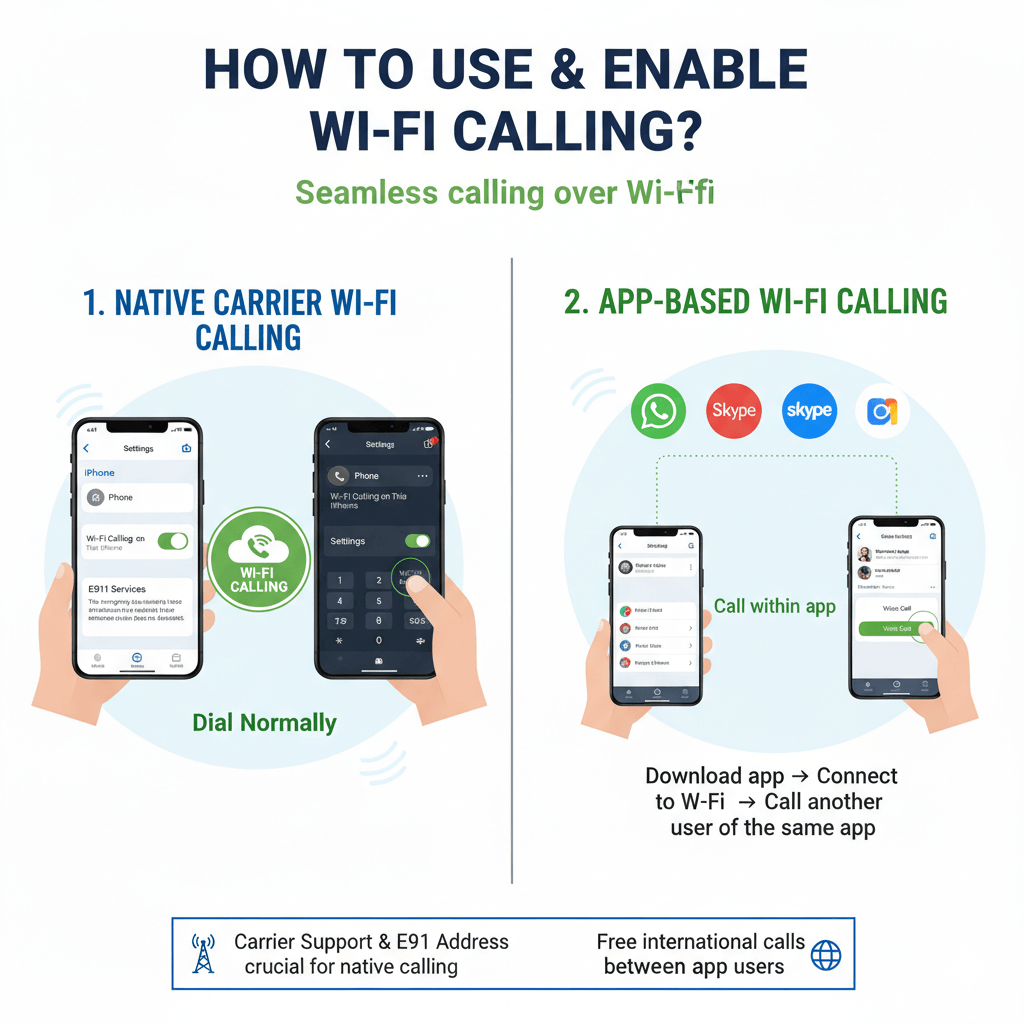
2. App-Based Wi-Fi Calling
As discussed earlier, numerous apps allow you to make calls over Wi-Fi. These include:
- Skype
- Zoom
- Google Meet/Duo
- Viber
To use app-based Wi-Fi calling:
- Download and install your preferred app from your phone’s app store.
- Create an account or log in.
- Ensure your phone is connected to a Wi-Fi network.
- Open the app and initiate a voice or video call to another user of the same app.
These apps are excellent for making free internet calls to other users of the same platform, especially for international communication.
Challenges of Wi-Fi Calling and Solutions
While Wi-Fi calling offers many advantages, there can be challenges. Being aware of them allows you to implement solutions for a smoother experience.
- Poor Wi-Fi Connection: The biggest challenge is an unstable or slow Wi-Fi network.
- Solution: Ensure you have a strong, reliable Wi-Fi signal. Move closer to your router, restart your router, or consider upgrading your internet plan if speeds are consistently low.
- Handover Issues: Sometimes, a call started on Wi-Fi might not seamlessly transfer to cellular if you move out of Wi-Fi range.
- Solution: Some carriers and phones offer better handovers than others. If you anticipate moving between Wi-Fi and cellular during a call, consider if app-based calls (which are entirely internet-dependent) might be more stable in that specific scenario.
- E911 Location Accuracy: As mentioned, your exact location might not be automatically known when calling emergency services via Wi-Fi.
- Solution: Always keep your emergency address updated in your phone’s Wi-Fi calling settings. If possible, use cellular for emergency calls if you are unsure of your location accuracy via Wi-Fi.
- Battery Drain (in some cases): While often battery-saving, if your phone is constantly searching for and switching between Wi-Fi and cellular, it can sometimes drain the battery faster.
-
-
- Solution: If you are consistently in an area with stable Wi-Fi, consider keeping cellular data off to prevent unnecessary network searching.
-
Best Practices for Effective Internet Calling
To maximize your internet calling experience, especially with Wi-Fi calling, follow these best practices:
- Ensure a Strong Wi-Fi Signal: This is paramount. A weak Wi-Fi signal will lead to dropped calls and poor audio quality.
- Prioritize Network Bandwidth: If you’re on a shared Wi-Fi network, avoid heavy streaming or downloads during important calls.
- Use a Quality Router: An outdated or cheap router can bottleneck your internet speed and affect call quality.
- Update Your Software: Keep your phone’s operating system and calling apps updated to ensure optimal performance and bug fixes.
- Consider a VPN (with caution): While VPNs enhance privacy, some can introduce latency, negatively impacting VoIP calls. Test your VPN’s effect on call quality.
- Test Your Connection: Before an important call, especially for video, do a quick test call to ensure everything is working smoothly.
- Keep Emergency Address Updated: This cannot be stressed enough for native Wi-Fi calling.
Should I Turn On Wi-Fi Calling?
In almost all cases, yes, you should turn on Wi-Fi calling. The benefits overwhelmingly outweigh the potential drawbacks. It provides a fantastic backup for poor cellular areas, saves money on international calls, and often delivers clearer audio. It seamlessly integrates into your existing phone experience and costs nothing extra if included in your plan.
Unlock seamless communication with Wi-Fi calling and experience the true power of internet telephony.
VoIP Fits into Everyday Home Life
For individuals and families, VoIP services can significantly simplify communication and reduce costs.
- Eliminate Landlines: Many households are cutting the cord on traditional landlines, saving monthly subscription fees by relying solely on VoIP or mobile phones with Wi-Fi calling.
- International Family Calls: Staying connected with relatives abroad becomes incredibly affordable, often free, with app-to-app internet calls.
- Flexible Phone Numbers: Get a second virtual phone number for online registrations or business, keeping your personal number private.
- Home Office Integration: For those working from home, a dedicated VoIP line can provide a professional touch with features like voicemail, call forwarding, and separate business hours.
VoIP for beginners in a home setting means unlocking a world of communication possibilities without breaking the bank.
VoIP Feels Easy Even for Beginners
Despite the underlying technology, using VoIP for everyday calling is incredibly intuitive. The user interfaces of popular apps and the seamless integration of native Wi-Fi calling mean that you don’t need to be a tech expert. If you can use a smartphone, you can use VoIP.
The learning curve is minimal, and the rewards – in terms of cost savings, features, and reliability – are substantial. This ease of use is a testament to the mature development of the internet telephony system.
VoIP Is the New Era of Connection
Looking ahead to free internet calls 2026 and beyond, the dominance of VoIP is undeniable. As internet speeds increase, 5G networks become more widespread, and smart devices proliferate, internet calling will continue to evolve. We can expect even higher audio and video quality, more sophisticated AI-powered features (like real-time translation), and even greater integration across all aspects of our digital lives.
The shift to internet telephony VoIP isn’t just a trend; it’s the fundamental way we connect, personally and professionally, in the modern world. Embracing it means embracing the future of communication.
Final Thoughts
The journey into VoIP for beginners reveals a powerful and accessible world of communication. From understanding how internet calling works to leveraging the incredible advantages of Wi-Fi calling, it’s clear that internet telephony is not just an alternative but the preferred method for making calls in the 21st century. With the promise of free internet calls 2026 becoming an even more widespread reality, there has never been a better time to embrace this transformative technology and unlock seamless, affordable, and feature-rich communication.
Read more: VoIP vs PBX: Which Should You Choose for Your Business?
Frequently Asked Questions (FAQs)
-
Is Internet calling truly free?
For domestic calls within your plan’s included minutes, yes, it’s typically free. For international calls made over Wi-Fi back to your home country, it’s usually charged at your domestic rates, which can be significantly cheaper than international roaming. App-to-app calls (e.g., WhatsApp to WhatsApp) are free globally, using your Wi-Fi data.
-
Do I need a special app to use Internet calling?
No, for native carrier Wi-Fi calling, it’s a built-in feature on most modern smartphones that you enable in your phone’s settings. You just use your regular phone dialer. For “app-based” internet calling (like Whats App or Skype), you do need to download those specific apps.
-
What happens if I move out of Wi-Fi range during a Wi-Fi call?
Ideally, your phone should seamlessly hand off the call to your cellular network without interruption. However, the quality of this handover can vary by carrier and device. If the cellular signal is also weak, the call might drop.
-
Does Wi-Fi calling use up my mobile data plan?
No, if you are connected to a Wi-Fi network, Wi-Fi calling uses that Wi-Fi data, not your mobile data plan. This is particularly useful if you have limited mobile data.
-
Is the call quality better with Internet calling?
Often, yes. If you have a strong, stable Wi-Fi connection, Wi-Fi calling can provide clearer audio quality than a weak or congested cellular signal, especially in areas with poor indoor cellular reception.