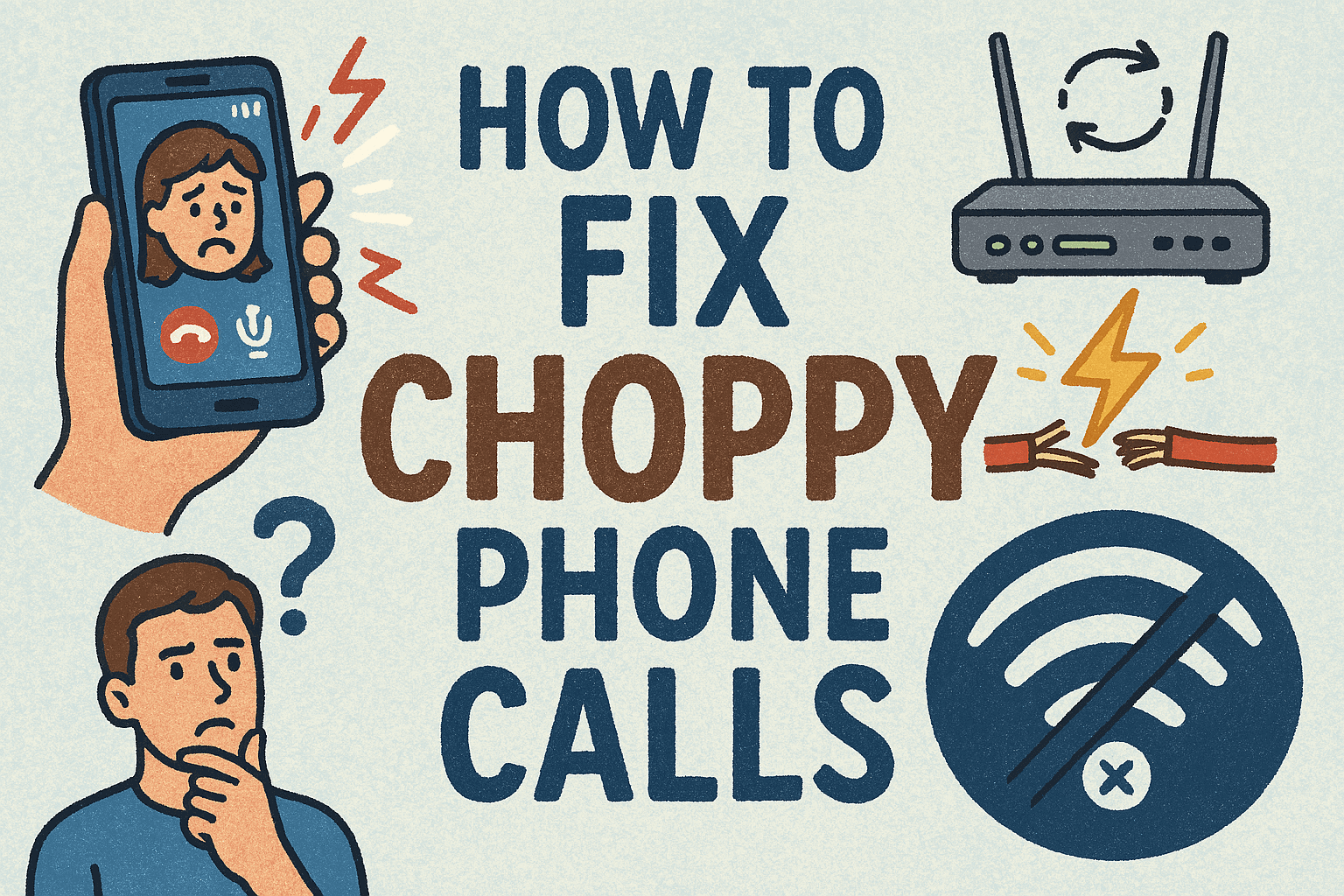
Choppy phone calls are one of the most frustrating tech problems. One second you hear the other person clearly. The next second their voice cuts out, sounds robotic, or disappears completely. You keep saying “Hello? Can you hear me?” and the call becomes useless.
If you’re dealing with choppy phone calls on mobile, VoIP, WhatsApp, Zoom, or business calls, you’re not alone. The good news is this problem is usually fixable.
Short Answer: Choppy phone calls usually come from weak signals, poor WiFi, or device issues. To fix them, try switching to a stronger network, resetting your router, updating your phone software, or using WiFi calling for stability.
Let’s break it down in plain language and show you exactly why phone calls become choppy and how you can fix them step by step.
What Are Choppy Phone Calls?
Choppy phone calls happen when audio is interrupted, delayed, or partially lost during a call. Instead of smooth conversation, you hear:
- Broken sentences
- Robotic or metallic voices
- Long pauses
- Words cutting in and out
- One way audio where only one person can hear
This can happen on:
- Mobile phone calls
- VoIP calls
- WhatsApp, Zoom, Skype
- Business phone systems
Why Are My Phone Calls Choppy?
Before fixing the issue, it helps to understand what’s actually causing it. In most cases, choppy calls are caused by network, device, or software problems.
Common causes of choppy phone calls
- Weak internet connection
- Poor cellular signal
- Network congestion
- Old phone or hardware issues
- App or system bugs
- VoIP misconfiguration
- Background apps using bandwidth
Let’s go through each one and fix them properly.
1. Check Your Internet Connection First
If you are using VoIP calls, WhatsApp, Zoom, or WiFi calling, your internet connection is the number one suspect.
Signs your internet is causing choppy calls
- Calls are worse during peak hours
- Video buffers while calling
- Audio breaks but the call does not drop
What you can do
- Switch from WiFi to mobile data or vice versa
- Restart your router
- Move closer to the WiFi router
- Stop downloads or streaming on other devices
Recommended internet speed for clear calls
- Minimum 1 Mbps upload and download
- Stable ping below 100 ms
If your internet fluctuates, audio packets get lost, causing choppy sound.
2. Improve Mobile Network Signal
If choppy calls happen on regular phone calls, weak cellular signal is often the issue.
Why low signal causes choppy calls
When your phone struggles to stay connected to the nearest tower, voice data keeps dropping.
How to improve mobile signal
- Move near a window or outside
- Avoid basements or elevators
- Turn airplane mode on for 10 seconds, then off
- Restart your phone
- Switch network mode from 5G to 4G or 4G to 3G to test
Sometimes newer networks like 5G are fast but unstable in certain areas.
3. Turn Off Background Apps and Data Hogs
Many apps silently use your internet in the background.
Examples:
- Cloud backups
- Video streaming apps
- Social media auto refresh
- App updates
What to do
- Close unused apps
- Disable background data for heavy apps
- Pause app updates while on calls
This is especially important on budget phones with limited RAM.
4. Restart Your Phone (Yes, It Works)
It sounds simple, but restarting your phone clears:
- Memory leaks
- Network glitches
- Temporary software bugs
If your phone has been on for days or weeks, a restart can instantly improve call quality.
5. Update Your Phone and Apps
Outdated software can cause audio bugs.
Check for updates
- System software updates
- Phone app updates
- VoIP apps like WhatsApp, Zoom, Skype
Developers regularly fix:
- Call quality bugs
- Audio latency issues
- Compatibility problems
Always keep your system updated for best results.
6. Check Your Microphone and Speaker
Sometimes the problem is not the network but your phone hardware.
Signs of microphone or speaker issues
- People say your voice breaks
- You sound muffled or robotic
- Speaker sounds distorted
What you can do
- Clean microphone and speaker grills
- Remove thick phone cases
- Test with wired or Bluetooth earphones
If calls are clear on earphones but choppy on speaker, your phone’s speaker may be the issue.
7. Switch Call Type
If normal calls are choppy, try:
- WiFi calling
- VoIP apps
- Messenger calls
If VoIP calls are choppy, try:
- Normal cellular calling
This helps isolate whether the issue is network or app related.
8. Disable Bluetooth Temporarily
Sometimes Bluetooth causes audio conflicts.
If your phone keeps connecting to:
- Car system
- Wireless earbuds
- Smart devices
Audio may break or switch unexpectedly.
Solution
- Turn Bluetooth off during calls
- Re pair Bluetooth devices if needed
9. Reset Network Settings
If nothing works, resetting network settings often fixes deep issues.
What this does
- Resets WiFi, mobile network, and Bluetooth
- Does not delete your data
When to do it
- Frequent call drops
- Constant choppy calls
- Network switching issues
After reset, reconnect your WiFi and test again.
10. VoIP Specific Fixes for Choppy Calls
If you’re using VoIP or business phone systems, there are extra things to check.
Common VoIP causes
- Packet loss
- Jitter
- High latency
- Cheap routers
VoIP fixes
- Use wired Ethernet instead of WiFi
- Enable Quality of Service in router
- Avoid using VoIP during heavy internet usage
- Choose a reliable VoIP provider
Good VoIP services optimize audio even on weaker connections.
How to Fix Choppy Calls on WhatsApp and Zoom
WhatsApp call fixes
- Update the app
- Disable battery optimization
- Allow background data
- Switch between WiFi and mobile data
Zoom call fixes
- Turn off HD video
- Close other apps
- Use wired internet
- Test audio settings
When Choppy Phone Calls Are Not Your Fault
Sometimes the issue is not on your side.
Examples:
- Network congestion in your area
- Carrier maintenance
- Problems on the other person’s network
How to confirm
- Call someone else
- Test at a different time
- Ask the other person if they face similar issues
If many people experience it, your carrier may be the problem.
When Should You Change Your Phone?
If your phone is:
- Very old
- Has weak antenna
- Low RAM and storage
- Frequently overheats
You may continue facing call quality issues.
Modern phones handle voice processing much better, especially for VoIP and video calls.
How to Prevent Choppy Calls in the Future
Here are simple habits that help long term.
- Keep your phone updated
- Use stable internet
- Avoid cheap routers for VoIP
- Close apps before important calls
- Use earphones for clarity
- Restart your phone weekly
These small steps make a big difference.
Frequently Asked Questions
Why do my phone calls sound robotic?
Robotic voices usually happen due to packet loss, poor internet, or network instability.
Why does my call cut in and out?
This is often caused by weak signal, network congestion, or background apps using bandwidth.
Can low storage cause choppy calls?
Indirectly yes. Low storage can slow down system performance and affect call processing.
Are choppy calls a sign of phone damage?
Sometimes. Especially if microphone or speaker hardware is damaged.
Final Thoughts
Choppy phone calls are annoying, but most of the time they are fixable without buying a new phone. Whether the issue is internet, signal, apps, or hardware, following the steps above will help you identify the real cause.
Start with the basics. Check your connection. Restart your phone. Close background apps. If needed, move to advanced fixes like network reset or VoIP optimization.
Clear calls are not a luxury. They’re a necessity. And now you know exactly how to get them back.
Read More: What are VoIP Problems